
การแนะนำ
This manual provides essential information for the setup, operation, maintenance, and troubleshooting of your Onn 22 inch 1080P 100 Hz FHD LED Monitor. Please read this guide thoroughly before using the product to ensure optimal performance and safety.
The Onn 22 inch FHD LED Monitor is designed for a variety of applications, offering a vivid 1920x1080 resolution, a 100Hz refresh rate, and a 6.5ms response time for efficient performance. Its slim profile and T-shaped base are ideal for saving desk space.
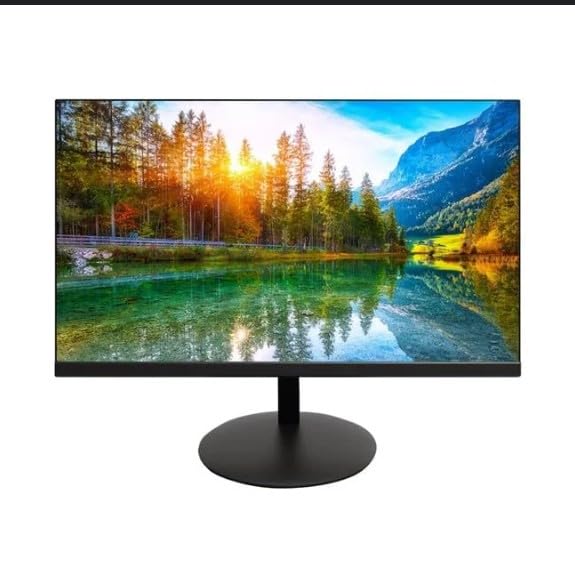
The image shows the Onn 22 inch FHD LED Monitor, highlighting its 100Hz refresh rate and 1080p resolution. The monitor features a slim design and a T-shaped base.
คำแนะนำการตั้งค่า
- การแกะกล่อง: Carefully remove the monitor and all accessories from the packaging. Ensure all components are present: monitor, T-shaped base, HDMI cable, and power adapter.
- การประกอบขาตั้ง: Attach the T-shaped base to the monitor. The design is screw-less for easy assembly. Ensure it is securely fastened.
- การเชื่อมต่อกับอุปกรณ์:
The monitor supports both HDMI and VGA inputs. Connect the provided HDMI cable from your computer's HDMI output to the HDMI IN port on the monitor. Alternatively, use a VGA cable for VGA input.

This image displays the rear panel of the Onn monitor, illustrating the available input ports: HDMI IN, VGA IN, and the DC 12V power input. These ports are essential for connecting the monitor to a computer or other devices.
- การเชื่อมต่อไฟฟ้า: Connect the power adapter to the DC 12V input port on the monitor, then plug the adapter into a power outlet.
- การปรับจอภาพ: The monitor is capable of swivel, tilt, rotation, and height adjustment. Adjust the screen to your preferred viewมุมเพื่อความสะดวกสบายตามหลักสรีรศาสตร์
- การตั้งค่าจอภาพคู่: This monitor is suitable for a fully functioning dual monitor setup. Connect a second monitor using the appropriate cables and configure your operating system's display settings.
คำแนะนำการใช้งาน
- เปิด/ปิดเครื่อง: Press the power button, usually located on the bottom or back of the monitor, to turn it on or off.
- การเลือกอินพุต: If the monitor does not automatically detect the input source, use the On-Screen Display (OSD) menu buttons to manually select between HDMI and VGA inputs.
- การนำทางเมนู OSD: Use the physical buttons on the monitor (typically on the back or bottom edge) to navigate the OSD menu. This allows you to adjust settings such as brightness, contrast, color temperature, and input source.
- ความละเอียดและอัตราการรีเฟรช: The monitor supports a native resolution of 1920x1080 at a 100Hz refresh rate. Ensure your computer's display settings are configured to these specifications for the best visual experience.
- การซิงโครไนซ์แบบปรับได้: The monitor features Adaptive Sync for gaming, which helps to reduce screen tearing and stuttering. Ensure this feature is enabled in your graphics card settings if supported.
การซ่อมบำรุง
- การทำความสะอาดหน้าจอ: เช็ดหน้าจอเบาๆ ด้วยผ้านุ่มที่ไม่เป็นขุย สำหรับรอยฝังแน่น ให้เช็ดเบาๆampen the cloth with water or a non-abrasive, monitor-specific cleaning solution. Avoid spraying liquids directly onto the screen.
- การทำความสะอาด Casing: ใช้ผ้าแห้งนุ่มๆ เช็ดทำความสะอาดจอภาพasing. Do not use strong detergents or solvents, as they may damage the finish.
- การระบายอากาศ : ตรวจสอบให้แน่ใจว่าช่องระบายอากาศของจอภาพไม่ได้ถูกปิดกั้นเพื่อป้องกันความร้อนสูงเกินไป
- พื้นที่จัดเก็บ: เมื่อไม่ได้ใช้งานเป็นเวลานาน ควรเก็บจอภาพไว้ในที่แห้งและเย็น หลีกเลี่ยงแสงแดดโดยตรงและอุณหภูมิที่สูงหรือต่ำเกินไป
การแก้ไขปัญหา
- ไม่มีไฟฟ้า:
- ตรวจสอบว่าสายไฟเชื่อมต่ออย่างแน่นหนากับทั้งจอภาพและเต้ารับไฟฟ้า
- ตรวจสอบว่าเต้ารับไฟฟ้าทำงานอย่างถูกต้อง
- ไม่มีสัญญาณ:
- Ensure the video cable (HDMI or VGA) is firmly connected to both the monitor and the computer.
- เลือกแหล่งสัญญาณอินพุตที่ถูกต้องโดยใช้เมนู OSD ของจอภาพ
- ตรวจสอบว่าคอมพิวเตอร์ของคุณเปิดอยู่และไม่ได้อยู่ในโหมดสลีป
- หน้าจอกะพริบหรือคุณภาพของภาพไม่ดี:
- ตรวจสอบสายวิดีโอว่าชำรุดหรือมีการเชื่อมต่อหลวมหรือไม่
- Adjust the resolution and refresh rate settings on your computer to match the monitor's specifications (1920x1080, 100Hz).
- รีเซ็ตการตั้งค่าจอภาพเป็นค่าเริ่มต้นจากโรงงานผ่านเมนู OSD
- ปุ่มไม่ตอบสนอง:
- Unplug the monitor from the power outlet, wait for 30 seconds, and then plug it back in.
If problems persist, please refer to the support information provided in the "Support and Warranty" section.
ข้อมูลจำเพาะ
| ยี่ห้อ | ออนน์ |
| หมายเลขรุ่น | 100140681 |
| ชื่อรุ่น | อ็อตโต้ |
| ขนาดหน้าจอ | 21.5 นิ้ว |
| ประเภทจอภาพ | LED, LCD |
| ปณิธาน | 1920 x 1080 (FHD 1080p) |
| อัตราการรีเฟรช | 100 เฮิรตซ์ |
| เวลาตอบสนอง | 6.5 มิลลิวินาที |
| ฮาร์ดแวร์อินเตอร์เฟซ | hdmi, vga |
| คุณสมบัติพิเศษ | การปรับความสูง |
| Viewอิงแองเกิล | 160 องศา |
| อัตราส่วนภาพ | 16:9 น. |
| ขนาดสินค้า | 49.2 x 20 x 37.2 ซม. ; 3.24 กก. |
การสนับสนุนและการรับประกัน
For technical support, product inquiries, or warranty information, please visit the official Onn support webเว็บไซต์หรือติดต่อฝ่ายบริการลูกค้าของพวกเขา
- การสนับสนุนอย่างเป็นทางการ Webเว็บไซต์: onnsupport.ca
- การรับประกัน: Specific warranty details may vary by region and purchase date. Please refer to the documentation included with your product or visit the support webเว็บไซต์สำหรับข้อมูลการรับประกันล่าสุด