
การแนะนำ
This manual provides detailed instructions for the ACASIS USB C Docking Station, Model B0DSBLFVH6. This device expands your laptop's connectivity, offering multiple display outputs, high-speed data transfer, power delivery, and network access through a single USB-C connection. Please read this manual thoroughly before use to ensure proper setup and operation.

Image: The ACASIS USB C Docking Station shown with its various connection cables and peripherals, highlighting its comprehensive connectivity options.
เนื้อหาแพ็คเกจ
- ACASIS USB C Docking Station
- สาย USB-C ถึง USB-C (สำหรับเชื่อมต่อกับโฮสต์)
- คู่มือการใช้งาน
สินค้าเกินview
The ACASIS USB C Docking Station features 14 ports designed to enhance your workstation's capabilities.

Image: A detailed diagram illustrating all 14 ports of the ACASIS USB C Docking Station, including their types and specifications.
คำอธิบายพอร์ต:
- พอร์ต HDMI 2.0 จำนวน 2 ช่อง: Supports up to 4K@60Hz resolution on a single display.
- พอร์ต VGA 1 ช่อง: Supports up to 1080P@60Hz resolution.
- 3 x USB-C 3.1 Ports: ความเร็วในการถ่ายโอนข้อมูล 10Gbps
- 1 x USB-A 3.1 Port: ความเร็วในการถ่ายโอนข้อมูล 10Gbps
- พอร์ต USB 2.0 2 พอร์ต: 480Mbps data transfer speed, suitable for peripherals like keyboards and mice.
- 1 x RJ45 Ethernet Port: 1000Mbps (1 Gigabit) network connectivity.
- 1 x เครื่องอ่านการ์ด SD: Supports SD 3.0, up to 104MB/s.
- 1 x เครื่องอ่านการ์ด TF: Supports TF 3.0, up to 104MB/s.
- 1 x 3.5mm Audio Out/Mic In Port: For wired headsets or speakers.
- 1 x USB-C PD 100W Port: For power delivery to the host laptop.

ภาพ: ระยะใกล้ view of the docking station highlighting the 10Gbps USB-C and USB-A ports for ultra-fast data transfer.

Image: The docking station connected to a laptop, illustrating its 100W Power Delivery capability for fast charging.

Image: The docking station displaying its integrated SD and TF card readers, capable of 104MB/s data transfer.
คู่มือการติดตั้ง
การเชื่อมต่อสถานีเชื่อมต่อ:
- Connect your external monitors to the docking station's HDMI and/or VGA ports using appropriate cables.
- Connect any USB peripherals (keyboard, mouse, external drives) to the available USB-A or USB-C data ports on the docking station.
- For network access, connect an Ethernet cable from your router/modem to the RJ45 port on the docking station.
- If you wish to charge your laptop via the docking station, connect your laptop's power adapter to the PD 100W USB-C port on the docking station.
- Connect the provided USB-C to USB-C cable from the docking station's host port to your laptop's USB-C/Thunderbolt 3/4 port.
การติดตั้งไดร์เวอร์:
The ACASIS USB C Docking Station is generally plug-and-play. No specific drivers are typically required for basic functionality on most operating systems. If you encounter issues, ensure your laptop's USB-C/Thunderbolt drivers are up to date.
คำแนะนำการใช้งาน
Display Configuration (Windows):
The docking station supports MST (Multi-Stream Transport) on Windows systems, allowing for extended and mirrored display modes across multiple monitors.
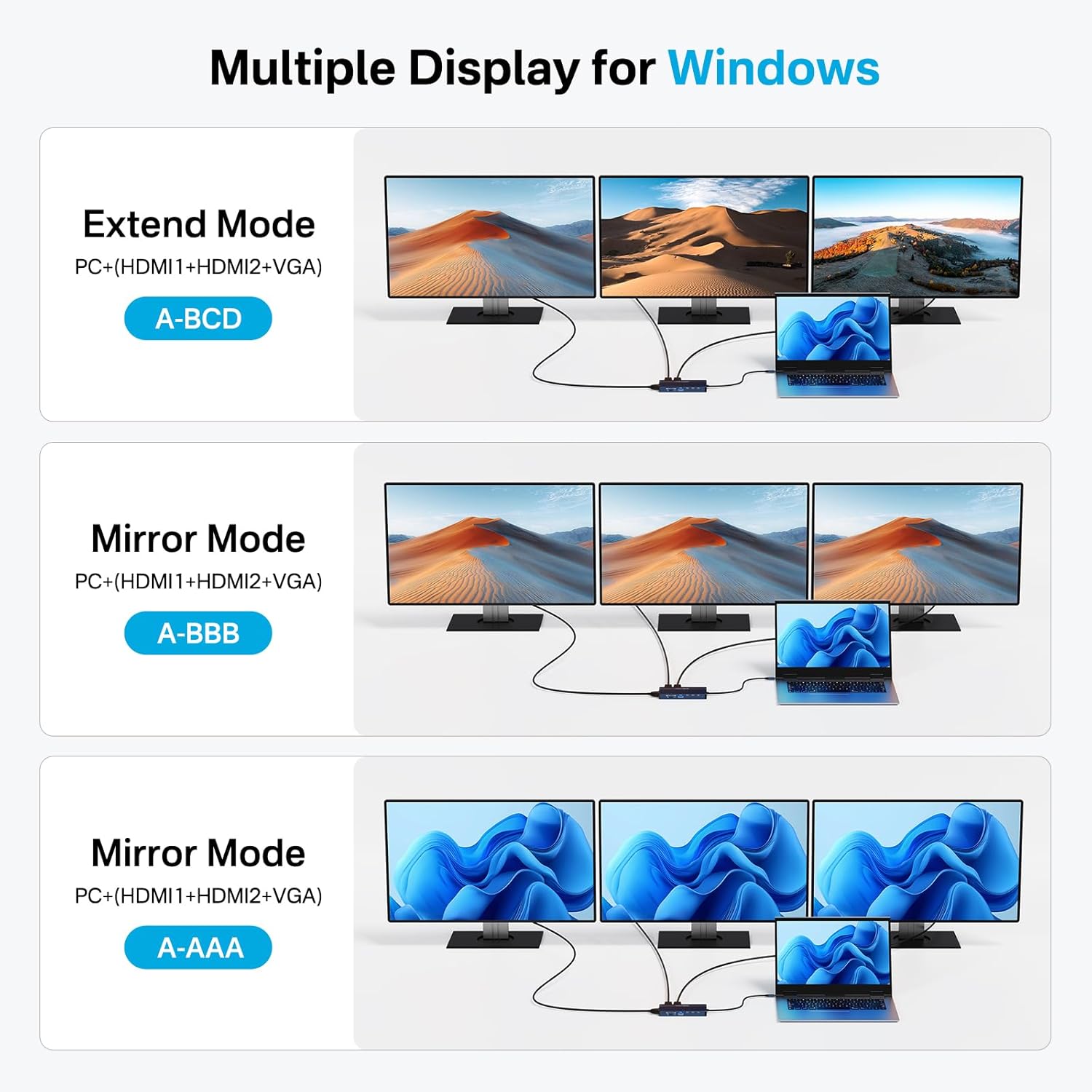
ภาพ: ภาพตัวอย่างamples of Extend Mode (A-BCD) and Mirror Mode (A-BBB, A-AAA) display configurations for Windows operating systems.
- Right-click on your desktop and select 'Display settings'.
- Under 'Multiple displays', you can detect and arrange your monitors.
- Choose your preferred display mode:
- ขยายจอแสดงผลเหล่านี้: Each monitor shows a different desktop area.
- ทำซ้ำการแสดงผลเหล่านี้: จอภาพทุกจอแสดงเนื้อหาเดียวกัน
- Show only on 1/2/3: Only one selected monitor is active.
- Adjust resolution and orientation for each monitor as needed.
Display Configuration (macOS):
macOS systems support SST (Single-Stream Transport) for external displays. This means that while you can connect multiple monitors, they will typically mirror each other or extend from the primary display, but true MST (independent extended displays) is not supported.
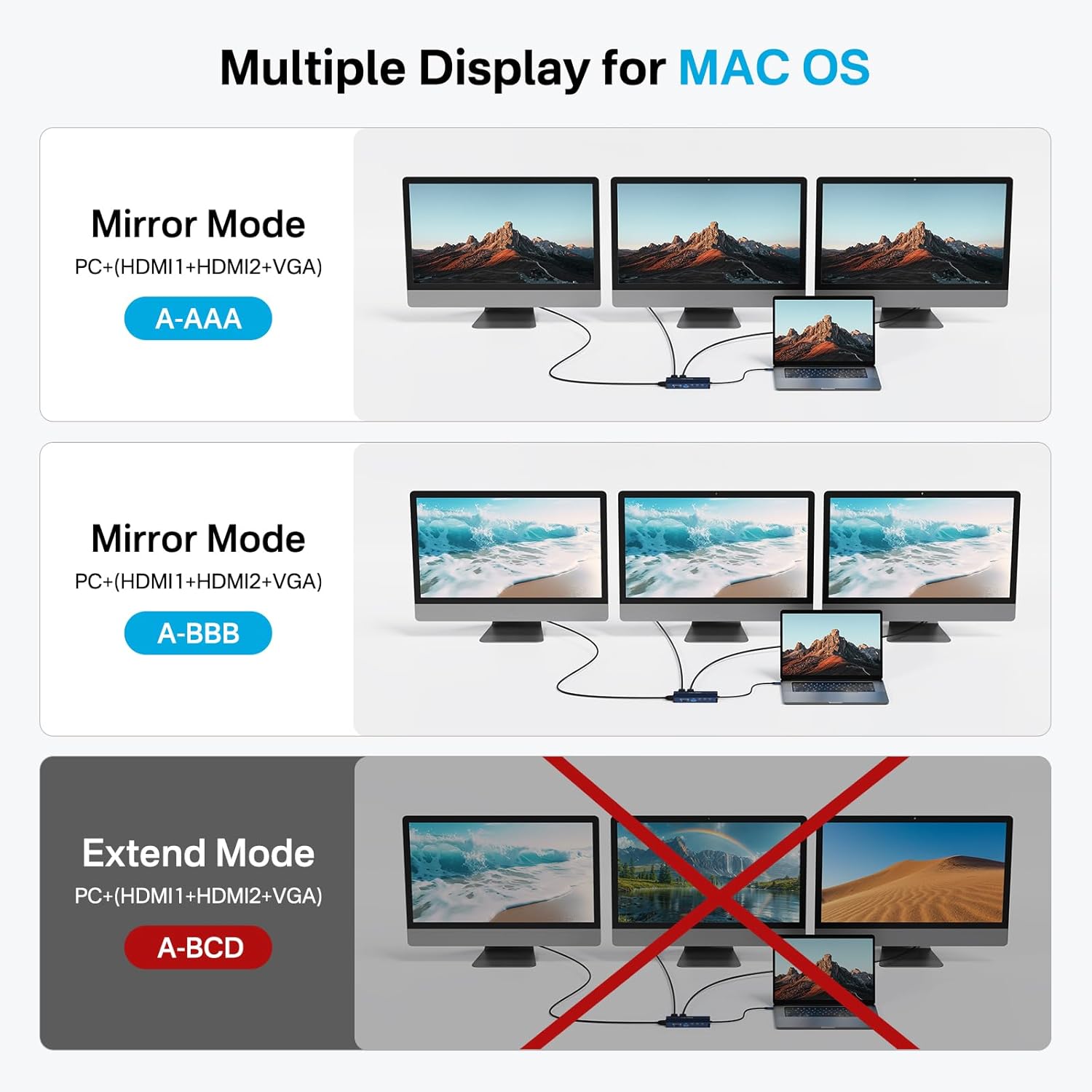
ภาพ: ภาพตัวอย่างamples of Mirror Mode (A-AAA, A-BBB) for macOS, with a crossed-out Extend Mode (A-BCD) indicating it is not supported.
- Go to 'System Settings' (or 'System Preferences' on older macOS versions).
- Select 'Displays'.
- You can arrange your displays and choose between 'Mirror Displays' or 'Use as separate display' (which extends the desktop). Note that extending to multiple external monitors will result in mirrored content across those external monitors.

Image: A laptop connected to three external monitors (VGA, HDMI 2, HDMI 1) through the docking station, demonstrating a triple display setup.
ข้อมูลจำเพาะ
| คุณสมบัติ | ข้อมูลจำเพาะ |
|---|---|
| แบบอย่าง | B0DSBLFVH6 |
| ขนาดสินค้า | 1 x 1 x 1 นิ้ว |
| น้ำหนักสินค้า | 1 ออนซ์ |
| ผู้ผลิต | อคาซิส |
| สี | เงิน |
| ฮาร์ดแวร์อินเตอร์เฟซ | USB ประเภท C |
| อุปกรณ์ที่รองรับ | แล็ปท็อป |
| พอร์ต USB รวม | 6 (3x USB-C 3.1, 1x USB-A 3.1, 2x USB 2.0) |
| จำนวนพอร์ต | 14 |
| พอร์ต HDMI ทั้งหมด | 2 |
| พอร์ต VGA | 1 |
| วัดtagอี (พีดี) | 100วัตต์ |
| อีเธอร์เน็ต | 1 กิกะบิต |
| เครื่องอ่านการ์ด | การ์ด SD/TF (104MB/วินาที) |
| พอร์ตเสียง | ไมโครโฟน/เสียง 3.5 มม. |
การแก้ไขปัญหา
ไม่มีการแสดงผล:
- Ensure all display cables (HDMI, VGA) are securely connected to both the docking station and the monitors.
- Verify that the docking station is properly connected to your laptop's USB-C port.
- Check your laptop's display settings to ensure the external monitors are detected and configured correctly (Extend/Duplicate).
- ลองรีสตาร์ทแล็ปท็อปของคุณดู
- ตรวจสอบให้แน่ใจว่าพอร์ต USB-C ของแล็ปท็อปของคุณรองรับการส่งสัญญาณวิดีโอ (DisplayPort Alternate Mode)
การชาร์จไม่ทำงาน:
- Confirm your laptop's power adapter is connected to the PD 100W port on the docking station.
- ตรวจสอบให้แน่ใจว่าพอร์ต USB-C ของแล็ปท็อปของคุณรองรับ Power Delivery
- ตรวจสอบว่าอะแดปเตอร์ไฟฟ้าทำงานถูกต้องหรือไม่
อุปกรณ์ USB ไม่ได้รับการรู้จัก:
- เชื่อมต่ออุปกรณ์ USB อีกครั้งกับพอร์ตอื่นบนแท่นวาง
- Ensure the docking station is firmly connected to your laptop.
- ทดสอบอุปกรณ์ USB โดยเชื่อมต่อเข้ากับแล็ปท็อปโดยตรง
ปัญหาการเชื่อมต่ออีเทอร์เน็ต:
- ตรวจสอบว่าสายเคเบิลอีเทอร์เน็ตเชื่อมต่อกับสถานีเชื่อมต่อและเราเตอร์/โมเด็มของคุณอย่างแน่นหนาแล้ว
- ตรวจสอบการตั้งค่าเครือข่ายบนแล็ปท็อปของคุณ
- ลองใช้สายเคเบิลอีเทอร์เน็ตอื่น
การซ่อมบำรุง
- Keep the docking station in a dry environment, away from extreme temperatures.
- เช็ดทำความสะอาดอุปกรณ์ด้วยผ้าแห้งเนื้อนุ่ม หลีกเลี่ยงการใช้น้ำยาทำความสะอาดหรือสารละลาย
- Do not attempt to disassemble the docking station.
การรับประกันและการสนับสนุน
ACASIS products typically come with a standard manufacturer's warranty. For specific warranty details, technical support, or service inquiries, please refer to the warranty card included with your product or visit the official ACASIS webเว็บไซต์.
คุณยังสามารถเยี่ยมชม ACASIS Store on Amazon สำหรับข้อมูลผลิตภัณฑ์เพิ่มเติมและทรัพยากรสนับสนุน