
1. บทนำ
Thank you for choosing the ORIA Kids Alarm Clock Model 8825. This device is designed to assist with sleep training for children, featuring an 'OK to Wake' function, customizable RGB night lights, dual alarms, and various adjustable settings for brightness and volume. Please read this manual carefully to ensure proper use and to fully utilize all features.

ภาพ: ด้านหน้า view of the ORIA Kids Alarm Clock displaying time and colorful ambient light.
2. สินค้าหมดview
Familiarize yourself with the clock's buttons and display icons.

Image: Diagram showing the control buttons and display indicators on the ORIA Kids Alarm Clock.
- ตั้งเวลา: กดค้างไว้เพื่อเข้าสู่โหมดตั้งเวลา
- SUN/MOON ON/OFF: Activates/deactivates the sleep reminder and wake-up light function.
- TUNES: Short press to cycle through music tracks. Long press to activate/deactivate child lock.
- การแสดงผล: ปรับความสว่างหน้าจอ
- ขึ้น (+): Increases values, adjusts ambient light brightness.
- ลง (-): Decreases values, adjusts ring level.
- Alarm 1/Alarm 2 Icons: Indicate active alarms.
- ไอคอนล็อคป้องกันเด็ก: Indicates child lock is active.
- Sun/Moon Icon: Indicates sleep/wake light function is active.
3. การตั้งค่า
3.1 การเชื่อมต่อสายไฟ
The ORIA Kids Alarm Clock operates via a Type-C charging cable (included). Connect the cable to the clock and plug the other end into a suitable USB power adapter (not included). The clock must be plugged in for full functionality.
A button battery (not included) can be installed to retain time settings during power outages, but it will not power the screen or other functions.
3.2 การตั้งเวลา
- กดค้างไว้ ตั้งเวลา button until the digits on the display start flashing.
- ใช้ ขึ้น (+) or ลง (-) ปุ่มเพื่อปรับค่า
- การพิมพ์แบบสั้น ตั้งเวลา to move to the next setting. The setting order is: 12/24H format > Year > Month > Day > Hour > Minute.
- เมื่อตั้งค่าเสร็จเรียบร้อยแล้ว ให้กดปุ่ม ตั้งเวลา again to exit, or wait a few seconds for it to exit automatically.

Image: Visual guide for setting the time, date, and 12/24H format.
4. คู่มือการใช้งาน
4.1 Sleep Reminder & Wake-up Function (OK to Wake)
This function uses light cues to help children understand when it's time to sleep and wake up.
- กดปุ่ม SUN/MOON ON/OFF button to activate this feature. The Sun/Moon icon will appear on the display.
- ก่อนนอน: At the set sleep time, the ambient light will turn red (default) and automatically turn off after one hour, signaling bedtime.
- Pre-Wake: 20 minutes before the set alarm time, the ambient light will turn yellow (default).
- ตื่นนอน: When the alarm sounds, the ambient light will turn green (fixed color), indicating it's time to wake up.
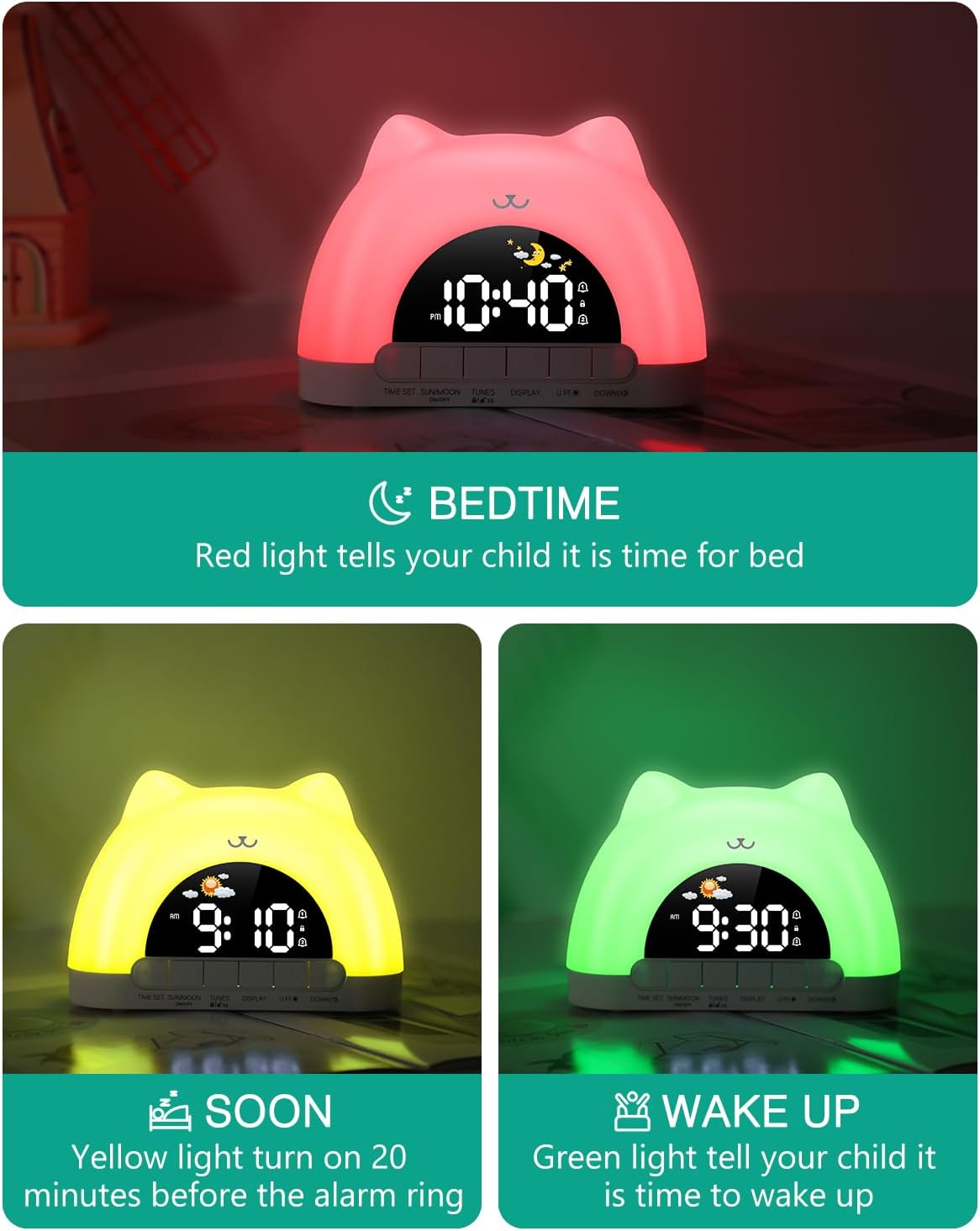
Image: Visual representation of the sleep reminder and wake-up light sequence.
4.2 ฟังก์ชันไฟกลางคืน
The clock features an ambient night light with multiple color and brightness options.
- การเปิดใช้งาน: In time display mode, simply touch the top of the clock to turn on the ambient light.
- โหมดสี: The clock offers 11 color modes, including 7 solid colors (White, Red, Yellow, Green, Cyan, Blue, Purple) and 4 dynamic RGB changing modes.
- การปรับความสว่าง: The ambient light has 3 brightness levels (high, medium, low). Use the ขึ้น (+) or ลง (-) ปุ่มเพื่อปรับ
- การปิด: To turn off the ambient light, press and hold the top of the product for 3 seconds.
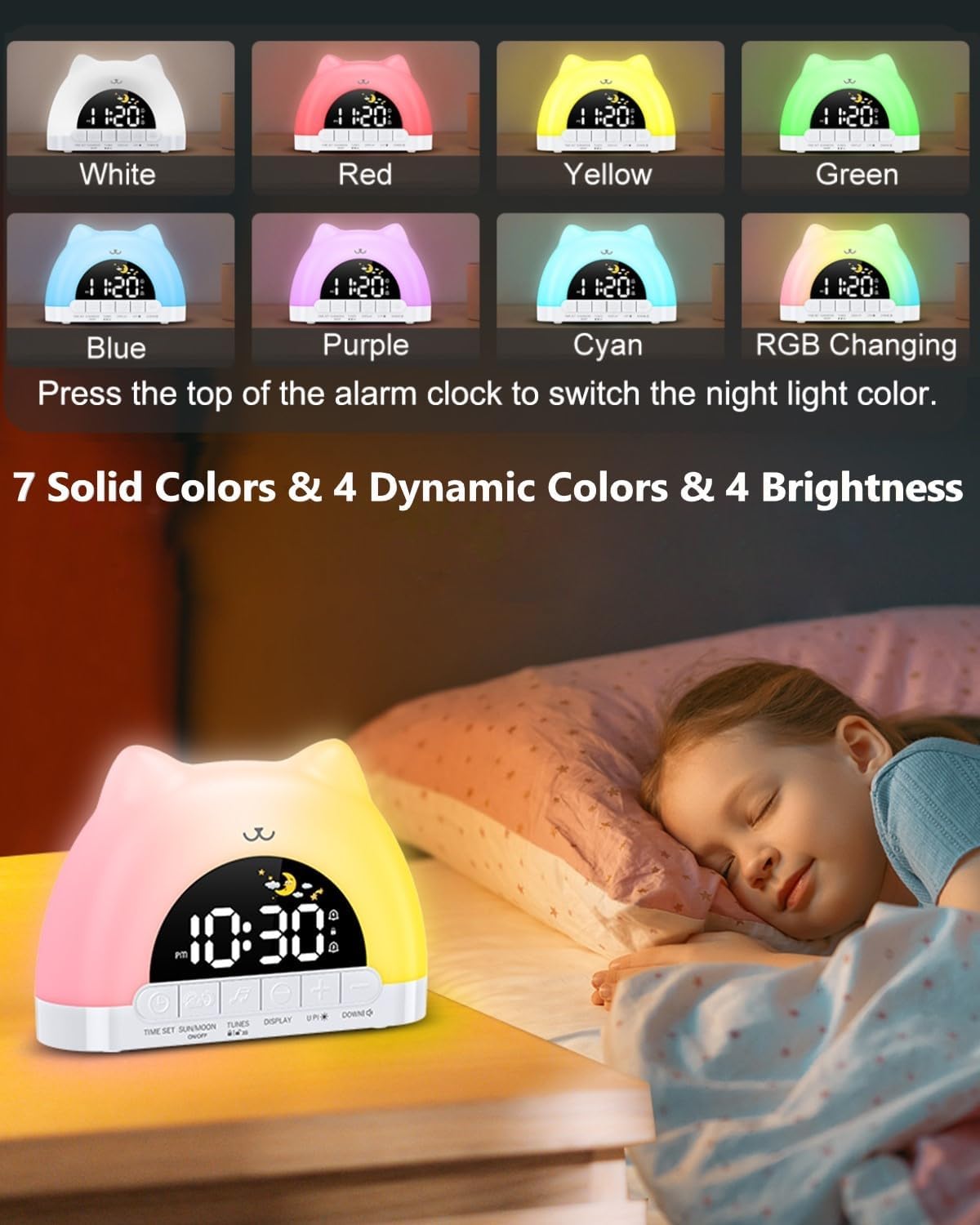
ภาพ: อดีตamples of the 11 available night light colors.
Video: Demonstration of the smart clock's night light and dual alarm features.
4.3 การตั้งค่าสัญญาณเตือน (สัญญาณเตือนคู่)
The clock supports two independent alarms with customizable settings.
- เปิดใช้งานการเตือน: กดสั้น ๆ ตั้งเวลา button to turn on/off Alarm 1 or Alarm 2. The corresponding alarm icon will appear/disappear on the screen.
- ตั้งเวลาปลุก: กดค้างไว้ ตั้งเวลา กดปุ่มเพื่อเข้าสู่โหมดตั้งค่านาฬิกาปลุก ตัวเลขชั่วโมงจะกะพริบ
- ใช้ ขึ้น (+) or ลง (-) กดปุ่มเพื่อปรับเวลา จากนั้นกดสั้นๆ ตั้งเวลา เพื่อเลื่อนเป็นนาที
- Weekday Alarm Settings: After setting the time, you can choose from 4 weekday alarm settings: Single day (1-1), Monday to Friday (1-5), Monday to Sunday (1-7), and Saturday to Sunday (6-7).
- Wake-up Sounds: Select from 12 different wake-up sounds.
- ระดับเสียง: Adjust the alarm volume with 4 levels using the ลง (-) ปุ่ม.
- ฟังก์ชั่นเลื่อน: When an alarm sounds, press the top of the clock to activate a 5-minute snooze.

Image: Display showing dual alarm settings and the snooze feature.

Image: Visual guide to selecting from 12 wake-up sounds and 4 volume levels.
4.4 ฟังก์ชั่นล็อคป้องกันเด็ก
The child lock prevents accidental changes to important settings.
- การเปิดใช้งาน/ปิดใช้งาน: กดค้างไว้ TUNES button to turn the child lock on or off. A lock icon will appear on the display when active.
- Locked Buttons: When child lock is on, all buttons except the snooze button are locked.
- Allowed Functions: Children can still control the snooze button, switch between 10 music tracks, and adjust the ambient light color.

Image: The child lock function in use, showing the lock icon on the display.
4.5 ความสว่างของจอภาพ
ปรับความสว่างหน้าจอตามความต้องการของคุณ
- The display has 5 brightness levels. Press the แสดง กดปุ่มเพื่อสลับดูตัวเลือกต่างๆ
- The final brightness level turns off the screen for a resting state.
- Night Brightness Function: The clock features automatic brightness adjustment at night for optimal viewการไอเอ็นจี

Image: Illustration of the 5-level screen brightness and automatic night brightness adjustment.
4.6 การเล่นเพลง
Enjoy 10 different music tracks for relaxation or as part of the sleep routine.
- กดสั้น ๆ TUNES button to cycle through the 10 available music tracks.
- ปรับระดับเสียงโดยใช้ปุ่ม ลง (-) ปุ่ม.

Image: The clock displaying its music enjoyment feature.
พอร์ตเอาท์พุต USB 4.7 ช่อง
The built-in USB output port allows you to charge other small electronic devices.
- Locate the USB output port on the back of the clock.
- Connect your device's charging cable to this port to begin charging.

Image: The clock featuring both Type-C input and a standard USB output port for charging.
5. การบำรุงรักษา
To ensure the longevity and optimal performance of your ORIA Kids Alarm Clock, follow these maintenance guidelines:
- การทำความสะอาด: Wipe the clock with a soft, dry cloth. Do not use abrasive cleaners, solvents, or strong chemicals, as these may damage the surface.
- การจัดวาง: Place the clock on a stable, flat surface away from direct sunlight, excessive heat, and moisture.
- หลีกเลี่ยงน้ำ: อุปกรณ์นี้ไม่กันน้ำ โปรดหลีกเลี่ยงการสัมผัสกับน้ำหรือของเหลวอื่นๆ
- จัดการด้วยความระมัดระวัง: ควรหลีกเลี่ยงการทำนาฬิกาตกหรือกระแทกอย่างแรง
6 การแก้ไขปัญหา
If you encounter any issues with your ORIA Kids Alarm Clock, please refer to the following common problems and solutions:
- อุปกรณ์ไม่เปิด:
Ensure the Type-C charging cable is securely connected to both the clock and a working USB power adapter. Verify the power outlet is functional. - Alarm Not Sounding/Inconsistent:
Check that the alarm is activated (Alarm 1 or Alarm 2 icon visible). Verify the alarm time and weekday settings are correct. Ensure the volume level is not set to zero. If the ambient light function is active, ensure it is not interfering with the alarm's operation; try deactivating the ambient light temporarily to test the alarm. - Difficulty Setting Time/Alarms:
Refer to Section 3.2 (Time Setting) and Section 4.3 (Alarm Settings) for detailed, step-by-step instructions. Ensure you long-press the TIME SET button to enter setting mode and short-press to confirm each step. - Ambient Light Not Turning Off:
To turn off the ambient light, press and hold the top of the product for 3 seconds. If the sleep reminder function is active, the light will turn off automatically after one hour at bedtime. - ปุ่มไม่ตอบสนอง:
Check if the Child Lock function is active (lock icon on display). If so, long-press the TUNES button to deactivate it. Only the snooze button, music selection, and ambient light color adjustment are available when child lock is on.
7. ข้อมูลจำเพาะ
| ยี่ห้อ | ออเรีย |
| หมายเลขรุ่น | 8825 |
| ประเภทจอภาพ | นำ |
| แหล่งพลังงาน | สายไฟ (USB-C) |
| ขนาดสินค้า | กว้าง 6.63 นิ้ว x สูง 4.1 นิ้ว |
| วัสดุ | พลาสติก |
| คุณสมบัติพิเศษ | Adjustable Brightness, Adjustable Volume, OK to Wake, RGB Night Lights, Snooze, Dual Alarms, Child Lock, Music Playback, USB Output Port |
| ประเภทห้อง | Bedroom, Kid's Room |
8. การรับประกันและการสนับสนุน
ORIA is committed to providing high-quality products and excellent customer service.
- รับประกัน 1 ปี: Your ORIA Kids Alarm Clock is covered by a 1-year warranty from the date of purchase.
- 90-Day Free Replacements: Enjoy free replacements for eligible issues within 90 days of purchase.
- การคืนสินค้าฟรีภายใน 30 วัน: You may return the product for free within 30 days of purchase.
- ฝ่ายสนับสนุนลูกค้าตลอด 24 ชม.: Our customer support team is available 24 hours a day, 7 days a week to assist you.
- การสนับสนุนทางเทคนิคตลอดอายุการใช้งาน: Receive lifetime technical support for your ORIA product.
For further assistance, please contact ORIA customer service through your purchase platform or visit the official ORIA webเว็บไซต์.