
AOC 27G42E
คู่มือผู้ใช้จอภาพเกมมิ่ง AOC 27G42E
Model: 27G42E
1. บทนำ
This user manual provides detailed instructions for the setup, operation, maintenance, and troubleshooting of your AOC Gaming 27G42E Full HD 27-inch monitor. Designed for an immersive gaming experience, this monitor features a 180Hz refresh rate, 1ms GtG response time, Fast IPS panel, AdaptiveSync technology, and HDR10 support.
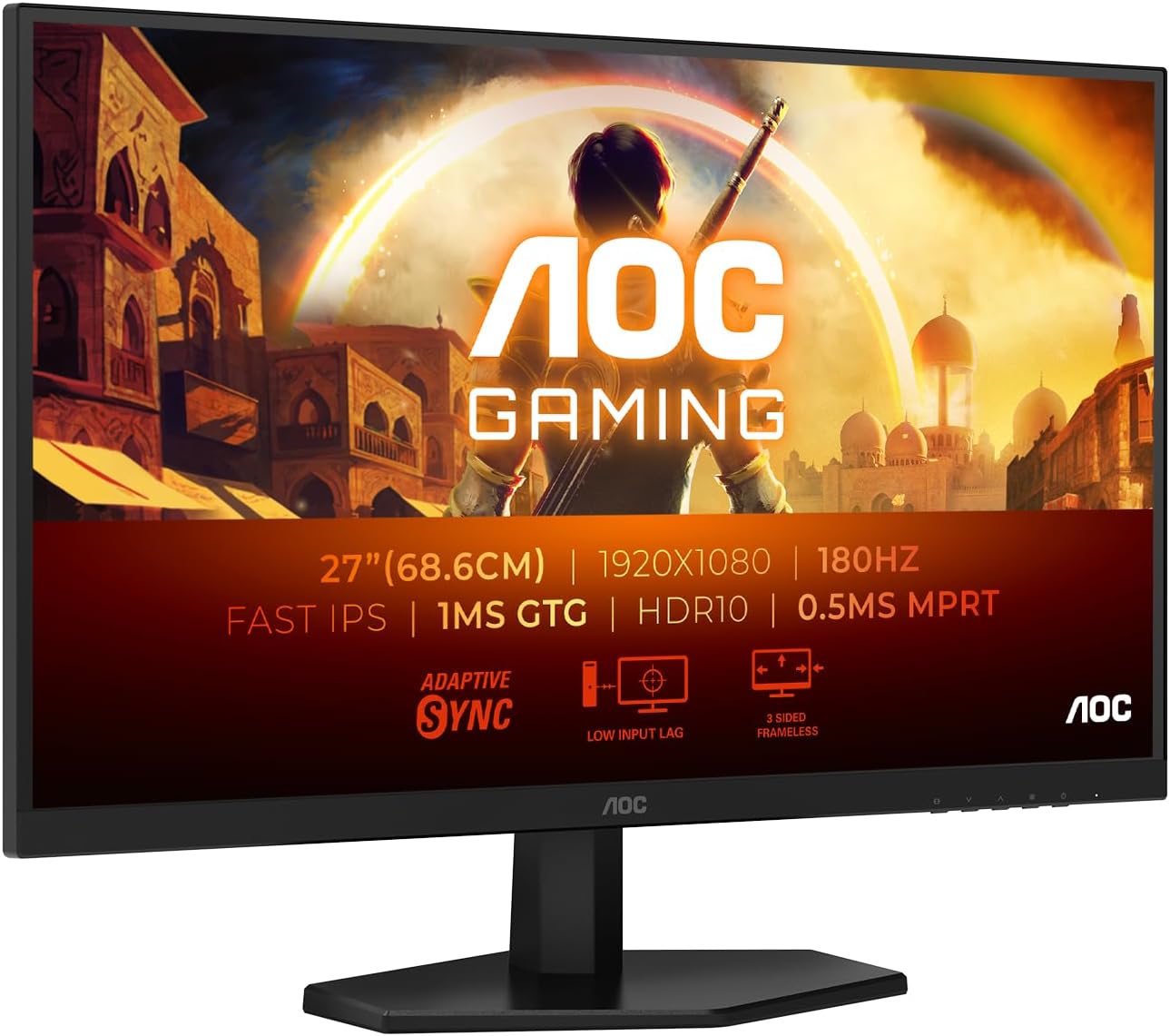
Figure 1.1: AOC Gaming 27G42E Monitor
The AOC Gaming 27G42E monitor is a 27-inch Full HD display, offering a 1920x1080 resolution, 180Hz refresh rate, and 1ms GtG response time for smooth and responsive visuals.
2. ข้อมูลด้านความปลอดภัย
โปรดอ่านคำแนะนำทั้งหมดอย่างละเอียดก่อนใช้งานจอภาพ เก็บคู่มือนี้ไว้เพื่อใช้อ้างอิงในอนาคต
- อย่าให้จอภาพโดนฝนหรือความชื้น
- อย่าเปิดจอภาพcasing; ไม่มีชิ้นส่วนใดที่ผู้ใช้สามารถซ่อมบำรุงเองได้ภายใน
- ใช้เฉพาะอะแดปเตอร์ไฟฟ้าที่ให้มาพร้อมกับจอภาพเท่านั้น
- ตรวจสอบให้แน่ใจว่ามีการระบายอากาศที่เหมาะสมรอบ ๆ จอภาพ
- เช็ดหน้าจอด้วยผ้าเนื้อนุ่มที่ไม่เป็นขุย หลีกเลี่ยงการใช้สารเคมีรุนแรง
3. เนื้อหาบรรจุภัณฑ์
ตรวจสอบว่ามีรายการทั้งหมดอยู่ในแพ็คเกจของคุณ:
- AOC Gaming 27G42E Monitor
- สายไฟ
- สาย HDMI
- สายเคเบิล DisplayPort
- ซีดีไดร์เวอร์
- บัตรรับประกัน
4. การตั้งค่า
4.1 การประกอบขาตั้ง
Carefully attach the monitor stand to the back of the display panel. Ensure it clicks securely into place or is fastened with the provided screws. For VESA mounting, remove the stand and attach a compatible 100x100mm VESA mount.

รูปที่ 4.1 : ด้านหน้า view of the monitor, showing the display and stand.
This image displays the front of the AOC Gaming 27G42E monitor with its attached stand, ready for use.

รูปที่ 4.2: ด้านหลัง view of the monitor, highlighting the VESA mount area and ports.
ด้านหลัง view of the AOC Gaming 27G42E monitor, showing the design and the central area for stand attachment or VESA mounting.
4.2 การเชื่อมต่อกับพีซี
Connect the monitor to your computer using either the HDMI or DisplayPort cable. For optimal performance, especially for 180Hz refresh rate, DisplayPort is recommended.
- การเชื่อมต่อ HDMI: Connect one end of the HDMI cable to the HDMI 2.0 port on the monitor and the other end to the HDMI port on your computer.
- การเชื่อมต่อดิสเพลย์พอร์ต: Connect one end of the DisplayPort cable to the DisplayPort 1.4 port on the monitor and the other end to the DisplayPort on your computer.

รูปที่ 4.3: พอร์ตการเชื่อมต่อจอภาพ
This diagram illustrates the available input ports on the AOC Gaming 27G42E monitor, including HDMI 1x2.0, DisplayPort, and Audio Out.
4.3 การเชื่อมต่อสายไฟ
Connect the power cable to the monitor's power input and then plug the other end into a power outlet.
5. การใช้งานจอภาพ
5.1 การเปิด/ปิดเครื่อง
กดปุ่มเปิด/ปิดที่อยู่บนจอภาพเพื่อเปิดหรือปิดเครื่อง ไฟแสดงสถานะจะสว่างขึ้นเมื่อจอภาพเปิดอยู่
5.2 การนำทางบนหน้าจอ (OSD)
The monitor features an On-Screen Display (OSD) menu for adjusting various settings. Use the buttons on the monitor's bezel to navigate through the menu options. Alternatively, you can use the AOC G-Menu software for desktop control.

Figure 5.1: AOC G-Menu Software Interface
The AOC G-Menu software allows for convenient adjustment of monitor settings directly from your desktop, including game modes and display preferences.
5.3 การตั้งค่าภาพ
Adjust brightness, contrast, color temperature, and other visual settings through the OSD menu to optimize your viewing experience. The monitor supports HDR10 for enhanced dynamic range.
5.4 คุณสมบัติการเล่นเกม
- อัตราการรีเฟรช (180Hz): Provides ultra-smooth motion for fast-paced games. Ensure your graphics card and connection support this refresh rate.
- เวลาตอบสนอง (1ms GtG): Minimizes motion blur and ghosting for crisp visuals.
- อะแดปทีฟซิงค์: ซิงโครไนซ์อัตราการรีเฟรชของจอภาพกับอัตราเฟรมของ GPU ของคุณเพื่อขจัดปัญหาภาพฉีกขาดและกระตุก
- ความล่าช้าในการป้อนข้อมูลต่ำ: Reduces the delay between your input and the on-screen action, providing a more responsive gaming experience.
- โหมดเกม: Switch between pre-set modes for FPS, racing, or RTS games, or customize and save your own ideal settings.
- Flicker Free & Low Blue Mode: Technologies designed to reduce eye strain during extended use.

Figure 5.2: 1ms GtG Response Time
This image illustrates the benefit of a 1ms Gray-to-Gray (GtG) response time, showing significantly reduced motion blur compared to a 4ms response time.

Figure 5.3: Low Input Lag Advantage
This visual demonstrates the advantage of low input lag, showing a more immediate and precise response in gaming scenarios compared to higher input lag.
6. การบำรุงรักษา
6.1 การทำความสะอาดหน้าจอ
เช็ดหน้าจอเบาๆ ด้วยผ้านุ่มที่ไม่เป็นขุย สำหรับรอยฝังแน่น ให้...ampen the cloth slightly with water or a mild, non-abrasive screen cleaner. Never spray liquid directly onto the screen.
6.2 การดูแลทั่วไป
Keep the monitor away from direct sunlight, excessive heat, and humidity. Avoid placing heavy objects on the monitor or its cables. Disconnect the power cable before cleaning or moving the monitor.
7 การแก้ไขปัญหา
- ไม่มีจอแสดงผล: Ensure the power cable is securely connected and the monitor is turned on. Check that the video cable (HDMI/DisplayPort) is firmly connected to both the monitor and your computer. Verify the correct input source is selected in the OSD menu.
- หน้าจอกระพริบ: ตรวจสอบการเชื่อมต่อสายวิดีโอ ตรวจสอบว่าไดรเวอร์การ์ดแสดงผลของคุณเป็นเวอร์ชันล่าสุด ลองปรับอัตราการรีเฟรชในการตั้งค่าการแสดงผลของคอมพิวเตอร์
- ความละเอียด/อัตราการรีเฟรชไม่ถูกต้อง: Ensure your computer's display settings are configured to 1920x1080 resolution and 180Hz refresh rate. Update your graphics card drivers.
- No Audio from Headphone Out: Ensure the audio cable from your PC is connected to the monitor's audio input (if applicable, or ensure audio is routed via HDMI/DP) and that the volume is not muted on the monitor or PC.
8. ข้อมูลจำเพาะ
| คุณสมบัติ | ข้อมูลจำเพาะ |
|---|---|
| ยี่ห้อ | เอโอซี |
| หมายเลขรุ่น | 27G42E |
| ขนาดหน้าจอ | 27 นิ้ว |
| ปณิธาน | 1920 x 1080 (ฟูลเอชดี) |
| อัตราส่วนภาพ | 16:9 น. |
| ประเภทแผง | เกือบ IPS |
| อัตราการรีเฟรช | 180 เฮิรตซ์ |
| เวลาตอบสนอง | 1 มิลลิวินาที (GtG) |
| อัตราส่วนคอนทราสต์ | 1000:1 น. |
| ความสว่าง | 300 ซีดี/ตรม. |
| คำอธิบายพื้นผิว | แมทต์ |
| การเชื่อมต่อ | 1 x HDMI 2.0, 1 x DisplayPort 1.4, ช่องต่อสัญญาณเสียงออก |
| ความเข้ากันได้ของ VESA | 100 x 100 มม. |
| รองรับ HDR | HDR10 |
| การซิงค์แบบปรับตัว | ใช่ |
| การใช้พลังงาน (SDR) | 21.0 วัตต์ |
| การใช้พลังงาน (HDR) | 28.0 วัตต์ |
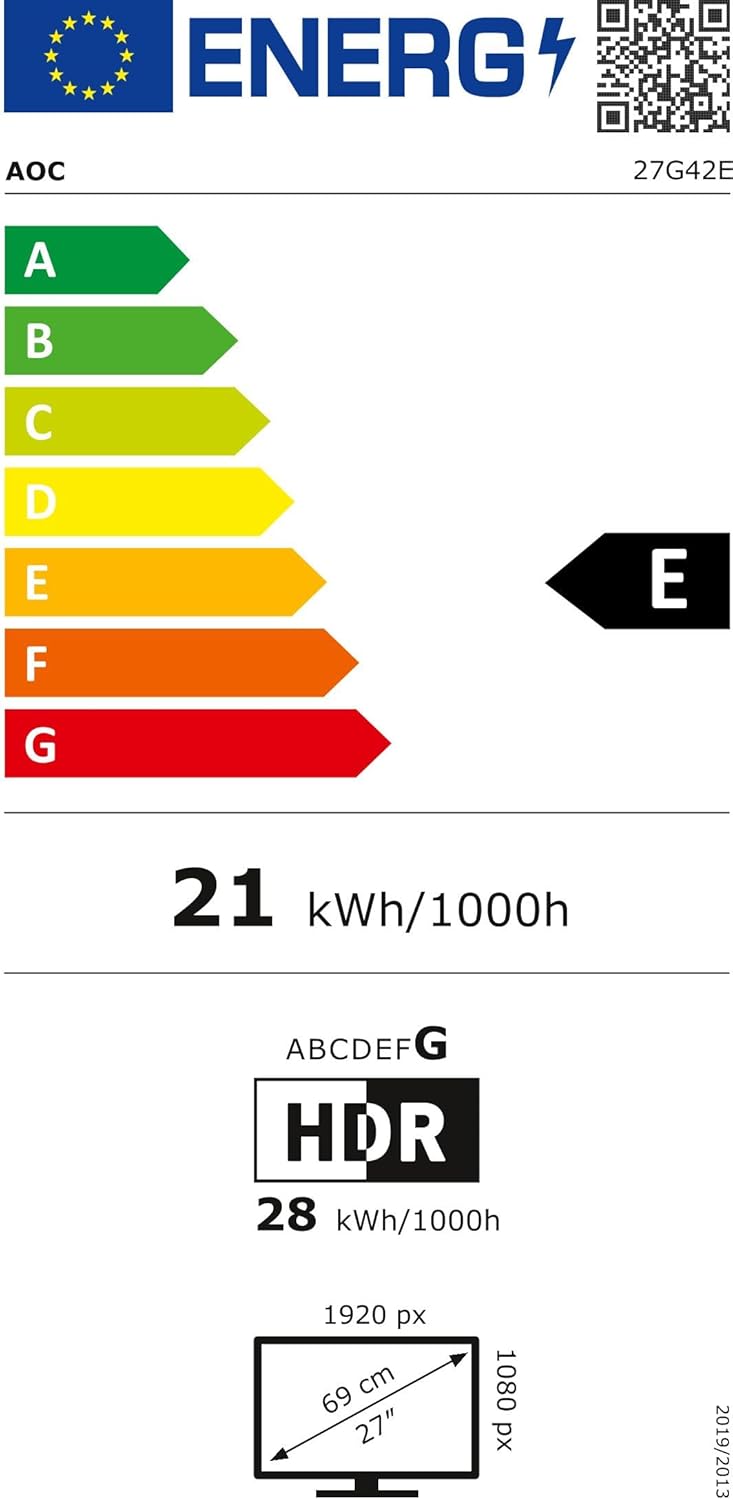
Figure 8.1: AOC Gaming 27G42E Energy Label
The energy label for the AOC Gaming 27G42E monitor, indicating its energy efficiency class and power consumption. More details can be found at https://eprel.ec.europa.eu/qr/2125815.
9. การรับประกันและการสนับสนุน
Your AOC Gaming 27G42E monitor comes with a general guarantee of 3 years. Additionally, minimum guaranteed product support is available for 8 years from the date of placement on the market.
สำหรับการขอรับการสนับสนุนทางเทคนิค การเรียกร้องการรับประกัน หรือความช่วยเหลือเพิ่มเติม โปรดเยี่ยมชมเว็บไซต์อย่างเป็นทางการของ AOC webไซต์หรือติดต่อฝ่ายบริการลูกค้า:
- ผู้ผลิต: AOC International
- Webเว็บไซต์: https://eu.aoc.com
Ask a question about this manual
Ask about setup, troubleshooting, compatibility, parts, safety, or missing instructions. Manuals+ will review the question and use this page’s manual context to help answer it.