
Acasis EC1401
ACASIS 2-in-1 Magnetic M.2 NVMe SSD Enclosure & USB-C Hub
รุ่น : EC1401
1. บทนำ
Thank you for choosing the ACASIS 2-in-1 Magnetic M.2 NVMe SSD Enclosure and USB-C Hub. This versatile device combines a high-speed M.2 NVMe SSD enclosure with a powerful 6-in-1 USB-C docking station, designed to enhance your productivity and storage capabilities. It is ideal for users of iPhone 15/16 Pro/Max/Plus, iPad Pro, MacBook Pro/Air, and other devices with a full-featured USB-C interface.
2. ข้อมูลด้านความปลอดภัย
- เก็บอุปกรณ์ให้ห่างจากน้ำ ความชื้น และอุณหภูมิที่สูงเกินไป
- หลีกเลี่ยงการทำอุปกรณ์หล่นหรือกระแทกอย่างรุนแรง
- ห้ามถอดประกอบหรือดัดแปลงอุปกรณ์ การดัดแปลงโดยไม่ได้รับอนุญาตอาจทำให้การรับประกันเป็นโมฆะและก่อให้เกิดความเสี่ยงด้านความปลอดภัย
- Ensure proper ventilation when in use, especially during extended operation, to maintain optimal performance and prevent overheating.
3. เนื้อหาบรรจุภัณฑ์
- ACASIS 2-in-1 Magnetic M.2 NVMe SSD Enclosure & USB-C Hub
- สาย USB-C ถึง USB-C
- Silicone Heat Dissipation Sticker
- คู่มือการใช้งาน
4. สินค้าหมดview
The ACASIS 2-in-1 device integrates an M.2 NVMe SSD enclosure with a comprehensive USB-C hub. It features multiple ports for connectivity and a magnetic design for easy attachment to compatible devices.
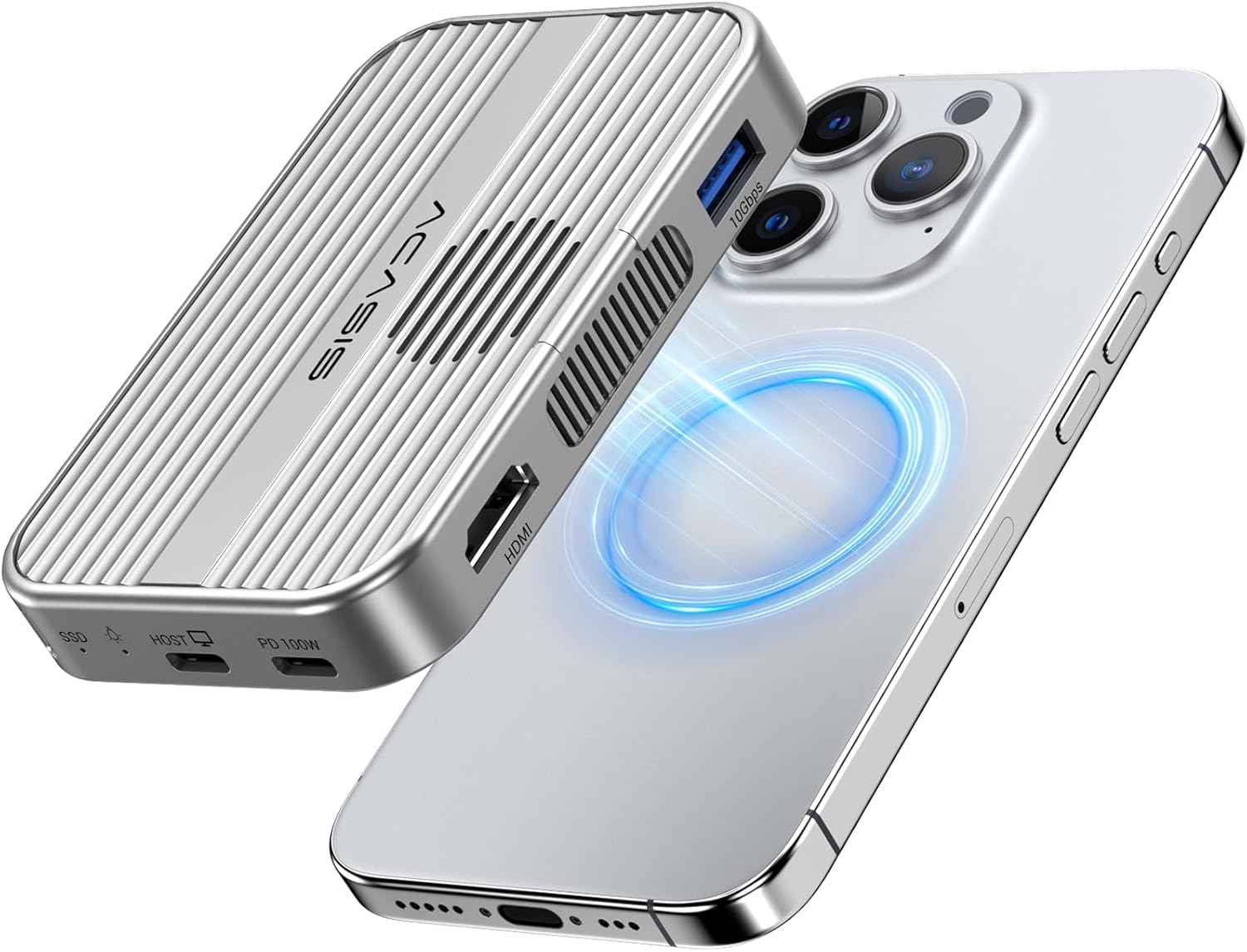
Image: The ACASIS 2-in-1 device showcasing its magnetic attachment to an iPhone, highlighting its compact design and connectivity options.

Image: Detailed diagram illustrating the 6-in-1 USB-C hub's various ports, including USB-A, SD/TF 3.0, USB-C, HDMI, PD, and Host connections.
ส่วนประกอบหลัก:
- M.2 NVMe SSD Slot: Supports 2230/2242/2260/2280 B+M Key and M-Key NVMe SSDs (up to 8TB).
- พอร์ตโฮสต์ USB-C: For connecting to your device (iPhone, iPad, laptop).
- พอร์ต USB-C PD: Supports Power Delivery up to 100W for pass-through charging.
- พอร์ต USB-A: การรับส่งข้อมูลความเร็ว 10 Gbps
- พอร์ต HDMI: รองรับการส่งออกวิดีโอ 4K@60Hz
- เครื่องอ่านการ์ด SD/TF: Supports SD3.0 and TF3.0 with speeds up to 104Mbps.
- พัดลมระบายความร้อน: Internal fan for efficient heat dissipation.
- โครงสร้างแม่เหล็ก: For secure attachment to MagSafe-compatible devices.
5. การตั้งค่า
5.1. Installing the M.2 NVMe SSD
The ACASIS enclosure features a tool-free magnetic design for easy SSD installation.
- Gently open the magnetic cover of the enclosure.
- Insert your M.2 NVMe SSD (2230/2242/2260/2280) into the slot, ensuring it is properly seated.
- Close the magnetic cover until it clicks into place.

Image: Visual guide demonstrating the simple, tool-less steps to install an M.2 NVMe SSD into the enclosure.
บันทึก: If you are using a new SSD, it must be formatted to exFAT format on your computer before connecting it to your phone or other devices for the first time.

Image: Diagram showing compatibility with various M.2 NVMe SSD sizes (2230, 2242, 2260, 2280) and key types (M Key, B+M Key).
5.2. การเชื่อมต่อกับอุปกรณ์ของคุณ
- Connect the provided USB-C cable from the ACASIS device's HOST port to your iPhone 15/16 Pro/Max/Plus, iPad Pro, MacBook Pro/Air, or other compatible laptop/tablet.
- For iPhone users, the magnetic structure allows for secure attachment to MagSafe-compatible phones or cases. If your phone case has magnetic suction, you can use the hard disk case directly.
- For optimal performance and to support SSDs larger than 1TB with your phone, connect a power source to the PD100W port on the ACASIS device.
6. คู่มือการใช้งาน
6.1. การถ่ายโอนข้อมูลความเร็วสูง
The enclosure supports 10Gbps data transfer speeds, allowing for rapid file transfers between your SSD and connected device.

Image: Illustration of the 10Gbps data transfer capability, showing fast data flow between the enclosure and a laptop.
6.2. 4K@60Hz HDMI Output
Connect an HDMI cable from the ACASIS device to an external monitor or TV to enjoy stunning 4K@60Hz clarity for presentations, movies, or extended desktop use.
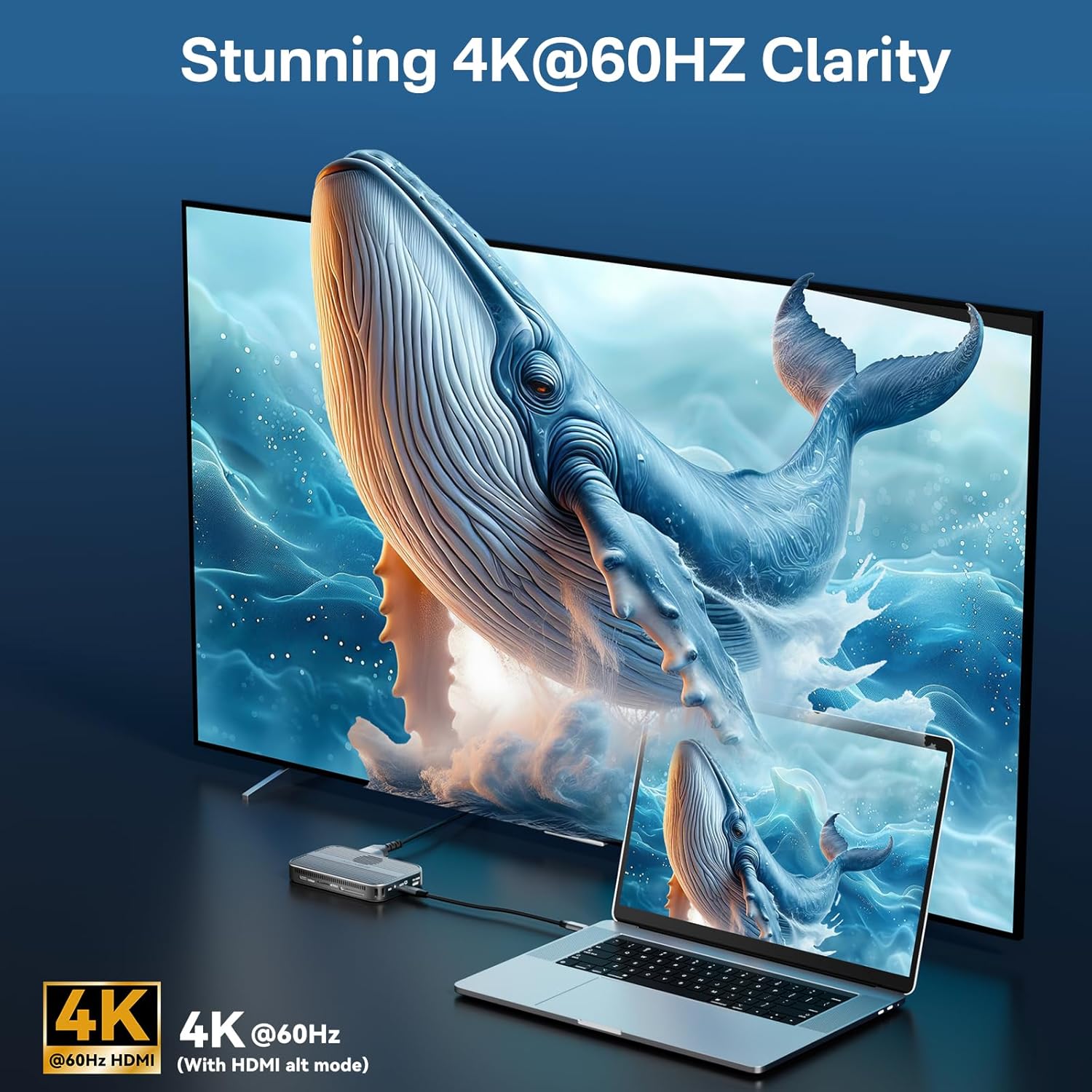
Image: A laptop connected to a large external display via the ACASIS hub, showcasing 4K@60Hz video output.
6.3. SD/TF Card Reader Functionality
Insert your SD or TF (microSD) cards into the respective slots to quickly access photos, videos, and other fileด้วยความเร็วสูงสุดถึง 104Mbps.

Image: Visual representation of the SD/TF card reader's read and write speeds, indicating its efficiency for media files.
6.4. ระบบจ่ายไฟ (PD100W)
The PD100W port allows you to charge your connected laptop or device while using the hub's other functions. Connect a USB-C power adapter to this port to provide up to 100W of power input, with up to 90W output to your host device.

Image: Diagram showing a laptop being charged via the ACASIS hub with 100W power input and 90W output.
6.5 การระบายความร้อนอย่างมีประสิทธิภาพ
The ACASIS device is designed with an internal cooling fan and an aluminum alloy casing to ensure optimal heat dissipation, maintaining stable performance even during intensive use. A silicone heat dissipation sticker is also included for enhanced thermal management.

ภาพ: ระเบิด view illustrating the internal cooling fan and the aluminum alloy structure contributing to efficient heat dissipation.
6.6. Magnetic Attachment for iPhone
The built-in magnetic structure allows for a secure and stable attachment to iPhone 15/16 Pro/Max/Plus models, especially useful for direct ProRes video recording to the external SSD.
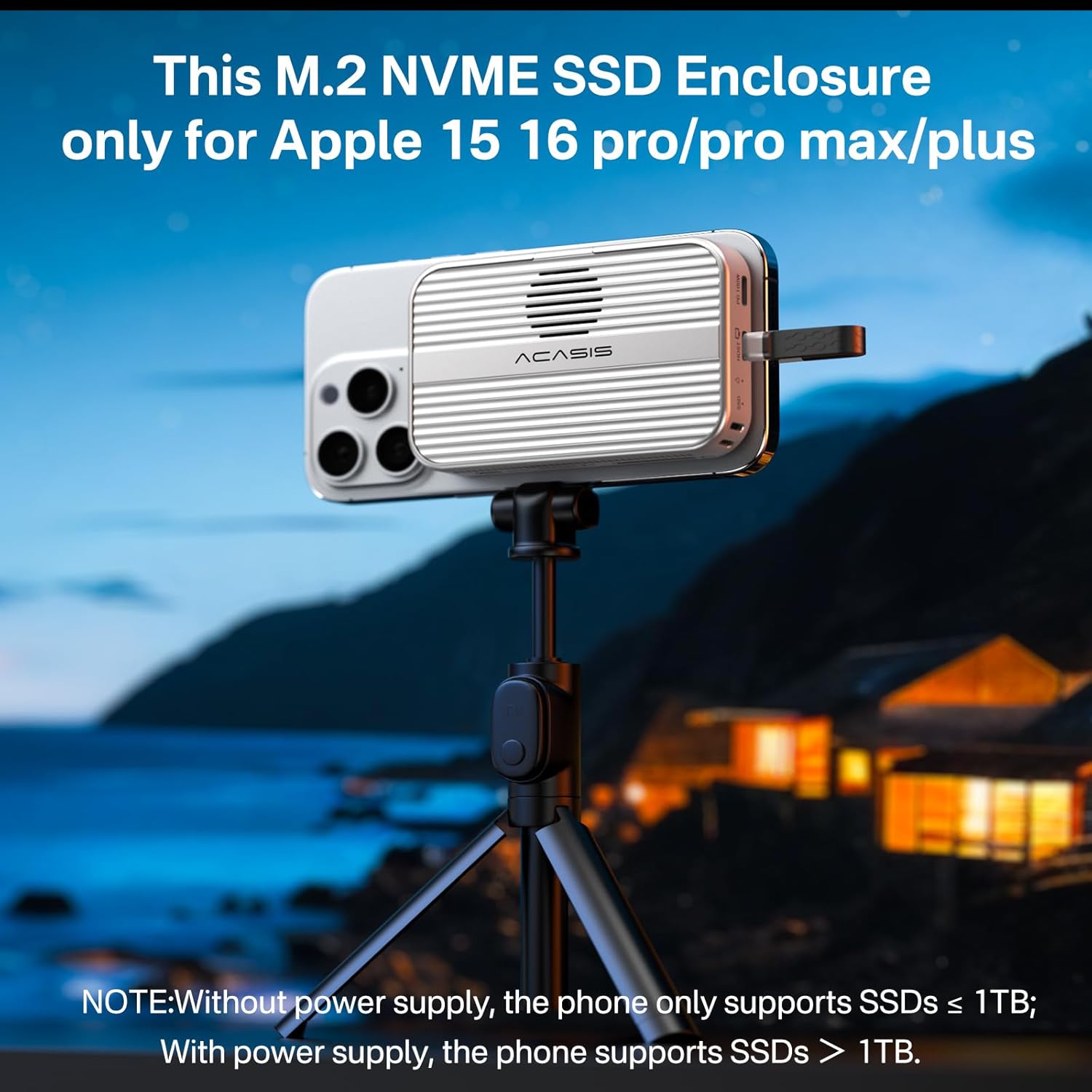
Image: The ACASIS enclosure magnetically attached to an iPhone, demonstrating its use for external storage and recording.
7. การบำรุงรักษา
- การทำความสะอาด: ใช้ผ้านุ่มและแห้งเช็ดทำความสะอาดภายนอกอุปกรณ์ ห้ามใช้น้ำยาทำความสะอาดหรือสเปรย์
- พื้นที่จัดเก็บ: เก็บอุปกรณ์ไว้ในที่แห้งและเย็น หลีกเลี่ยงแสงแดดโดยตรงและอุณหภูมิที่สูงหรือต่ำเกินไปเมื่อไม่ได้ใช้งาน
- การจัดการ: Avoid dropping or subjecting the device to strong vibrations.
8 การแก้ไขปัญหา
- ไม่พบอุปกรณ์ SSD:
- Ensure the SSD is correctly installed and fully seated in the enclosure.
- If it's a new SSD, ensure it has been formatted to exFAT on a computer.
- Try connecting the enclosure to a different USB-C port or device.
- Verify the USB-C cable is functioning correctly.
- ความเร็วในการถ่ายโอนข้อมูลช้า:
- Ensure your host device's USB-C port supports 10Gbps (USB 3.2 Gen2).
- ตรวจสอบให้แน่ใจว่า SSD นั้นรองรับความเร็ว 10Gbps จริง
- Ensure the cable used is rated for 10Gbps data transfer.
- อุปกรณ์ร้อนเกินไป:
- ตรวจสอบให้แน่ใจว่าพัดลมระบายความร้อนไม่มีสิ่งกีดขวาง
- Apply the included silicone heat dissipation sticker to the SSD.
- Avoid placing the device in enclosed spaces during operation.
- เสียงพัดลม:
- A slight fan noise is normal during operation, especially under heavy load, as it indicates active cooling.
- iPhone Not Supporting SSDs > 1TB:
- Without an external power supply connected to the PD port, iPhones may only support SSDs up to 1TB. For SSDs larger than 1TB, ensure a power source is connected to the PD100W port.
9. ข้อมูลจำเพาะ
| ยี่ห้อ | อาคาซิส |
| แบบอย่าง | อีซี1401 |
| สี | สีเทา |
| ฮาร์ดแวร์อินเตอร์เฟซ | HDMI, USB 3.1 Type A, USB 3.1 Type C |
| อุปกรณ์ที่รองรับ | iPad Pro, iPhone 15/16 PLUS, iPhone 15/16 PRO, iPhone 15/16 PRO MAX, laptop |
| พอร์ต USB รวม | 2 |
| จำนวนพอร์ต | 6 |
| น้ำหนักสินค้า | 110 กรัม |
| ขนาดสินค้า | 6 x 9.7 x 1.7 ซม. |
| อัตราการถ่ายโอนข้อมูล | 10 กิกะไบต์ต่อวินาที |
| ความจุหน่วยความจำ (สูงสุด) | 8 TB (SSD not included) |
10. การรับประกันและการสนับสนุน
ACASIS is committed to providing high-quality products and excellent customer service. For any inquiries, technical support, or warranty claims, please contact us directly.
- การสนับสนุนทางอีเมล์: support@acasis.com
- บริการออนไลน์: มีบริการออนไลน์ตลอด 24 ชั่วโมง 7 วันต่อสัปดาห์
โปรดดูเอกสารการซื้อของคุณสำหรับข้อกำหนดและเงื่อนไขการรับประกันโดยเฉพาะ
Ask a question about this manual
Ask about setup, troubleshooting, compatibility, parts, safety, or missing instructions. Manuals+ will review the question and use this page’s manual context to help answer it.