
ZJchao ZJchaowgeuptia9m
ZJchao 4-Port USB KVM Switch User Manual
Model: ZJchaowgeuptia9m
การแนะนำ
This manual provides comprehensive instructions for the installation, operation, and maintenance of your ZJchao 4-Port USB KVM Switch. This device allows you to control up to four computers using a single set of USB keyboard, USB mouse, and VGA/SVGA/DisplayPort monitor.
The KVM switch is designed for versatile connectivity, supporting various display types and enabling seamless switching between connected systems. It requires no external power supply and offers plug-and-play functionality, making it an efficient solution for managing multiple computers.
คุณสมบัติผลิตภัณฑ์
- No external power supply required for operation.
- Supports SVGA, VGA, and multi-sync monitors.
- LED indicators display the active monitor status.
- Effortless switching between computers via a dedicated button on the KVM switch.
- Plug-and-play functionality; no software installation needed.
- Enables sharing of USB devices such as printers, scanners, flash drives, and USB hubs among connected computers.
เนื้อหาแพ็คเกจ
ตรวจสอบว่ามีรายการทั้งหมดอยู่ในแพ็คเกจ:
- 1 x ZJchao 4-Port USB KVM Switch
- 1 x คู่มือผู้ใช้ (เอกสารนี้)
การตั้งค่า
ปฏิบัติตามขั้นตอนเหล่านี้เพื่อตั้งค่าสวิตช์ KVM ของคุณ:
- ปิดเครื่องคอมพิวเตอร์: Ensure all computers you intend to connect are powered off before beginning the setup.
- เชื่อมต่อจอภาพ: Connect your VGA/SVGA/DisplayPort monitor cable to the "USB CONSOLE" VGA port on the KVM switch.
- เชื่อมต่อคีย์บอร์ดและเมาส์: Plug your USB keyboard and USB mouse into the designated "USB CONSOLE" USB ports on the KVM switch.
- เชื่อมต่อคอมพิวเตอร์:
- For each computer (PC1, PC2, PC3, PC4), connect a VGA cable from the computer's VGA output to the corresponding VGA input port (e.g., PC1, PC2) on the KVM switch.
- For each computer, connect a USB cable from the computer's USB port to the corresponding USB input port (e.g., USB1, USB2) on the KVM switch.
- Connect Shared USB Devices (Optional): If you have additional USB devices like printers or flash drives, connect them to the available USB ports on the KVM switch.
- เปิดเครื่องคอมพิวเตอร์: Once all connections are secure, power on your computers. The KVM switch will automatically detect the active computer.
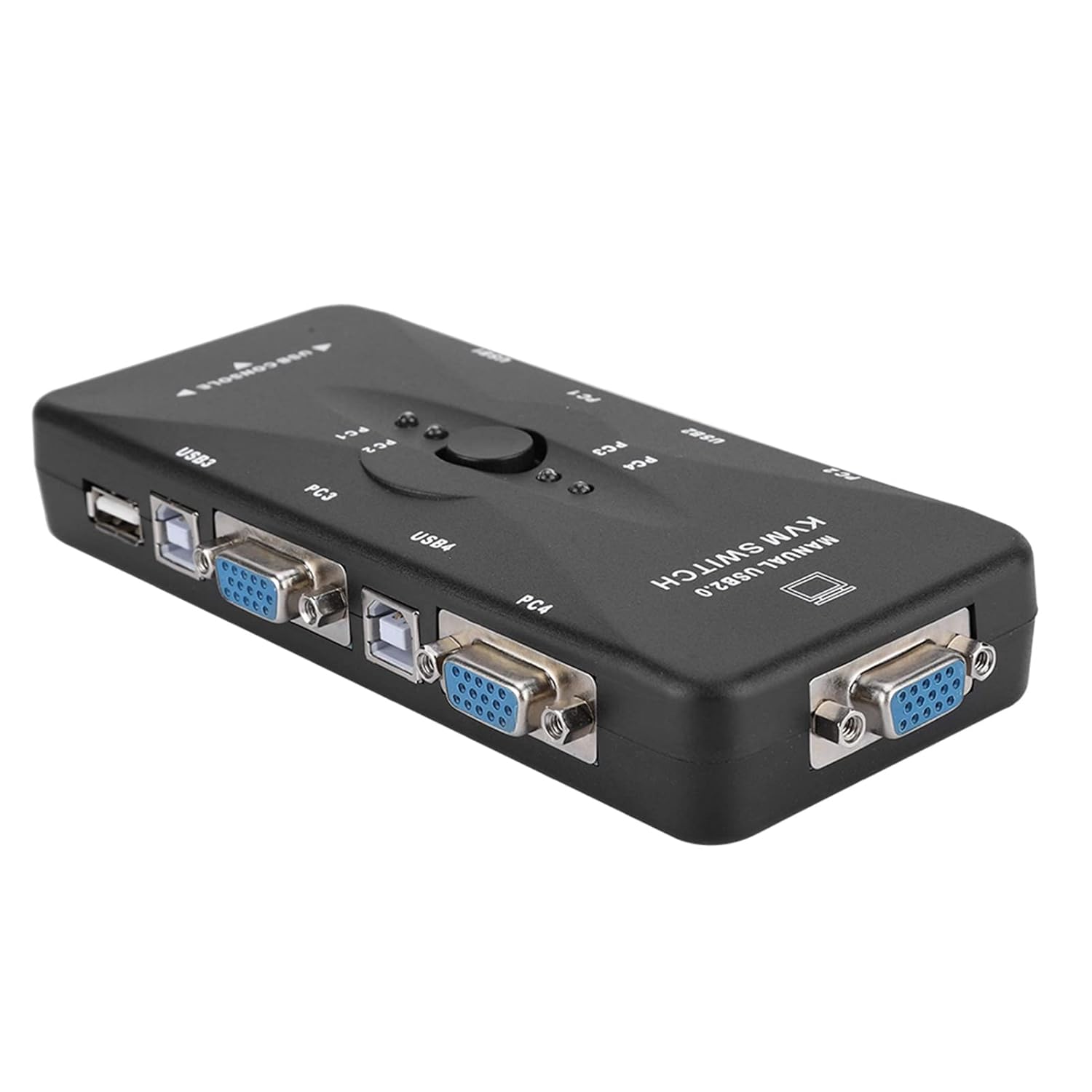
รูปที่ 1: ด้านข้าง view of the KVM switch illustrating the VGA and USB input/output ports for connecting computers and console devices.
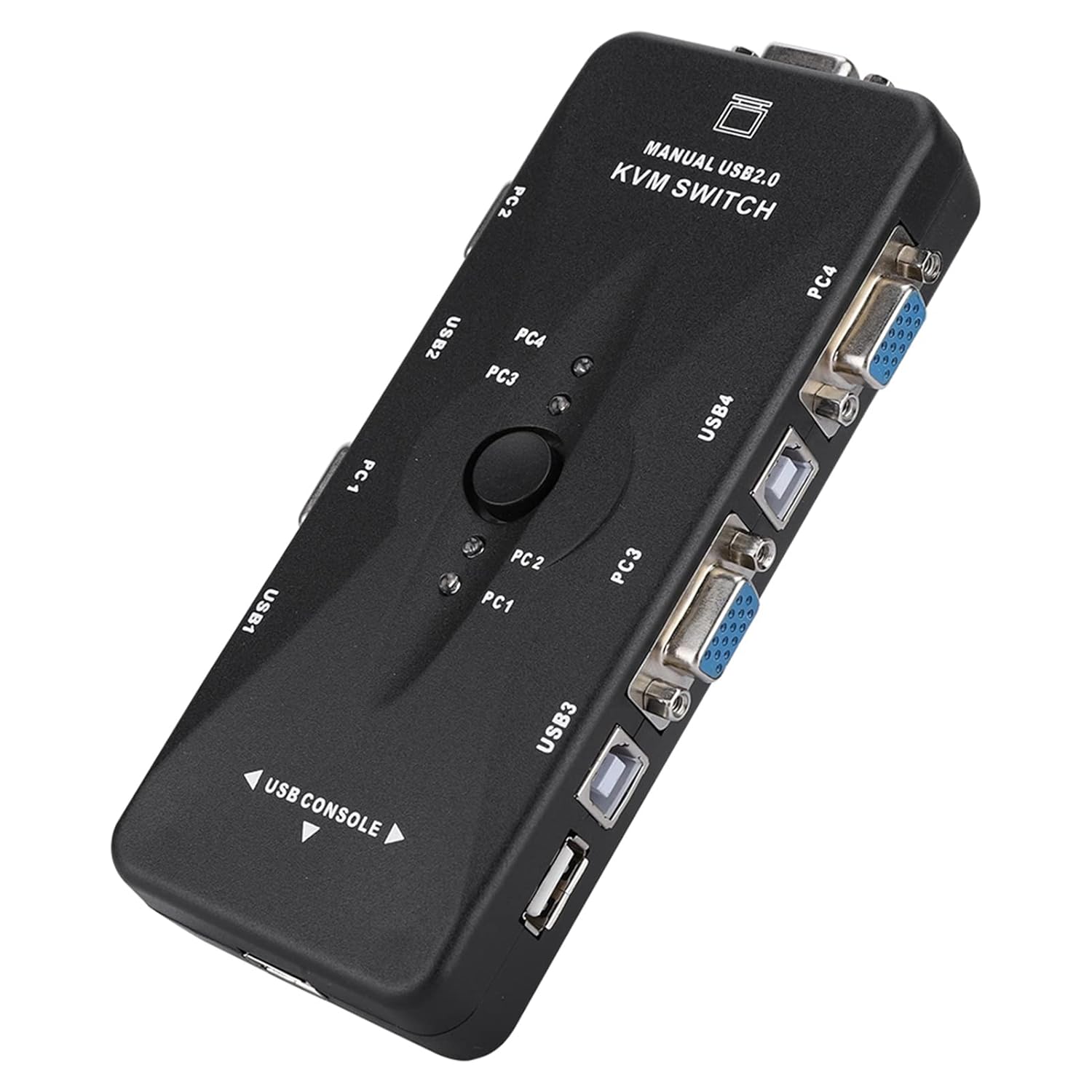
รูปที่ 2: ด้านบน view of the KVM switch, highlighting the central selection button and LED indicators for active computer status.
คำแนะนำการใช้งาน
Operating the ZJchao 4-Port USB KVM Switch is straightforward:
- การสลับคอมพิวเตอร์: To switch between connected computers, simply press the central button located on the top of the KVM switch. Each press will cycle through the active computers (PC1, PC2, PC3, PC4).
- ไฟ LED แสดงสถานะ: The LED lights on the KVM switch correspond to each connected computer (PC1, PC2, PC3, PC4). The illuminated LED indicates which computer is currently active and being controlled.
- USB Device Sharing: Any USB devices connected to the KVM switch's shared USB ports will automatically be accessible by the currently selected computer.
การซ่อมบำรุง
The ZJchao 4-Port USB KVM Switch requires minimal maintenance to ensure optimal performance and longevity.
- การทำความสะอาด: Use a soft, dry cloth to wipe the exterior of the KVM switch. Avoid using liquid cleaners or abrasive materials, as they may damage the device.
- การระบายอากาศ : ตรวจสอบให้แน่ใจว่าได้วางสวิตช์ KVM ในบริเวณที่มีการระบายอากาศที่ดีเพื่อป้องกันความร้อนสูงเกินไป อย่าปิดกั้นช่องระบายอากาศใดๆ
- การจัดการสายเคเบิล: ควรจัดระเบียบสายเคเบิลให้เรียบร้อยและอย่าให้สายเคเบิลบิดงอหรือโค้งงอมากเกินไป เพื่อป้องกันความเสียหายต่อสายเคเบิลและพอร์ต
- พื้นที่จัดเก็บ: เมื่อไม่ได้ใช้งานเป็นเวลานาน ควรเก็บสวิตช์ KVM ไว้ในที่แห้งและเย็น หลีกเลี่ยงแสงแดดโดยตรงและอุณหภูมิที่สูงหรือต่ำเกินไป
การแก้ไขปัญหา
หากคุณพบปัญหาเกี่ยวกับสวิตช์ KVM โปรดดูปัญหาและวิธีแก้ไขทั่วไปต่อไปนี้:
| ปัญหา | สาเหตุที่เป็นไปได้ | สารละลาย |
|---|---|---|
| ไม่มีการแสดงผลบนจอภาพ | Incorrect cable connection; KVM switch not selected to the correct computer; computer is off or in sleep mode. |
|
| แป้นพิมพ์หรือเมาส์ไม่ตอบสนอง | Incorrect USB cable connection; KVM switch not selected to the correct computer; USB device not properly recognized. |
|
| Shared USB devices not working. | Device not properly connected; KVM switch not selected to the correct computer. |
|
ข้อมูลจำเพาะ
| คุณสมบัติ | รายละเอียด |
|---|---|
| หมายเลขรุ่น | ZJchaowgeuptia9m |
| ความละเอียดสูงสุด | ขนาด 1920x1440 |
| แบนด์วิธ | 500เมกะเฮิรตซ์ |
| พอร์ตคอนโซล | 3 (1x VGA, 2x USB for Keyboard/Mouse) |
| คอมพิวเตอร์ที่รองรับ | 4 |
| การจำลองคีย์บอร์ด | ยูเอสบี |
| การจำลองเมาส์ | ยูเอสบี |
| Keyboard Input/Output | ยูเอสบี |
| Mouse Input/Output | ยูเอสบี |
| VGA Input/Output | High Density D-Sub 15 Pin |
| ไฟ LED แสดงสถานะ | 4 (one for each PC) |
| ระบบปฏิบัติการที่รองรับ | DOS, Windows 3.X, 95/98/ME/2000/XP/Vista/7/8, WinNT, Netware, Unix, Linux |
| ขนาด (กว้าง x ยาว x สูง) | ประมาณ 6.69 x 3.54 x 0.79 นิ้ว |
| น้ำหนัก | ประมาณ 6.53 ออนซ์ |

Figure 3: Product label on the underside of the KVM switch, displaying model information and UPC.
การรับประกันและการสนับสนุน
This product is manufactured by ZJchao. For specific warranty details and technical support, please refer to the information provided at the point of purchase or contact ZJchao customer service directly. Information regarding warranty and support is not provided within this manual.
หากต้องการความช่วยเหลือเพิ่มเติม คุณสามารถไปที่ ZJchao Store on Amazon.
Ask a question about this manual
Ask about setup, troubleshooting, compatibility, parts, safety, or missing instructions. Manuals+ will review the question and use this page’s manual context to help answer it.