
การแนะนำ
Thank you for choosing the Phomemo M221 Bluetooth Thermal Label Printer. This manual provides essential information for the safe and efficient operation of your device. Please read it thoroughly before use and retain it for future reference. The Phomemo M221 is designed for fast, clear, and smart label printing, supporting various label types and applications for small businesses, home, and school use.
ข้อมูลด้านความปลอดภัย
เพื่อให้มั่นใจถึงการทำงานที่ปลอดภัยและป้องกันความเสียหาย โปรดปฏิบัติตามข้อควรระวังต่อไปนี้:
- ห้ามถอดประกอบ ซ่อมแซม หรือดัดแปลงเครื่องพิมพ์
- ควรเก็บเครื่องพิมพ์ให้ห่างจากน้ำ ความชื้น และแสงแดดโดยตรง
- Use only Phomemo-approved power adapters and accessories.
- หลีกเลี่ยงการสัมผัสหัวพิมพ์ทันทีหลังจากพิมพ์เสร็จ เนื่องจากอาจร้อนได้
- Store the printer and labels in a cool, dry place.
เนื้อหาแพ็คเกจ
ตรวจสอบว่ามีรายการทั้งหมดอยู่ในแพ็คเกจของคุณ:
- เครื่องพิมพ์ฉลาก Phomemo M221
- สายชาร์จแบบ USB Type-C
- 1 roll of 40 x 30 mm thermal labels
- 1 roll of 50 x 80 mm thermal labels
- 1 roll of 70 x 80 mm thermal labels
- กระเป๋าพกพา
- คู่มือการใช้งาน (เอกสารนี้)
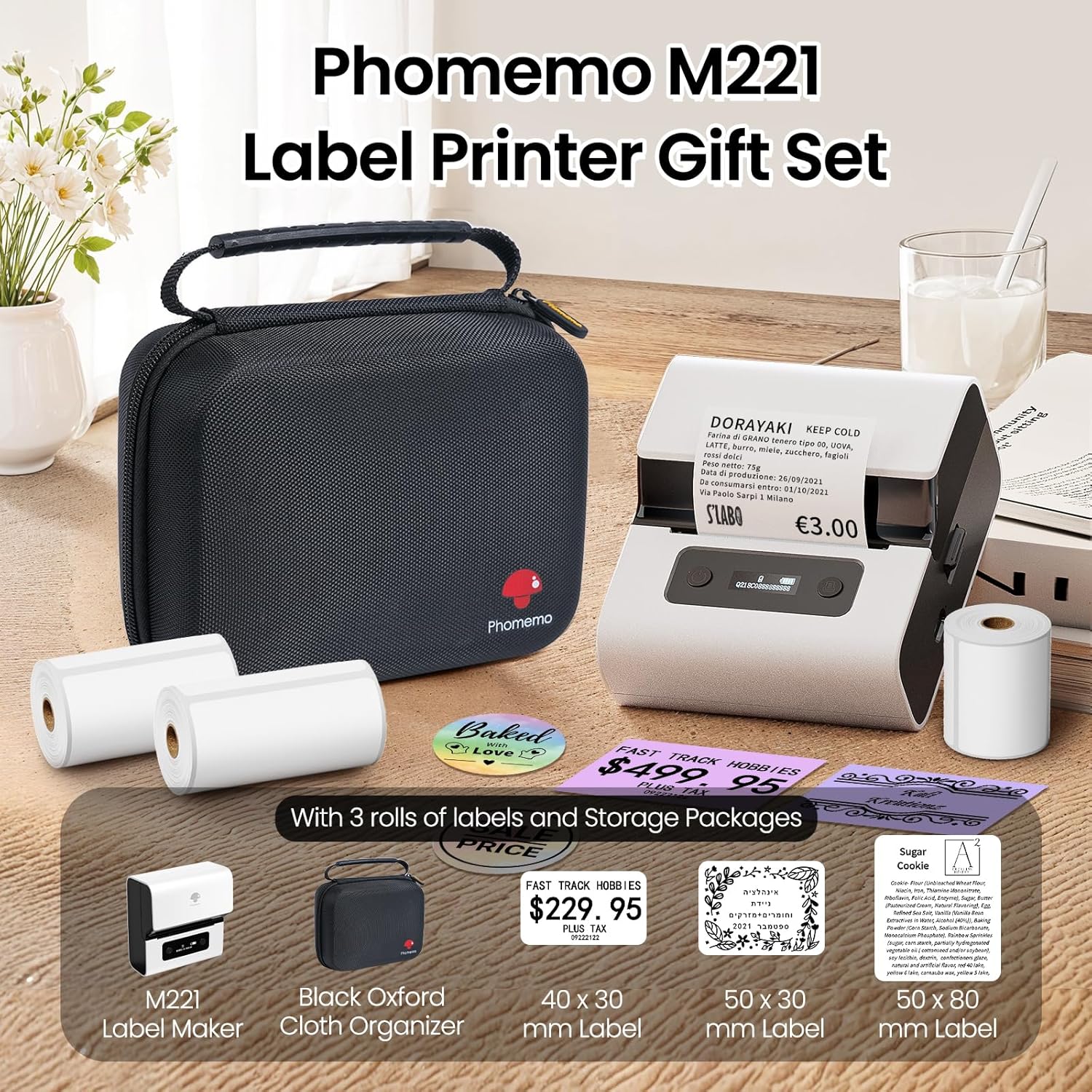
Image: Phomemo M221 Label Printer Gift Set, showing the printer, a black carrying case, and three rolls of white thermal labels.
สินค้าเกินview
The Phomemo M221 is a compact and efficient thermal label printer. Key features include:
- เทคโนโลยีการพิมพ์ด้วยความร้อน: No ink or toner required.
- ความเข้ากันได้ของฉลากแบบกว้าง: Supports labels from 20mm to 80mm (0.78" to 3.14") wide, including rectangular, round, transparent, and colored types.
- การเชื่อมต่อ: Bluetooth for iOS/Android smartphones and tablets, USB for Windows PCs.
- แบตเตอรี่ความจุสูง: 2200 mAh battery with Type-C fast charging.
- การทำงานที่รวดเร็วและเงียบ: Prints at 50 mm/s with reduced noise.
- การออกแบบที่เป็นมิตรต่อผู้ใช้: Easy label loading and automatic gap detection.

Image: Phomemo M221 Label Maker Set, illustrating its features such as no ink requirement, large battery capacity, Bluetooth wireless printing, and its suitability as a gift.
การตั้งค่า
1. การชาร์จเครื่องพิมพ์
Before first use, fully charge the Phomemo M221 printer.
- เชื่อมต่อสาย USB Type-C ที่ให้มากับพอร์ตชาร์จของเครื่องพิมพ์
- ต่อปลายอีกด้านของสายเคเบิลเข้ากับอะแดปเตอร์แปลงไฟ USB 5V (ไม่ได้รวมอยู่ในชุด) หรือพอร์ต USB ของคอมพิวเตอร์
- The indicator light will show charging status. A full charge typically takes several hours. The 2200 mAh battery supports extended use.
2. การโหลดฉลาก
The M221 features an integrated label fixing structure for easy loading.
- เปิดฝาครอบเครื่องพิมพ์
- Insert the label roll into the compartment, ensuring the printing side faces upwards and the labels feed smoothly.
- Adjust the side guide plates to secure the label roll in place.
- Close the printer cover. The printer will automatically detect and calibrate the label gap.
3. การเชื่อมต่อกับอุปกรณ์ของคุณ
The Phomemo M221 supports both Bluetooth and USB connections.
Bluetooth Connection (Smartphones/Tablets)
- ตรวจสอบให้แน่ใจว่าได้เปิดใช้งานบลูทูธบนอุปกรณ์ iOS หรือ Android ของคุณแล้ว
- Download and install the "Print Master" application from your device's app store.
- Open the "Print Master" app and follow the on-screen instructions to search for and connect to your M221 printer.

Image: Phomemo M221 printer demonstrating Bluetooth wireless connection with a tablet and a smartphone.
USB Connection (Windows PC)
- Connect the USB Type-C cable from the printer to an available USB port on your Windows PC.
- Download and install the "Labelife" software and printer drivers from the official Phomemo webเว็บไซต์.
- Follow the software installation prompts. Once installed, you can select the M221 as your printer.

Image: Phomemo M221 printer connected to a laptop using a USB cable, indicating wired connectivity.
คำแนะนำการใช้งาน
1. Basic Printing with "Print Master" App (Mobile)
- Ensure your M221 printer is connected via Bluetooth to your mobile device.
- Open the "Print Master" app.
- Select a template or create a new label design. The app offers various templates for text, images, barcodes, QR codes, and more.
- Customize your label content.
- Tap the print icon. Confirm print settings such as quantity.
- The printer will begin printing your labels.
2. Printing with "Labelife" Software (PC)
- Ensure your M221 printer is connected via USB to your Windows PC.
- Open the "Labelife" software.
- Design your label using the software's features, including text, images, barcodes, and QR codes.
- ไปที่ "File" > "พิมพ์" หรือคลิกไอคอนพิมพ์
- Select the Phomemo M221 from the list of available printers and adjust any necessary print settings.
- คลิก "พิมพ์" เพื่อเริ่มการพิมพ์
3 การพิมพ์แบบกลุ่ม
Both "Print Master" and "Labelife" support batch printing for efficiency.
- In the print dialogue, specify the desired number of copies.
- The printer will automatically print multiple labels consecutively.

Image: Phomemo M221 printer demonstrating its versatility with examples of address labels, price tags, ingredient labels, and gift tags.

Image: Phomemo M221 printer showcasing its compatibility with over 50 types of thermal labels, including various shapes and designs.
การซ่อมบำรุง
1. การทำความสะอาดหัวพิมพ์
การทำความสะอาดหัวพิมพ์อย่างสม่ำเสมอจะช่วยให้ได้คุณภาพการพิมพ์ที่ดีที่สุด
- ปิดเครื่องพิมพ์และถอดสายไฟออก
- เปิดฝาครอบเครื่องพิมพ์
- ค่อยๆ เช็ดหัวพิมพ์ด้วยสำลีเบาๆampเคลือบด้วยแอลกอฮอล์ไอโซโพรพิล
- รอให้หัวพิมพ์แห้งสนิทก่อนปิดฝาและเปิดเครื่องพิมพ์
2. การจัดเก็บ
Store the printer in a clean, dry environment, away from extreme temperatures and direct sunlight. When not in use for extended periods, ensure the printer is fully charged and then powered off.

Image: A man holding the Phomemo M221 printer's carrying case, illustrating its portable design.
การแก้ไขปัญหา
Printer Does Not Turn On or Charge
- ตรวจสอบการเชื่อมต่อพลังงาน: Ensure the USB Type-C cable is securely connected to both the printer and a working power source (5V adapter or PC USB port).
- ตรวจสอบอะแดปเตอร์ไฟฟ้า: Use a reliable 5V USB power adapter.
- ระยะเวลาการชาร์จ: Allow sufficient time for charging. The battery indicator should show charging status.
No Printing or Blank Output
- Check Label Orientation: Ensure the thermal labels are loaded correctly with the printing side facing upwards.
- ประเภทฉลาก: Confirm you are using thermal labels. The M221 does not use ink.
- ความสะอาดของหัวพิมพ์: A dirty print head can cause blank lines or poor print quality. Refer to the Maintenance section for cleaning instructions.
- การจัดตำแหน่งฉลาก: Ensure the label roll is properly seated and aligned by the side guide plates to prevent misalignment errors.
ปัญหาการเชื่อมต่อบลูทูธ
- Printer On: Ensure the printer is powered on and within Bluetooth range of your device.
- เปิดใช้งานบลูทูธ: Verify Bluetooth is active on your smartphone or tablet.
- การเชื่อมต่อแอพ: Connect through the "Print Master" app, not directly through your device's Bluetooth settings.
- รีสตาร์ทอุปกรณ์: ลองรีสตาร์ททั้งเครื่องพิมพ์และอุปกรณ์มือถือของคุณดู
คุณภาพการพิมพ์ไม่ดี
- ความสะอาดของหัวพิมพ์: ทำความสะอาดหัวพิมพ์ตามที่อธิบายไว้ในส่วนการบำรุงรักษา
- คุณภาพฉลาก: Use high-quality thermal labels.
- การตั้งค่าความหนาแน่นการพิมพ์: Adjust print density settings within the "Print Master" app or "Labelife" software if available.
ข้อมูลจำเพาะ
| คุณสมบัติ | รายละเอียด |
|---|---|
| หมายเลขรุ่น | M221 |
| ยี่ห้อ | โฟเมโม |
| เทคโนโลยีการเชื่อมต่อ | บลูทูธ, พอร์ต USB Type C |
| เทคโนโลยีการพิมพ์ | เทอร์มอล |
| ผลลัพธ์การพิมพ์ | เอกรงค์ |
| ความเร็วในการพิมพ์สูงสุด (ขาวดำ) | 15.0 pages per minute (50 mm/s) |
| ความละเอียดการพิมพ์สูงสุด (ขาวดำ) | 203 จุดต่อนิ้ว |
| ความกว้างของฉลากที่รองรับ | 20 มม. - 80 มม. (0.78" - 3.14") |
| แบตเตอรี่ | 2200 mAh (1 D - included) |
| น้ำหนักสินค้า | 820 กรัม |
| ขนาดสินค้า (กว้าง x ยาว x สูง) | 12.9 x 6.7 x 11.9 เซนติเมตร |
| Control Device Type | Smartphone/PC |
| ประเภทสื่อ | ฉลาก |
การรับประกันและการสนับสนุน
สำหรับข้อมูลการรับประกันและการสนับสนุนทางเทคนิค โปรดดูที่เว็บไซต์อย่างเป็นทางการของ Phomemo webหรือติดต่อฝ่ายบริการลูกค้าโดยตรง โปรดเก็บใบเสร็จรับเงินไว้เป็นหลักฐานการซื้อ
แหล่งข้อมูลออนไลน์: เยี่ยมชม ร้าน Phomemo บน Amazon สำหรับข้อมูลอัปเดตผลิตภัณฑ์และคำถามที่พบบ่อย