
การแนะนำ
This manual provides essential information for the proper setup, operation, maintenance, and troubleshooting of your KTC H27T27 27-inch WQHD IPS Flat Monitor. Please read this manual thoroughly before using the product to ensure optimal performance and safety.
The KTC H27T27 monitor features a 27-inch WQHD (2560x1440) IPS panel with a 100Hz refresh rate, designed to deliver clear and detailed images with smooth motion. It includes FreeSync technology for enhanced visual fluidity during dynamic content. The IPS panel ensures vivid colors and wide viewมุมการเอียง

Figure 1: KTC H27T27 27-inch WQHD IPS Flat Monitor Front View
การตั้งค่า
1. การแกะกล่อง
Carefully remove all components from the packaging. Ensure all items listed in the packing list are present and undamaged. Retain the original packaging for future transport or service needs.
2. การประกอบขาตั้ง
- วางจอภาพคว่ำหน้าลงบนพื้นผิวที่นุ่มและสะอาดเพื่อป้องกันรอยขีดข่วน
- ยึดฐานขาตั้งเข้ากับคอขาตั้งโดยใช้สกรูที่ให้มา
- จัดวางขาตั้งที่ประกอบเสร็จแล้วให้ตรงกับช่องสำหรับติดตั้งที่ด้านหลังของจอภาพ และยึดให้แน่นสนิท
3. การติดตั้งแบบ VESA (ตัวเลือกเสริม)
The monitor supports VESA 100x100mm mounting. If using a VESA mount, remove the stand and attach the VESA compatible bracket to the monitor's rear panel using appropriate screws.
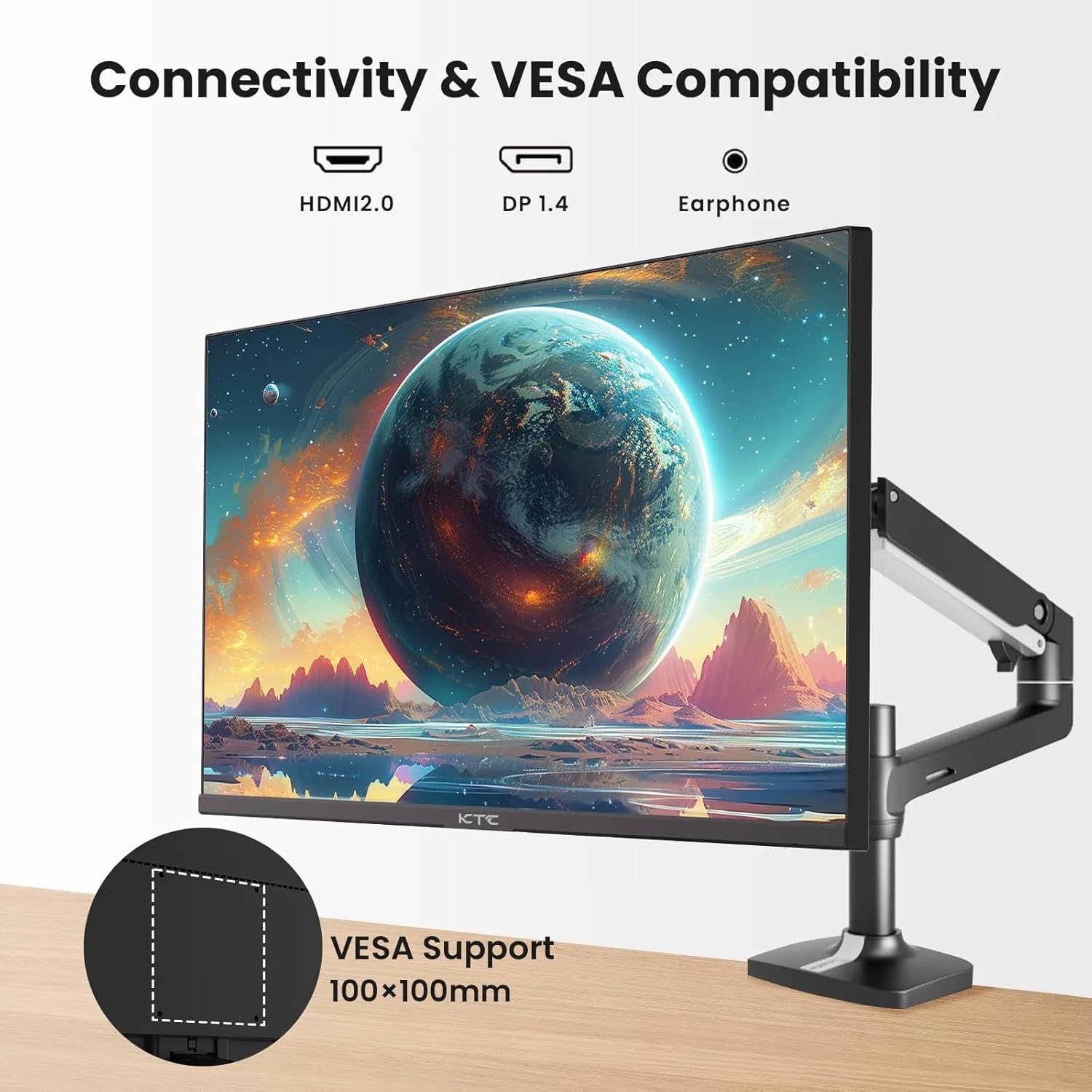
Figure 2: VESA Compatibility and Connectivity Ports
4. การเชื่อมต่อสายเคเบิล
เชื่อมต่อสายเคเบิลที่จำเป็นเข้ากับจอภาพและคอมพิวเตอร์หรืออุปกรณ์อื่นๆ ของคุณ ตรวจสอบให้แน่ใจว่าการเชื่อมต่อทั้งหมดแน่นหนาดี
- สายไฟ: Connect the power adapter to the monitor's DC input port, then plug the power cable into a power outlet.
- สายวิดีโอ: Connect either an HDMI cable (HDMI 2.0) or a DisplayPort cable (DP 1.4) from your computer's graphics card to the corresponding input port on the monitor.
- เอาต์พุตเสียง: If desired, connect headphones or external speakers to the 3.5mm audio output jack.

รูปที่ 3: พอร์ตอินพุตของจอภาพ
5. การเปิดเครื่องครั้งแรก
Press the power button on the monitor. The power indicator light will illuminate. If no image appears, ensure your computer is powered on and the correct input source is selected on the monitor.
การดำเนินงาน
1. เปิด/ปิดเครื่อง
Press the power button located on the monitor to turn it on or off. The power indicator will show the monitor's status.
2. เมนูการแสดงผลบนหน้าจอ (OSD)
เมนู OSD ช่วยให้คุณสามารถปรับการตั้งค่าต่างๆ ของจอภาพได้ ใช้ปุ่มควบคุม (โดยปกติจะอยู่ด้านหลังหรือด้านล่างของจอภาพ) เพื่อเลื่อนดูเมนู
- กดปุ่มเพื่อเปิดใช้งานเมนู OSD
- ใช้ปุ่มนำทางเพื่อเลื่อนดูตัวเลือกในเมนู
- กดปุ่มเลือกเพื่อเข้าสู่เมนูย่อยหรือยืนยันการตั้งค่า
- กดปุ่มออกเพื่อปิดเมนู OSD
3. การปรับการตั้งค่า
การตั้งค่าที่ปรับได้ทั่วไป ได้แก่:
- ความสว่าง/คอนทราสต์: ปรับความสว่างโดยรวมและความแตกต่างระหว่างบริเวณสว่างและบริเวณมืด
- การตั้งค่าสี: ปรับเปลี่ยนอุณหภูมิสี แกมมา และค่า RGB แต่ละค่า
- แหล่งสัญญาณเข้า: เลือกอินพุตด้วยตนเองระหว่าง HDMI 1, HDMI 2 หรือ DisplayPort
- โหมดภาพ: Select predefined display modes (e.g., Standard, Game, Movie).
4. อัตราการรีเฟรช
The KTC H27T27 supports a 100Hz refresh rate, providing smoother motion compared to standard 60Hz displays. Ensure your graphics card and operating system are configured to output at 100Hz for the best experience.

Figure 4: 100Hz Refresh Rate Benefit
5. เทคโนโลยี FreeSync
This monitor is compatible with AMD FreeSync technology, which synchronizes the monitor's refresh rate with your graphics card's frame rate. This helps eliminate screen tearing and stuttering for a smoother gaming and video experience. Ensure FreeSync is enabled in both the monitor's OSD menu and your graphics card's control panel.
Figure 5: FreeSync Technology in Action
การซ่อมบำรุง
1. การทำความสะอาดหน้าจอ
- ปิดจอภาพและถอดปลั๊กไฟ
- ค่อยๆ เช็ดหน้าจอด้วยผ้านุ่มไม่มีขุย
- สำหรับรอยฝังแน่น ให้เช็ดเบาๆampเทน้ำหรือน้ำยาทำความสะอาดหน้าจอชนิดพิเศษลงบนผ้า (อย่าฉีดลงบนหน้าจอโดยตรง)
- หลีกเลี่ยงการใช้สารทำความสะอาดที่มีฤทธิ์กัดกร่อน แอลกอฮอล์ หรือสารละลายที่มีแอมโมเนียเป็นส่วนประกอบ เนื่องจากสารเหล่านี้อาจทำให้พื้นผิวหน้าจอเสียหายได้
2. การดูแลทั่วไป
- ควรวางจอภาพให้ห่างจากแสงแดดโดยตรง ความร้อนสูง และความชื้นสูง
- ตรวจสอบให้แน่ใจว่ามีการระบายอากาศเพียงพอรอบ ๆ จอภาพเพื่อป้องกันความร้อนสูงเกินไป
- หลีกเลี่ยงการวางวัตถุหนักบนจอภาพหรือสายเคเบิล
การแก้ไขปัญหา
หากคุณพบปัญหาเกี่ยวกับจอภาพของคุณ โปรดดูปัญหาทั่วไปและวิธีแก้ไขต่อไปนี้:
- ไม่มีไฟฟ้า:
- Ensure the power cable is securely connected to both the monitor and the power outlet.
- ตรวจสอบว่าปลั๊กไฟใช้งานได้ปกติ - ไม่มีสัญญาณ:
- Check that the video cable (HDMI or DisplayPort) is securely connected to both the monitor and your computer.
- Ensure your computer is powered on and not in sleep mode.
- Select the correct input source via the monitor's OSD menu. - ภาพสั่นไหวหรือบิดเบี้ยว:
- Check the video cable for damage or loose connections.
- Adjust the refresh rate settings on your computer.
- Disable or enable FreeSync in the OSD menu and graphics card settings to test. - สีไม่ถูกต้อง:
- Reset color settings to factory defaults in the OSD menu.
- Adjust color temperature or individual RGB values.
หากปัญหายังคงมีอยู่หลังจากพยายามแก้ไขปัญหาเหล่านี้แล้ว โปรดติดต่อฝ่ายสนับสนุนลูกค้า
ข้อมูลจำเพาะ
| คุณสมบัติ | ข้อมูลจำเพาะ |
|---|---|
| ยี่ห้อ | เคทีซี |
| หมายเลขรุ่น | H27T27 |
| ขนาดหน้าจอ | 27 นิ้ว |
| ปณิธาน | 2560x1440 (WQHD) |
| อัตราการรีเฟรช | 100 เฮิรตซ์ |
| ประเภทจอภาพ | ไอพีเอส |
| เวลาตอบสนอง | 7 มิลลิวินาที |
| การซิงค์แบบปรับตัว | ฟรีซิงค์ |
| การเชื่อมต่อ | 2x HDMI 2.0, 1x DisplayPort 1.4, 1x ช่องเสียบเสียง 3.5 มม. |
| อัตราส่วนภาพ | 1.78:1 น. |
| พื้นผิวหน้าจอ | แมทต์ |
| ขนาดสินค้า (ลึก x กว้าง x สูง) | ลึก 1.85 นิ้ว x กว้าง 24.25 นิ้ว x สูง 14.33 นิ้ว |
| น้ำหนักสินค้า | 4 กิโลกรัม |
การรับประกันและการสนับสนุน
ข้อมูลการรับประกัน
This KTC monitor is covered by a manufacturer's warranty. Please refer to the warranty card included in your product packaging for specific terms, conditions, and duration of coverage. Keep your purchase receipt as proof of purchase for warranty claims.
การสนับสนุนลูกค้า
For technical assistance, warranty service, or any product-related inquiries, please contact KTC customer support. Contact details can typically be found on the official KTC webเว็บไซต์หรือบนบัตรรับประกัน
When contacting support, please have your monitor's model number (H27T27) and serial number ready.