
1. บทนำ
This manual provides detailed instructions for the installation, operation, and maintenance of your Fuers 8-Channel 5MP H.265+ Hybrid Security DVR Recorder. This DVR system is designed to support various camera types, including TVI, AHD, CVBS, CVI, XVI, and IP cameras, offering a versatile surveillance solution. It features advanced H.265+ video compression, AI human detection, and remote access capabilities.
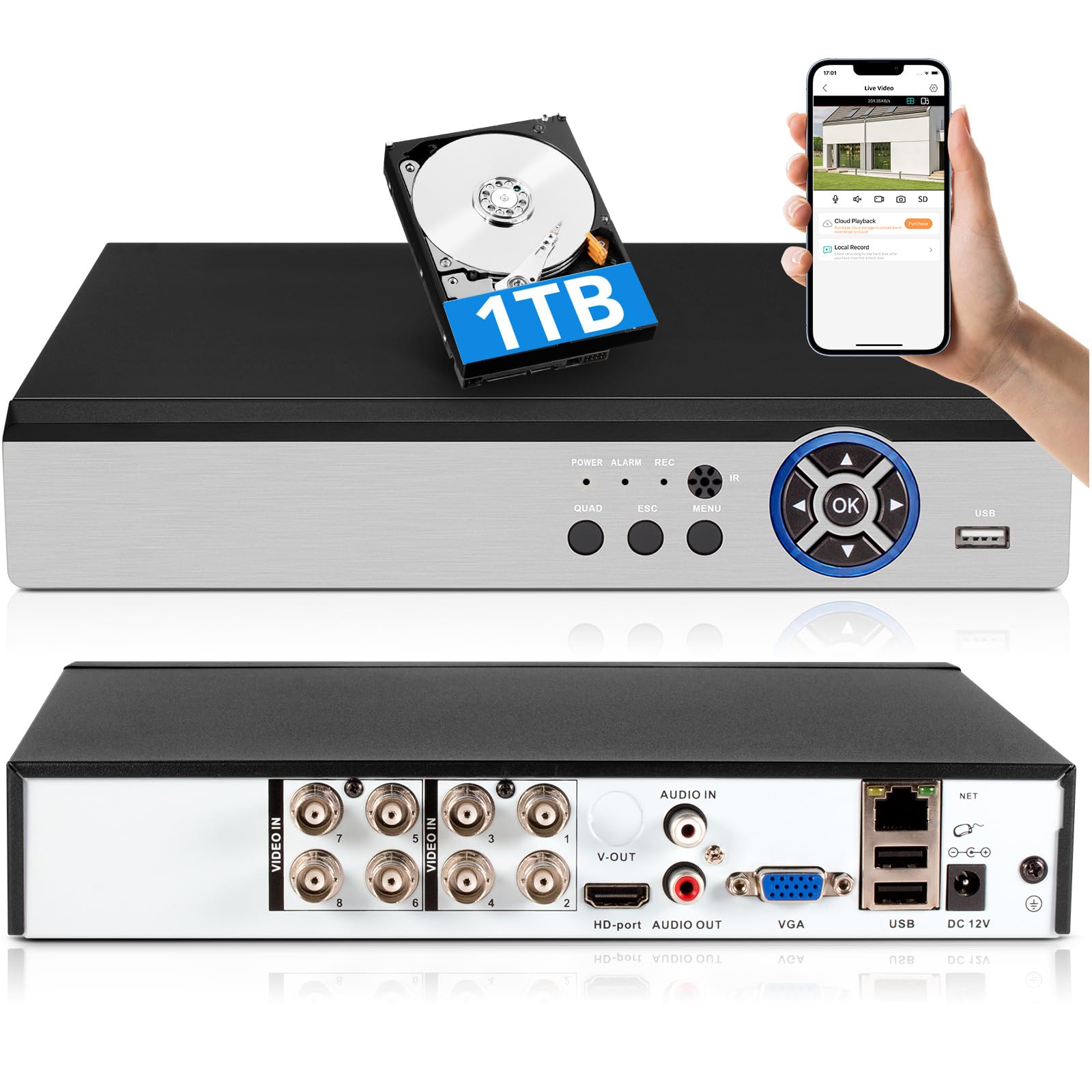
Image: The Fuers 8-Channel 5MP H.265+ Hybrid Security DVR Recorder unit.
2. อะไรอยู่ในกล่อง
โปรดตรวจสอบว่ารายการทั้งหมดที่ระบุไว้ด้านล่างมีอยู่ในแพ็คเกจของคุณหรือไม่:
- 1x 5MP 8CH DVR
- 1x 1TB Hard Drive (Pre-installed on DVR)
- 1x DVR Power Supply
- เมาส์ USB 1x
- 1x คู่มือผู้ใช้

Image: The DVR unit and its included accessories: 1TB HDD, power supply, USB mouse, and user manual.
3. คุณสมบัติของผลิตภัณฑ์
- 5MP 6-in-1 Hybrid DVR: Supports up to 8 TVI, AHD, CVBS, CVI, XVI, Analog cameras and IP cameras.
- Advanced H.265+ Video Format: Offers longer recording times and up to 50% storage space savings compared to H.264 systems.
- AI การตรวจจับมนุษย์: Advanced algorithms detect human presence, reducing false alarms.
- การเข้าถึงระยะไกล: ควบคุมและ view ฟูtage remotely via the iCSee App on smartphones, tablets, and PCs (Google Chrome, Microsoft Edge, Internet Explorer).
- การทำงานแบบออฟไลน์: The DVR can function without an internet connection for local recording and viewing. Internet is only required for remote access features.
- ฮาร์ดไดรฟ์ขนาด 1TB ที่ติดตั้งไว้ล่วงหน้า: Ready for immediate recording, expandable up to 14TB via SATA.
- Simultaneous VGA/HDMI Output: Connects to PC monitors and TVs concurrently.

ภาพ: เหนือview of the DVR's key features including AI Human Detection and remote access.
4. คู่มือการติดตั้ง
4.1 การเชื่อมต่อทางกายภาพ
- เชื่อมต่อจอภาพ: Plug the HDMI or VGA cable from your monitor into the corresponding port on the DVR.
- เชื่อมต่อเมาส์ USB: Insert the USB mouse into one of the USB ports on the DVR.
- เชื่อมต่อกล้อง: Connect your analog cameras (TVI, AHD, CVBS, CVI, XVI) to the BNC 'VIDEO IN' ports. For IP cameras, connect them to your network and ensure the DVR is also connected to the same network.
- เชื่อมต่อเครือข่าย (ไม่บังคับสำหรับการเข้าถึงระยะไกล): Connect an Ethernet cable from the DVR's 'NET' port to your router for remote viewความสามารถในการพัฒนา
- เชื่อมต่อพลังงาน: Plug the DVR power supply into the DC 12V input port on the DVR, then plug the adapter into a power outlet.

ภาพ: รายละเอียด view of the DVR's rear panel showing video input, audio input/output, VGA, HDMI, USB, and network ports.
4.2 Mobile App Setup (iCSee)
To access your DVR remotely, download and configure the iCSee mobile application:
- ดาวน์โหลดแอพ: Scan the QR code displayed on your monitor or search for "iCSee" in your device's app store.
- แอนดรอยด์: ร้านค้า Google Play
- ไอโอเอส: แอปสโตร์ของแอปเปิล
- ลงทะเบียน/เข้าสู่ระบบ: Open the iCSee app and create a new account or log in if you already have one.
- เพิ่มอุปกรณ์: In the app, select the option to add a new device. You can typically scan the QR code found in the DVR's menu (Main Menu > Info > Version) to bind the device.
- View ฟีดสด: Once the device is added, you can view your camera feeds live from anywhere with an internet connection.

Image: Visual guide for connecting the DVR to a network and setting up the iCSee mobile application for remote viewการไอเอ็นจี
5. คู่มือการใช้งาน
5.1 การเล่นวิดีโอ
เพื่อview บันทึกเสียงฟูtage:
- คลิกขวาที่รายการสด view หน้าจอเพื่อเปิดเมนูหลัก
- Select "Record" then "Playback".
- Choose the desired channel(s) and date from the calendar.
- Click "Start Playback" to view การบันทึก
Video: Demonstration of DVR video playback settings and navigation.
5.2 การตรวจสอบระยะไกล
After completing the mobile app setup (Section 4.2), you can monitor your surveillance system from any location with internet access. The iCSee app allows for live viewการเล่นซ้ำของอาหารที่บันทึกไว้tage, and receiving alerts.
วิดีโอ: จบแล้วview of the H.265+ 5MP 8 Channel CCTV DVR Recorder with 1TB HDD, demonstrating its features and remote access capabilities.
5.3 การตรวจจับการเคลื่อนไหวและการแจ้งเตือน
The DVR supports customizable motion detection zones and AI human detection to minimize false alarms. When motion is detected, the system can send real-time app notifications and email alerts with snapshots.

Image: Illustration of AI human detection and the alert notification system.
6. การบำรุงรักษา
- การทำความสะอาดปกติ: Keep the DVR unit free from dust and debris to ensure proper ventilation. Use a soft, dry cloth for cleaning.
- อัพเดตเฟิร์มแวร์: ตรวจสอบผู้ผลิตเป็นระยะ webไซต์สำหรับอัพเดตเฟิร์มแวร์เพื่อให้มั่นใจถึงประสิทธิภาพและความปลอดภัยที่เหมาะสมที่สุด
- การจัดการฮาร์ดไดรฟ์: The DVR features automatic overwrite functionality, ensuring continuous recording by replacing older footage with new. Regularly back up important footagบันทึกไปยังหน่วยความจำภายนอกหากจำเป็น
- การรักษาความปลอดภัยด้วยรหัสผ่าน: Use strong, unique passwords for your DVR and mobile app accounts. Change passwords regularly.
7 การแก้ไขปัญหา
| ปัญหา | สาเหตุที่เป็นไปได้ | สารละลาย |
|---|---|---|
| ไม่มีภาพแสดงบนจอภาพ | สายเคเบิลเชื่อมต่อหลวม, แหล่งสัญญาณเข้าบนจอภาพไม่ถูกต้อง, เครื่องบันทึก DVR ไม่ได้เปิดใช้งาน | Check HDMI/VGA cable connections. Ensure monitor input source matches. Verify DVR power. |
| ไม่สามารถเข้าถึง DVR จากระยะไกลได้ | No internet connection, incorrect app settings, firewall issues. | Ensure DVR is connected to the internet. Verify app login details and device binding. Check router/firewall settings. |
| ไม่มีการบันทึก | Hard drive full, recording schedule not set, hard drive malfunction. | Check hard drive status and capacity. Configure recording schedule. If HDD is faulty, replace it. |
| การแจ้งเตือนการเคลื่อนไหวผิดพลาดบ่อยครั้ง | Sensitive motion detection settings, environmental factors (e.g., moving branches). | Adjust motion detection sensitivity. Configure AI human detection. Define specific detection zones to exclude irrelevant areas. |
If you encounter issues not covered here, please refer to the comprehensive user manual included in your package or contact Fuers customer support.
8. ข้อมูลจำเพาะ
- หมายเลขรุ่น: เอ6908-1ทีบี
- ขนาดสินค้า : 9.84 x 8.26 x 1.57 นิ้ว
- น้ำหนักสินค้า: 3.72 ปอนด์
- เทคโนโลยีการเชื่อมต่อ: HDMI, USB, VGA, Ethernet
- อุปกรณ์ที่รองรับ: Analog Cameras (TVI, AHD, CVBS, CVI, XVI), IP Cameras, Smartphone, Tablet, Computer
- ความจุหน่วยความจำ: 1 TB (ติดตั้งไว้ล่วงหน้า) ขยายได้สูงสุด 14 TB
- การบีบอัดวิดีโอ: H.265 +
- ช่องทางการรับชม: 8-Channel Analog, expandable with IP channels
- ผู้ผลิต: Fuers
9. การรับประกันและการสนับสนุน
For warranty information and technical support, please refer to the warranty card included in your product packaging or visit the official Fuers website. You may also contact the seller, MBANGDE-COM, for assistance with your purchase.