
Symcode Desktop QR Omnidirectional Barcode Scanner
Symcode Desktop QR Omnidirectional Barcode Scanner User Manual
Model: Desktop QR Omnidirectional Barcode Scanner
1. สินค้าหมดview
The Symcode Desktop QR Omnidirectional Barcode Scanner is designed for efficient and hands-free scanning of various barcode types. This device is suitable for environments requiring quick and accurate data capture, such as retail stores, libraries, and inventory management systems. It supports both 1D and 2D barcodes, including QR codes, and features automatic sensing for ease of use.

ภาพ: ด้านหน้า view of the Symcode Desktop QR Omnidirectional Barcode Scanner, showing its compact design and scan window.
ส่วนประกอบหลัก:
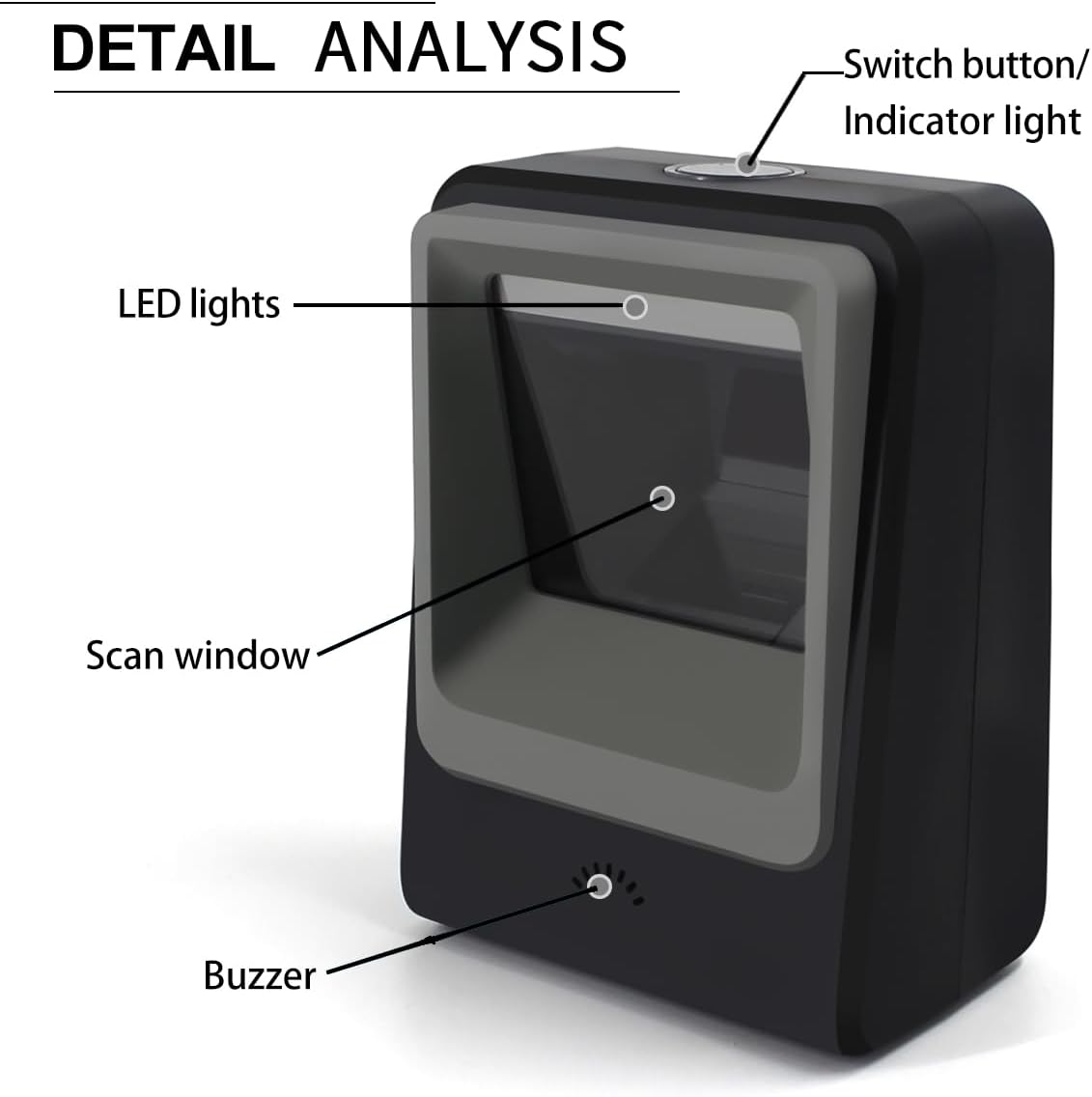
Image: Detailed diagram highlighting the scanner's components: Switch button/Indicator light, LED lights, Scan window, and Buzzer.
- Switch Button/Indicator Light: ควบคุมพลังงานและแสดงสถานะการทำงาน
- ไฟ LED: Illuminates the scanning area.
- หน้าต่างสแกน: บริเวณที่ใช้สำหรับอ่านบาร์โค้ด
- ออด: Provides audible feedback for successful scans or errors.
2. คุณสมบัติ
- การสแกนที่หลากหลาย: Capable of reading 1D, 2D, and QR barcodes, including damaged or distorted codes.

Image: The scanner demonstrating its ability to read both 1D and 2D barcodes, including QR codes, from digital displays and printed labels.
- การทำงานแบบแฮนด์ฟรี: Features an infrared auto-sensing sensor that automatically activates the scanner when a barcode is presented, and enters sleep mode when inactive.

Image: Illustration of the scanner's automatic sleep and wake-up function, activating when an item is placed in front of it.
- การตั้งค่าแบบปลั๊กแอนด์เพลย์: Requires no software installation; simply connect via USB to a compatible device.
- ความเข้ากันได้ในวงกว้าง: Works with Windows XP/7/8/10, Mac OS, and Linux operating systems.

Image: The scanner connected to a laptop, illustrating its plug-and-play functionality and compatibility with multiple operating systems and devices.
- โครงสร้างทนทาน: Designed with an anti-slip base for stability and constructed from ABS engineering plastics for enhanced durability, capable of withstanding drops from up to 1.5 meters (approximately 5 feet).

Image: Visual representation of the scanner's anti-shock design, demonstrating its resilience to drops from a height of 1.5 meters.
- ตัวเลือกการเชื่อมต่อที่หลากหลาย: Supports USB, Serial, and TTL transmission for flexible integration into various systems.

Image: Diagram illustrating the scanner's support for USB, Serial, and TTL transmission methods, connecting to a computer display.
3. คำแนะนำในการตั้งค่า
- แกะเครื่องสแกนเนอร์: นำเครื่องสแกนออกจากบรรจุภัณฑ์อย่างระมัดระวัง
- เชื่อมต่อกับแหล่งจ่ายไฟ/ข้อมูล: Insert the USB cable into the scanner's port and connect the other end to an available USB port on your computer or host device.
- การจดจำระบบ: The operating system (Windows, Mac OS, Linux) should automatically detect and configure the scanner as a standard HID keyboard device. No additional drivers or software are typically required.
- ทดสอบฟังก์ชันการทำงาน: Open a text editor (e.g., Notepad, Word) or a compatible application. Place a known barcode in front of the scanner's window. The scanner should emit a light, scan the barcode, and the data should appear in your open application. A successful scan is usually indicated by a beep from the buzzer.
If the scanner does not function immediately, ensure the USB cable is securely connected and try a different USB port. For specific configuration settings, refer to the programming guide (if provided separately) or contact support.
4. คู่มือการใช้งาน
The Symcode Desktop QR Omnidirectional Barcode Scanner is designed for hands-free, automatic operation.
- การสแกนอัตโนมัติ: The scanner utilizes an infrared auto-sensing sensor. When an object with a barcode is placed within its scanning field, the scanner will automatically activate its light and attempt to read the barcode.
- Positioning Barcodes: For optimal performance, present the barcode to the scanner's window. The omnidirectional design allows for scanning from various angles without precise alignment.
- Scan Confirmation: Upon a successful scan, the scanner will typically emit a short beep and the indicator light may flash. The scanned data will be transmitted to your connected device as if typed from a keyboard.
- โหมดสลีป: When no barcode is detected for a period, the scanner will automatically enter a low-power sleep mode, turning off its scanning light. It will reactivate instantly when a barcode is presented again.
5. การบำรุงรักษา
การบำรุงรักษาอย่างถูกต้องจะช่วยให้เครื่องสแกนบาร์โค้ดของคุณมีอายุการใช้งานยาวนานและมีประสิทธิภาพเหมาะสมที่สุด
- การทำความสะอาดหน้าต่างสแกน: Regularly clean the scan window with a soft, lint-free cloth. If necessary, dampใช้ผ้าชุบน้ำหรือน้ำยาทำความสะอาดอ่อนๆ ที่ไม่ทำให้เกิดรอยขีดข่วนเช็ดเบาๆ หลีกเลี่ยงสารเคมีรุนแรงหรือวัสดุที่มีฤทธิ์กัดกร่อนที่อาจทำให้กระจกเป็นรอยได้
- การทำความสะอาดทั่วไป: Wipe the exterior of the scanner with a soft, dry cloth. Do not immerse the scanner in water or any cleaning solutions.
- การดูแลสายเคเบิล: Ensure the USB cable is not kinked, twisted, or subjected to excessive strain. Damaged cables can affect connectivity.
- พื้นที่จัดเก็บ: ควรเก็บเครื่องสแกนไว้ในที่สะอาดและแห้ง หลีกเลี่ยงอุณหภูมิที่สูงหรือต่ำเกินไป และแสงแดดโดยตรงเมื่อไม่ได้ใช้งาน
6 การแก้ไขปัญหา
| ปัญหา | สาเหตุที่เป็นไปได้ | สารละลาย |
|---|---|---|
| เครื่องสแกนไม่เปิดใช้งานหรือไม่ตอบสนอง | USB cable not connected properly or faulty USB port. | Ensure the USB cable is securely plugged into both the scanner and the host device. Try a different USB port on your computer. |
| Scanner powers on but does not scan. | Barcode is damaged, poorly printed, or not within the scanning range/angle. Scanner is in sleep mode. | Ensure the barcode is clear and flat. Adjust the distance and angle. The scanner should wake up automatically when a barcode is presented. If not, check for obstructions on the sensor. |
| ข้อมูลที่สแกนไม่ถูกต้องหรือไม่สมบูรณ์ | Partial scan, incorrect barcode symbology settings (unlikely for default setup), or interference. | Rescan the barcode, ensuring it is fully within the scan window. If issues persist, consult the product's advanced configuration guide (if available) for symbology settings. |
| ไม่มีข้อมูลปรากฏในแอปพลิเคชันหลังจากการสแกน | Application not in focus, or scanner not recognized as a keyboard input device. | Ensure the target application (e.g., text editor, POS software) is active and ready to receive input. Verify the scanner is recognized by your operating system (check Device Manager on Windows). |
7. ข้อมูลจำเพาะ
| คุณสมบัติ | รายละเอียด |
|---|---|
| ขนาดสินค้า | ลึก 4.25 นิ้ว x กว้าง 2.75 นิ้ว x สูง 6 นิ้ว (ลึก 10.8 ซม. x กว้าง 7 ซม. x สูง 15.2 ซม.) Image: Dimensional drawing of the scanner, indicating its depth, width, and height measurements. |
| น้ำหนักสินค้า | 7.1 ออนซ์ (ประมาณ 201 กรัม) |
| เทคโนโลยีการเชื่อมต่อ | USB Cable (also supports Serial, TTL) |
| แหล่งพลังงาน | USB Barcode Reader (Bus-powered) |
| อุปกรณ์ที่รองรับ | Laptop, PC, iPad, Phone (with appropriate adapters/OTG support) |
| ระบบปฏิบัติการ | Windows XP/7/8/10, Mac OS, ลินุกซ์, Android |
| ประเภทบาร์โค้ดที่รองรับ | 1D: UPC/EAN, UPC-A, UPC-E, Code39, ISBN, Interleaved 2 of 5, Code93, Code 128, Codabar, EAN-8, EAN-13, GS1 Databar, Industrial 2 of 5, MSI. 2D: PDF417, Data Matrix, QR Code, Aztec, Maxicode, Hanxin. |
| ผู้ผลิต | สัญลักษณ์ |
8. การรับประกันและการสนับสนุน
For information regarding the product warranty, please refer to the documentation included with your purchase or contact Symcode customer support directly. Support contact details are typically available on the manufacturer's official webบรรจุภัณฑ์ไซต์หรือผลิตภัณฑ์
ผู้ผลิต: สัญลักษณ์
เอกสารที่เกี่ยวข้องDesktop QR Omnidirectional Barcode Scanner

Ask a question about this manual
Ask about setup, troubleshooting, compatibility, parts, safety, or missing instructions. Manuals+ will review the question and use this page’s manual context to help answer it.