
1. บทนำ
Thank you for choosing the Anmite A160W03T 16-inch Portable Touch Monitor. This manual provides essential information for the safe and efficient use of your new monitor. Please read it thoroughly before operation and retain it for future reference.
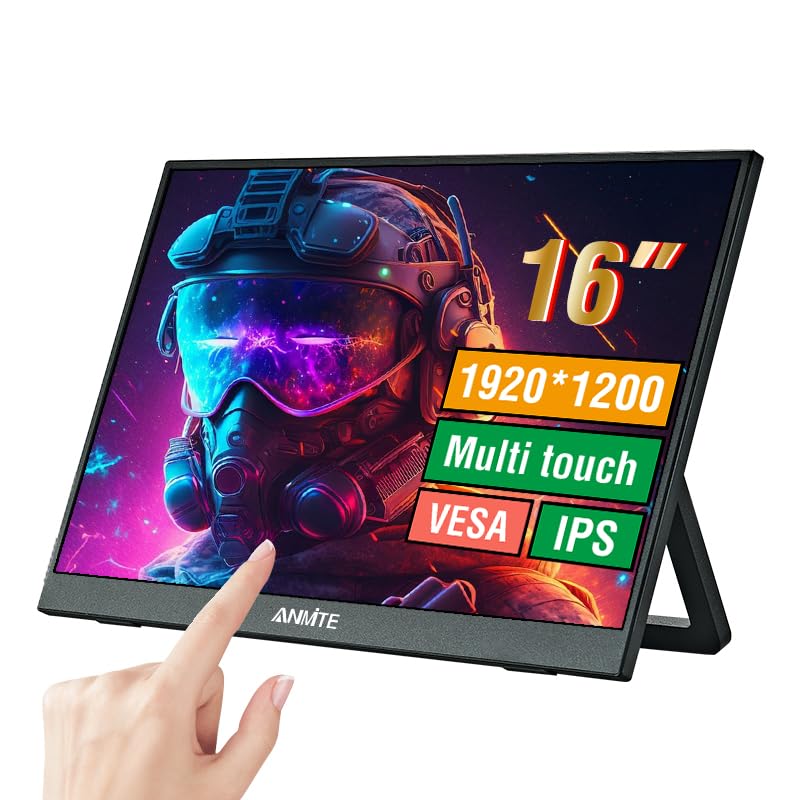
Image 1.1: Anmite 16-inch Portable Touch Monitor. This image displays the monitor's front view, highlighting its 16-inch screen, 1920x1200 resolution, 16:10 aspect ratio, 100% sRGB color gamut, VESA mount compatibility, touch functionality, 1200P resolution, and IPS panel technology. A hand is shown interacting with the touch screen.
2. ข้อมูลด้านความปลอดภัยที่สำคัญ
- อย่าวางจอภาพไว้ในที่ที่มีฝนหรือความชื้น เพื่อป้องกันไฟไหม้หรือไฟฟ้าช็อต
- หลีกเลี่ยงการวางจอภาพให้โดนแสงแดดโดยตรงหรือใกล้แหล่งความร้อน
- ใช้เฉพาะอะแดปเตอร์ไฟฟ้าและสายไฟที่ผู้ผลิตจัดให้เท่านั้น
- ห้ามถอดประกอบหรือดัดแปลงจอภาพด้วยตนเอง โปรดส่งมอบจอภาพให้แก่ช่างผู้ชำนาญการเท่านั้น
- เก็บจอภาพให้ห่างจากสนามแม่เหล็กแรงสูง
- ตรวจสอบให้แน่ใจว่ามีการระบายอากาศที่เหมาะสมรอบ ๆ จอภาพ
3. เนื้อหาบรรจุภัณฑ์
กรุณาตรวจสอบสิ่งของภายในกล่องเมื่อแกะกล่อง หากมีสินค้าใดสูญหายหรือเสียหาย โปรดติดต่อฝ่ายสนับสนุนลูกค้า
- Anmite Portable Monitor x 1
- Mini-HDMI to HDMI cable x 1
- สายเคเบิล Type-C ถึง Type-C x 1
- Type-C to USB-A cable x 1
- คู่มือผู้ใช้ x 1

Image 3.1: Contents of the Anmite Portable Monitor package. This image shows the monitor lying next to its retail box, which displays various product labels and certifications.
4. คุณสมบัติและข้อมูลจำเพาะของผลิตภัณฑ์
คุณสมบัติหลัก:
- 16-inch IPS Panel with 1920x1200 Resolution
- อัตราส่วนภาพ 16:10
- ฟังก์ชั่นหน้าจอสัมผัส
- Multiple Connectivity Options: Mini-HDMI, Full-Function Type-C
- Built-in Speakers (1W*2)
- Lightweight Metal Enclosure
ข้อมูลจำเพาะทางเทคนิค:
| ข้อมูลจำเพาะ | ค่า |
|---|---|
| น้ำหนักสุทธิ | 0.81 กก. (28.57 ออนซ์) |
| ขนาด | 355 x 237 x 5-13 mm (13.97 x 9.33 x 0.51 inches) |
| ขนาดหน้าจอ | 16 นิ้ว |
| ประเภทแผง | ไอพีเอส |
| อัตราส่วนภาพ | 16:10 น. |
| ปณิธาน | 1920 x 1200 |
| สีจอแสดงผล | 16.7เมตร |
| อัตราส่วนคอนทราสต์ | 1000:1 น. |
| ความสว่าง | 300cd/ตรม. |
| ช่วงสี | 100% sRGB |
| อัตราการรีเฟรช | 60เฮิรตซ์ |
| เวลาตอบสนอง | 5 มิลลิวินาที |
| อินเตอร์เฟซการป้อนข้อมูล | Mini-HDMI, Type-C (Full Function), Type-C (Power) |
| อินเทอร์เฟซเอาท์พุต | อินเทอร์เฟซเสียง 3.5 มม |
| ลำโพง | Built-in (1W*2) |
| เล่มที่tage | 5 โวลต์ (กระแสตรง) |

Image 4.1: Product dimensions. This diagram illustrates the physical measurements of the monitor, including width, height, and thickness, in both centimeters and inches.
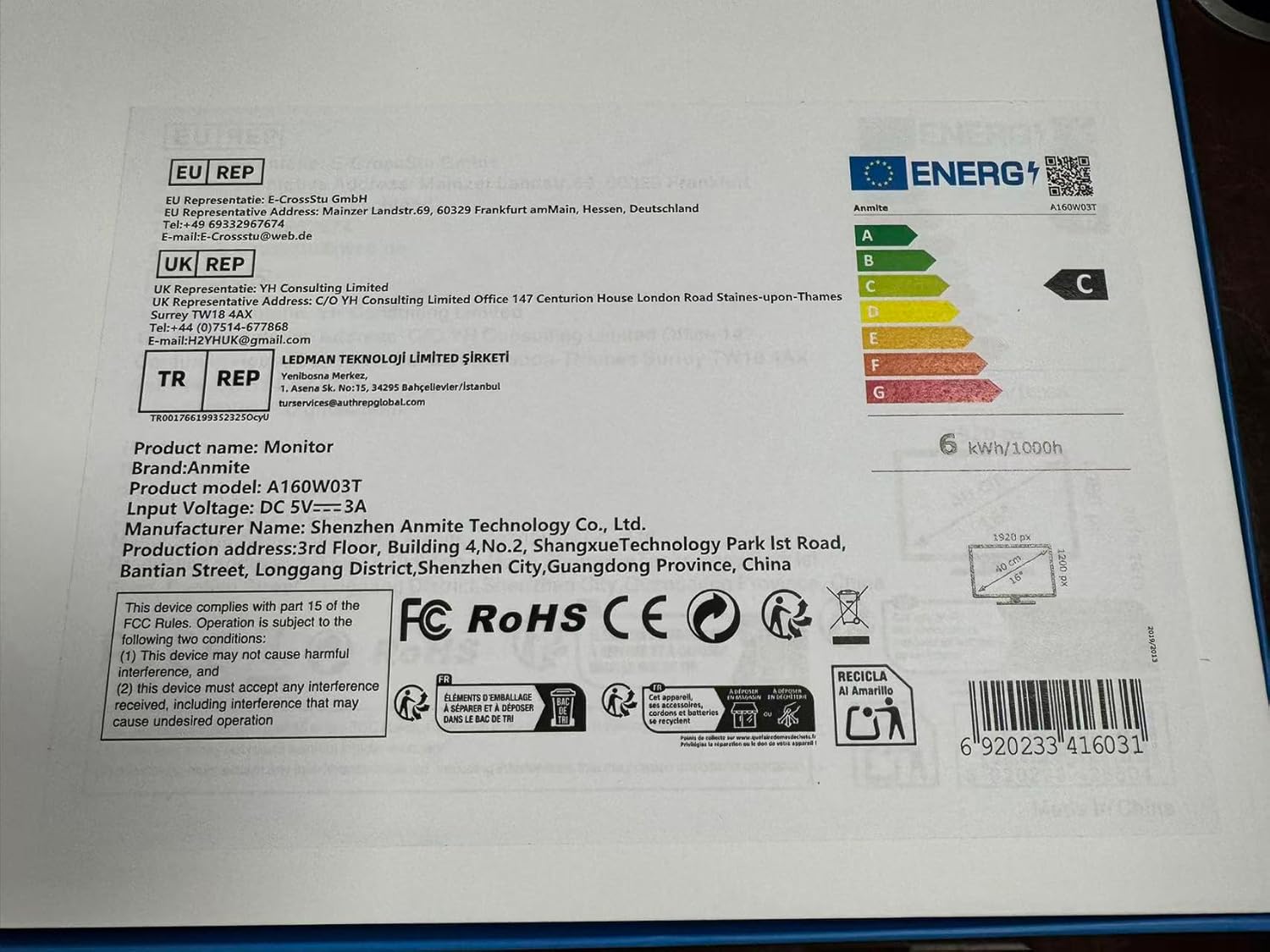
Image 4.2: Product label details. This close-up shows the product name, brand, model number (A160W03T), input voltage (DC 5V-3A), manufacturer information, and various compliance logos.
5. การตั้งค่า
5.1 การเชื่อมต่อกับอุปกรณ์
The Anmite A160W03T monitor supports connectivity via Type-C (Full Function) and Mini-HDMI.
- การเชื่อมต่อไฟฟ้า: Connect the monitor to a power source using the provided Type-C to USB-A cable and a compatible power adapter (not always included, typically 5V/3A). Alternatively, if your device provides sufficient power via a full-function Type-C port, a separate power connection may not be needed.
- Type-C Connection (Full Function):
- Ensure your device's Type-C port supports video output (DisplayPort Alternate Mode) and power delivery.
- Connect one end of the Type-C to Type-C cable to your device's full-function Type-C port and the other end to the monitor's full-function Type-C port.
- This single cable can transmit video, audio, touch signals, and power.
- Mini-HDMI Connection:
- Connect one end of the Mini-HDMI to HDMI cable to the monitor's Mini-HDMI port and the other end to your device's HDMI port.
- For power, use the Type-C to USB-A cable connected to the monitor's dedicated power Type-C port and a power adapter.
- For touch functionality with HDMI, an additional USB-A to Type-C cable (provided) must be connected from your device's USB-A port to the monitor's full-function Type-C port.

ภาพที่ 5.1: ด้านหลัง view of the monitor. This image shows the integrated stand and the location of the various input/output ports on the side and back of the monitor.
5.2 การปรับขาตั้ง
The monitor features an integrated stand. Gently pull out the stand from the back of the monitor to adjust it to your desired viewing angle. Ensure the stand is stable on a flat surface.
6. คู่มือการใช้งาน
6.1 เปิด/ปิดเครื่อง
- To power on the monitor, press the power button located on the side or back of the monitor.
- To power off, press and hold the power button for a few seconds until the screen turns off.
6.2 เมนูการแสดงผลบนหน้าจอ (OSD)
The monitor includes an OSD menu for adjusting settings such as brightness, contrast, color, and input source. Use the control buttons (typically located on the side or back) to navigate the menu:
- กดปุ่ม Menu เพื่อเปิด OSD
- Use the navigation buttons (up/down or +/-) to select options.
- Press the Enter button to confirm selections.
- Press the Exit button to close the OSD.
6.3 ฟังก์ชันหน้าจอสัมผัส
The monitor features a 10-point capacitive touch screen. When connected via a full-function Type-C cable or an HDMI + USB-A to Type-C cable, the touch function will be enabled automatically. Ensure your operating system supports touch input.
6.4 เอาต์พุตเสียง
The monitor has built-in speakers. You can also connect external headphones or speakers to the 3.5mm audio output interface for private listening or higher quality audio.
7. การบำรุงรักษา
7.1 การทำความสะอาดจอภาพ
- Always power off the monitor and unplug all cables before cleaning.
- ใช้ผ้านุ่มไม่เป็นขุยค่อยๆ งampเคลือบด้วยน้ำหรือน้ำยาทำความสะอาดหน้าจอที่ไม่กัดกร่อน
- ห้ามฉีดน้ำยาทำความสะอาดลงบนหน้าจอโดยตรง
- Avoid using harsh chemicals, alcohol, or abrasive materials.
7.2 พื้นที่จัดเก็บ
When not in use for extended periods, store the monitor in a cool, dry place, preferably in its original packaging, to protect it from dust and physical damage.
8 การแก้ไขปัญหา
หากคุณพบปัญหาเกี่ยวกับจอภาพของคุณ โปรดดูปัญหาทั่วไปและวิธีแก้ไขต่อไปนี้:
- ไม่มีสัญญาณ:
- ตรวจสอบให้แน่ใจว่าสายเคเบิลทั้งหมด (สายวิดีโอและสายไฟ) เชื่อมต่อแน่นหนาดีแล้ว
- Verify that your device's Type-C port supports video output if using Type-C.
- ลองใช้สายเคเบิลหรือพอร์ตอื่นบนอุปกรณ์ของคุณดู
- Select the correct input source in the monitor's OSD menu.
- ไม่มีไฟฟ้า:
- Check if the power adapter is properly connected and the power outlet is functional.
- Ensure the Type-C power cable is connected to the correct power input port on the monitor.
- ฟังก์ชันสัมผัสไม่ทำงาน:
- For Type-C connection, ensure it's a full-function Type-C port on your device.
- For HDMI connection, ensure the additional USB-A to Type-C cable is connected from your device to the monitor's full-function Type-C port for touch data.
- รีสตาร์ทอุปกรณ์ที่เชื่อมต่อของคุณ
- ไม่มีเสียง:
- ตรวจสอบการตั้งค่าระดับเสียงทั้งบนจอภาพและอุปกรณ์ที่เชื่อมต่ออยู่
- โปรดตรวจสอบให้แน่ใจว่าได้เลือกอุปกรณ์ส่งสัญญาณเสียงที่ถูกต้องบนคอมพิวเตอร์ของคุณแล้ว
- หากใช้ HDMI โปรดตรวจสอบให้แน่ใจว่าสาย HDMI รองรับการส่งสัญญาณเสียง
9. การรับประกันและการสนับสนุน
This Anmite portable monitor is manufactured by Shenzhen Anmite Technology Co., Ltd. For warranty information and technical support, please refer to the documentation provided with your purchase or contact your retailer. Please have your model number (A160W03T) and UPC (6920233416031) available when seeking support.