
1. บทนำ
ขอบคุณสำหรับการซื้อasing the KTC 24-inch WQHD 100Hz IPS Monitor. This manual provides essential information for the safe and efficient use of your new monitor. Please read it thoroughly before use and keep it for future reference.
This monitor features a 24-inch IPS panel with WQHD (2560x1440) resolution, offering stunning visual clarity and vibrant colors with 122% sRGB coverage. A 100Hz refresh rate and FreeSync & G-Sync compatibility ensure smooth, tear-free visuals, ideal for both office work and casual gaming. Advanced eye care technologies, including blue light reduction and flicker-free operation, provide a comfortable viewing experience even during extended use. The monitor also supports HDR10 for enhanced dynamic range and features flexible connectivity options with HDMI and DisplayPort.
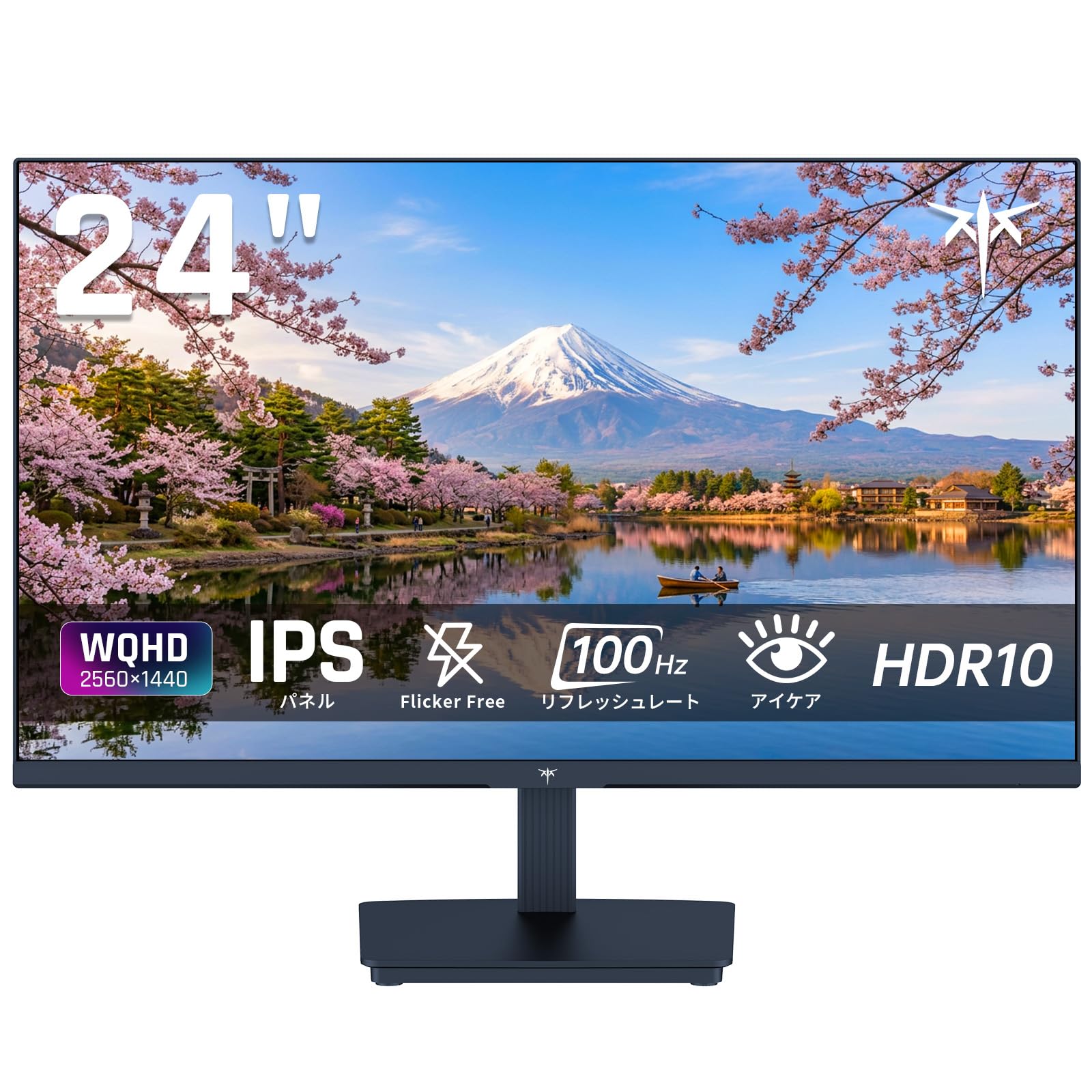
Image: KTC 24-inch WQHD 100Hz IPS Monitor.
2. ข้อมูลด้านความปลอดภัย
Please observe the following safety precautions to prevent damage to the monitor or injury to yourself or others:
- อย่าให้จอภาพโดนฝน ความชื้น หรืออุณหภูมิที่สูงหรือต่ำเกินไป
- ตรวจสอบให้แน่ใจว่ามีการระบายอากาศที่เหมาะสมรอบๆ จอภาพเพื่อป้องกันความร้อนสูงเกินไป
- ใช้เฉพาะอะแดปเตอร์ไฟฟ้าที่ให้มาพร้อมกับจอภาพเท่านั้น
- หลีกเลี่ยงการวางวัตถุหนักบนสายไฟหรือจอภาพ
- Do not attempt to disassemble or repair the monitor yourself. Contact qualified service personnel.
- เก็บจอภาพให้ห่างจากสนามแม่เหล็กแรงสูง
3. เนื้อหาบรรจุภัณฑ์
ตรวจสอบว่ามีรายการทั้งหมดอยู่ในแพ็คเกจ:
- KTC 24-inch WQHD 100Hz IPS Monitor (H24T27)
- ฐานจอภาพ
- สาย HDMI
- อะแดปเตอร์แปลงไฟ
- คู่มือการใช้งาน
4. การตั้งค่า
4.1 การประกอบขาตั้ง
- นำจอภาพและฐานออกจากบรรจุภัณฑ์อย่างระมัดระวัง
- ติดส่วนคอของขาตั้งเข้ากับแผงจอภาพ
- Secure the base to the stand neck using the provided screws.
4.2 การเชื่อมต่อจอภาพ
เชื่อมต่อจอภาพเข้ากับคอมพิวเตอร์หรืออุปกรณ์อื่นๆ ของคุณโดยใช้สายเคเบิลที่เหมาะสม
- การเชื่อมต่อไฟฟ้า: เชื่อมต่ออะแดปเตอร์แปลงไฟเข้ากับช่องเสียบไฟ DC ของจอภาพ จากนั้นเสียบเข้ากับเต้ารับไฟฟ้า
- การเชื่อมต่อวิดีโอ: Use the supplied HDMI cable or a DisplayPort cable to connect your computer's video output to the corresponding port on the monitor.
- เอาต์พุตเสียง: If desired, connect headphones or external speakers to the 3.5mm audio output jack.

Image: Close-up of the KTC monitor's rear ports, including DC power, HDMI, DisplayPort, and audio out.
5. คู่มือการใช้งาน
5.1 เปิด/ปิดเครื่อง
กดปุ่มเปิด/ปิดที่อยู่บนจอภาพเพื่อเปิดหรือปิดเครื่อง
5.2 เมนูการแสดงผลบนหน้าจอ (OSD)
The OSD menu allows you to adjust various monitor settings. Use the control buttons (usually located on the back or bottom of the monitor) to navigate the menu and make selections.
5.3 การตั้งค่าการแสดงผล
- ปณิธาน: The monitor supports WQHD (2560x1440) resolution for sharp and detailed images. Ensure your graphics card is set to this resolution for optimal display.
- อัตราการรีเฟรช: Enjoy smooth visuals with a 100Hz refresh rate. This can be configured in your operating system's display settings.
- ช่วงสี: The monitor offers 122% sRGB coverage for rich and accurate colors.

Image: KTC monitor highlighting key features like IPS panel, 100Hz, WQHD, 24-inch, Adaptive Sync, and blue light reduction.

Image: Comparison of WQHD (2560x1440) and FHD (1920x1080) resolutions, demonstrating enhanced detail with WQHD.

Image: Comparison of 100Hz and 60Hz refresh rates, showing smoother motion with 100Hz.
5.4 Adaptive Sync (FreeSync & G-Sync)
The monitor supports both FreeSync and G-Sync technologies to eliminate screen tearing and stuttering, providing a fluid gaming experience. Ensure this feature is enabled in your graphics card settings and the monitor's OSD.

Image: Monitor display showing HDR10 content on one side and standard HDR on the other, along with FreeSync & G-Sync comparison (ON/OFF).
5.5 คุณสมบัติการดูแลดวงตา
The monitor includes Flicker-Free technology and a Blue Light Reduction mode to minimize eye strain during prolonged use. These settings can be adjusted via the OSD menu.

Image: KTC monitor displaying eye care features: Low Blue Light (ON/OFF) and Flicker-Free (ON/OFF).
5.6 รองรับ HDR10
This monitor supports HDR10, providing a wider range of colors and contrasts for a more immersive viewing experience. Ensure HDR is enabled in your device's display settings for compatible content.
5.7 ขาตั้งแบบปรับได้
The monitor stand allows for tilt adjustment from -5° to 15°, enabling you to find the most comfortable viewมุมอิง

ภาพ: ด้านข้าง view of the KTC monitor demonstrating the tilt-adjustable stand (-5° to 15°).
5.8 กว้าง Viewอิงแองเกิล
The IPS panel provides a wide 178-degree viewปรับมุมมองได้หลากหลาย ทำให้มั่นใจได้ว่าสีและคุณภาพของภาพจะสม่ำเสมอจากเกือบทุกมุมมอง

Image: KTC monitor showcasing a wide 178-degree viewing angle with consistent color.
6. การบำรุงรักษา
6.1 การทำความสะอาดจอภาพ
- ถอดปลั๊กจอภาพทุกครั้งก่อนทำความสะอาด
- ใช้ผ้านุ่มไม่เป็นขุยค่อยๆ งampเคลือบด้วยน้ำหรือน้ำยาทำความสะอาดหน้าจอชนิดอ่อนที่ไม่กัดกร่อน
- ห้ามฉีดน้ำยาทำความสะอาดลงบนหน้าจอโดยตรง
- หลีกเลี่ยงการใช้สารเคมีรุนแรงหรือวัสดุที่มีฤทธิ์กัดกร่อน
6.2 การดูแลทั่วไป
- ควรเก็บจอภาพไว้ในที่สะอาดและแห้ง
- ป้องกันหน้าจอจากของมีคม
- When moving the monitor, handle it carefully and avoid putting pressure on the screen.
7 การแก้ไขปัญหา
หากคุณพบปัญหาเกี่ยวกับจอภาพของคุณ โปรดดูปัญหาทั่วไปและวิธีแก้ไขต่อไปนี้:
| ปัญหา | วิธีแก้ปัญหาที่เป็นไปได้ |
|---|---|
| ไม่มีภาพบนหน้าจอ | Check power connections. Ensure video cable is securely connected to both monitor and computer. Select correct input source via OSD. |
| ภาพเบลอหรือบิดเบี้ยว | Ensure the display resolution is set to 2560x1440. Check video cable for damage. |
| หน้าจอฉีกขาดหรือสะดุด | Verify FreeSync/G-Sync is enabled in both monitor OSD and graphics card settings. |
| ไม่มีเสียงจากหูฟัง/ลำโพง | Check audio cable connection. Ensure volume is not muted on monitor or computer. |
| จอภาพไม่เปิด | Check power outlet and power adapter connection. Try a different power outlet. |
หากปัญหายังคงอยู่หลังจากลองวิธีแก้ปัญหาเหล่านี้แล้ว โปรดติดต่อฝ่ายบริการลูกค้าของ KTC
8. ข้อมูลจำเพาะ
รายละเอียดคุณสมบัติทางเทคนิคของจอภาพ KTC H24T27:
| คุณสมบัติ | ข้อมูลจำเพาะ |
|---|---|
| ยี่ห้อ | เคทีซี |
| หมายเลขรุ่น | H24T27 |
| ขนาดหน้าจอ | 24 นิ้ว |
| ปณิธาน | WQHD (2560 x 1440 พิกเซล) |
| อัตราส่วนภาพ | 16:9 น. |
| ประเภทแผง | ไอพีเอส |
| พื้นผิวหน้าจอ | ไม่สะท้อนแสง |
| อัตราการรีเฟรช | 100 เฮิรตซ์ |
| เวลาตอบสนอง | 7 มิลลิวินาที |
| อัตราส่วนคอนทราสต์ | 1300:1 น. |
| ความสว่าง | 300 ซีดี/ตรม. |
| ช่วงสี | 122% sRGB |
| Viewอิงแองเกิล | 178 องศา |
| เทคโนโลยี HDR | HDR10 |
| การซิงค์แบบปรับตัว | FreeSync, G-Sync |
| การเชื่อมต่อ | 1x HDMI, 1x DisplayPort, เอาต์พุตเสียง |
| การใช้พลังงาน | 12 วัตต์ |
| เล่มที่tage | 100 โวลต์ |
| ขนาด (D x W x H) | 18.3 x 54 x 40.5 ซม. |
| คุณสมบัติเพิ่มเติม | Adaptive Sync, Eye Care, Flicker-Free, Blue Light Filter, Tilt Adjustment |
| อุปกรณ์ที่รองรับ | เครื่องเล่นเกมคอนโซล, แล็ปท็อป |
| สี | สีดำ |
| รูปร่าง | แบน |
| ต้นทาง | จีน |
9. การรับประกันและการสนับสนุน
9.1 ข้อมูลการรับประกัน
Your KTC monitor comes with a การรับประกันจากผู้ผลิต 3 ปี. In the event of a product defect, a free replacement will be provided. Please note that this warranty does not cover loss or damage caused by customer negligence.

Image: KTC's 3-year free replacement warranty details and contact information.
9.2 การสนับสนุนลูกค้า
For any inquiries or concerns, please feel free to contact us. We are committed to providing full support to ensure your satisfaction.
โทรศัพท์: 050-3606-8990
อีเมล: support@ktcplay.com
You can also contact support through Amazon:

Image: Step-by-step guide on how to contact customer support via Amazon.
10. สินค้าหมดview วีดีโอ
ชมวิดีโอนี้เพื่อดูภาพรวมview of the KTC QHD computer monitor and its features.
Video: This video showcases the KTC QHD computer monitor, highlighting its 2560x1440 (2K) resolution, 100Hz refresh rate, FreeSync and G-Sync compatibility, flicker-free and low blue light features, 8-bit & 116% sRGB color gamut, 3-side frameless design, -5° to 15° tilt adjustable stand, and available sizes (24, 27, 32 inches). It emphasizes its suitability for professional office use.