
1. บทนำ
This user manual provides detailed instructions for the setup, operation, maintenance, and troubleshooting of your ATTACK SHARK X66 Wireless Mechanical Gaming Keyboard. Designed for versatility and performance, the X66 features tri-mode connectivity, hot-swappable switches, and customizable RGB lighting, making it suitable for various uses including gaming, work, and multimedia.
Please read this manual thoroughly before using the keyboard to ensure optimal performance and longevity.
2. เนื้อหาบรรจุภัณฑ์
เมื่อแกะกล่อง โปรดตรวจสอบว่ามีสิ่งของต่อไปนี้ครบถ้วนในบรรจุภัณฑ์ของคุณ:
- 1 x คีย์บอร์ดเชิงกล ATTACK SHARK X66
- 1 x เครื่องมือถอดคีย์แคปและสวิตช์แบบ 2-in-1
- 2 x Extra Strawberry Switches
- สาย USB-C 1 เส้น
- 1 x คู่มือผู้ใช้ (เอกสารนี้)

Figure 2.1: Contents of the ATTACK SHARK X66 package, including the keyboard, USB-C cable, keycap/switch puller, and extra switches.
3. สินค้าหมดview และคุณสมบัติที่สำคัญ
The ATTACK SHARK X66 is a compact 66-key mechanical gaming keyboard featuring a gasket-mounted design for a soft and responsive typing experience. It includes a versatile volume knob and supports three connectivity modes for maximum flexibility.

รูปที่ 3.1: เกินview of the ATTACK SHARK X66's main features, including 3 modes connection, hot-swappable design, gasket structure, 5-layer silencing filling, 66+1 keys, single key slotted PCB, RGB backlight, 3000mAh battery, and customized high-performance chip.

Figure 3.2: The ATTACK SHARK X66 keyboard in Moonlight color, showcasing its compact layout and integrated volume knob.
4. การตั้งค่าและการเชื่อมต่อ
4.1 การชาร์จเริ่มต้น
Before first use, it is recommended to fully charge the keyboard. Connect the supplied USB-C cable to the keyboard's USB-C port and the other end to a powered USB port (e.g., computer, wall adapter). The charging indicator light will show the charging status.
4.2 โหมดการเชื่อมต่อ
The ATTACK SHARK X66 supports three connection modes: 2.4GHz Wireless, Bluetooth 5.0, and Wired (USB-C). A switch located on the side of the keyboard allows you to select the desired mode.
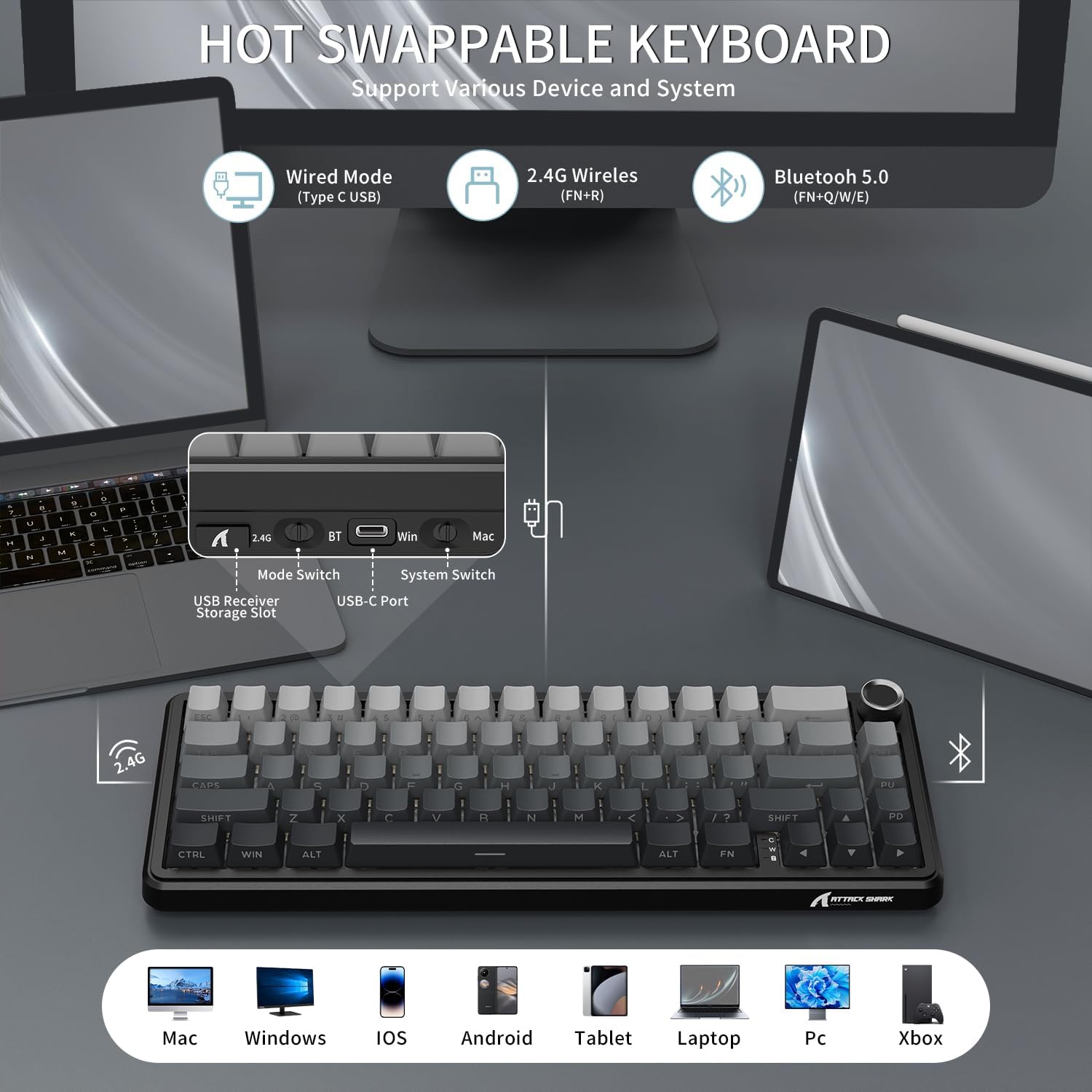
Figure 4.1: The keyboard's side panel illustrating the 2.4G, BT (Bluetooth), and USB-C ports, along with mode and system switches. The USB receiver storage slot is also visible.
- โหมดไร้สาย 2.4GHz:
Locate the 2.4G USB receiver stored in the keyboard's dedicated slot. Plug the receiver into an available USB port on your computer. Switch the keyboard to 2.4G mode. The keyboard should connect automatically.
- โหมดบลูทูธ 5.0:
Switch the keyboard to BT mode. On your device (PC, tablet, smartphone), enable Bluetooth and search for new devices. Select "ATTACK SHARK X66" from the list to pair. The keyboard can store up to 3 Bluetooth devices (FN+Q/W/E to switch between paired devices).
- Wired (USB-C) Mode:
Connect the USB-C cable from the keyboard to your computer's USB port. The keyboard will automatically switch to wired mode and begin charging.
วิดีโอ 4.1: จบแล้วview of the ATTACK SHARK X66 TRI Mode Mechanical Gaming Keyboard, demonstrating its features and connectivity options.
5. ฟังก์ชันหลักและเค้าโครง
The X66 features a compact 66-key layout, optimizing space while retaining essential functionality. Many functions are accessed via the FN การผสมคีย์
5.1 ปุ่มปรับระดับเสียง
The multi-functional aluminum alloy knob located in the top right corner controls audio volume and mute functions:
- Rotate clockwise: Increase volume
- Rotate counter-clockwise: Decrease volume
- Press: Mute/Unmute audio
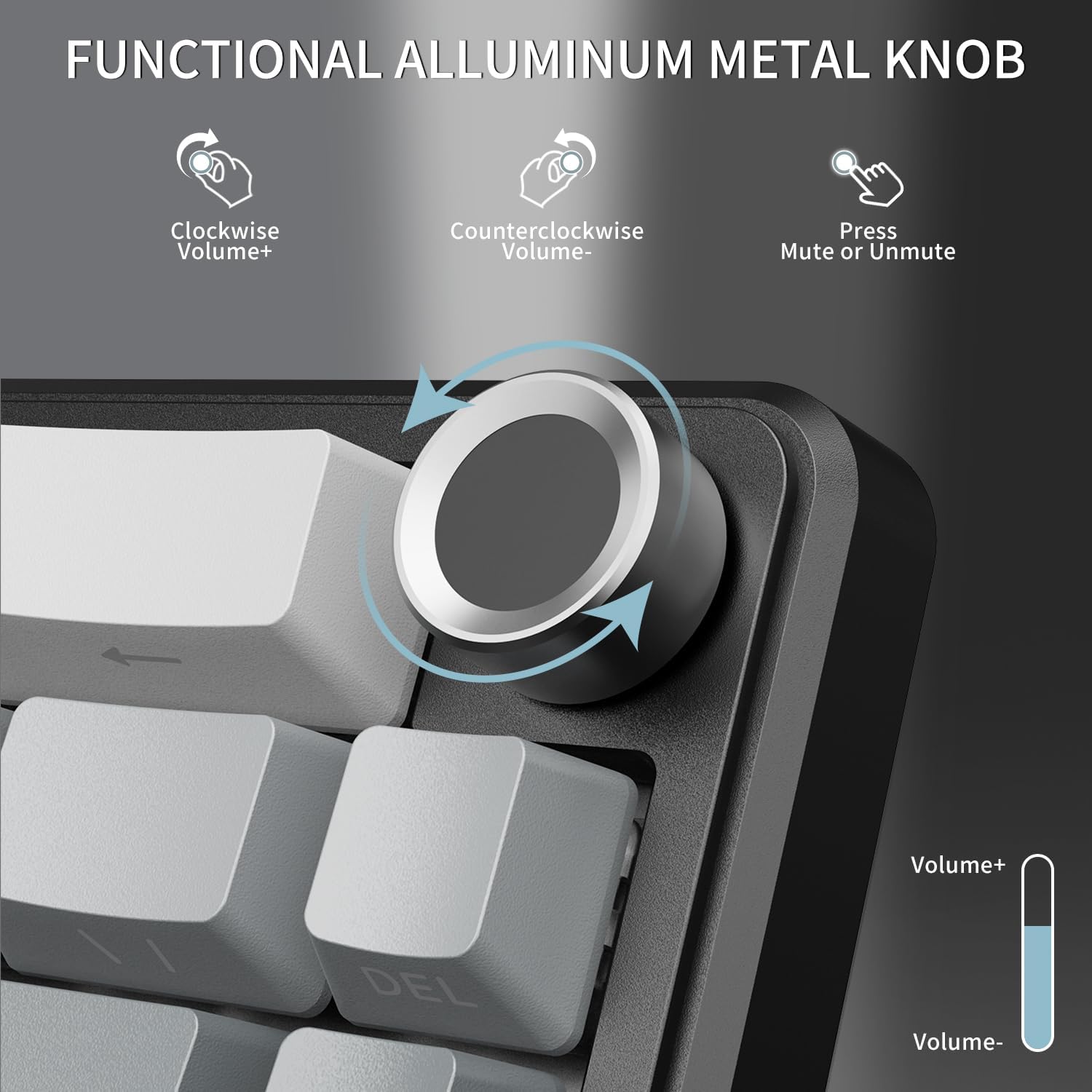
Figure 5.1: The volume knob, demonstrating its functions for increasinกรัม/ลดลงasing volume and muting/unmuting audio.
5.2 สวิตช์ความเข้ากันได้ของระบบ
The keyboard supports dual system compatibility (Windows/Mac). Use the dedicated switch next to the USB-C port to toggle between Win and Mac modes for optimized key mappings.
ไฟแสดงสถานะ 5.3 ดวง
The keyboard features three indicator lights to provide quick status updates:
- Caps ล็อคตัวบ่งชี้: ไฟจะสว่างขึ้นเมื่อกดปุ่ม Caps Lock
- ตัวบ่งชี้การล็อควิน: Illuminates when the Windows key is locked (to prevent accidental presses during gaming).
- ไฟแสดงสถานะการชาร์จ: Shows the charging status of the keyboard's battery.

Figure 5.2: The indicator lights located near the bottom right of the keyboard, showing status for Caps Lock, Win Lock, and charging.
6. การควบคุมแสง RGB
The ATTACK SHARK X66 features vibrant RGB backlighting with multiple customizable effects to enhance your gaming or work environment. The keyboard offers 18 dynamic chroma modes, 7 monochrome colors, and 1 rainbow color light.
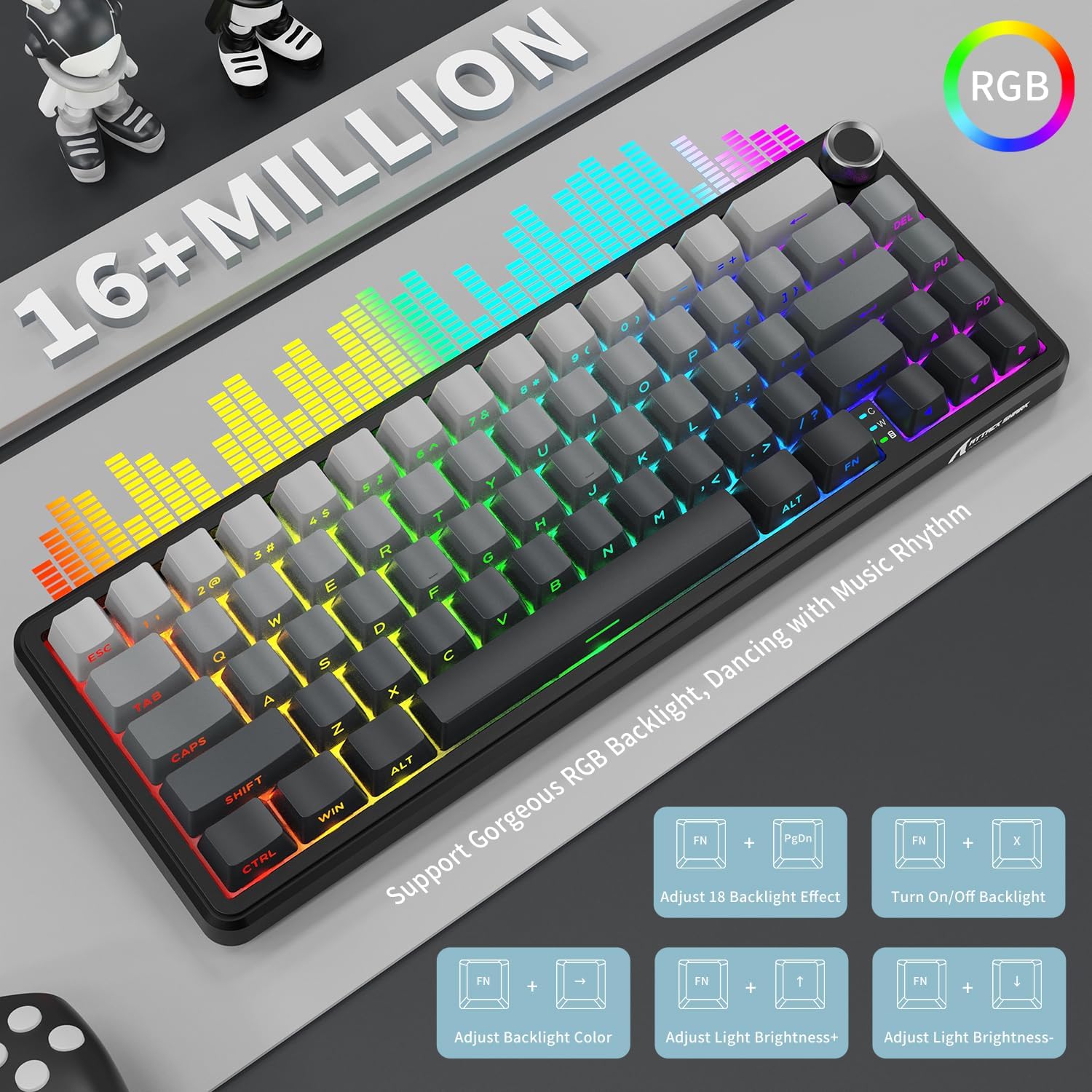
Figure 6.1: Visual representation of the RGB lighting capabilities and the FN key combinations for controlling them.
Use the following FN key combinations to control the RGB lighting:
- FN + PgDn: Adjust between 18 preset backlight effects.
- FN + X: Turn On/Off backlight.
- FN + ลูกศรซ้าย/ขวา: ปรับสีแบ็คไลท์
- FN + ลูกศรขึ้น/ลง: ปรับความสว่างของแสง
7. Hot-Swappable Switches and Gasket Structure
The X66 keyboard is designed with a hot-swappable socket, allowing users to easily change switches without soldering. This feature provides flexibility for customizing your typing feel and sound. It supports most 3-pin and 5-pin mechanical switches.

Figure 7.1: Illustration of the hot-swappable design, showing the custom linear strawberry switches, pre-lubed fine-tune stabilizer, and 1.2mm single key slotted PCB. The image also highlights the Cherry profile คีย์แคป PBT
The keyboard comes pre-installed with linear Strawberry Switches, known for their smooth and consistent keystrokes. The pre-lubed stabilizers ensure a stable and pleasant typing experience.
7.1 Gasket Mounted Structure
The X66 utilizes a gasket-mounted structure, incorporating 5 layers of high-quality sound-absorbing material. This design effectively reduces hollow sound and provides a pure, stable keystroke feeling, contributing to a "creamy thocky" sound profile.

Figure 7.2: Detailed exploded view of the gasket-mounted structure, showing the various layers of sound-absorbing materials and components like the single key slotted PCB, shaft underpad, silica gel, PET singing pad, and PORON filled cotton.
7.2 คีย์แคป PBT
The keyboard is equipped with durable PBT keycaps featuring side-printed characters. PBT material is known for its resistance to shine and wear over time, ensuring the legends remain clear. The Cherry profile provides an ergonomic typing feel.
8. การจัดการแบตเตอรี่
The ATTACK SHARK X66 is powered by a 3000mAh large-capacity battery, providing extended usage time in wireless modes.
8.1 การตรวจสอบระดับแบตเตอรี่
To check the current battery level, long press the FN + แบ็คสเปซ keys. The number keys (1-0) will illuminate to indicate the battery percentage, with 10 representing 100% and lower numbers indicating a lower charge.

Figure 8.1: Instructions for checking the visible battery level by pressing FN + Backspace, showing how the 1-0 keys indicate charge status.
8.2 การชาร์จ
Connect the keyboard to a power source using the provided USB-C cable. The charging indicator light will confirm that the keyboard is charging. The keyboard can be used while charging in wired mode.
9. การบำรุงรักษา
การบำรุงรักษาอย่างถูกต้องจะช่วยให้แป้นพิมพ์ของคุณมีอายุการใช้งานยาวนานและมีประสิทธิภาพเหมาะสมที่สุด
- การทำความสะอาด: Use a soft, dry cloth to wipe down the keyboard. For deeper cleaning, you may use a can of compressed air to remove dust and debris from between the keycaps.
- การเปลี่ยนคีย์แคปและสวิตช์: Use the included 2-in-1 keycap and switch puller to safely remove keycaps and switches. When replacing switches, ensure they are aligned correctly with the PCB pins to avoid bending.
- พื้นที่จัดเก็บ: เมื่อไม่ได้ใช้งานเป็นเวลานาน ควรเก็บแป้นพิมพ์ไว้ในที่แห้งและเย็น หลีกเลี่ยงแสงแดดโดยตรงและอุณหภูมิที่สูงหรือต่ำเกินไป

Figure 9.1: The adjustable double-layer bracket, which can be used to set the keyboard at an ergonomic angle for comfortable typing.
10 การแก้ไขปัญหา
If you encounter any issues with your ATTACK SHARK X66 keyboard, please refer to the following common solutions:
| ปัญหา | สาเหตุที่เป็นไปได้ / วิธีแก้ไข |
|---|---|
| แป้นพิมพ์ไม่ตอบสนองในโหมดไร้สาย |
|
| Specific keys not working or feeling stuck. |
|
| RGB lighting not working or behaving unexpectedly. |
|
| แป้นพิมพ์หลุดการเชื่อมต่อบ่อยครั้ง |
|
11. ข้อมูลจำเพาะ
| คุณสมบัติ | รายละเอียด |
|---|---|
| แบบอย่าง | เอ็กซ์66 |
| คำอธิบายแป้นพิมพ์ | เครื่องจักรกล |
| จำนวนคีย์ | 66 |
| เทคโนโลยีการเชื่อมต่อ | Tri Mode (2.4Ghz Wireless, Bluetooth 5.0, Type C Wired) |
| ความจุของแบตเตอรี่ | 3000mAh |
| วัสดุปุ่มกด | PBT (Side Printed Characters, Cherry Profile) |
| ประเภทสวิตซ์ | Linear Strawberry Switch (Hot Swappable) |
| รูปแบบการติดตั้ง | Gasket Mount (5-layer sound-absorbing material) |
| การแบ็คไลท์ | RGB (16+ Million Colors, Multiple Effects) |
| อุปกรณ์ที่รองรับ | แล็ปท็อป, พีซี, แท็บเล็ต, สมาร์ทโฟน, แมค |
| น้ำหนักสินค้า | 1.98 ปอนด์ |
| ขนาดแพ็คเกจ | 13.98 x 6.57 x 2.05 นิ้ว |
12. การรับประกันและการสนับสนุน
ATTACK SHARK products are manufactured to the highest quality standards. For warranty information, technical support, or customer service inquiries, please refer to the contact details provided on the product packaging or visit the official ATTACK SHARK webเว็บไซต์.
โปรดเก็บหลักฐานการซื้อของคุณไว้เพื่อเรียกร้องการรับประกัน