
การแนะนำ
This manual provides detailed instructions for the JZK Voice Remote Control, designed as a replacement or secondary remote for NVIDIA Shield TV Pro models from 2015, 2017, and 2019. This remote features voice search capabilities and an ergonomic design for comfortable use. Please read this manual thoroughly before operating your device.
เนื้อหาแพ็คเกจ
ตรวจสอบว่ามีรายการทั้งหมดอยู่ในแพ็คเกจของคุณ:
- 1 x JZK Voice Remote Control
- 1 x คู่มือผู้ใช้ (เอกสารฉบับนี้)
หมายเหตุ: ต้องใช้แบตเตอรี่ AAA 2 ก้อน ซึ่งไม่ได้รวมอยู่ในแพ็คเกจ

Image: Contents of the JZK remote control package, including the remote and a small user guide.
การตั้งค่า
1. การติดตั้งแบตเตอรี่
- ค้นหาช่องใส่แบตเตอรี่ที่ด้านหลังของรีโมทคอนโทรล
- เลื่อนฝาครอบแบตเตอรี่ลงเพื่อเปิด
- ใส่แบตเตอรี่ AAA สอง (2) ก้อน โดยตรวจสอบให้แน่ใจว่าขั้วถูกต้อง (+ และ -) ตามที่ระบุไว้ภายในช่องใส่แบตเตอรี่
- เลื่อนฝาครอบแบตเตอรี่กลับเข้าที่จนกระทั่งคลิกเข้าที่

Image: The remote control with its battery cover removed, illustrating where to insert two AAA batteries.
2. การจับคู่รีโมทคอนโทรล
The remote control uses an infrared connection. For initial setup or re-pairing, follow these steps:
- Ensure your NVIDIA Shield TV is powered on and within 1 foot (approx. 30 cm) of the remote control.
- On your NVIDIA Shield TV, navigate to Settings > Device Preferences > Remotes & Accessories.
- กดปุ่มค้างไว้ กลับ ปุ่มและ บ้าน button simultaneously on the JZK remote control until the remote's indicator light begins to flash.
- The NVIDIA Shield TV should detect the new remote. Select it from the list of available devices to complete the pairing process.
- Once paired, the remote's light will stop flashing, and you can begin using it.
If pairing fails, ensure the batteries are correctly installed and charged, and try the process again. You may also need to restart your NVIDIA Shield TV.
คำแนะนำการใช้งาน
โปรดทำความคุ้นเคยกับปุ่มต่างๆ และฟังก์ชันการทำงานของปุ่มเหล่านั้น:

Image: Detailed button layout of the JZK remote control with labels for each function.
| เลขที่ | ปุ่ม | การทำงาน |
|---|---|---|
| 1 | ไมโครโฟนในตัว | Used for Voice Search commands. |
| 2 | พลัง | Turns the NVIDIA Shield TV on or off. |
| 3 | การตั้งค่า | Accesses the NVIDIA Shield TV settings menu. (Customizable in Settings > Devices & Accessories > Customize Settings button) |
| 4 | วงแหวนนำทาง | Navigates menus: Up, Down, Right, Left. |
| 5 | Select (OK) | Confirms selections or opens items. |
| 6 | กลับ | กลับไปที่หน้าจอหรือเมนูก่อนหน้า |
| 7 | บ้าน | กลับสู่หน้าจอหลัก |
| 8 | ส่งต่ออย่างรวดเร็ว | Skips forward in media playback. |
| 9 | เล่น/หยุดชั่วคราว | เล่นหรือหยุดการเล่นสื่อชั่วคราว |
| 10 | ย้อนกลับ | Skips backward in media playback. |
| 11 | การค้นหาด้วยเสียง | Activates voice command input. Press and hold, then speak your command. |
| 12 | เพิ่มปริมาณ | เพิ่มระดับเสียง |
| 13 | ลดระดับเสียง | ลดระดับเสียง |
| 14 | เปิด Netflix | เปิดแอปพลิเคชัน Netflix โดยตรง |
Using Voice Search
The voice search feature allows for quick navigation and content discovery. To use it:
- กดปุ่มค้างไว้ การค้นหาด้วยเสียง ปุ่ม (11).
- Speak your command clearly into the built-in microphone (1). For example, say "Open YouTube," "Find action movies," or "Adjust volume."
- ปล่อยตัว การค้นหาด้วยเสียง button when you are finished speaking.
การซ่อมบำรุง
การทำความสะอาดรีโมท
ในการทำความสะอาดรีโมทคอนโทรล ให้ใช้ผ้าแห้งนุ่มๆ เช็ด สำหรับคราบสกปรกที่ติดแน่น ให้ใช้ผ้าชุบน้ำหมาดๆ เช็ดเบาๆampen the cloth with water or a mild, non-abrasive cleaner. Avoid using harsh chemicals or solvents, as these can damage the remote's surface or internal components.
การเปลี่ยนแบตเตอรี่
When the remote's performance degrades or it becomes unresponsive, it's time to replace the batteries. Follow the battery installation steps outlined in the การตั้งค่า section. Always replace both AAA batteries at the same time with new ones.
การแก้ไขปัญหา
If you encounter issues with your JZK Voice Remote Control, refer to the following common problems and solutions:
| ปัญหา | สาเหตุที่เป็นไปได้ | สารละลาย |
|---|---|---|
| รีโมทไม่ตอบสนอง | Low or dead batteries. Incorrect battery installation. Remote not paired. Obstruction between remote and Shield TV. | Replace batteries. Check battery polarity. Re-pair the remote (see Setup section). Ensure clear line of sight to Shield TV. |
| Voice Search not working. | Microphone blocked. Remote not properly paired for voice functions. Software glitch. | Ensure microphone is clear. Re-pair the remote. Restart NVIDIA Shield TV. |
| Buttons are sticky or not registering presses. | มีสิ่งสกปรกหรือเศษฝุ่นอยู่ใต้กระดุม | Clean the remote (see Maintenance section). |
| Remote disconnects frequently. | Interference. Low batteries. | Ensure no strong interference sources nearby. Replace batteries. Re-pair the remote. |
ข้อมูลจำเพาะ
| คุณสมบัติ | รายละเอียด |
|---|---|
| ยี่ห้อ | JZK |
| ความเข้ากันได้ของรุ่น | NVIDIA Shield TV Pro (2015, 2017, 2019 models), NVIDIA Shield TV Cube (2019) |
| ประเภทการเชื่อมต่อ | อินฟาเรด (IR) |
| แหล่งพลังงาน | แบตเตอรี่อัลคาไลน์ AAA 2 ก้อน (ไม่รวม) |
| คุณสมบัติพิเศษ | Voice Search, Ergonomic Design, Dedicated Netflix Button |
| วัสดุ | ABS ทนทาน |
| สี | สีดำ / สีขาว |
| ขนาด (กว้าง x ยาว x สูง) | ขนาดโดยประมาณ 16.8 x 6 x 2.6 ซม. (6.6 x 2.4 x 1.0 นิ้ว) |
| น้ำหนัก | ประมาณ 60 กรัม (2.1 ออนซ์) |

Image: Dimensions of the JZK remote control, indicating its length, width, and thickness.
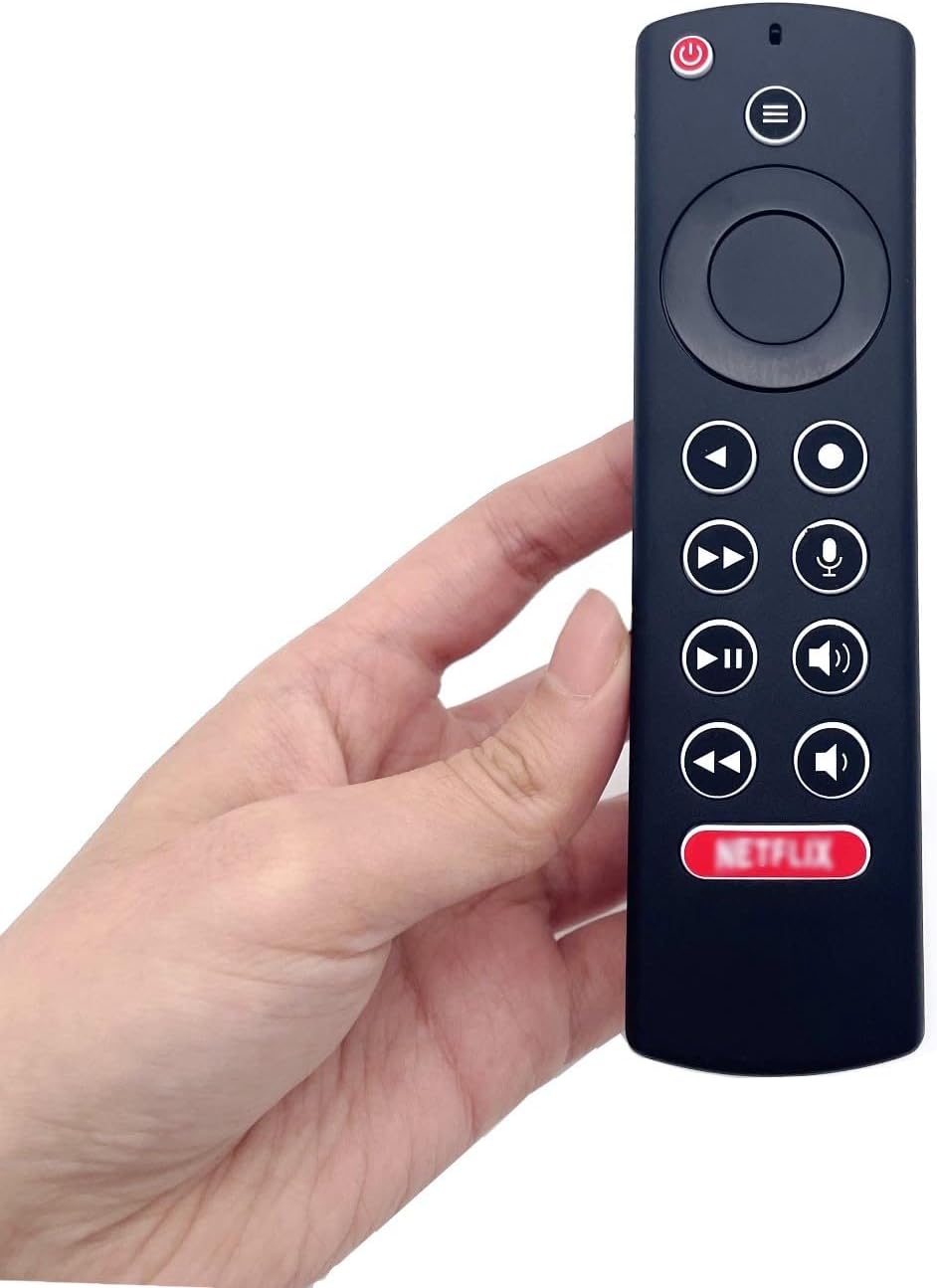
Image: The JZK remote control held in a hand, highlighting its comfortable and ergonomic design.
ข้อมูลการรับประกัน
Specific warranty details for this JZK product are not provided in the product description. Please refer to the retailer's return policy or contact JZK customer support for information regarding warranty coverage and terms.
สนับสนุน
For further assistance, troubleshooting, or inquiries about your JZK Voice Remote Control, please contact the retailer where you purchased the product or refer to the official JZK website for customer support options.