
การแนะนำ
This manual provides detailed instructions for the setup, operation, maintenance, and troubleshooting of your ATTACK SHARK X98PRO Wireless Mechanical Keyboard. This keyboard features a 98-key layout, a 1.14-inch TFT display, a multi-function CNC metal knob, tri-mode connectivity (Bluetooth, 2.4GHz wireless, USB-C wired), hot-swappable switches, RGB backlighting, and a 4000mAh battery. Please read this manual thoroughly before using the product to ensure optimal performance and longevity.
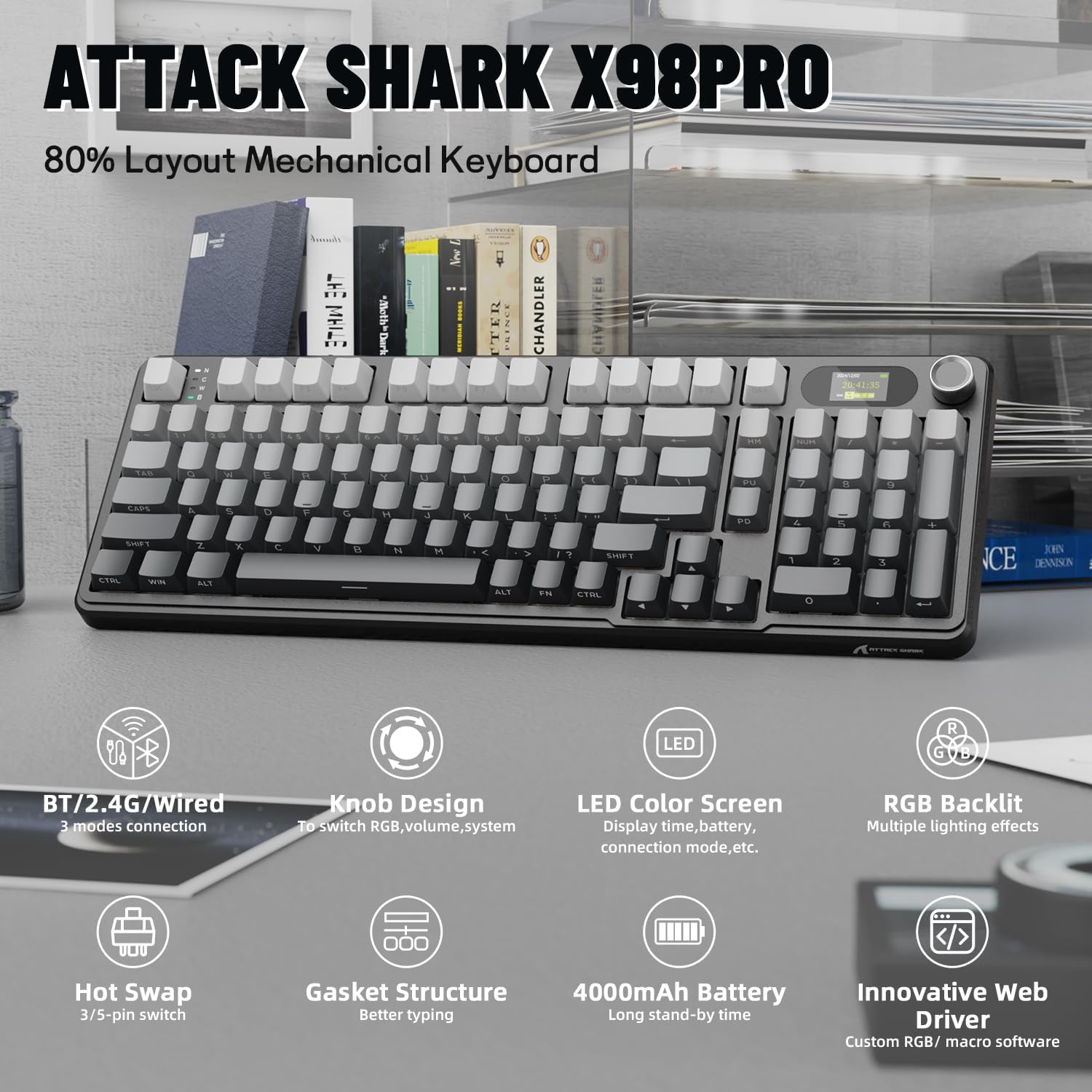
ภาพ: เหนือview of the ATTACK SHARK X98PRO keyboard, highlighting its 80% layout and key features such as tri-mode connection, knob design, LED color screen, RGB backlit, hot-swap capability, gasket structure, 4000mAh battery, and innovative web คนขับรถ
การตั้งค่า
1. การแกะกล่องและการตรวจสอบเบื้องต้น
Carefully remove the keyboard and all accessories from the packaging. Verify that the following items are included:
- คีย์บอร์ดเชิงกล ATTACK SHARK X98PRO
- สายเคเบิลถัก USB-C ถึง USB-A
- 2.4GHz Wireless Dongle (often stored in the keyboard's dongle slot)
- Keycap Puller and Switch Puller (for hot-swappable models)
2. การชาร์จครั้งแรก
Before first use, it is recommended to fully charge the keyboard. Connect the provided USB-C cable to the keyboard's USB-C port and the other end to a powered USB-A port on your computer or a wall adapter. The TFT screen will indicate charging status. The keyboard features a 4000mAh battery for extended use.

Image: The ATTACK SHARK X98PRO keyboard with an overlay indicating a 4000mAh high-capacity battery, showing estimated usage times of about 7 days with backlight on (5 hours/day) and about 15 days with backlight off (5 hours/day).
3. Connectivity Options (Tri-Mode)
The X98PRO keyboard supports three connection modes: USB-C wired, 2.4GHz wireless, and Bluetooth 5.0. A switch on the side of the keyboard allows you to select the desired mode.

Image: The ATTACK SHARK X98PRO keyboard connected to multiple devices via USB-C, 2.4GHz wireless, and Bluetooth 5.0, illustrating its versatile tri-mode connectivity.
โหมดสาย USB-C:
Connect the USB-C cable to the keyboard and your computer. Ensure the mode switch on the keyboard is set to 'USB'. The keyboard will be recognized automatically.
โหมดไร้สาย 2.4GHz:
Insert the 2.4GHz wireless dongle into an available USB port on your computer. Set the mode switch on the keyboard to '2.4G'. The keyboard should connect automatically. If not, press and hold Fn + 4 (for 2.4G pairing) until the indicator light flashes, then release. The keyboard will attempt to pair with the dongle.
โหมดบลูทูธ 5.0:
Set the mode switch on the keyboard to 'BT'. To enter pairing mode, press and hold Fn + 1, Fn + 2, or Fn + 3 for 3-5 seconds until the corresponding indicator light flashes rapidly. On your device (computer, tablet, phone), search for Bluetooth devices and select 'ATTACK SHARK X98PRO' to connect. You can pair up to three different Bluetooth devices and switch between them using Fn + 1, Fn + 2, or Fn + 3.

Image: The ATTACK SHARK X98PRO keyboard demonstrating its tri-mode connection capabilities, showing it simultaneously connected to a desktop PC via 2.4GHz, a laptop via USB-C, and a tablet via Bluetooth.
4. Web-ไดรเวอร์พื้นฐานสำหรับการปรับแต่ง
The keyboard features an innovative web-based driver for advanced customization. This allows you to edit, upload, and switch display content for the TFT screen, customize RGB effects, remap keys, and set macros without installing software. Access the driver via the manufacturer's official website (refer to packaging or official product page for URL).

Image: The ATTACK SHARK X98PRO keyboard positioned in front of a monitor displaying the web-based driver interface, illustrating options for fully programmable keys, backlight color and effects, custom key combinations, and screen animation settings.
คำแนะนำการใช้งาน
1. Multi-Function CNC Metal Knob
The CNC metal knob provides intuitive control over various functions. By default, rotating the knob adjusts volume. Pressing the knob cycles through different control modes.
- หมุน: Adjusts selected parameter (e.g., volume, brightness, RGB speed).
- กด: Cycles through knob functions (e.g., Volume, RGB Brightness, RGB Speed, Connection Mode).
- Fn + Knob Press: Some functions may require holding the Fn key while pressing the knob to switch between primary and secondary functions (e.g., switching between volume control and display menu navigation).

ภาพ: รายละเอียด view of the ATTACK SHARK X98PRO's CNC knob and TFT display. The image illustrates how to rotate the knob to select sections (e.g., volume) and press to confirm or enter menus, with examples of RGB mode, intensity, speed, GIF display, and language choice on the screen.
2. TFT Smart Screen
The 1.14-inch TFT screen can display various information and custom content:
- สถานะระบบ
- อายุการใช้งานแบตเตอรี่
- เวลาและวันที่
- โหมดการเชื่อมต่อ
- Custom GIFs or animations (configurable via web คนขับรถ)
3. การควบคุมไฟแบ็คไลท์ RGB
The keyboard features full RGB backlighting. Use the following key combinations to adjust lighting effects:
- กดปุ่ม Fn + Enter: สลับระหว่างเอฟเฟกต์แสงต่างๆ
- ฟน + \|: Switch lighting color.
- Fn + ↑ (ลูกศรขึ้น): เพิ่มความสว่างของไฟแบ็คไลท์
- Fn + ↓ (ลูกศรลง): ลดความสว่างของแสงไฟด้านหลัง
- Fn + ← (ลูกศรซ้าย): ลดความเร็วไฟแบ็คไลท์
- Fn + → (ลูกศรขวา): เพิ่มความเร็วไฟแบ็คไลท์

Image: The ATTACK SHARK X98PRO keyboard showcasing its vibrant RGB full-color backlighting, with an overlay illustrating key combinations (Fn + Enter, Fn + arrow keys) for switching light effects, colors, brightness, and speed.
4. สวิตช์แบบ Hot-Swappable
The X98PRO keyboard features a hot-swappable PCB, allowing you to easily change mechanical switches without soldering. It is compatible with most 3-pin and 5-pin mechanical switches.
- วิธีถอดสวิตช์: Use the provided switch puller to gently grip the top and bottom of the switch and pull upwards.
- วิธีการติดตั้งสวิตช์: จัดตำแหน่งพินของสวิตช์ใหม่ให้ตรงกับรูบนแผงวงจรพิมพ์ กดเบาๆ จนกระทั่งสวิตช์ล็อคเข้าที่ ตรวจสอบให้แน่ใจว่าพินไม่งอ

Image: A close-up of the ATTACK SHARK X98PRO keyboard with several keycaps and switches removed, showing the hot-swappable sockets. A switch puller is depicted, along with an exploded view of a Blueberry linear switch and its specifications, emphasizing compatibility with 3 or 5-pin switches.
5. Key Customization and Macros
การใช้ประโยชน์จาก web-based driver to remap keys, create custom key combinations, and program macros for enhanced productivity or gaming. Refer to the driver interface for detailed instructions on these advanced features.
การซ่อมบำรุง
1. การทำความสะอาดคีย์บอร์ด
การทำความสะอาดเป็นประจำจะช่วยรักษารูปลักษณ์และการทำงานของแป้นพิมพ์
- คีย์แคป: ใช้เครื่องมือถอดคีย์แคปเพื่อถอดคีย์แคปออก ทำความสะอาดด้วยน้ำสบู่เจือจางและผ้าเนื้อนุ่ม จากนั้นเช็ดให้แห้งสนิทก่อนประกอบกลับเข้าไปใหม่
- ตัวคีย์บอร์ด: เช็ดพื้นผิวด้วยความนุ่มนวลงamp ผ้า หลีกเลี่ยงความชื้นที่มากเกินไป
- ระหว่างคีย์: ใช้ลมเป่าอัดเพื่อกำจัดฝุ่นและเศษสิ่งสกปรกออกจากช่องว่างระหว่างสวิตช์
2. การดูแลแบตเตอรี่
เพื่อยืดอายุการใช้งานแบตเตอรี่ให้สูงสุด:
- หลีกเลี่ยงการปล่อยแบตเตอรี่จนหมดบ่อยครั้ง
- เก็บแป้นพิมพ์ไว้ในที่แห้งและเย็นเมื่อไม่ได้ใช้งานเป็นเวลานาน
- หากจะจัดเก็บเป็นเวลานาน ควรชาร์จแบตเตอรี่ให้เหลือประมาณ 50% ก่อนจัดเก็บ
3. การเปลี่ยนสวิตช์และคีย์แคป
As the switches are hot-swappable, you can replace individual switches or the entire set if desired. Ensure replacement switches are compatible (3-pin or 5-pin). Keycaps can also be replaced with standard MX-style keycaps.
การแก้ไขปัญหา
1. ปัญหาการเชื่อมต่อ
- Keyboard not connecting in 2.4GHz or Bluetooth mode: Ensure the mode switch is in the correct position. For 2.4GHz, try re-inserting the dongle and re-pairing (Fn + 4). For Bluetooth, ensure the keyboard is in pairing mode (Fn + 1/2/3 for 3-5 seconds) and your device's Bluetooth is enabled.
- การเชื่อมต่อแบบมีสายไม่ได้รับการยอมรับ: Check the USB-C cable connection at both ends. Ensure the mode switch is set to 'USB'. Try a different USB port or cable.
2. ปัญหาเกี่ยวกับแสงไฟด้านหลัง
- ไฟ RGB ไม่ทำงานหรือค้าง: Ensure the keyboard is charged. Try adjusting brightness (Fn + ↑/↓) or cycling through effects (Fn + Enter). A factory reset (if available, check web driver) might resolve persistent issues.
3. Knob or TFT Screen Issues
- Knob not responding: Press the knob to cycle through functions. Ensure no debris is obstructing its movement.
- หน้าจอแสดงผลไม่ถูกต้อง: Check battery level. If customized content is not showing, verify settings in the webไดรเวอร์แบบ -based
4. Unintended Key Presses
- If experiencing unintended key presses, ensure proper typing posture and avoid resting hands heavily on keys. The linear switches have a light actuation force.
5. ข้อกังวลเกี่ยวกับอายุการใช้งานแบตเตอรี่
- If battery life seems shorter than expected, ensure the keyboard is fully charged. Reduce RGB brightness or turn off backlighting to conserve power. Ensure the keyboard is turned off when not in use.
ข้อมูลจำเพาะ
| คุณสมบัติ | รายละเอียด |
|---|---|
| ยี่ห้อ | โจมตีฉลาม |
| แบบอย่าง | เอ็กซ์ทูโปร |
| คำอธิบายแป้นพิมพ์ | เครื่องจักรกล |
| เทคโนโลยีการเชื่อมต่อ | 2.4GHz, Bluetooth 5.0, USB-C แบบมีสาย |
| จำนวนคีย์ | 98 |
| ประเภทสวิตซ์ | Linear (Hot-Swappable 3/5-pin) |
| ความจุของแบตเตอรี่ | 4000mAh |
| คุณสมบัติพิเศษ | Customizable TFT Display, Multi-Function Knob, RGB Backlit, Gasket Mount |
| อุปกรณ์ที่รองรับ | แล็ปท็อป, พีซี, แท็บเล็ต |
| ระบบปฏิบัติการที่รองรับ | วินโดวส์, แมค, ลินุกซ์ |
| ขนาดสินค้า | ยาว 16.4 นิ้ว x กว้าง 5.8 นิ้ว x สูง 1.8 นิ้ว |
| วัสดุ | Aluminum (Knob), Fiberglass Composite (Case) |
การรับประกัน
The ATTACK SHARK X98PRO Wireless Mechanical Keyboard comes with a 1-year manufacturer's warranty from the date of purchase. This warranty covers defects in materials and workmanship under normal use. Please retain your proof of purchase for warranty claims. The warranty does not cover damage caused by misuse, accident, unauthorized modification, or normal wear and tear.
สนับสนุน
For further assistance, technical support, or warranty inquiries, please contact ATTACK SHARK customer service through their official webโปรดระบุรุ่นสินค้าและข้อมูลการซื้อจากเว็บไซต์หรือร้านค้าที่คุณซื้อสินค้า เมื่อติดต่อฝ่ายสนับสนุน
วิดีโอสินค้า
ATTACK SHARK X98PRO Wireless Keyboard Overview
วิดีโอ: จบแล้วview of the ATTACK SHARK X98PRO Wireless Mechanical Keyboard, showcasinก. การออกแบบและคุณสมบัติ
X98PRO 98-Key Mechanical Keyboard with TFT Display Features
Video: A demonstration of the ATTACK SHARK X98PRO 98-key mechanical keyboard, focusing on its TFT display and other key functionalities.