
การแนะนำ
This manual provides essential information for setting up, operating, maintaining, and troubleshooting your HP 14 inch Laptop. Please read this guide thoroughly to ensure proper use and to maximize the performance and longevity of your device.

Image: An HP 14 inch laptop being used by a person on a kitchen counter, demonstrating its portability and suitability for various environments.
1. การตั้งค่าเริ่มต้น
1.1 การแกะกล่องและเปิดเครื่องครั้งแรก
นำแล็ปท็อปและอุปกรณ์เสริมทั้งหมดออกจากบรรจุภัณฑ์อย่างระมัดระวัง ตรวจสอบให้แน่ใจว่ามีอุปกรณ์ครบถ้วน:
- HP 14 inch Laptop
- อะแดปเตอร์แปลงไฟ
- เอกสารประกอบ
Connect the power adapter to the laptop's power port and then to a wall outlet. Press the power button to turn on the laptop. Follow the on-screen instructions to complete the initial Windows 11 setup, including language selection, network connection, and user account creation.
1.2 การเชื่อมต่ออุปกรณ์ต่อพ่วง
แล็ปท็อปของคุณมีพอร์ตต่างๆ สำหรับเชื่อมต่ออุปกรณ์ภายนอก:

ภาพ: ด้านข้าง view of the HP 14 inch laptop, highlighting the various ports available for connecting peripherals such as USB devices and external displays.
- USB 3.2 Gen 1 Type-C (5Gbps): สำหรับเชื่อมต่ออุปกรณ์ USB-C รุ่นใหม่ๆ
- USB 3.2 Gen 1 Type-A (2x, 5Gbps): สำหรับอุปกรณ์ USB มาตรฐาน เช่น เมาส์ คีย์บอร์ด และฮาร์ดไดรฟ์ภายนอก
- HDMI เวอร์ชัน 1.4: สำหรับเชื่อมต่อกับจอแสดงผลภายนอกหรือโปรเจ็กเตอร์
- แจ็คคอมโบหูฟัง/ไมโครโฟน: For audio input/output devices.
Simply plug the peripheral's cable into the corresponding port on the laptop. Most devices are plug-and-play and will be recognized automatically by Windows 11.
2. การดำเนินการ
2.1 การใช้งานพื้นฐาน
The laptop features a standard keyboard and a responsive touchpad for navigation. Familiarize yourself with the function keys (Fn) for quick access to settings like volume, brightness, and Wi-Fi.
2.2 Connecting to Networks (Wi-Fi)
Your laptop supports Wi-Fi 6 for fast wireless connectivity. To connect to a Wi-Fi network:
- Click the Wi-Fi icon in the taskbar (usually bottom-right).
- เลือกเครือข่ายที่คุณต้องการจากรายการ
- ป้อนรหัสความปลอดภัยเครือข่าย (รหัสผ่าน) หากได้รับแจ้ง
- คลิก "เชื่อมต่อ"
2.3 การจับคู่อุปกรณ์บลูทูธ
The laptop includes Bluetooth 5.3 for connecting wireless accessories. To pair a Bluetooth device:
- ไปที่ การตั้งค่า > บลูทูธและอุปกรณ์.
- ตรวจสอบให้แน่ใจว่าบลูทูธเปิดอยู่ On.
- คลิก เพิ่มอุปกรณ์ และเลือก บลูทูธ.
- ตั้งค่าอุปกรณ์ Bluetooth ของคุณเข้าสู่โหมดจับคู่
- เลือกอุปกรณ์ของคุณจากรายการและทำตามคำแนะนำบนหน้าจอ
2.4 การใช้ Webลูกเบี้ยว
The integrated 720p HD camera is suitable for video calls and conferences. For privacy, your laptop features a physical privacy shutter. Slide the shutter to cover or uncover the camera lens as needed.
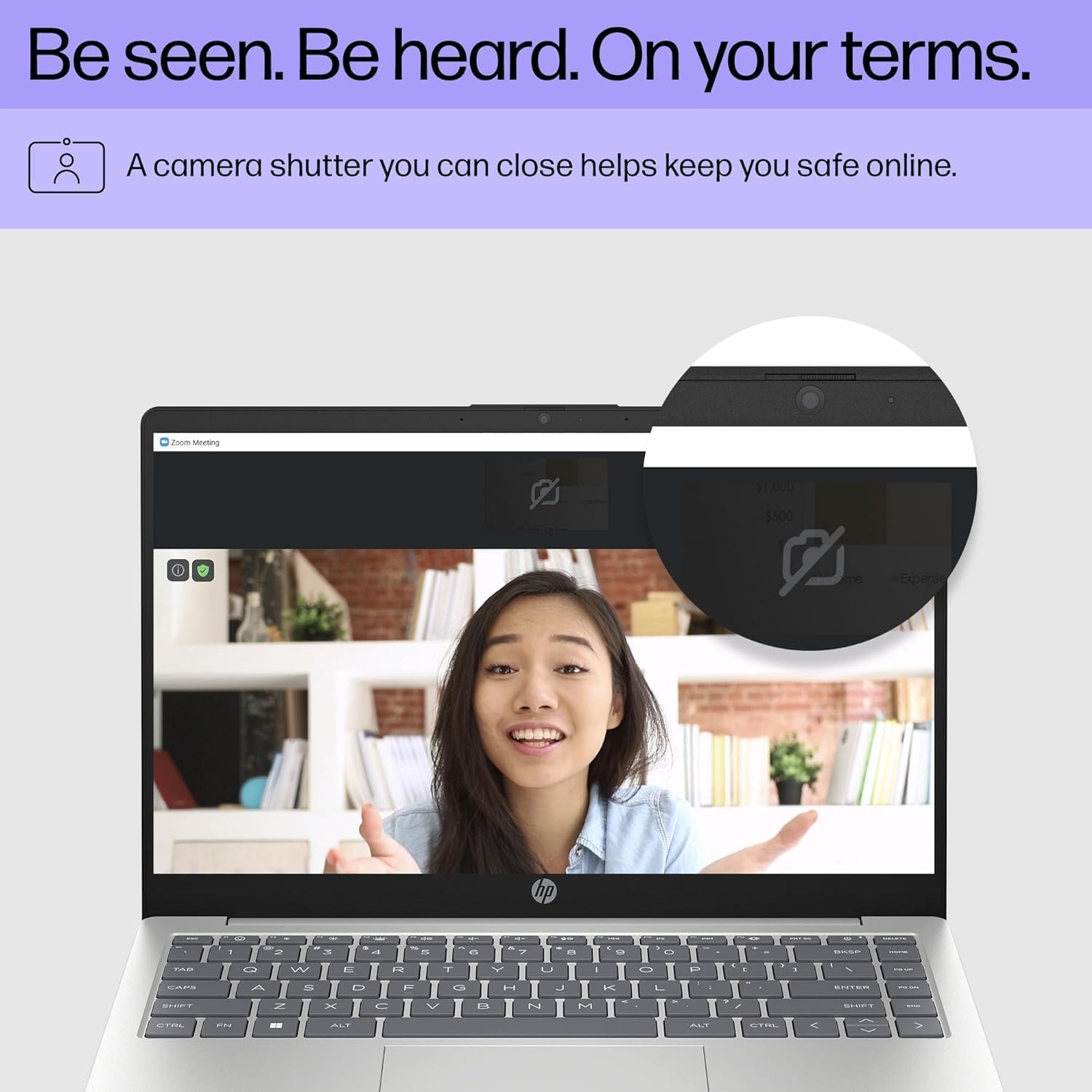
Image: Close-up of the HP laptop's integrated webcam, showing the physical privacy shutter in the open position. This feature allows users to physically block the camera lens for enhanced privacy.
2.5 การจัดการแบตเตอรี่
The laptop is equipped with a 3-cell 41Wh battery, providing up to 8 hours of non-gaming battery life. To optimize battery longevity:
- หลีกเลี่ยงการปล่อยแบตเตอรี่จนหมดบ่อยครั้ง
- Keep the laptop in a cool, dry environment.
- ปรับความสว่างหน้าจอให้อยู่ในระดับที่สบายตา
- Utilize Windows power saving modes when on battery power.

Image: Diagram illustrating the HP laptop's dimensions (14" display, 12.74" W, 8.46" D, 0.70" H) and indicating up to 8 hours of mixed usage battery life. This highlights the laptop's portability and endurance.
3. การบำรุงรักษา
3.1 การทำความสะอาดแล็ปท็อปของคุณ
การทำความสะอาดเป็นประจำจะช่วยรักษารูปลักษณ์และการทำงานของแล็ปท็อปของคุณ:
- หน้าจอ: ใช้ผ้านุ่มไม่เป็นขุยค่อยๆ งampล้างออกด้วยน้ำหรือน้ำยาทำความสะอาดหน้าจอ หลีกเลี่ยงสารเคมีรุนแรง
- แป้นพิมพ์และตัวเครื่อง: ใช้ผ้าเนื้อนุ่ม สำหรับคราบฝังแน่น ให้เช็ดเบาๆampสามารถใช้ผ้าชุบน้ำสบู่ชนิดอ่อนเช็ดได้ โดยให้แน่ใจว่าไม่มีของเหลวเข้าไปในช่องเปิด
- พอร์ต: ใช้ลมอัดเพื่อเป่าฝุ่นออกจากพอร์ตอย่างอ่อนโยน
3.2 การอัปเดตซอฟต์แวร์
Keep your Windows 11 operating system and drivers updated to ensure optimal performance and security. Windows Update typically handles this automatically, but you can manually check by going to การตั้งค่า > Windows Update.
3.3 การจัดการพื้นที่จัดเก็บและหน่วยความจำ
Your laptop is equipped with a 4TB NVMe M.2 SSD and 64GB DDR4 RAM. While these provide ample capacity, regular management is recommended:
- ลบข้อมูลที่ไม่จำเป็นออกเป็นระยะ fileใช้แอปพลิเคชันและโปรแกรมต่างๆ เพื่อเพิ่มพื้นที่จัดเก็บข้อมูลให้ว่าง
- ใช้ประโยชน์จากการจัดเก็บข้อมูลบนคลาวด์สำหรับข้อมูลขนาดใหญ่ files to reduce local drive usage.
- Windows 11 includes tools like Storage Sense (in Settings > System > Storage) to automate cleanup.
4. การแก้ไขปัญหาทั่วไป
4.1 ปัญหาพลังงาน
- โน๊ตบุ๊คไม่เปิด: ตรวจสอบให้แน่ใจว่าอะแดปเตอร์ไฟเชื่อมต่อกับทั้งแล็ปท็อปและเต้ารับไฟฟ้าที่ใช้งานได้แน่นดีแล้ว ลองใช้เต้ารับอื่น
- ไม่ชาร์จแบตเตอรี่: Verify the power adapter connection. Check for any damage to the adapter or cable.
4.2 ปัญหาการแสดงผล
- ไม่มีภาพบนหน้าจอ: If connected to an external monitor, ensure the correct input source is selected on the monitor. Try pressing Fn+F4 (or the equivalent display toggle key) to switch display outputs.
- หน้าจอมืด: Adjust brightness using the function keys (e.g., Fn + F2/F3) or through Windows display settings.
4.3 ปัญหาการเชื่อมต่อ (Wi-Fi/Bluetooth)
- ไม่สามารถเชื่อมต่อกับ Wi-Fi: Ensure Wi-Fi is enabled in Windows settings. Restart your router and the laptop. Check if other devices can connect to the network.
- อุปกรณ์บลูทูธไม่จับคู่: Ensure the Bluetooth device is in pairing mode and within range. Restart Bluetooth on the laptop and the device.
For more detailed troubleshooting or persistent issues, refer to the HP support webเว็บไซต์หรือติดต่อฝ่ายบริการลูกค้า
5. ข้อมูลจำเพาะ
Detailed technical specifications for your HP 14 inch Laptop (Model EP01):

Image: Infographic detailing key specifications of the HP 14 inch laptop, including 13th Gen Intel Core i7-1355U processor, 16GB DDR4-3200 MHz RAM, 1TB PCIe NVMe M.2 SSD, Intel Iris Xe Graphics, Windows 11 Home, and a Full HD IPS anti-glare display.
| คุณสมบัติ | ข้อมูลจำเพาะ |
|---|---|
| ยี่ห้อ | HP |
| ชื่อรุ่น | 14 inch Laptop (EP01) |
| โปรเซสเซอร์ | 13th Generation Intel Core i7-1355U (10 Cores, up to 5.0GHz) |
| กราฟฟิก | กราฟิก Intel Iris Xe (รวม) |
| หน่วยความจำ (RAM) | 64GB DDR4 3200 MHz SDRAM (Upgraded from 16GB) |
| พื้นที่จัดเก็บ | 4TB NVMe M.2 SSD (Upgraded from 1TB) |
| แสดง | 14" FHD (1920 x 1080) IPS Anti-Glare, 300 nits, 45% NTSC, 60Hz |
| ระบบปฏิบัติการ | วินโดวส์ 11 โฮม |
| การเชื่อมต่อ | Wi-Fi 6 (2x2), Bluetooth 5.3 |
| พอร์ต | 1x USB 3.2 Gen 1 Type-C, 2x USB 3.2 Gen 1 Type-A, 1x HDMI v1.4, 1x Headphone/Microphone Combo Jack |
| กล้อง | กล้อง HD 720p พร้อมชัตเตอร์ความเป็นส่วนตัว |
| เสียง | ลำโพงคู่ |
| แบตเตอรี่ | 3 เซลล์ 41 วัตต์ชั่วโมง (สูงสุด 8 ชั่วโมงเมื่อไม่เล่นเกม) |
| ขนาด (กว้าง x ยาว x สูง) | 12.74 x 8.46 x 0.70 นิ้ว |
| น้ำหนัก | 5.13 ปอนด์ |
| สี | เงินธรรมชาติ |
| ยูพีซี | 194850841057 |
6. การรับประกันและการสนับสนุน
6.1 การรับประกันสินค้า
Your HP laptop comes with a standard manufacturer's warranty. For specific details regarding coverage, duration, and terms, please refer to the warranty documentation included with your product or visit the official HP support webไซต์ โดยทั่วไปการรับประกันจะครอบคลุมถึงข้อบกพร่องในวัสดุและฝีมือการผลิตภายใต้การใช้งานปกติ
6.2 การสนับสนุนลูกค้า
For technical assistance, service, or further inquiries, please contact HP Customer Support:
- การสนับสนุนทางออนไลน์: เยี่ยม สนับสนุน hp.com สำหรับไดรเวอร์ คู่มือ และคำแนะนำการแก้ไขปัญหา
- การสนับสนุนทางโทรศัพท์: Refer to the contact information provided in your product's documentation for regional phone numbers.
When contacting support, please have your laptop's serial number and model number (EP01) ready.