
1. สินค้าหมดview
The COUGAR FV150 RGB is a mid-tower gaming case designed for high-performance PC builds. It features a dual-chamber design, separating the main components from cables, storage drives, and the power supply unit (PSU) for a clean aesthetic and improved airflow. The case supports various motherboard form factors and offers extensive cooling options, including pre-installed ARGB fans.
คุณสมบัติหลัก:
- การออกแบบแบบสองห้อง: ให้ความกระจ่างใส view of your build through glass panels while concealing cables and other components.
- รองรับ GPU: Accommodates graphics cards up to 400mm in length, with options for vertical GPU orientation.
- ความเข้ากันได้ของเมนบอร์ด: Supports Mini-ITX, Micro-ATX, and ATX motherboards.
- Engineered Bottom Fan Bracket: Simplifies fan installation by allowing attachment prior to setup.
- Extensive Fan & Water Cooling Support: Multiple fan mounting points and radiator support up to 360mm.
- Seamless RGB Synchronization: Integrated universal fan hub for easy ARGB lighting control.
- Modern I/O Panel: Includes 2 x USB Type-A and 1 x USB 3.2 Type-C ports.
- การจัดเก็บที่ยืดหยุ่น: Supports combinations of 3.5" HDDs and 2.5" SSDs.
- ตัวกรองฝุ่นแบบแม่เหล็ก: Located on the top and right side for easy maintenance.

ภาพที่ 1.1: มุม view of the COUGAR FV150 RGB case, highlighting its dual-chamber design and pre-installed ARGB fans.
2. การตั้งค่าและการติดตั้ง
Follow these steps for proper installation of your PC components into the COUGAR FV150 RGB case.
2.1 การแกะกล่องและการตรวจสอบเบื้องต้น
- ถอดเคสออกจากบรรจุภัณฑ์อย่างระมัดระวัง
- ตรวจสอบกล่องบรรจุภัณฑ์ว่ามีร่องรอยความเสียหายจากการขนส่งหรือไม่
- Remove the tempered glass side panel by unscrewing the thumb screws, if present, or by releasing กลไกสลัก
2.2 การติดตั้งเมนบอร์ด
- Ensure the correct standoffs are installed for your motherboard form factor (Mini-ITX, Micro-ATX, or ATX).
- วางแผ่นป้องกันพอร์ต I/O ลงในช่องเปิดด้านหลังของเคส
- Carefully align your motherboard with the standoffs and I/O shield, then secure it with screws.
2.3 การติดตั้งหน่วยจ่ายไฟ (PSU)
- The FV150 RGB supports bottom-mount PSUs.
- Slide the PSU into its designated compartment in the secondary chamber from the rear of the case.
- ยึดพาวเวอร์ซัพพลายด้วยสกรูจากด้านหลังตัวเคส
2.4 การติดตั้งไดรฟ์จัดเก็บข้อมูล
- Locate the drive bays in the secondary chamber.
- For 3.5" HDDs, slide the drive into the appropriate tray and secure it.
- For 2.5" SSDs, mount them to the designated brackets or trays.
2.5 การติดตั้งการ์ดจอ (GPU)
- ถอดฝาปิดช่องเสียบอุปกรณ์เสริมที่ด้านหลังเคสออกให้หมด
- Insert your GPU into the PCIe slot on the motherboard and secure it with screws.
- The case supports GPUs up to 400mm. For vertical GPU mounting, a separate riser cable and bracket (not included) are required.
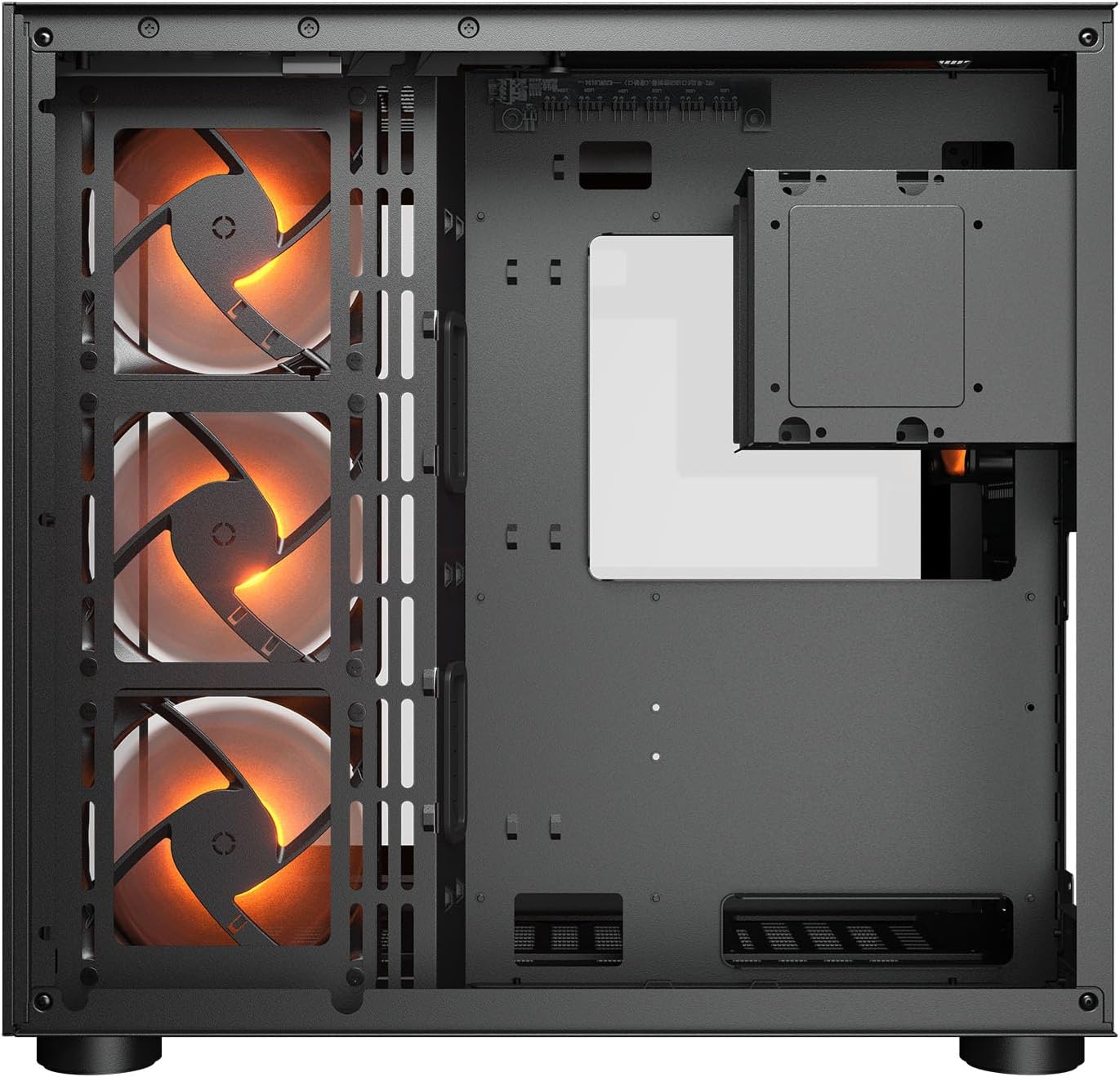
ภาพที่ 2.1: ภายใน view illustrating the main chamber for motherboard and GPU installation, with pre-installed side fans.
2.6 การติดตั้งพัดลมและหม้อน้ำ
- The case comes with 3 x 120mm ARGB side fans and 1 x 120mm ARGB rear fan pre-installed.
- Additional fans can be installed at the top (3 x 120mm or 2 x 140mm) and bottom (3 x 120mm or 2 x 140mm).
- Utilize the engineered bottom fan bracket for easier installation of bottom fans.
- For water cooling, radiators up to 360mm can be mounted on the top and 240mm on the side.

Image 2.2: Top internal view, showing potential mounting locations for additional cooling fans or radiators.
2.7 การจัดการสายเคเบิล
- Route all power and data cables through the cutouts to the secondary chamber.
- การใช้ประโยชน์จาก ample space and tie-down points in the secondary chamber to organize cables for optimal airflow and a clean appearance.
2.8 Connecting Front I/O Panel
- Connect the front panel cables (USB 3.2 Type-C, USB Type-A, audio, power, reset, LED) to the corresponding headers on your motherboard.
3. คู่มือการใช้งาน
เมื่อติดตั้งและเชื่อมต่อส่วนประกอบทั้งหมดแล้ว คุณสามารถเปิดระบบได้
3.1 การเปิดเครื่อง
- ตรวจสอบให้แน่ใจว่าสวิตช์ของแหล่งจ่ายไฟ (PSU) อยู่ในตำแหน่ง 'เปิด'
- กดปุ่มเปิด/ปิดที่แผง I/O ด้านหน้าของเคส
3.2 การควบคุมแสง RGB
- The integrated universal fan hub allows for easy synchronization of ARGB lighting.
- Connect the hub to your motherboard's ARGB header (5V 3-pin) to control lighting effects via motherboard software.
- Alternatively, use the dedicated RGB button on the front I/O panel to cycle through pre-set lighting modes if not connected to a motherboard header.
4. การบำรุงรักษา
การบำรุงรักษาตามปกติจะช่วยให้มั่นใจได้ถึงประสิทธิภาพสูงสุดและอายุการใช้งานที่ยาวนานของส่วนประกอบพีซีของคุณ
4.1 การทำความสะอาดตัวกรองฝุ่น
- The COUGAR FV150 RGB features magnetic dust filters on the top and right side, along with a ventilated bottom cover.
- Gently remove the magnetic dust filters.
- Clean them using compressed air or by rinsing with water (ensure they are completely dry before reattaching).
- Periodically clean the ventilated bottom cover.
4.2 การทำความสะอาดทั่วไป
- ใช้ผ้าแห้งนุ่มเช็ดทำความสะอาดพื้นผิวด้านนอกของเคส
- For tempered glass panels, use a glass cleaner and a microfiber cloth to avoid streaks.
- หลีกเลี่ยงการใช้สารเคมีรุนแรงหรือวัสดุที่มีฤทธิ์กัดกร่อนซึ่งอาจทำให้พื้นผิวเสียหายได้
5 การแก้ไขปัญหา
หัวข้อนี้ให้แนวทางแก้ไขปัญหาทั่วไปที่คุณอาจพบเจอ
5.1 ระบบไม่เปิดเครื่อง
- ตรวจสอบแหล่งจ่ายไฟ (PSU): Ensure the power supply unit is properly connected to the wall outlet and the PSU switch is in the 'ON' position.
- การเชื่อมต่อที่แผงด้านหน้า: ตรวจสอบให้แน่ใจว่าสายปุ่มเปิดปิดจากเคสเชื่อมต่อกับหัวต่อแผงด้านหน้าของเมนบอร์ดอย่างถูกต้องแล้ว
- สายไฟภายใน: Confirm all necessary power cables (24-pin ATX, 8-pin CPU, PCIe for GPU) are securely connected to the motherboard and components.
5.2 พัดลมไม่หมุนหรือไฟ RGB ไม่ทำงาน
- การเชื่อมต่อพัดลม: Ensure all fan power cables are securely connected to the fan hub or motherboard headers.
- การเชื่อมต่อ RGB: Verify the ARGB cables are correctly connected to the fan hub and the hub is connected to a 5V 3-pin ARGB header on the motherboard.
- Software/Button: If connected to the motherboard, check your motherboard's RGB control software. If not, try pressing the RGB button on the case's I/O panel to cycle modes.
5.3 พอร์ต USB ใช้งานไม่ได้
- หัวต่อ USB ภายใน: Confirm that the USB 3.0 and USB Type-C cables from the front I/O panel are correctly plugged into the corresponding headers on your motherboard.
- ไดร์เวอร์เมนบอร์ด: Ensure you have installed the latest chipset and USB drivers for your motherboard.
6. ข้อมูลจำเพาะ
Detailed technical specifications for the COUGAR FV150 RGB Gaming Case.

Image 6.1: Case dimensions for planning your setup.
| คุณสมบัติ | ข้อมูลจำเพาะ |
|---|---|
| ชื่อสินค้า | FV150 RGB |
| ปัจจัยรูปแบบกรณี | มิดทาวเวอร์ |
| ความเข้ากันได้ของเมนบอร์ด | มินิ-ITX, ไมโคร-ATX, ATX |
| ขนาด (กว้าง x สูง x ลึก) | 300 x 400 x 415 มม. (11.8" x 15.7" x 16.3") |
| แผง I/O | USB 3.2 Gen 2 Type-C x 1, USB-A 3.0 x 2, 4 Pole Headset Audio Jack, RGB Button |
| ช่องใส่ไดรฟ์ขนาด 3.5 นิ้ว | 2 |
| ช่องใส่ไดรฟ์ขนาด 2.5 นิ้ว | 1+1 (converted from 3.5" drive bays) |
| ช่องเสียบขยาย | 7+3 |
| รองรับ GPU แนวตั้ง | ใช่ |
| Cooling Fan Support (Top) | 3 x 120มม. หรือ 2 x 140มม. |
| Cooling Fan Support (Bottom) | 3 x 120มม. หรือ 2 x 140มม. |
| Cooling Fan Support (Side) | 3 x 120มม. |
| Cooling Fan Support (Rear) | 1 x 120มม. |
| Pre-installed Fans (Side) | 3 x 120mm ARGB (Reversed) |
| Pre-installed Fans (Rear) | 1 x 120mm ARGB |
| Pre-installed Fan Speed | 1000 (±10%) รอบต่อนาที |
| Pre-installed Fan Connector | 5V 3 ขา (ARGB) / 3 ขา (พัดลม) |
| จำนวนพัดลมสูงสุด | 10 |
| ฐานรองระบบระบายความร้อนด้วยน้ำ (ด้านบน) | 360mm / 280mm / 240mm |
| Water Cooling Support (Side) | 240มม. / 120มม. |
| ฐานรองระบบระบายความร้อนด้วยน้ำ (ด้านหลัง) | 120มม. |
| RGB Hub Sync with M/B | ใช่ |
| แม็กซ์ ความยาวการ์ดจอ | 400 มม. (15.7 นิ้ว) |
| แม็กซ์ ความสูงของตัวทำความเย็นซีพียู | 180 มม. (7.1 นิ้ว) |
| แม็กซ์ ความยาว PSU | 210 มม. (8.3 นิ้ว) |
| วัสดุ | โลหะ |
| น้ำหนักสินค้า | 6.83 กิโลกรัม |
7. ข้อมูลการรับประกัน
COUGAR products are manufactured to the highest quality standards. This product is covered by a manufacturer's warranty against defects in materials and workmanship. The specific duration and terms of the warranty may vary by region and retailer. Please retain your proof of purchase for warranty claims.
For detailed warranty information, please refer to the official COUGAR webไซต์หรือติดต่อผู้ค้าปลีกในพื้นที่ของคุณ
8. การสนับสนุน
If you encounter any issues or have questions regarding your COUGAR FV150 RGB Gaming Case that are not covered in this manual, please contact COUGAR customer support.
- Visit the official COUGAR webเว็บไซต์นี้รวบรวมคำถามที่พบบ่อย (FAQ) ข้อมูลการดาวน์โหลดไดรเวอร์ และข้อมูลการติดต่อฝ่ายสนับสนุน
- Contact your retailer for assistance with product returns or exchanges.