
การแนะนำ
This manual provides comprehensive instructions for the Akko MG75 ABNT2 Mechanical Keyboard. Designed for efficiency and customization, this 75% layout keyboard features Akko Silver V3 Pro mechanical switches, full RGB backlighting, and hot-swappable switch sockets. Please read this manual carefully to ensure proper use and maintenance of your device.
1. การตั้งค่า
1.1 เนื้อหาบรรจุภัณฑ์
- Akko MG75 ABNT2 Mechanical Keyboard
- USB-C Cable (Removable)
- ตัวดึงกุญแจ
- ตัวดึงสวิตช์
- สวิตช์เสริม
- คู่มือการใช้งาน (เอกสารนี้)
1.2 การเชื่อมต่อคีย์บอร์ด
- หาพอร์ต USB-C ที่ด้านหลังของคีย์บอร์ด
- เชื่อมต่อสาย USB-C ที่ให้มาเข้ากับแป้นพิมพ์
- เชื่อมต่อปลายอีกด้านหนึ่งของสาย USB-C เข้ากับพอร์ต USB ที่ว่างอยู่บนคอมพิวเตอร์ของคุณ
- ระบบปฏิบัติการของคุณจะตรวจจับแป้นพิมพ์โดยอัตโนมัติ โดยปกติแล้วไม่จำเป็นต้องติดตั้งไดรเวอร์เพิ่มเติมสำหรับการใช้งานพื้นฐาน

Image: USB-C port for connecting the keyboard.
1.3 การปรับความสูงของแป้นพิมพ์
The Akko MG75 keyboard features three levels of adjustable height. Flip out the feet located on the underside of the keyboard to select your preferred typing angle.
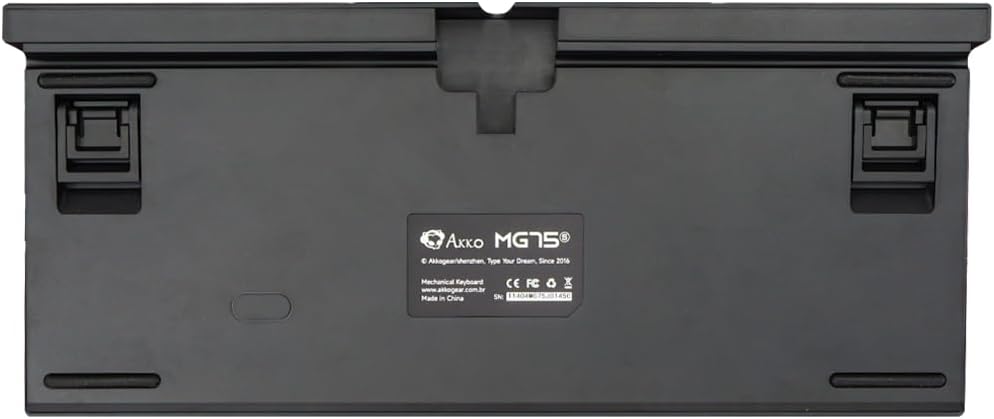
Image: Underside of the keyboard with adjustable feet.
2. คู่มือการใช้งาน
2.1 การควบคุมแสง RGB
The Akko MG75 keyboard features full RGB backlighting with multiple effects and customization options. Refer to the included quick guide or the official Akko software for detailed instructions on changing lighting modes, colors, and brightness. Typically, lighting effects can be cycled using specific key combinations (e.g., Fn + certain keys).
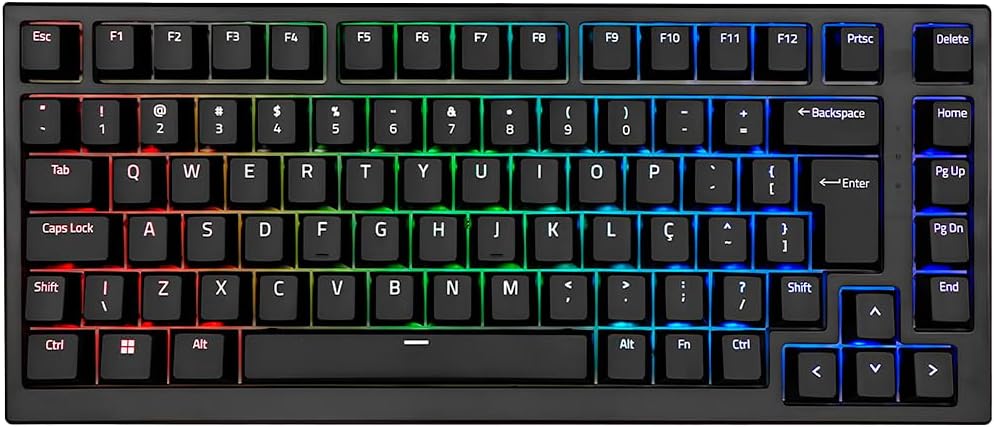
Image: Akko MG75 keyboard displaying RGB lighting.
2.2 สวิตช์แบบ Hot-Swappable
The Akko MG75 supports hot-swappable mechanical switches, compatible with both 3-pin and 5-pin switches. This allows for easy customization of your typing experience without soldering.
การเปลี่ยนสวิตช์:
- ใช้เครื่องมือถอดสวิตช์ที่ให้มาเพื่อถอดสวิตช์ที่ต้องการออกจากแป้นพิมพ์อย่างระมัดระวัง จับสวิตช์ให้แน่นแล้วดึงขึ้นตรงๆ
- จัดตำแหน่งขาของสวิตช์ใหม่ให้ตรงกับรูบน PCB ตรวจสอบให้แน่ใจว่าขาตั้งตรง
- Gently press the new switch into place until it clicks securely. Do not force the switch if it does not go in easily; check pin alignment.

Image: Akko mechanical switches, illustrating their design for hot-swapping.
2.3 ABNT2 Layout
This keyboard features the ABNT2 layout, which includes specific keys for Portuguese language characters and punctuation, such as 'Ç' and dedicated keys for accents. This layout is standard for Brazilian Portuguese users.

ภาพ: จากบนลงล่าง view of the Akko MG75 keyboard, highlighting the ABNT2 layout.
3. การบำรุงรักษา
3.1 การทำความสะอาดแป้นพิมพ์
- ถอดแป้นพิมพ์ออกจากคอมพิวเตอร์ของคุณก่อนทำความสะอาด
- ใช้แปรงขนนุ่มหรือลมอัดเพื่อขจัดฝุ่นและเศษต่างๆ ออกจากระหว่างปุ่มต่างๆ
- สำหรับคราบสกปรกที่ติดแน่น ให้เช็ดปุ่มกดและพื้นผิวแป้นพิมพ์เบาๆ ด้วยผ้าชุบน้ำหมาดๆamp ผ้า (ชุบน้ำเปล่าเท่านั้น) หลีกเลี่ยงความชื้นมากเกินไป
- อย่าใช้สารเคมีรุนแรงหรือน้ำยาทำความสะอาดที่มีฤทธิ์กัดกร่อน
3.2 การเปลี่ยนคีย์แคป
To replace keycaps, use the provided keycap puller. Gently hook the puller onto the keycap and pull straight up. To install a new keycap, align it with the switch stem and press down firmly until it is seated.
4 การแก้ไขปัญหา
4.1 แป้นพิมพ์ไม่ตอบสนอง
- ตรวจสอบให้แน่ใจว่าสาย USB-C เชื่อมต่อกับคีย์บอร์ดและคอมพิวเตอร์ของคุณอย่างแน่นหนา
- Try disconnecting and reconnecting the USB-C cable multiple times. Some users have reported this resolves initial connection issues.
- Test the keyboard on a different USB port on your computer.
- If possible, test the keyboard on another computer to rule out system-specific issues.
- Check if the cable itself is damaged by trying a different USB-C cable if available.
4.2 ไฟ RGB ทำงานไม่ถูกต้อง
- ตรวจสอบให้แน่ใจว่าแป้นพิมพ์เชื่อมต่ออย่างถูกต้องและได้รับพลังงาน
- Refer to the quick guide for key combinations to cycle through lighting modes and adjust brightness.
- If using Akko software, ensure it is up-to-date and correctly configured.
5. ข้อมูลจำเพาะ
| คุณสมบัติ | รายละเอียด |
|---|---|
| ยี่ห้อ | อักโกะ |
| แบบอย่าง | MG75 |
| เค้าโครง | 75% ABNT2 |
| สวิตซ์ | Akko Silver V3 Pro Mechanical |
| แลกเปลี่ยนร้อน | ใช่ (ใช้งานได้ทั้งแบบ 3 พินและ 5 พิน) |
| การเชื่อมต่อ | USB-C (Removable Cable) |
| การแบ็คไลท์ | อาร์จีบี |
| ป้องกันการโดนผีหลอก | N-keys Rollover |
| ปุ่มกด | ABS Laser |
| ปรับความสูงได้ | ใช่ 3 ระดับ |
| อุปกรณ์ที่รองรับ | PC |
| สี | สีดำ |
| จำนวนคีย์ | 84 |
| น้ำหนักรวม | 1582 กรัม |
| น้ำหนักสุทธิ | 1451 กรัม |
| Package Dimensions (L x H x D) | 350มม. x 250มม. x 50มม. |
6. การรับประกันและการสนับสนุน
6.1 การรับประกันสินค้า
The Akko MG75 Mechanical Keyboard comes with a รับประกัน 12 เดือน against manufacturing defects from the date of purchase. Please retain your proof of purchase for warranty claims. This warranty does not cover damage caused by misuse, accidents, unauthorized modifications, or normal wear and tear.
6.2 การสนับสนุนลูกค้า
For technical assistance, warranty claims, or further inquiries, please visit the official Akko website or contact your local retailer. You may find additional resources, FAQs, and software downloads on the manufacturer's support page.
อัคโกะอย่างเป็นทางการ Webเว็บไซต์: www.akkogear.com


