
cellularline BTIONWATCHPRORK
คู่มือผู้ใช้สมาร์ทวอทช์ Cellularline ION PRO ROUND
Model: BTIONWATCHPRORK
1. บทนำ
The Cellularline ION PRO ROUND Smartwatch is designed to integrate seamlessly into your daily routine, offering advanced features for communication, health monitoring, and fitness tracking. This manual provides detailed instructions to help you set up, operate, and maintain your smartwatch effectively.

Image 1.1: Cellularline ION PRO ROUND Smartwatch
2. อะไรอยู่ในกล่อง
Upon unpacking your Cellularline ION PRO ROUND Smartwatch, please ensure all the following components are present:
- Cellularline ION PRO ROUND Smartwatch
- สายชาร์จ
- คู่มือการใช้งาน
3. การตั้งค่า
3.1. การชาร์จครั้งแรก
Before first use, fully charge your smartwatch. Connect the provided charging cable to the charging port on the back of the smartwatch and plug the USB end into a compatible power adapter (not included) or a computer's USB port. A full charge typically takes approximately 3 hours.

Image 3.1: Smartwatch displaying charging status, indicating long-lasting battery life.
3.2. การติดตั้งแอพ
To unlock the full functionality of your smartwatch, download and install the Cellularline ION app on your smartphone. The app is compatible with both iOS and Android devices. You can find the app by scanning the QR code provided on the product packaging or by searching for "Cellularline ION" in your device's app store.
3.3. การจับคู่อุปกรณ์
- ตรวจสอบให้แน่ใจว่าสมาร์ทวอทช์ของคุณชาร์จและเปิดอยู่
- เปิดใช้งานบลูทูธบนสมาร์ทโฟนของคุณ
- Open the Cellularline ION app and follow the on-screen instructions to add a new device.
- Select your ION PRO ROUND Smartwatch from the list of available Bluetooth devices.
- หากระบบแจ้งให้ยืนยันการจับคู่ โปรดยืนยันคำขอจับคู่ทั้งบนสมาร์ทโฟนและสมาร์ทวอทช์ของคุณ
4. คู่มือการใช้งาน
4.1. การนำทางพื้นฐาน
The smartwatch features a 1.38-inch TFT Full Touch display. Swipe left, right, up, or down to navigate through menus, notifications, and widgets. Tap to select items or confirm actions. The side button typically serves as a home button or to wake/sleep the screen.

Image 4.1: High-definition 1.38-inch display of the smartwatch.
4.2. การจัดการการโทร
With Bluetooth connectivity, you can answer calls directly from your smartwatch. When a call comes in, the smartwatch will display the caller ID. Tap the green icon to answer or the red icon to reject the call. You can also initiate calls through the app.
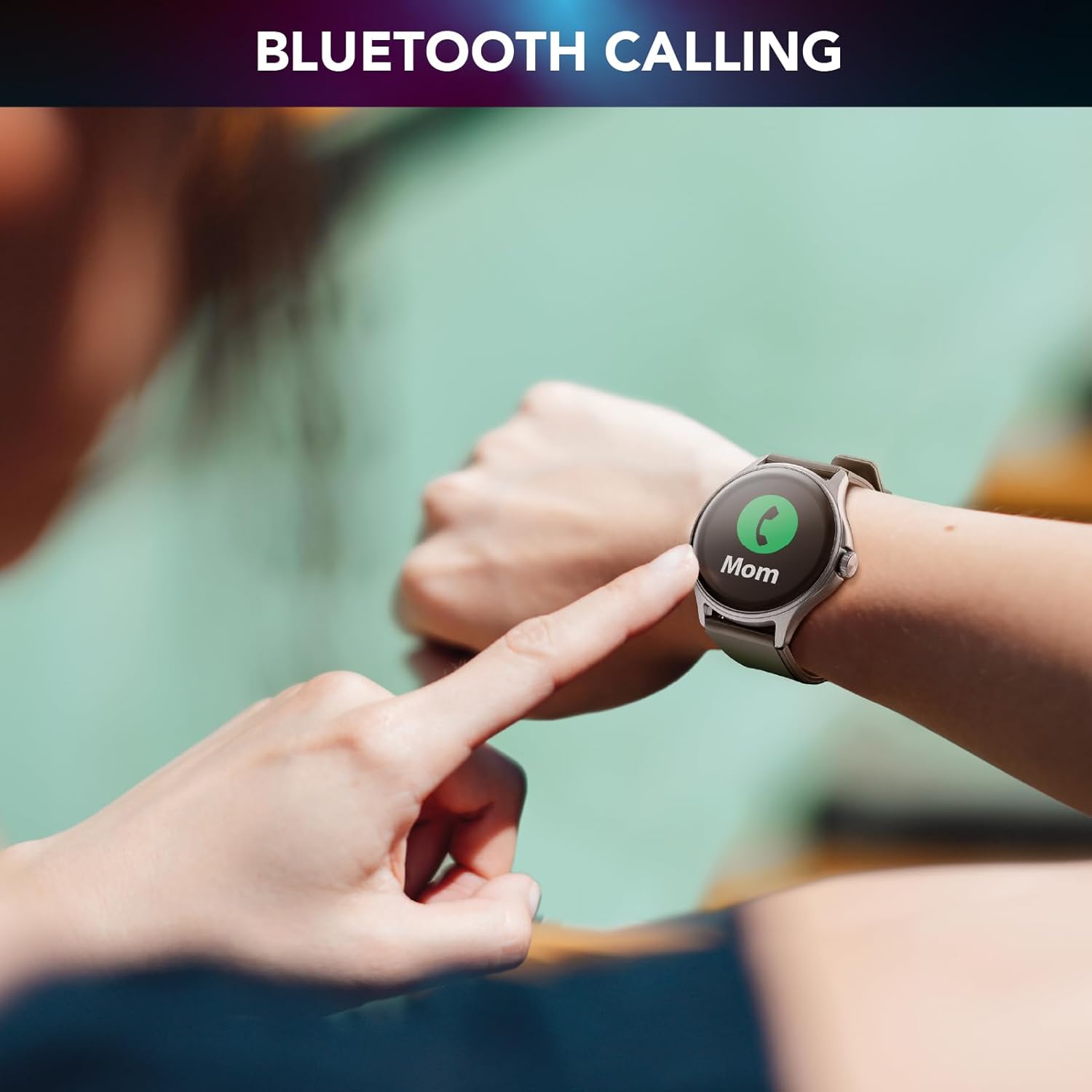
Image 4.2: Bluetooth calling feature in use.
4.3. Activity and Wellness Monitoring
The smartwatch continuously monitors various health and fitness metrics:
- pedometer: แอปนี้จะนับจำนวนก้าวเดินของคุณในแต่ละวัน
- อัตราการเต้นของหัวใจ: ตรวจสอบอัตราการเต้นของหัวใจของคุณตลอดทั้งวัน
- ความดันโลหิต: ให้ค่าประมาณความดันโลหิตของคุณ
- ออกซิเจนในเลือด (SpO2): วัดระดับออกซิเจนในเลือดของคุณ
- การติดตามการนอนหลับ: วิเคราะห์รูปแบบและคุณภาพการนอนหลับของคุณ
- การติดตามความเครียด: ช่วยติดตามระดับความเครียดของคุณ
- แคลอรี่: ประมาณการปริมาณแคลอรีที่เผาผลาญโดยอิงจากกิจกรรม

Image 4.3: Heart rate and sleep monitoring features.
4.4. Fitness Modes
The smartwatch supports various fitness modes to track specific activities, including walking, running, climbing, and general fitness exercises. Select the appropriate mode before starting your workout for accurate data collection.

Image 4.4: Smartwatch displaying various fitness modes.
4.5. การแจ้งเตือน
Once paired with your smartphone, the smartwatch will display real-time notifications for calls, messages, and app alerts. Swipe down from the top of the screen to view ประวัติการแจ้งเตือนของคุณ
4.6. ค้นหาโทรศัพท์ของฉัน
If your paired smartphone is misplaced, use the "Find My Phone" feature on your smartwatch to make your phone ring, helping you locate it quickly.
5. การบำรุงรักษา
5.1. การทำความสะอาด
To clean your smartwatch, gently wipe the screen and body with a soft, dry, lint-free cloth. For stubborn smudges, slightly dampชุบผ้าให้เปียกน้ำ หลีกเลี่ยงการใช้สารเคมีรุนแรงหรือวัสดุที่มีฤทธิ์กัดกร่อน เพราะอาจทำให้เครื่องเสียหายได้
5.2. ความทนทานต่อน้ำและฝุ่นละออง
The Cellularline ION PRO ROUND Smartwatch is certified IP67, meaning it is resistant to dust and can withstand immersion in water up to 1 meter for 30 minutes. While it is suitable for daily wear and light water exposure (e.g., hand washing, rain), it is not recommended for swimming, showering, or diving.

Image 5.1: Smartwatch demonstrating IP67 waterproof and dustproof capabilities.
6 การแก้ไขปัญหา
หากคุณพบปัญหาเกี่ยวกับสมาร์ทวอทช์ โปรดดูปัญหาและวิธีแก้ไขทั่วไปต่อไปนี้:
- อุปกรณ์ไม่เปิด: Ensure the smartwatch is fully charged. Connect it to the charger and wait a few minutes before attempting to power it on again.
- ไม่สามารถจับคู่กับสมาร์ทโฟนได้: Make sure Bluetooth is enabled on your phone and the smartwatch is within range. Restart both devices and try pairing again through the Cellularline ION app.
- ข้อมูลสุขภาพที่ไม่ถูกต้อง: Ensure the smartwatch is worn snugly on your wrist, not too tight or too loose. Clean the sensor on the back of the device. Note that health monitoring features are for reference only and not for medical diagnosis.
- การแจ้งเตือนไม่ปรากฏ: Check app permissions on your smartphone to ensure the Cellularline ION app has access to notifications. Verify that notifications are enabled within the smartwatch settings and the app.
- อายุการใช้งานแบตเตอรี่สั้น: Reduce screen brightness, disable unnecessary features, and ensure background app usage is optimized on your phone.
If problems persist, consult the Cellularline support webไซต์หรือติดต่อฝ่ายบริการลูกค้าเพื่อขอความช่วยเหลือเพิ่มเติม
7. ข้อมูลจำเพาะ
| คุณสมบัติ | รายละเอียด |
|---|---|
| ชื่อรุ่น | BTIONWATCHPRORK |
| แสดง | 1.38-inch TFT Full Touch |
| การเชื่อมต่อ | บลูทูธ |
| ระบบปฏิบัติการ | Wear OS (compatible with iOS and Android app) |
| ความจุของแบตเตอรี่ | ลิเธียมโพลีเมอร์ 300 mAh |
| อายุการใช้งานแบตเตอรี่ | นานถึง 7 วัน |
| เวลาในการชาร์จ | ประมาณ 3 ชั่วโมง |
| กันน้ำและกันฝุ่น | IP67 |
| เซ็นเซอร์ | อัตราการเต้นของหัวใจ, ความดันโลหิต, ออกซิเจนในเลือด |
| น้ำหนัก | 100 กรัม |
| ขนาด | ขนาดบรรจุภัณฑ์ 16.3 x 9 x 3.2 ซม. |
8. การรับประกันและการสนับสนุน
For information regarding the product warranty, please refer to the warranty card included in your product packaging or visit the official Cellularline website. For technical support, frequently asked questions, or to contact customer service, please visit the Cellularline support page:
Ask a question about this manual
Ask about setup, troubleshooting, compatibility, parts, safety, or missing instructions. Manuals+ will review the question and use this page’s manual context to help answer it.