
1. บทนำ
Thank you for choosing the Cuifati Bluetooth Transparent Mouse. This device offers dual-mode connectivity (Bluetooth 5.0 and 2.4G USB receiver), RGB backlighting, and a rechargeable design for versatile use with PCs, laptops, and tablets. This manual provides detailed instructions for setup, operation, maintenance, and troubleshooting to ensure optimal performance.
2. เนื้อหาบรรจุภัณฑ์
โปรดตรวจสอบว่าสินค้าทั้งหมดมีอยู่ในแพ็คเกจของคุณ:
- 1 x Cuifati Bluetooth Transparent Mouse
- 1 x สายชาร์จ (Type-C)
- ตัวรับสัญญาณ USB 1 ตัว (2.4G)
- 1 x คู่มือผู้ใช้

Image: Contents of the Cuifati mouse package, including the mouse, Type-C charging cable, and 2.4G USB receiver.
3. ข้อมูลจำเพาะ
| คุณสมบัติ | รายละเอียด |
|---|---|
| การตั้งค่า DPI | 800, 1200, 1600 |
| โหมดการส่งข้อมูล | 2.4G ไร้สาย, บลูทูธ 5.0 |
| ความจุของแบตเตอรี่ | แบตเตอรี่ลิเธียมไออน 400mAh |
| ขนาดของเมาส์ | Approx. 113.5 x 58 x 25mm (±2mm) |
| วิธีการชาร์จ | USB Type-C |
| ปฏิบัติการฉบับที่tage | 3.3V-4.2V |
| Operating Current (Light mode) | ≤25มิลลิแอมป์ |
| Operating Current (Non-lighting mode) | ≤8มิลลิแอมป์ |
| ข้อกำหนดของระบบ 2.4G | Windows XP/7/8/10+, Android 4.4+, OS X 10.5+, Linux Kernel 2.6+2, Chrome OS |
| ข้อกำหนดของระบบบลูทูธ | Windows 8/10, Android 5.0+, OS X 10.10+ (Bluetooth 4.0 and above adapter required) |
| วัสดุ | PC |
4. การตั้งค่า
4.1. การชาร์จเมาส์
Before first use, fully charge the mouse. Connect the provided Type-C charging cable to the mouse's charging port and the other end to a USB power source (e.g., computer USB port, USB wall adapter). A full charge typically takes 2-3 hours.

Image: The Cuifati mouse being charged via its Type-C port, indicating a 2-3 hour charging time.
4.2. การเชื่อมต่อผ่านตัวรับสัญญาณ USB 2.4G
- Locate the USB receiver, usually stored within the mouse's magnetic cover or packaging.
- เสียบตัวรับสัญญาณ USB เข้ากับพอร์ต USB ที่ว่างอยู่บนคอมพิวเตอร์หรืออุปกรณ์ของคุณ
- Turn on the mouse and switch it to 2.4G mode (refer to Section 5.1 for mode switching).
- เมาส์ควรเชื่อมต่อกับอุปกรณ์ของคุณโดยอัตโนมัติ

Image: The transparent design of the Cuifati mouse, showing the internal components and the USB receiver slot.
4.3. การเชื่อมต่อผ่านบลูทูธ 5.0
- Turn on the mouse and switch it to Bluetooth mode (refer to Section 5.1 for mode switching).
- On your device (PC, laptop, tablet), navigate to the Bluetooth settings.
- เปิดใช้งานบลูทูธและค้นหาอุปกรณ์ใหม่
- Select "Cuifati Mouse" or a similar name from the list of available devices to pair.
- ปฏิบัติตามคำแนะนำบนหน้าจอเพื่อดำเนินการจับคู่ให้เสร็จสมบูรณ์
Note: You cannot use Bluetooth mode and 2.4G USB mode simultaneously. Ensure only one mode is active at a time.
5. คู่มือการใช้งาน
5.1. การเปิด/ปิดเครื่องและการสลับโหมด
The mouse features a switch on its underside to power it on/off and select the connection mode. Slide the switch to the desired position for 2.4G or Bluetooth connectivity, or to the 'Off' position to conserve battery.
5.2. การปรับ DPI
The mouse supports three DPI (Dots Per Inch) settings: 800, 1200, and 1600. Press the DPI button (usually located near the scroll wheel or on the underside) to cycle through these settings and adjust cursor sensitivity to your preference.
5.3. การควบคุมแสง RGB
The mouse features various RGB lighting effects. A dedicated lighting switch key, typically on the underside or a side button, allows you to cycle through 11 different lighting modes or turn off the lights completely. This enhances the aesthetic appeal during use.
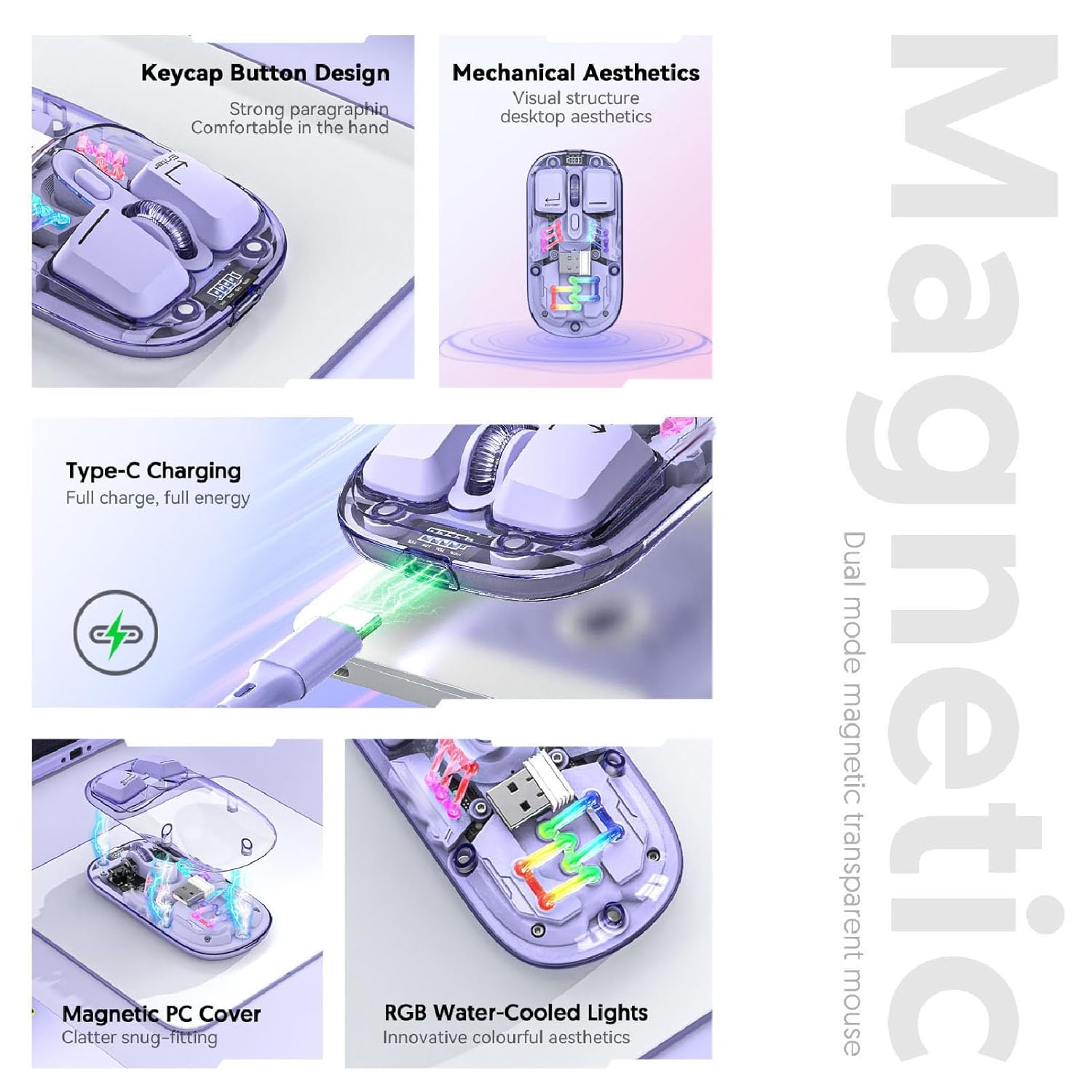
ภาพ: ภาพประกอบ view highlighting the RGB lighting, Type-C charging, and magnetic cover design of the mouse.
5.4. การแสดงระดับแบตเตอรี่
The mouse is equipped with a power display to check the remaining battery level at any time. This display typically uses indicator lights to show the charge status:
- ไฟ 4 ดวงเปิดอยู่: แบตเตอรี่ 100%
- ไฟ 3 ดวงเปิดอยู่: แบตเตอรี่ 75%
- ไฟ 2 ดวงเปิดอยู่: แบตเตอรี่ 50%
- ไฟติด 1 ดวง: แบตเตอรี่ 25%

Image: Close-up of the Cuifati mouse's battery level display, illustrating how indicator lights correspond to charge percentage.
5.5. Automatic Energy Saving
To conserve battery life, the mouse features an automatic sleep function:
- การนอนหลับแบบเบา: After 60 seconds of no operation, the mouse enters a light sleep state.
- การนอนหลับลึก: If no operation occurs for 10 minutes, the mouse enters a deep sleep mode.
- ตื่นนอน: To wake the mouse from sleep, simply move it or press any button.
Note: Actual power saving performance may vary based on usage habits.

Image: Visual representation of the mouse's power-saving states: light sleep after 60 seconds, deep sleep after 10 minutes, and how to wake it up.
6. การบำรุงรักษา
6.1. การทำความสะอาด
To maintain the mouse's appearance and functionality, regularly clean its surfaces. Use a soft, dry, lint-free cloth. For stubborn dirt, slightly dampen the cloth with water or a mild, non-abrasive cleaner. Avoid using harsh chemicals or abrasive materials that could damage the transparent shell or internal components.

Image: The Cuifati mouse with its magnetic top cover detached, revealing the internal structure for potential cleaning or maintenance.
6.2. การดูแลแบตเตอรี่
The built-in Li-ion battery is designed for long-term use. To prolong battery life:
- หลีกเลี่ยงการปล่อยแบตเตอรี่จนหมดบ่อยครั้ง
- ชาร์จเมาส์โดยใช้สายเคเบิล Type-C ที่ให้มา
- เก็บเมาส์ไว้ในที่แห้งและเย็นเมื่อไม่ได้ใช้งานเป็นเวลานาน
7 การแก้ไขปัญหา
If you encounter issues with your Cuifati mouse, please refer to the following common solutions:
- เมาส์ไม่ตอบสนอง:
- ตรวจสอบให้แน่ใจว่าเมาส์เปิดอยู่
- ตรวจสอบระดับแบตเตอรี่และชาร์จหากจำเป็น
- ตรวจสอบให้แน่ใจว่าได้เลือกโหมดการเชื่อมต่อที่ถูกต้องแล้ว (2.4G หรือบลูทูธ)
- สำหรับระบบ 2.4G โปรดตรวจสอบให้แน่ใจว่าตัวรับสัญญาณ USB เสียบแน่นดีแล้ว ลองใช้พอร์ต USB อื่นดู
- สำหรับการใช้งานผ่านบลูทูธ โปรดตรวจสอบให้แน่ใจว่าได้เปิดใช้งานบลูทูธบนอุปกรณ์ของคุณและได้ทำการจับคู่เมาส์แล้ว ลองทำการจับคู่ใหม่อีกครั้ง
- การเคลื่อนที่ของเคอร์เซอร์ผิดปกติหรือช้า:
- ทำความสะอาดเซ็นเซอร์ออปติคัลที่อยู่ใต้เมาส์
- ตรวจสอบให้แน่ใจว่าคุณกำลังใช้เมาส์บนพื้นผิวที่เหมาะสม (ไม่สะท้อนแสงมากหรือโปร่งใส)
- Adjust the DPI setting (refer to Section 5.2).
- ไฟ RGB ไม่ทำงาน:
- ตรวจสอบให้แน่ใจว่าเมาส์เปิดอยู่
- Press the lighting switch key to cycle through modes or turn them on (refer to Section 5.3).
- ตรวจสอบระดับแบตเตอรี่ แบตเตอรี่เหลือน้อยอาจทำให้ไฟดับได้
- Cannot connect via Bluetooth and 2.4G simultaneously:
- This is expected behavior. The mouse is designed to operate in one mode at a time. Switch to the desired mode using the selector switch.
8. การรับประกันและการสนับสนุน
The Cuifati Bluetooth Transparent Mouse comes with a standard manufacturer's warranty. Please refer to the warranty card included in your package or visit the official Cuifati webเว็บไซต์สำหรับข้อกำหนดและเงื่อนไขการรับประกันโดยละเอียด
For technical support, product inquiries, or warranty claims, please contact Cuifati customer service through their official channels. Contact information can typically be found on the product packaging or the manufacturer's webเว็บไซต์.