
ACASIS AC-DM0203
ACASIS 14-in-1 Triple Display USB-C Docking Station User Manual
Model: AC-DM0203 | Brand: ACASIS
1. สินค้าหมดview
The ACASIS 14-in-1 Triple Display USB-C Docking Station (Model: AC-DM0203) is a versatile connectivity solution designed to expand the capabilities of your laptop. It provides a wide array of ports, including multiple USB ports, HDMI outputs for triple display setups, Ethernet, and card readers, all while delivering power to your device. This docking station is ideal for enhancing productivity in various environments, from office work to home entertainment.
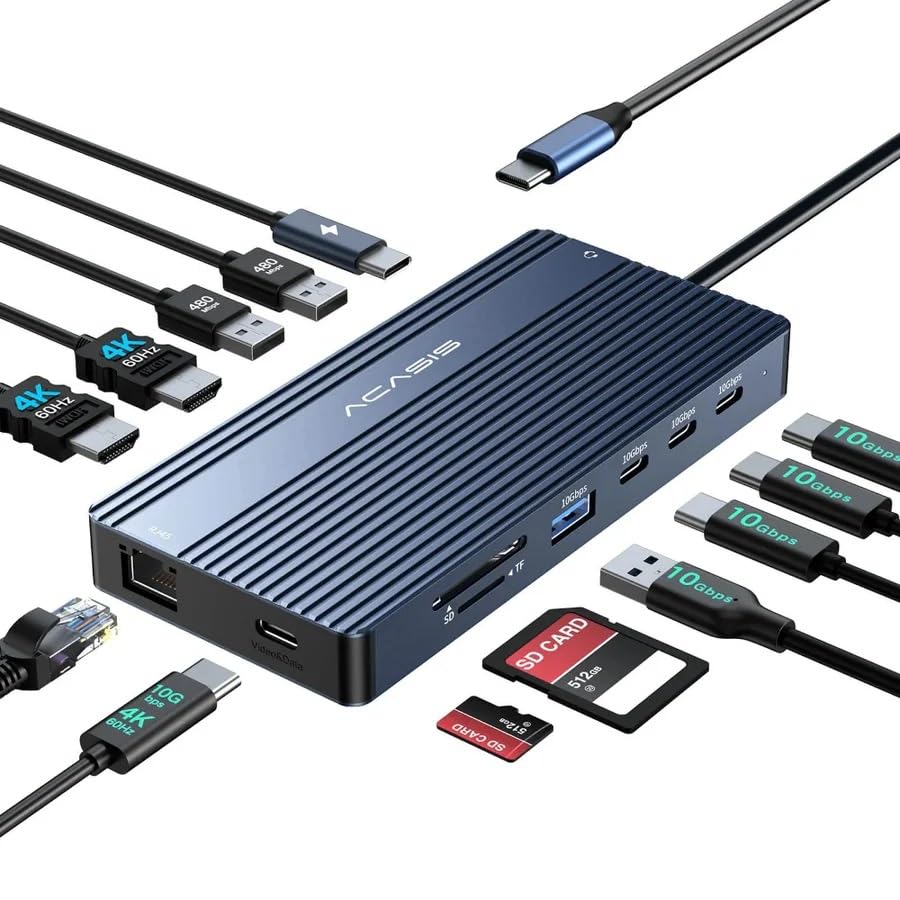
Image: The ACASIS 14-in-1 docking station, showcasing its compact design and the array of connectivity options it provides, including USB, HDMI, and Ethernet cables.
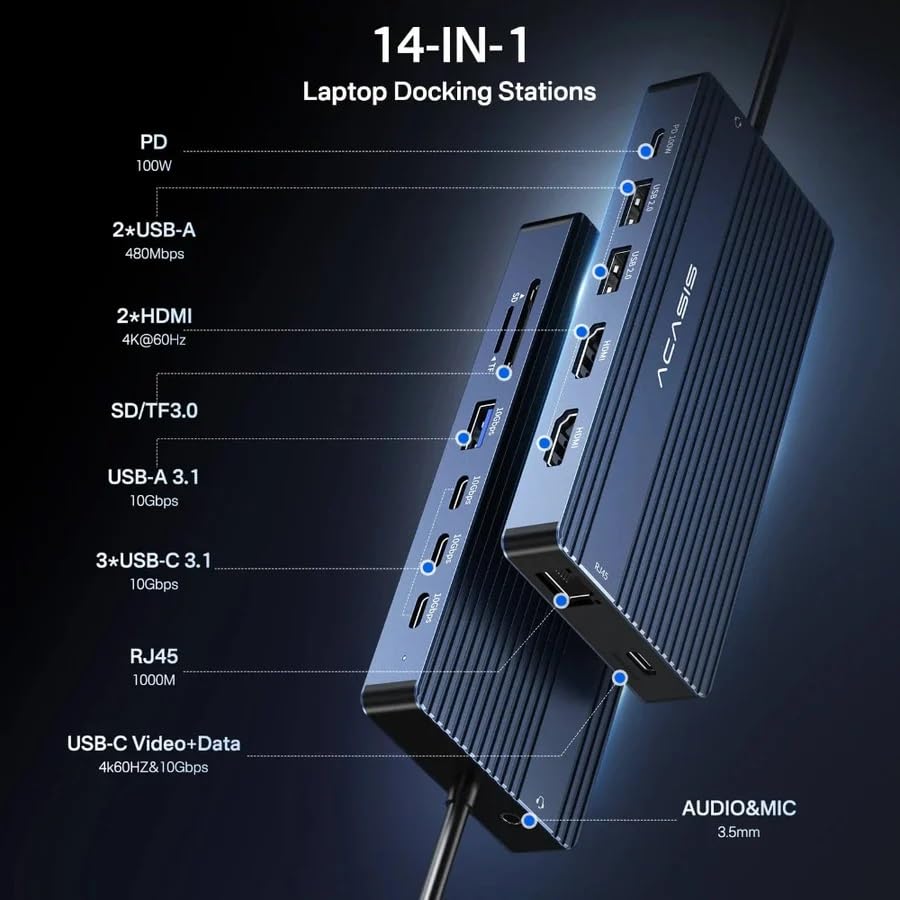
Image: A detailed diagram illustrating the location and type of each of the 14 ports on the ACASIS docking station, including PD, USB-A, HDMI, SD/TF, USB-C, RJ45, and Audio/Mic ports.
2. คุณสมบัติ
The ACASIS 14-in-1 Docking Station offers comprehensive connectivity with the following features:
- 1 x USB-C Video+Data Port: Supports 4K@60Hz video output and 10Gbps data transfer.
- พอร์ต HDMI 2.0 จำนวน 2 ช่อง: Supports 4K@60Hz video output for dual or triple display setups.
- 3 x USB-C 3.1 Ports: Provides 10Gbps high-speed data transmission.
- 1 x USB-A 3.1 Port: Offers 10Gbps high-speed data transmission.
- พอร์ต USB-A 2 พอร์ต: Provides 5Gbps data transmission.
- 1 x USB-C PD 100W Port: Supports up to 100W power delivery to charge your laptop (85W pass-through charging).
- 1 x Gigabit Ethernet (RJ45) Port: Ensures stable and fast wired network connection up to 1000MB/s.
- 1 x SD 3.0 Card Reader: Supports UHS-I speeds up to 104MB/s.
- 1 x Micro SD 3.0 Card Reader: Supports UHS-I speeds up to 104MB/s.
- 1 x Audio In & Out (3.5mm TRRS) Port: สำหรับหูฟังหรือไมโครโฟน

ภาพ: รายละเอียด view of the ACASIS docking station from top and bottom, highlighting the placement of all ports.
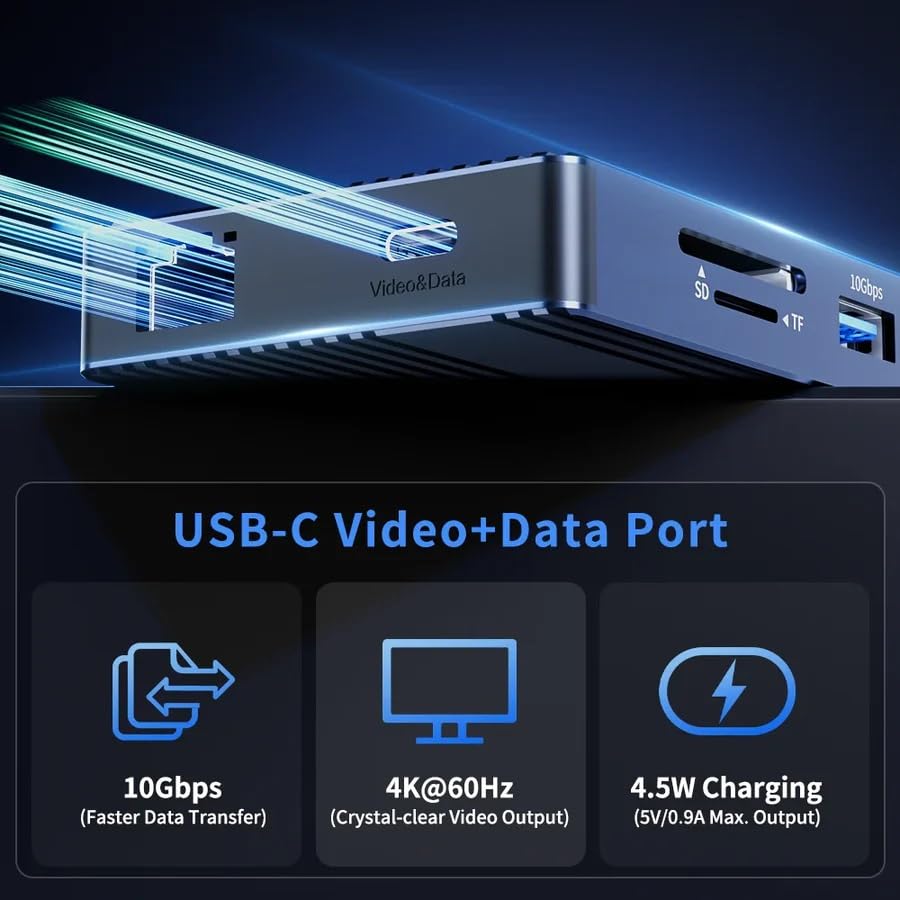
Image: A graphic detailing the capabilities of the USB-C Video+Data port, showing 10Gbps data transfer, 4K@60Hz video output, and 4.5W charging.
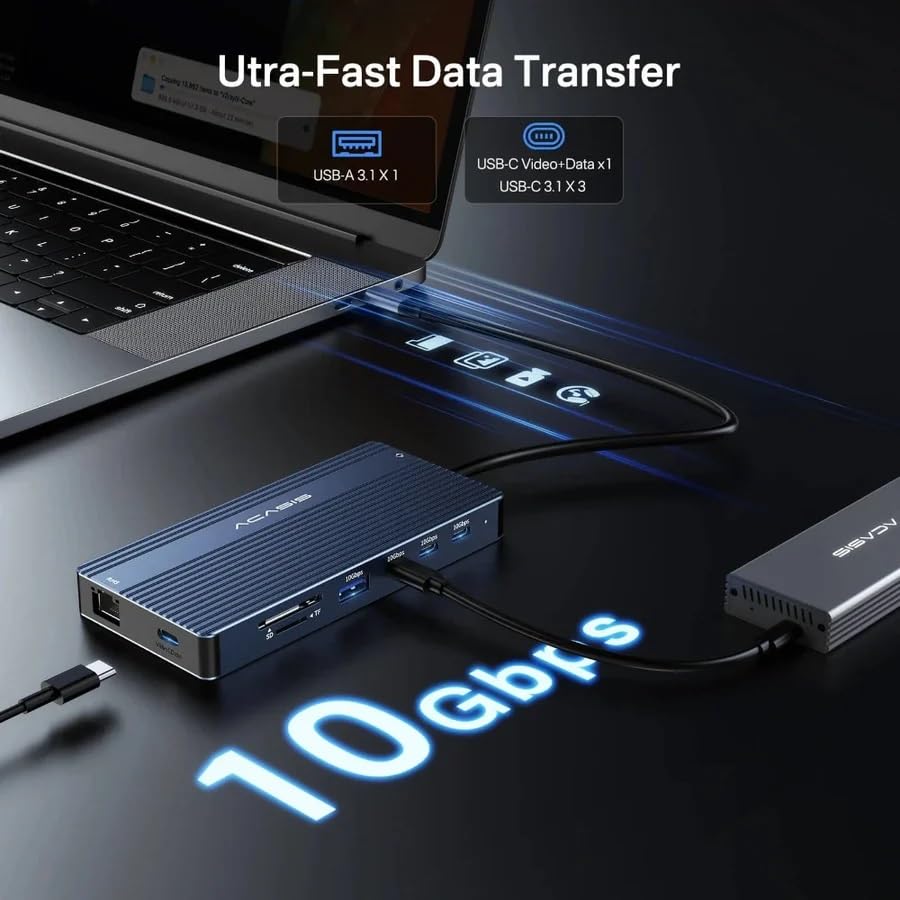
Image: A visual representation of the 10Gbps ultra-fast data transfer capability, showing data flowing from the laptop through the docking station.
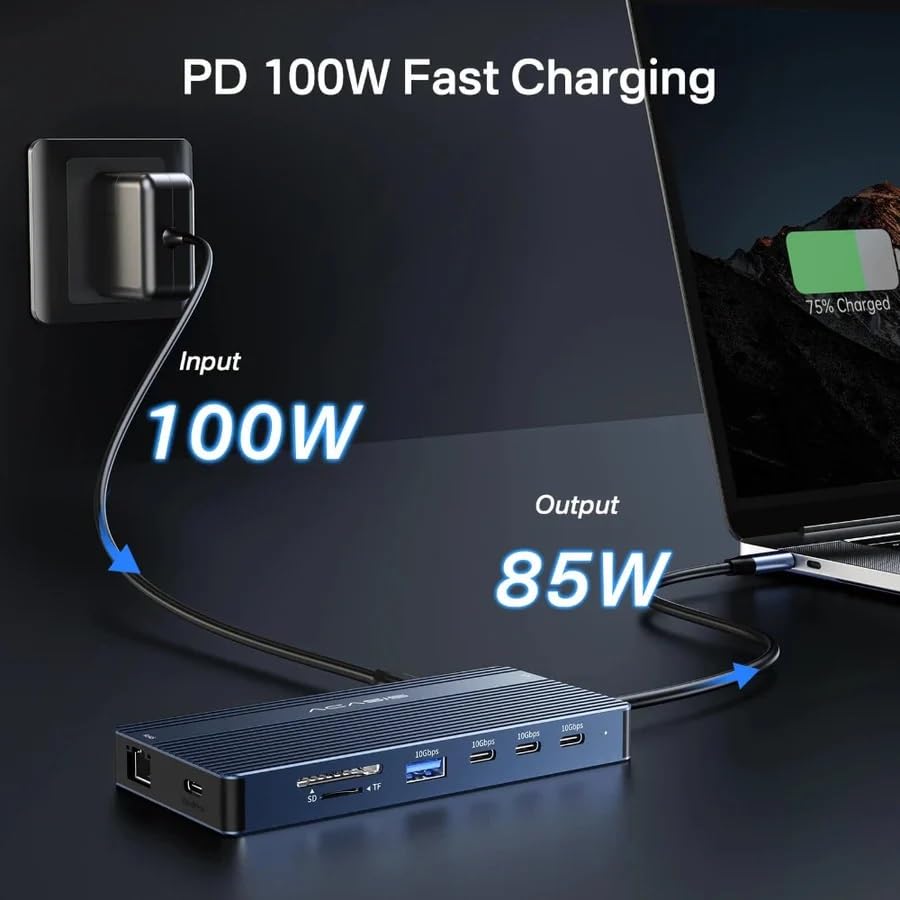
Image: A diagram illustrating the 100W Power Delivery input and 85W output charging capability of the docking station, connected to a laptop.
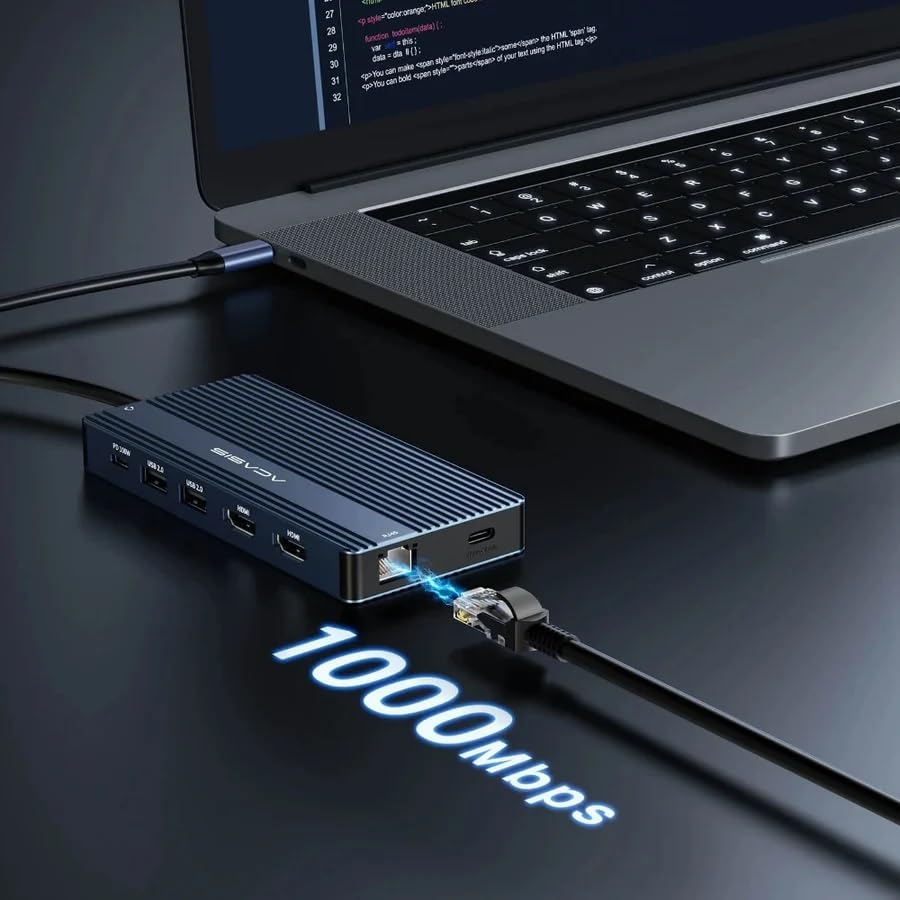
Image: The docking station connected to a laptop and an Ethernet cable, highlighting the 1000Mbps Gigabit Ethernet speed.

ภาพ: อดีตample of a laptop connected to an external monitor via the docking station, displaying a crisp 4K@60Hz resolution.
3. ข้อมูลจำเพาะ
| ยี่ห้อ | อคาซิส |
| แบบอย่าง | AC-DM0203 |
| ขนาดสินค้า | 10 x 10 x 3 ซม. |
| น้ำหนักสินค้า | 150 กรัม |
| ความเข้ากันได้ของระบบปฏิบัติการ | วินโดวส์, มอสซาเรลล่า, โครมโอเอส, ไอแพดโอเอส, แอนดรอยด์ |
| ฮาร์ดแวร์อินเตอร์เฟซ | Thunderbolt 4, USB-C |
| อุปกรณ์ที่รองรับ | Gaming Console, Personal Computer, Tablet |
| จำนวนพอร์ต | 14 |
| พอร์ต USB รวม | 7 (3x USB-C 3.1, 1x USB-A 3.1, 2x USB-A 5Gbps, 1x USB-C Video+Data) |
| พอร์ต HDMI ทั้งหมด | 2 |
| การส่งกำลัง | Up to 100W (85W pass-through) |
| ประเทศต้นกำเนิด | จีน |

Image: A graphic displaying various compatible laptop brands and operating systems, including Apple, HP, Lenovo, Dell, ASUS, Microsoft, Windows, macOS, ChromeOS, iPadOS, and Android.

Image: A visual guide explaining different types of USB-C ports and their functionalities, distinguishing between Thunderbolt/Full Function, Data Transfer + DP Alt Mode, Data Transfer Only, and Charging Only ports.
4. คู่มือการติดตั้ง
Follow these steps to set up your ACASIS docking station:
- เชื่อมต่อพลังงาน: If your laptop requires charging via the dock, connect a USB-C power adapter (not included) to the "PD 100W" USB-C port on the docking station.
- เชื่อมต่อกับแล็ปท็อป: Connect the integrated USB-C cable from the docking station to a compatible USB-C port on your laptop. Ensure your laptop's USB-C port supports video output (DisplayPort Alt Mode) and power delivery for full functionality.
- เชื่อมต่อจอแสดงผล: Connect your external monitors to the HDMI 2.0 ports and/or the USB-C Video+Data port on the docking station using appropriate cables.
- เชื่อมต่ออุปกรณ์ต่อพ่วง: Plug in your USB devices (keyboard, mouse, external drives), Ethernet cable, SD/Micro SD cards, and audio devices into the corresponding ports on the docking station.
- การติดตั้งไดร์เวอร์: In most cases, the docking station is plug-and-play. If prompted, allow your operating system to install any necessary drivers automatically.
5. คู่มือการใช้งาน
Once set up, the docking station operates automatically. Here are key operational aspects:
- การตรวจจับอัตโนมัติ: The docking station will automatically detect connected devices and displays.
- การจ่ายพลังงาน: If a power adapter is connected to the PD port, your laptop will receive power through the docking station.
- การถ่ายโอนข้อมูล: USB 3.1 and USB-C 3.1 ports support high-speed data transfer for connected storage devices.
- การเชื่อมต่อเครือข่าย: The Gigabit Ethernet port provides a stable wired internet connection, bypassing Wi-Fi limitations.
- การอ่านไพ่: Insert SD or Micro SD cards into the dedicated slots for quick data access.
6. การกำหนดค่าการแสดงผล
The ACASIS docking station supports various display modes for both Windows and macOS systems. Ensure your laptop's USB-C port supports DisplayPort Alt Mode for video output.
6.1. โหมดการแสดงผลของ Windows
For Windows laptops, the docking station supports both Mirror and Extended display modes, allowing for up to three external 4K@60Hz displays.
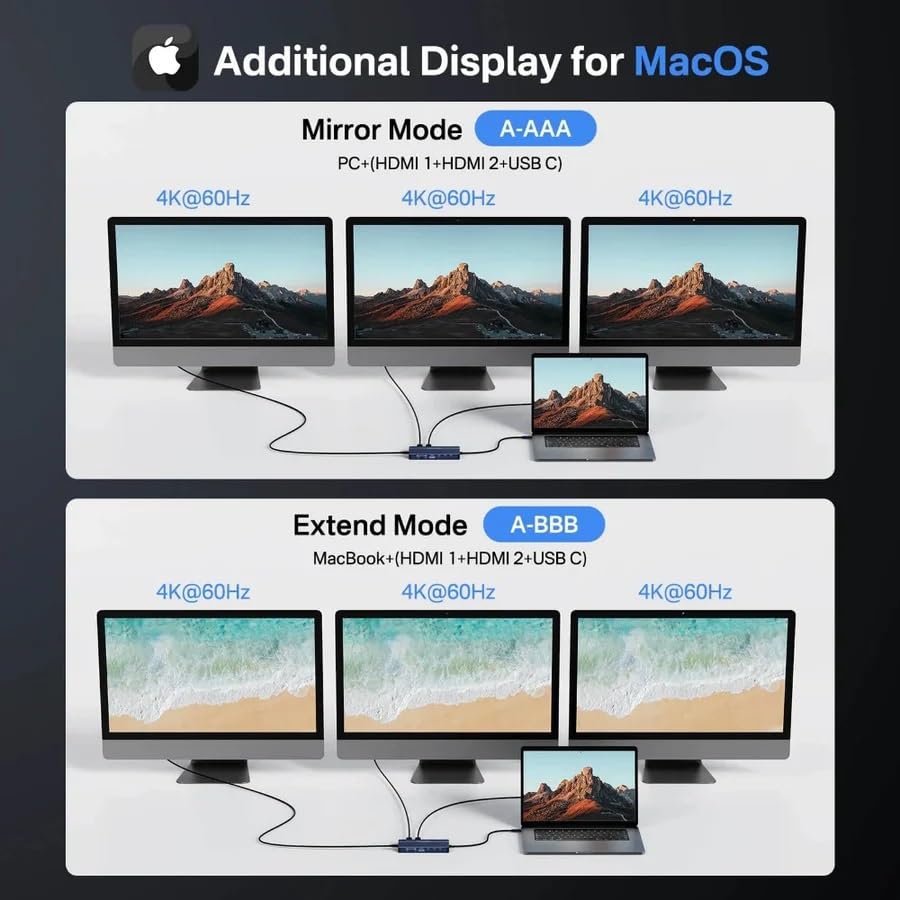
Image: A graphic illustrating various display configurations for Windows, including Mirror Mode (A-BBB) and Extended Mode (A-BCD, ABC), showing how multiple 4K@60Hz monitors can be connected.
- Mirror Mode (A-BBB): Your laptop screen is duplicated across all connected external displays.
- Extended Mode (A-BCD): Each external display shows a different desktop, extending your workspace. This mode supports up to three distinct 4K@60Hz displays.
- การกำหนดค่า: Access display settings in Windows (Right-click on Desktop > Display settings) to arrange and configure your monitors.
6.2. macOS Display Modes
For macOS laptops, the docking station supports Mirror and Extended display modes. Please note that macOS typically supports a limited number of extended displays depending on the Mac model and chip (e.g., M1/M2 Macs may have limitations on external display count for extended mode).
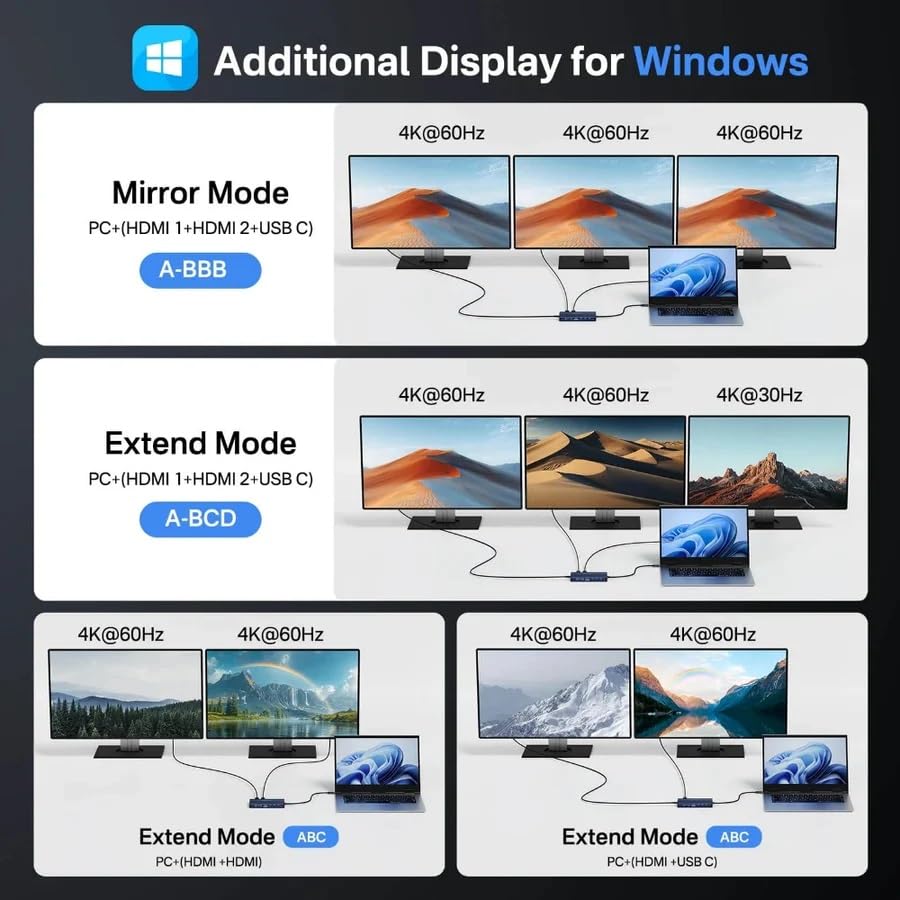
Image: A graphic illustrating display configurations for macOS, including Mirror Mode (A-AAA) and Extended Mode (A-BBB), showing how multiple 4K@60Hz monitors can be connected.
- Mirror Mode (A-AAA): Your MacBook screen is duplicated across all connected external displays.
- Extended Mode (A-BBB): Each external display shows a different desktop, extending your workspace.
- การกำหนดค่า: Access display settings in macOS (System Settings > Displays) to arrange and configure your monitors.
- Important Note for M1/M2/M3 MacBooks: Some Apple Silicon Macs (e.g., M1/M2 MacBook Air/Pro) natively support only one external display in extended mode. This docking station utilizes MST (Multi-Stream Transport) technology, which is primarily supported by Windows for multiple extended displays. For macOS, while it can mirror multiple displays, achieving multiple ขยายออกไป displays beyond Apple's native support may require specific drivers or software (DisplayLink, not included with this product) or may not be possible. Please verify your MacBook's external display capabilities.
7. การบำรุงรักษา
To ensure the longevity and optimal performance of your ACASIS docking station, follow these maintenance guidelines:
- การทำความสะอาด: Use a soft, dry, lint-free cloth to clean the surface of the docking station. Avoid using liquid cleaners, aerosols, or abrasive materials.
- พื้นที่จัดเก็บ: เก็บแท่นวางไว้ในที่แห้งและเย็น หลีกเลี่ยงแสงแดดโดยตรงและอุณหภูมิที่สูงหรือต่ำเกินไป
- การจัดการ: ใช้งานอุปกรณ์ด้วยความระมัดระวัง หลีกเลี่ยงการทำตกหรือกระแทกแรงๆ
- การระบายอากาศ : ตรวจสอบให้แน่ใจว่าแท่นวางมีระบบระบายอากาศที่เพียงพอเพื่อป้องกันความร้อนสูงเกินไป โดยเฉพาะอย่างยิ่งเมื่อใช้งานเป็นเวลานาน
- การจัดการสายเคเบิล: Avoid bending or crimping cables excessively, as this can damage them over time.
8 การแก้ไขปัญหา
If you encounter issues with your ACASIS docking station, refer to the following common solutions:
- ไม่มีการแสดงผล:
- Ensure your laptop's USB-C port supports DisplayPort Alt Mode. Not all USB-C ports support video output.
- Check all cable connections (USB-C from dock to laptop, HDMI/USB-C to monitors).
- ลองใช้สาย HDMI หรือจอภาพอื่น
- อัปเดตไดรเวอร์การ์ดจอของแล็ปท็อปของคุณ
- For macOS users, be aware of native external display limitations, especially with M1/M2/M3 series chips. This dock primarily uses MST, which is better supported by Windows for multiple extended displays.
- Devices Not Recognized (USB, SD Card):
- ตรวจสอบให้แน่ใจว่าแท่นวางเชื่อมต่อกับแล็ปท็อปของคุณอย่างแน่นหนาแล้ว
- Try connecting the device to a different port on the dock.
- รีสตาร์ทแล็ปท็อปของคุณ
- Check Device Manager (Windows) or System Information (macOS) to see if the device is detected.
- ไม่มีการเชื่อมต่อเครือข่าย:
- ตรวจสอบให้แน่ใจว่าสายอีเธอร์เน็ตเชื่อมต่อกับแท่นวางและเราเตอร์/โมเด็มของคุณอย่างแน่นหนาแล้ว
- ตรวจสอบการตั้งค่าเครือข่ายบนแล็ปท็อปของคุณ
- ตรวจสอบให้แน่ใจว่าเราเตอร์/โมเด็มของคุณทำงานได้อย่างถูกต้อง
- แล็ปท็อปไม่ชาร์จ:
- Ensure a compatible USB-C power adapter is connected to the PD 100W port on the docking station.
- ตรวจสอบให้แน่ใจว่าแล็ปท็อปของคุณรองรับการชาร์จผ่านพอร์ต USB-C
- ตรวจสอบอะแดปเตอร์ไฟฟ้าและสายไฟว่าชำรุดเสียหายหรือไม่
- การเชื่อมต่อไม่ต่อเนื่อง:
- ตรวจสอบให้แน่ใจว่าการเชื่อมต่อทั้งหมดแน่นหนา
- Avoid placing the dock near strong electromagnetic interference sources.
- Reduce the number of high-power devices connected to the dock if experiencing issues.
9. การรับประกันและการสนับสนุน
The ACASIS 14-in-1 Triple Display USB-C Docking Station comes with a standard warranty to cover manufacturing defects.
- ระยะเวลารับประกัน: This product typically includes a 1-year warranty from the date of purchase. Please refer to your purchase documentation for exact terms.
- การรับประกันแบบขยายเวลา: An optional 1-Year Extended Warranty may be available for purchase.
- ผู้ผลิต: อคาซิส
- ผู้นำเข้า/ผู้บรรจุ (อินเดีย): KSP ELECTRONICS, info@kspelectronics.com, +91-6124512443
- การสนับสนุนลูกค้า: For technical assistance, troubleshooting, or warranty claims, please contact ACASIS customer support or the authorized reseller from whom you purchased the product.
- แหล่งข้อมูลออนไลน์: Visit the official ACASIS webไซต์สำหรับไดร์เวอร์ที่อัปเดต คำถามที่พบบ่อย และทรัพยากรสนับสนุนเพิ่มเติม
10. สถานการณ์การใช้งาน
The ACASIS docking station is designed to enhance your experience in various settings:

Image: A collage depicting different environments where the docking station can be used, including an office setup with multiple monitors, a casual setting for yoga, a home theater projection, and a gaming setup.
- สำนักงาน: Create a powerful workstation with multiple displays, wired internet, and all your peripherals connected through a single USB-C cable.
- โฮมเธียเตอร์ : Connect your laptop to a large screen or projector for movies and presentations.
- การเล่นเกม: Enhance your gaming setup with stable network and multiple display options.
- ผลงานสร้างสรรค์: Ideal for designers and video editors needing high-resolution external displays and fast data transfer for external storage.
เอกสารที่เกี่ยวข้อง - AC-DM0203
 |
Acasis TBU405PRO M.2 NVMe SSD Enclosure User Manual User manual for the Acasis TBU405PRO M.2 NVMe SSD Enclosure, a 40Gbps USB4.0 device compatible with Thunderbolt 3/4 and various USB versions, designed for high-speed data transfer and video editing. |
 |
แท่นวางอเนกประสงค์ USB-C 14-in-1 (DS-0202) - ACASIS แท่นวางอุปกรณ์อเนกประสงค์ ACASIS USB-C 14-in-1 (DS-0202) ให้การเชื่อมต่อที่ครอบคลุม รวมถึง RJ45, DP 1.2, SD/TF 3.0, USB-A 3.1, USB-C 3.1, Audio, PD 3.0, USB-A 2.0 และ HDMI 2.0 คู่มือนี้ครอบคลุมข้อมูลจำเพาะ เคล็ดลับ และคำถามที่พบบ่อยเพื่อการใช้งานอย่างเหมาะสม |
 |
ACASIS USB 3.1 Hub 16-Port: User Manual and Specifications Detailed user manual and specifications for the ACASIS USB 3.1 Hub 16-Port (HS-716MG), covering product overview, package contents, instructions for use, technical specifications, and environmental protection. |
 |
ACASIS EC-7352 User Manual: 3.5-Inch Dual Disk Hard Disk Array Box Comprehensive user manual for the ACASIS EC-7352 3.5-inch dual disk hard disk array box. Covers installation, RAID modes, features, and specifications for efficient data storage. |
 |
คู่มือผู้ใช้ ACASIS CM073 ฮับ USB-C 10-in-1 พร้อมกล่องใส่ SSD M.2 คู่มือผู้ใช้สำหรับ ACASIS CM073 10-in-1 USB-C Hub ซึ่งมีรายละเอียดคุณสมบัติต่างๆ เช่น กล่อง M.2 SSD, HDMI 4K, พอร์ต USB 3.1, Gigabit Ethernet และเครื่องอ่านการ์ด SD/TF |
 |
ACASIS EC-7352 3.5 นิ้ว Dual Disk Hard Disk Array Box คู่มือผู้ใช้ คู่มือผู้ใช้สำหรับ ACASIS EC-7352 กล่องฮาร์ดดิสก์อาร์เรย์แบบสองช่องขนาด 3.5 นิ้ว ครอบคลุมเนื้อหาภายในกล่อง ข้อควรระวัง อินเทอร์เฟซการทำงาน การตั้งค่า RAID การติดตั้ง คุณสมบัติของผลิตภัณฑ์ และข้อมูลการรับประกัน |
Ask a question about this manual
Ask about setup, troubleshooting, compatibility, parts, safety, or missing instructions. Manuals+ will review the question and use this page’s manual context to help answer it.