
1. สินค้าหมดview
The ProtoArc Foldable Bluetooth Keyboard (XK01) and Ergonomic Vertical Mouse (EM11) combo offers a portable and comfortable solution for your computing needs. The keyboard features a full-size layout with a numeric keypad and multi-device Bluetooth connectivity, while the ergonomic mouse promotes a natural wrist position to reduce fatigue.

Image 1.1: ProtoArc Foldable Bluetooth Keyboard and Ergonomic Mouse setup, illustrating multi-device capability.
คุณสมบัติหลัก:
- Folding Full-size Wireless Keyboard (XK01): 105-key layout with numeric keypad (Dimensions: 15.19 x 4.68 inch). Features non-slip pads for stability.
- Wireless Ergonomic Mouse (EM11): Designed with an extended wrist rest for a natural, relaxed hand position, reducing fatigue compared to standard mice.
- การเชื่อมต่อหลายอุปกรณ์: Both devices can sync with up to 3 devices simultaneously via Bluetooth channels, allowing easy switching between Windows, Mac OS, iOS, or Android devices.
- ชาร์จและพกพาได้: The keyboard has a built-in 210 mAh battery with 5 months standby time. The mouse has a built-in 500mAh Li-Ion battery. Both are rechargeable via Type-C.
- การออกแบบที่ทนทาน: Keyboard features aluminum hinges tested for 100,000 folding actions.
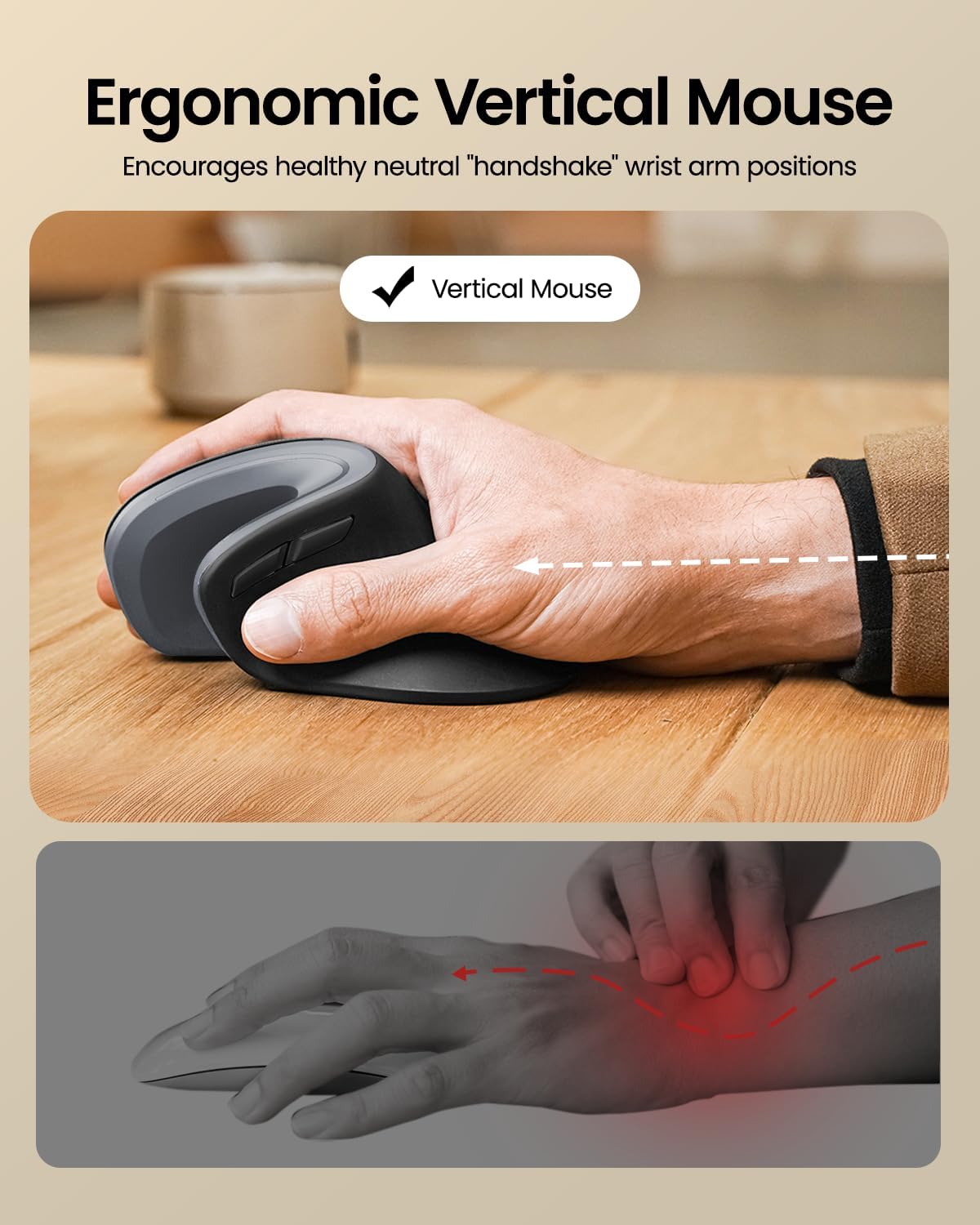
Image 1.2: Ergonomic design of the ProtoArc Vertical Mouse, promoting a healthy wrist position.

Image 1.3: The 58° angle of the ergonomic mouse for a natural handshake position.
2. การตั้งค่าและการจับคู่
Follow these steps to set up and pair your ProtoArc Foldable Bluetooth Keyboard and Ergonomic Mouse with your devices.
2.1. Keyboard Setup (XK01)
- กางแป้นพิมพ์ออก: Gently unfold the keyboard until it lies flat. The magnetic hinges will secure it in place.
- เปิดเครื่อง: Locate the power switch (usually on the side or back) and slide it to the 'ON' position. An indicator light will illuminate.
- เข้าสู่โหมดจับคู่: Press and hold one of the Bluetooth channel keys (e.g., BT1, BT2, or BT3) for a few seconds until the corresponding indicator light flashes rapidly. This indicates the keyboard is in pairing mode.
- เชื่อมต่อบนอุปกรณ์ของคุณ: On your computer, tablet, or smartphone, go to Bluetooth settings. Select "ProtoArc Keyboard" (or similar name) from the list of available devices. Follow any on-screen prompts to complete pairing.
- อุปกรณ์สวิตช์: To switch between paired devices, simply press the corresponding Bluetooth channel key (BT1, BT2, or BT3).

Image 2.1: The keyboard's durable folding mechanism.
2.2. Mouse Setup (EM11)
- เปิดเครื่อง: หาปุ่มเปิด/ปิดที่ด้านล่างของเมาส์ แล้วเลื่อนไปที่ตำแหน่ง 'เปิด'
- เข้าสู่โหมดจับคู่: Press the Bluetooth pairing button (usually on the bottom) for a few seconds until the indicator light flashes.
- เชื่อมต่อบนอุปกรณ์ของคุณ: On your computer, tablet, or smartphone, go to Bluetooth settings. Select "ProtoArc Mouse" (or similar name) from the list of available devices. Follow any on-screen prompts to complete pairing.
- การจับคู่หลายอุปกรณ์: The mouse also supports multi-device pairing. Refer to the specific instructions in the included user manual for detailed steps on pairing with multiple devices.
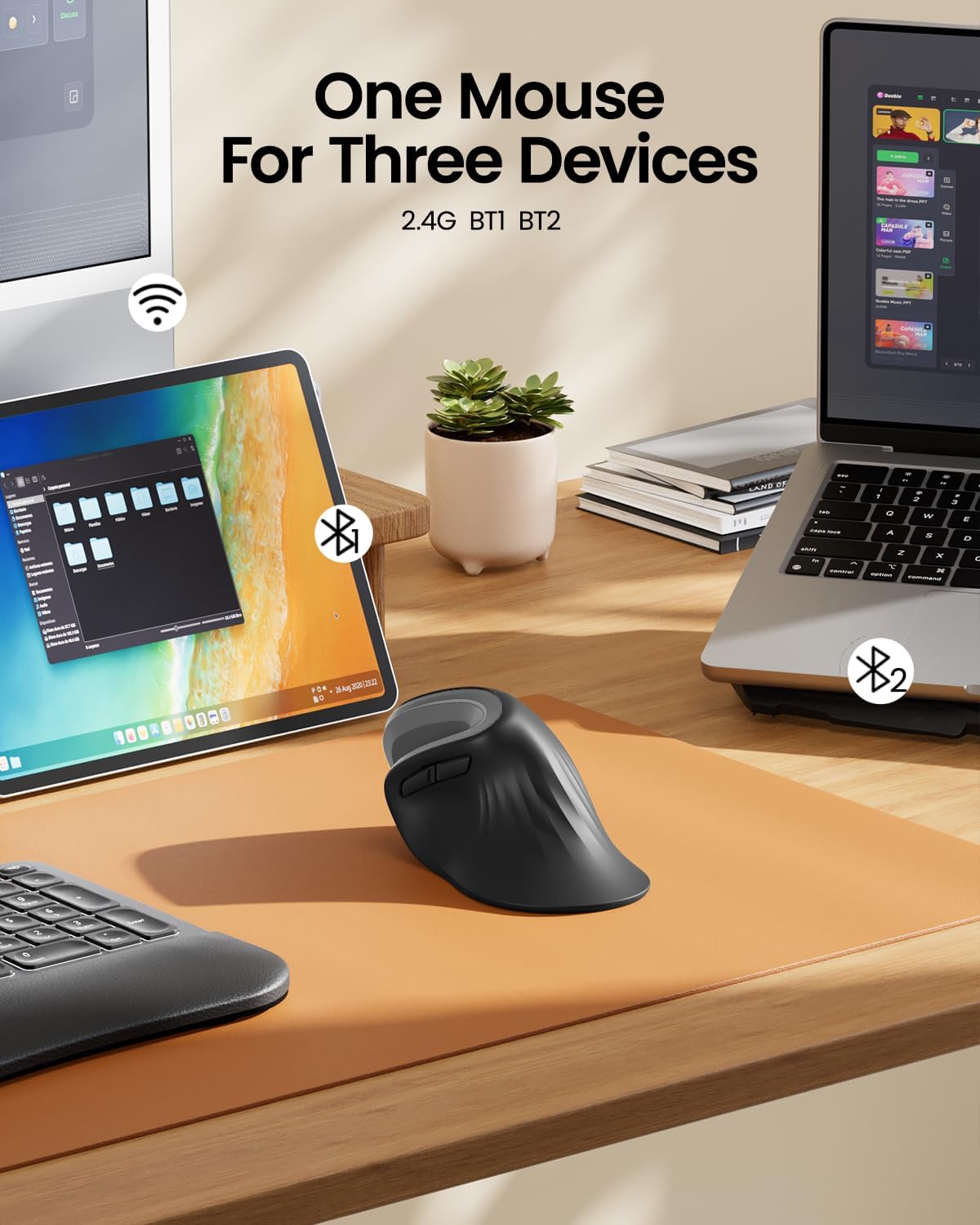
Image 2.2: The ergonomic mouse's ability to connect to three devices.
3. คู่มือการใช้งาน
3.1. Keyboard Usage (XK01)
- การพิมพ์: The full-size QWERTY layout with scissor-switch keys provides a comfortable and responsive typing experience.
- ปุ่มกดตัวเลข: ใช้แป้นตัวเลขแบบบูรณาการเพื่อการป้อนข้อมูลอย่างมีประสิทธิภาพ
- ปุ่มฟังก์ชัน: Use the Fn key in combination with other keys for various shortcuts and media controls. Refer to the keyboard's key legends for specific functions.
- Backlight (if applicable): If your keyboard model includes backlighting, use the designated key combination (often Fn + a specific key) to adjust brightness or toggle the backlight on/off.

Image 3.1: Scissor switch keys for comfortable typing.
3.2. Mouse Usage (EM11)
- ด้ามจับตามหลักสรีรศาสตร์: Hold the mouse with your hand in a natural "handshake" position, allowing your forearm and wrist to remain relaxed.
- ปุ่ม: The mouse features standard left/right click buttons, a scroll wheel, and additional programmable buttons for enhanced productivity.
- การปรับ DPI: Adjust the mouse sensitivity (DPI) using the dedicated DPI button, typically located near the scroll wheel, to suit your preference.
4. การบำรุงรักษาและการชาร์จ
4.1. การชาร์จไฟ
- แป้นพิมพ์: Connect the provided Type-C charging cable to the keyboard's charging port (Image 4.1) and a USB power source. The charging indicator light will show charging status. A full charge provides approximately 5 months of standby time.
- หนู: Connect the provided Type-C charging cable to the mouse's charging port (Image 4.2) and a USB power source. The mouse has a 500mAh Li-Ion battery.

Image 4.1: Keyboard charging port and stable hinge.

Image 4.2: Ergonomic mouse charging via Type-C.
4.2. การทำความสะอาด
To clean your devices, power them off and use a soft, dry, lint-free cloth. For stubborn dirt, slightly dampชุบผ้าด้วยน้ำ หลีกเลี่ยงการใช้สารเคมีรุนแรงหรือวัสดุที่มีฤทธิ์กัดกร่อน
5 การแก้ไขปัญหา
- อุปกรณ์ไม่ได้เชื่อมต่อ: Ensure both the keyboard and mouse are powered on and in pairing mode. Check your device's Bluetooth settings to ensure Bluetooth is enabled and the correct device is selected. Try restarting both the peripheral and your host device.
- อาการหน่วงหรือการตัดการเชื่อมต่อ: Ensure there are no obstructions between the peripheral and your device. Move closer to your device. Check battery levels and recharge if necessary.
- คีย์ไม่ตอบสนอง: Check if the keyboard is powered on and connected. If specific keys are not working, try cleaning around them.
- เคอร์เซอร์เมาส์ไม่ขยับ: Ensure the mouse is powered on and connected. Check the surface you are using the mouse on; a non-reflective, even surface is ideal.
หากคุณพบปัญหาอย่างต่อเนื่อง โปรดดูข้อมูลการติดต่อในส่วน "การรับประกันและการสนับสนุน"
6. ข้อมูลจำเพาะ
| คุณสมบัติ | ข้อมูลจำเพาะ |
|---|---|
| ยี่ห้อ | โปรโตอาร์ค |
| สี | สีเทา |
| เทคโนโลยีการเชื่อมต่อ | บลูทูธ |
| อุปกรณ์ที่รองรับ | Tablet, Smartphone, Laptop (Windows, macOS, iOS, Android) |
| ประเภทแป้นพิมพ์ | Folding Full-size Wireless Keyboard (XK01) with 105 keys, numeric keypad |
| เค้าโครงแป้นพิมพ์ | คีย์บอร์ด QWERTY |
| ประเภทของเมาส์ | Ergonomic Vertical Mouse (EM11) |
| การวางแนวมือ | ถนัดทั้งสองมือ |
| แหล่งพลังงาน | ใช้พลังงานจากแบตเตอรี่ (ชาร์จผ่านพอร์ต Type-C) |
| แบตเตอรี่คีย์บอร์ด | 210 mAh (5 months standby) |
| แบตเตอรี่เมาส์ | ลิเธียมไออน 500mAh |
7. การรับประกันและการสนับสนุน
ProtoArc products come with a standard manufacturer's warranty. For detailed warranty information, product support, or troubleshooting assistance, please contact ProtoArc customer service.
- การสนับสนุนทางอีเมล์: support@protoarc.com
- Webเว็บไซต์: www.protoarc.com