
1. บทนำ
The BoxWave DirectSync Cable is designed to provide reliable charging and high-speed data transfer for your Odroid VU8S MIPI LCD (8 in) device. This cable supports USB 2.0 data transfers at up to 480 Mbps, ensuring efficient operation for both power delivery and data synchronization.
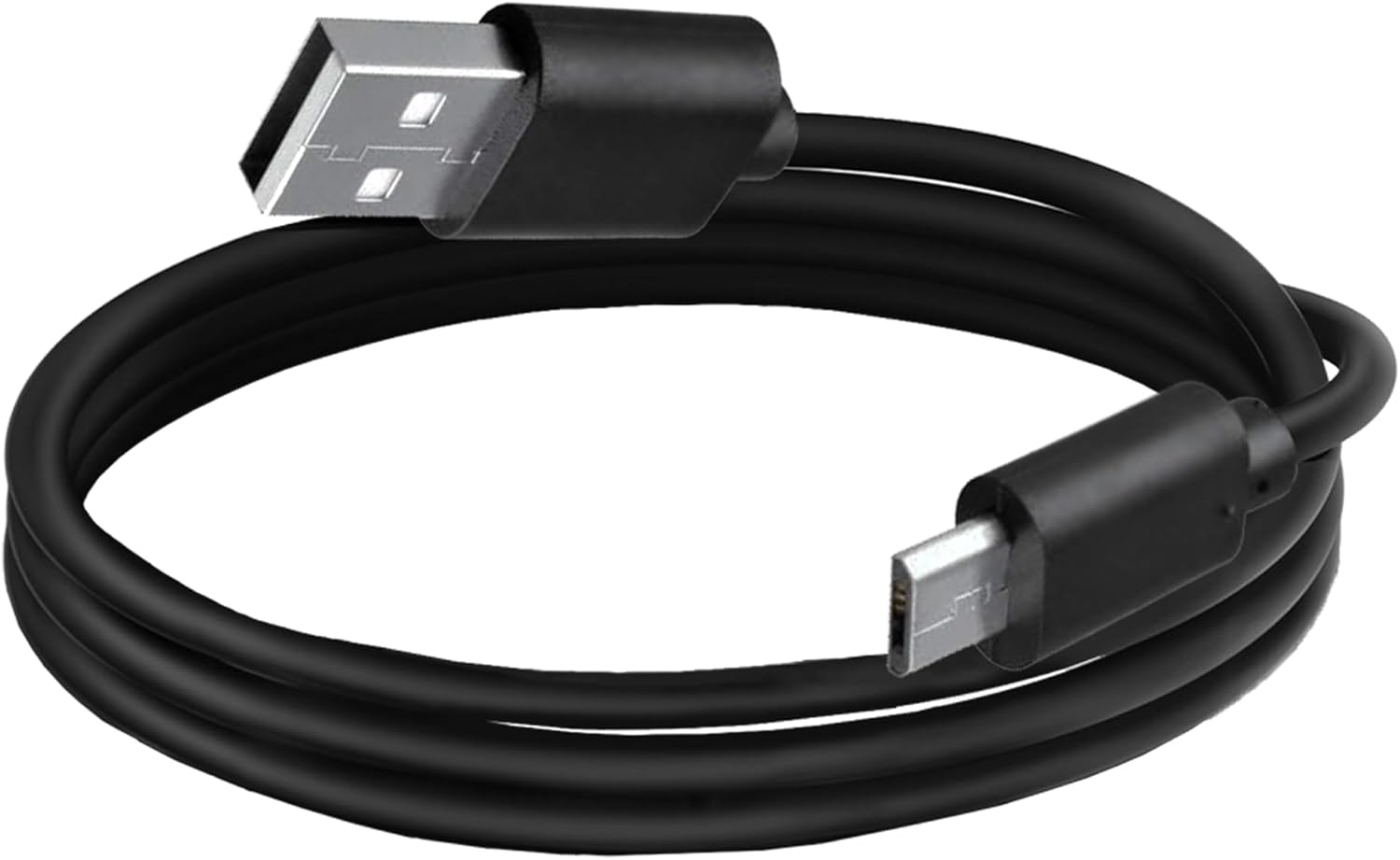
Image: The BoxWave DirectSync Cable, coiled for storage, showcasing its standard USB-A and Micro USB connectors.
2. คำแนะนำในการตั้งค่า
Connecting the DirectSync Cable is a straightforward process. Identify the appropriate ports on your Odroid VU8S MIPI LCD (8 in) and the charging/data source.
- Locate the Micro USB port on your Odroid VU8S MIPI LCD (8 in).
- Insert the Micro USB end of the DirectSync Cable firmly into your device's port.
- Insert the standard USB-A end of the DirectSync Cable into a compatible USB port on a computer or a USB wall adapter for charging.

Image: The DirectSync Cable connected to a device, resting on a desk next to a keyboard, illustrating a typical setup.
3. คู่มือการใช้งาน
The DirectSync Cable offers dual functionality: simultaneous charging and data synchronization.
3.1. การชาร์จอุปกรณ์ของคุณ
When the USB-A end of the cable is connected to a powered USB port (e.g., a wall adapter, power bank, or computer USB port), your Odroid VU8S MIPI LCD (8 in) will begin to charge. Ensure the power source provides sufficient output for your device.
3.2. Data Transfer and Synchronization
When the USB-A end is connected to a computer, the cable enables data transfer between your Odroid VU8S MIPI LCD (8 in) and the computer. Your device should be recognized by the computer's operating system, allowing you to access files or synchronize data. Data transfer speeds can reach up to 480 Mbps, adhering to the USB 2.0 standard.

Image: The DirectSync Cable connecting a smartphone to a laptop, illustrating its 'Charge & Sync' capability with 480Mbps data transfer.
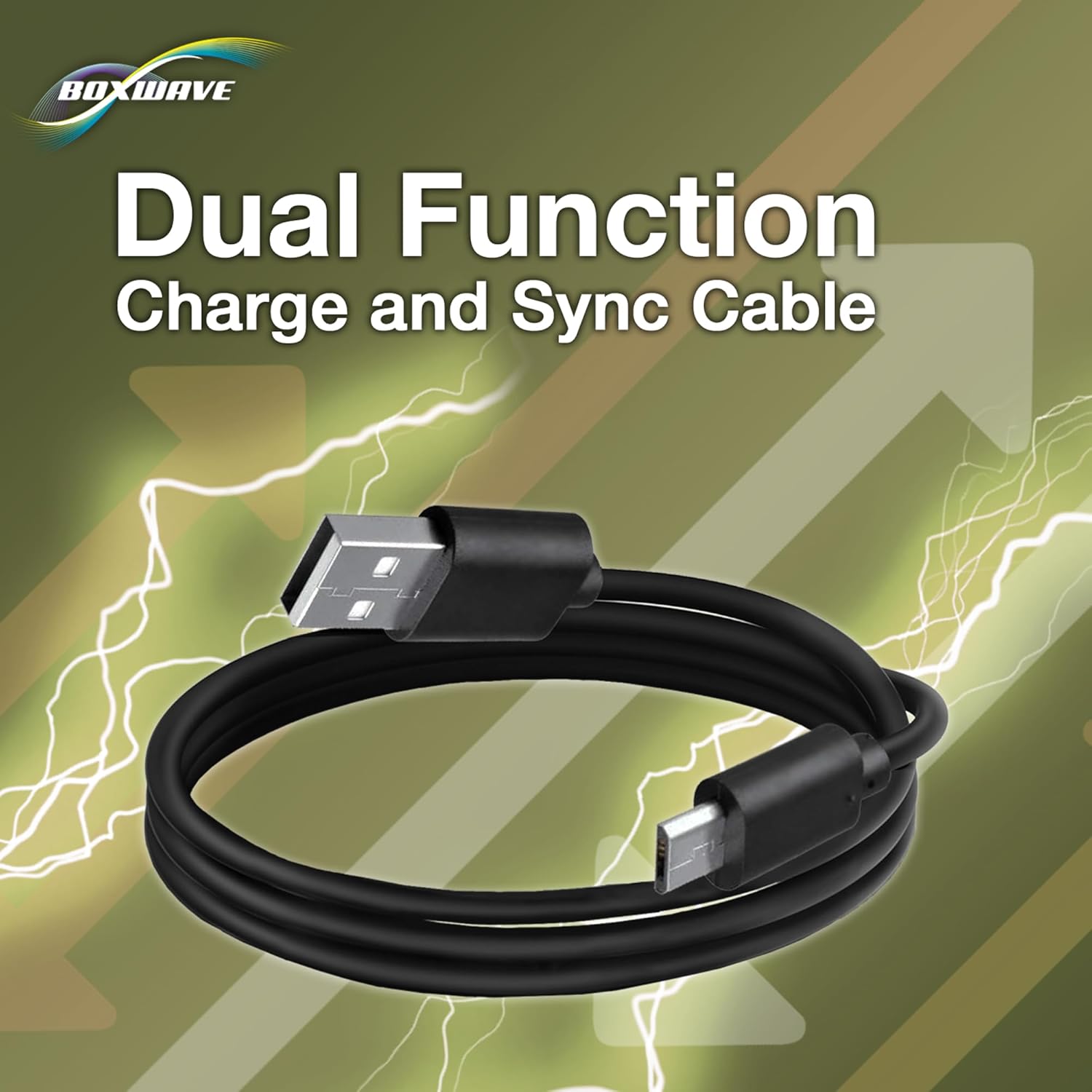
Image: A graphic highlighting the 'Dual Function' of the DirectSync Cable, emphasizing its ability to both charge and sync devices.
4. การบำรุงรักษา
To ensure the longevity and optimal performance of your DirectSync Cable, follow these maintenance guidelines:
- หลีกเลี่ยงการโค้งหักศอก: Do not excessively bend or kink the cable, especially near the connectors. The cable features reinforced strain reliefs designed to prevent damage, but extreme force can still cause wear over time.
- การจัดเก็บที่เหมาะสม: Store the cable neatly coiled when not in use. Avoid tangling it with other cables, which can lead to damage.
- รักษาขั้วต่อให้สะอาด: Keep the connectors clean and free from dust or debris. If cleaning is necessary, use a dry, soft cloth. Avoid using liquids or abrasive materials.
- สภาพแวดล้อม : อย่าให้สายเคเบิลสัมผัสกับอุณหภูมิที่สูงจัด แสงแดดโดยตรง หรือความชื้นมากเกินไป

ภาพ: ภาพระยะใกล้ view of the reinforced strain relief on the DirectSync Cable connectors, designed to prevent kinking and splitting.
5 การแก้ไขปัญหา
If you encounter issues with your DirectSync Cable, consider the following troubleshooting steps:
5.1. อุปกรณ์ไม่ชาร์จไฟ
- ตรวจสอบการเชื่อมต่อ: Ensure both the Micro USB end and the USB-A end of the cable are securely and fully inserted into their respective ports.
- Try Different Ports/Adapters: Test the cable with a different USB port on your computer or a different USB wall adapter. This helps determine if the issue is with the cable or the power source.
- อุปกรณ์ทดสอบ: If possible, try charging your Odroid VU8S MIPI LCD (8 in) with another known-good cable to confirm that the device's charging port is functional.
5.2. ปัญหาเกี่ยวกับการถ่ายโอนข้อมูล
- ตรวจสอบการเชื่อมต่อ: Confirm the cable is properly connected to both your Odroid VU8S MIPI LCD (8 in) and the computer.
- การรับรู้คอมพิวเตอร์: Check your computer's device manager (Windows) or System Information (macOS) to see if the Odroid VU8S MIPI LCD (8 in) is recognized when connected.
- รีสตาร์ทอุปกรณ์: Sometimes, simply restarting both your device and computer can resolve connectivity issues.
- ปัญหาไดร์เวอร์: Ensure that any necessary drivers for your Odroid VU8S MIPI LCD (8 in) are installed on your computer.
6. ข้อมูลจำเพาะ
| แบบอย่าง | DirectSync Cable |
| ความเข้ากันได้ | Odroid VU8S MIPI LCD (8 in) |
| การทำงาน | Charge and Sync |
| ความเร็วในการถ่ายโอนข้อมูล | สูงสุด 480 Mbps (USB 2.0) |
| ความยาวสายเคเบิล | ประมาณ 3 ฟุต |
| ตัวเชื่อมต่อ | Standard USB-A to Micro USB |
| น้ำหนักสินค้า | 1.7 ออนซ์ |
| ผู้ผลิต | บ็อกซ์เวฟ |
| ASIN | B0DHLLVCJY |

ภาพ: โอเวอร์view of the DirectSync Cable's key features, including simultaneous charge & sync, 3-foot length, reinforced strain relief, and USB 2.0 standard for 480Mbps transfers.
7. การรับประกันและการสนับสนุน
BoxWave provides limited 3rd party technical support for your device (up to 3 inquiries via messaging) for issues specifically related to the DirectSync Cable. Please note that this support is not affiliated with or endorsed by Odroid.
For further assistance, please refer to the contact information provided with your purchase or visit the official BoxWave webเว็บไซต์สำหรับแหล่งข้อมูลสนับสนุนของพวกเขา