
1. สินค้าหมดview
The Anmite 18.5 Inch 120Hz Portable Monitor is designed to extend your visual workspace, offering a high-definition display for laptops, gaming consoles, and mobile devices. Its lightweight and slim design ensures portability, while the IPS panel provides wide viewมุมแสงและสีสันสดใส

ภาพที่ 1.1: ด้านหน้า view of the Anmite 18.5 Inch Portable Monitor, highlighting its key features like 1920x1080 resolution, 120Hz refresh rate, 100% sRGB, 3ms response time, and IPS panel.
2. เนื้อหาบรรจุภัณฑ์
โปรดตรวจสอบว่าสินค้าทั้งหมดมีอยู่ในแพ็คเกจของคุณ:
- Anmite Portable Monitor x 1
- Mini-HDMI to HDMI cable x 1
- สายเคเบิล Type-C ถึง Type-C x 1
- Type-C to USB-A cable x 1
- คู่มือผู้ใช้ x 1
3. Monitor Features and Ports
Familiarize yourself with the monitor's physical features and connection ports.
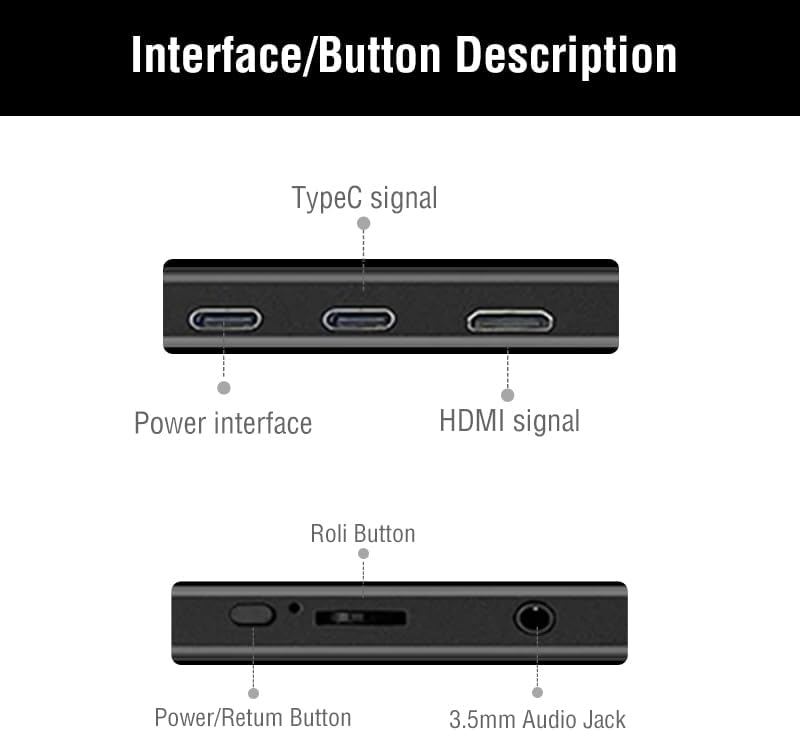
Image 3.1: Detailed diagram showing the monitor's ports and control buttons. This includes Type-C signal input, Power interface, HDMI signal input, a 'Roli Button' for menu navigation, and a 3.5mm Audio Jack.
3.1. พอร์ตและปุ่ม
- Type-C (ฟังก์ชั่นครบครัน): For video, audio, and power transmission from compatible devices.
- Type-C (Power): For power input to the monitor.
- มินิ HDMI: For video and audio input from devices.
- แจ็ค Audio 3.5mm: สำหรับเชื่อมต่อหูฟังหรือลำโพงภายนอก
- Roli Button: Used for navigating the On-Screen Display (OSD) menu and adjusting settings.
- ปุ่มเปิด/ปิด/ย้อนกลับ: Used to power the monitor on/off and as a return function in the OSD menu.

ภาพที่ 3.2: ด้านหลัง view ของจอภาพ แสดงasing the integrated metal support stand and VESA mounting points.
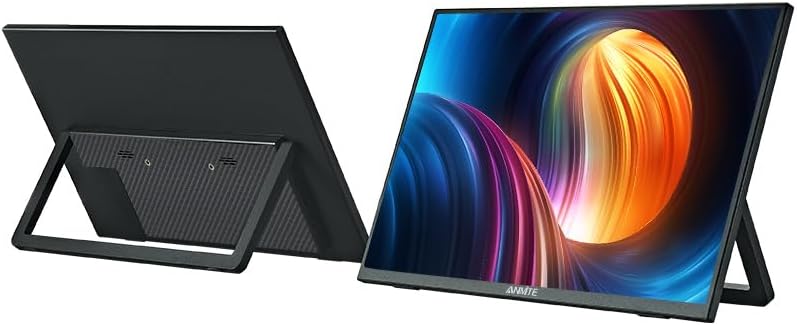
Image 3.3: Front and back perspective views of the monitor, illustrating its slim profile and the adjustable stand.
4. คำแนะนำในการตั้งค่า
4.1. การเปิดใช้งานจอภาพ
The monitor requires power to operate. Connect the provided Type-C to USB-A cable to the monitor's dedicated power Type-C port and a compatible USB power adapter (not included) or a powered USB port on your device.
4.2. การเชื่อมต่อกับอุปกรณ์
The Anmite portable monitor supports various devices via Type-C (full function) and HDMI connections.
4.2.1. Connecting to a Laptop/PC (Type-C)
- Ensure your laptop/PC has a full-featured Type-C (USB-C) port that supports video output (DisplayPort Alternate Mode) and power delivery.
- Connect one end of the Type-C to Type-C cable to the monitor's full-function Type-C port.
- Connect the other end of the Type-C to Type-C cable to your laptop/PC's full-featured Type-C port.
- The monitor should automatically detect the signal and display your laptop/PC screen. If not, you may need to adjust display settings on your laptop/PC.
4.2.2. Connecting to a Laptop/PC (HDMI)
- Connect one end of the Mini-HDMI to HDMI cable to the monitor's Mini-HDMI port.
- Connect the other end of the Mini-HDMI to HDMI cable to your laptop/PC's HDMI port.
- Connect the monitor to a power source using the Type-C to USB-A cable and a power adapter.
- The monitor should automatically detect the signal. If not, adjust display settings on your laptop/PC.
4.2.3. Connecting to a Smartphone (Type-C)
- Ensure your smartphone has a full-featured Type-C (USB-C) port that supports video output (DisplayPort Alternate Mode) and power delivery.
- Connect one end of the Type-C to Type-C cable to the monitor's full-function Type-C port.
- Connect the other end of the Type-C to Type-C cable to your smartphone's full-featured Type-C port.
- The monitor should mirror or extend your phone's display.

Image 4.1: The portable monitor connected to a smartphone via a Type-C cable, demonstrating its use as an external display for mobile devices.
4.2.4. Connecting to Gaming Consoles (HDMI)
- Connect one end of the Mini-HDMI to HDMI cable to the monitor's Mini-HDMI port.
- Connect the other end of the Mini-HDMI to HDMI cable to your gaming console's HDMI port.
- Connect the monitor to a power source using the Type-C to USB-A cable and a power adapter.
- Power on your gaming console and the monitor. The display should appear automatically.
4.3. การใช้ขาตั้งแบบบูรณาการ
The monitor features an integrated metal stand for easy setup. Simply unfold the stand from the back of the monitor to position it at your desired viewing angle. The stand also allows for both landscape and portrait orientations.
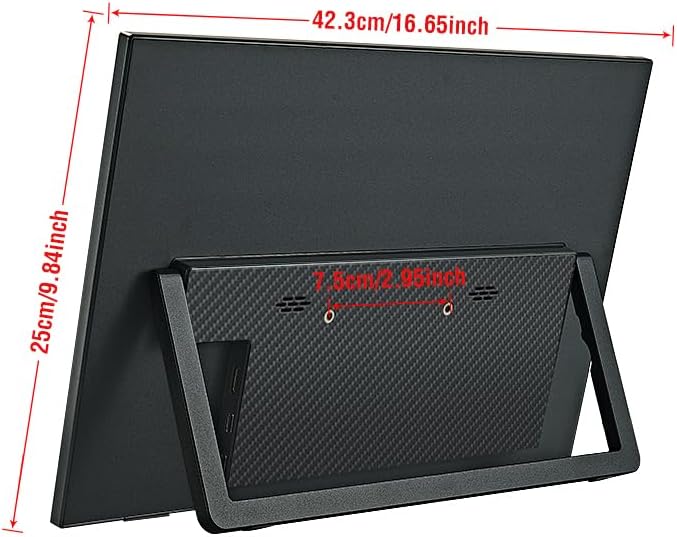
ภาพที่ 4.2: ด้านหลัง view of the monitor with its stand extended, showing the overall dimensions and stability.
5. คู่มือการใช้งาน
5.1. เปิด/ปิดเครื่อง
กดปุ่มค้างไว้ ปุ่มเปิด/ปิด/ย้อนกลับ กดค้างไว้ไม่กี่วินาทีเพื่อเปิดหรือปิดจอภาพ
5.2. เมนูการแสดงผลบนหน้าจอ (OSD)
The OSD menu allows you to adjust various display settings. Use the Roli Button เพื่อนำทางและเลือกตัวเลือกต่างๆ
- กดปุ่ม Roli Button เพื่อเปิดเมนู OSD
- หมุน Roli Button up or down to navigate through menu options.
- กดปุ่ม Roli Button เพื่อเลือกตัวเลือกหรือเข้าสู่เมนูย่อย
- ใช้ ปุ่มเปิด/ปิด/ย้อนกลับ เพื่อกลับไปยังเมนูก่อนหน้าหรือออกจากเมนู OSD
5.3. การตั้งค่า OSD ทั่วไป
- ความสว่าง / ความคมชัด: Adjust the display's luminance and contrast levels.
- การตั้งค่าสี: Modify color temperature, hue, and saturation.
- แหล่งที่มาของข้อมูล: Manually select between Type-C and HDMI inputs if auto-detection fails.
- อัตราส่วนภาพ: Change the display aspect ratio (e.g., 16:9, 4:3).
- ปริมาณ: Adjust the volume of the built-in speakers or connected headphones.
5.4. การวางแนวการแสดงผล
The monitor supports both landscape and portrait orientations. The display will automatically adjust if your connected device supports auto-rotation. Otherwise, you may need to manually change the display orientation in your device's operating system settings.
6. การบำรุงรักษา
6.1. การทำความสะอาดจอภาพ
- ปิดเครื่องและถอดปลั๊กจอภาพทุกครั้งก่อนทำความสะอาด
- ใช้ผ้านุ่มไม่เป็นขุยเช็ดเล็กน้อยampเคลือบด้วยน้ำหรือน้ำยาทำความสะอาดหน้าจอที่ไม่กัดกร่อน
- ห้ามฉีดน้ำยาทำความสะอาดลงบนหน้าจอโดยตรง
- หลีกเลี่ยงการใช้แอลกอฮอล์ แอมโมเนีย หรือน้ำยาทำความสะอาดที่มีฤทธิ์กัดกร่อน เพราะอาจทำให้พื้นผิวหน้าจอเสียหายได้
6.2. การจัดเก็บ
- เก็บจอภาพไว้ในที่แห้งและเย็น หลีกเลี่ยงแสงแดดโดยตรงและอุณหภูมิที่สูงหรือต่ำเกินไป
- If storing for an extended period, use the original packaging or a protective sleeve to prevent dust and scratches.
7 การแก้ไขปัญหา
If you encounter issues with your Anmite portable monitor, refer to the following common solutions:
- No Display/No Signal:
- Ensure the monitor is properly powered and turned on.
- Verify that the video cable (Type-C or HDMI) is securely connected to both the monitor and your device.
- If using Type-C, confirm that your device's Type-C port is full-featured and supports video output. Some Type-C ports are for charging only.
- Try selecting the correct input source manually via the OSD menu.
- Test with a different cable or device if possible.
- หน้าจอแสดงผลกะพริบหรือไม่เสถียร:
- ตรวจสอบการเชื่อมต่อสายเคเบิลว่าหลวมหรือไม่
- ตรวจสอบให้แน่ใจว่าจอภาพได้รับพลังงานอย่างเพียงพอ
- Adjust the refresh rate or resolution settings on your connected device.
- ไม่มีเสียง:
- Increase the volume on both the monitor (via OSD) and your connected device.
- ตรวจสอบให้แน่ใจว่าได้ตั้งค่าเอาต์พุตเสียงบนอุปกรณ์ของคุณไปที่จอภาพแบบพกพาแล้ว
- If using external headphones/speakers, ensure they are properly connected to the 3.5mm audio jack.
- Monitor Not Turning On:
- Confirm the power cable is connected and the power source is active.
- ลองใช้อะแดปเตอร์แปลงไฟหรือพอร์ต USB อื่น
8. ข้อมูลจำเพาะ
Detailed technical specifications for the Anmite 18.5 Inch Portable Monitor (Model A185W03).

Image 8.1: Diagram illustrating the physical dimensions of the 18.5-inch monitor in centimeters and inches.
| คุณสมบัติ | ข้อมูลจำเพาะ |
|---|---|
| หมายเลขรุ่น | A185W03 |
| ขนาดหน้าจอ | 18.5 นิ้ว |
| ประเภทแผง | ไอพีเอส |
| ปณิธาน | 1920x1080 (FHD) |
| อัตราการรีเฟรชหน้าจอ | 120เฮิรตซ์ |
| อัตราส่วนภาพ | 16:9 น. |
| สีจอแสดงผล | 16.7เมตร |
| อุณหภูมิสี | 6800K |
| มุมมองภาพ | H: 178 ° V: 178 ° |
| พื้นที่มองเห็น | 410 x 230 มม. |
| อัตราส่วนคอนทราสต์ | 1000:1 น. |
| ความสว่าง | 300cd/ตรม. |
| สีที่รองรับ | 100% sRGB |
| อินเตอร์เฟซการป้อนข้อมูล | Mini-HDMI, Type-C (Full Function), Type-C (Power) |
| อินเทอร์เฟซเอาท์พุต | อินเทอร์เฟซเสียง 3.5 มม |
| ลำโพง | Built-in (1W*2) |
| น้ำหนักสุทธิ | 1.2 กก. |
| ขนาด | 423 x 250 x 6-13 มม. (16.65 x 9.84 x 0.24-0.51 นิ้ว) |
| ขนาดของผลิตภัณฑ์ (เมื่อบรรจุในกล่อง) | 8.26 x 14.96 x 19.29 นิ้ว |
| เล่มที่tage | 5 โวลต์ (กระแสตรง) |
| คำอธิบายพื้นผิวหน้าจอ | แมทต์ |

Image 8.2: Illustration of the monitor's ultra-portable design, highlighting its thinness and lightweight nature with dimensions.

Image 8.3: Visual comparison of the 18.5-inch monitor alongside 17.3-inch and 15.6-inch models, demonstrating its larger screen size.
9. การรับประกันและการสนับสนุน
9.1. ข้อมูลการรับประกัน
For detailed warranty information regarding your Anmite portable monitor, please refer to the warranty card included in your product packaging or visit the official Anmite webนอกจากนี้ อาจมีแผนคุ้มครองเพิ่มเติมให้เลือกซื้อแยกต่างหาก
9.2. การสนับสนุนลูกค้า
If you require further assistance or have questions not covered in this manual, please contact Anmite customer support. You can find contact information and additional resources on the Anmite Official Store.