
Bmax X15 Pro
Bmax X15 Pro 15.6-inch Laptop User Manual
รุ่น: X15 Pro
1. บทนำ
This manual provides essential information for setting up, operating, and maintaining your Bmax X15 Pro 15.6-inch laptop. Please read this manual thoroughly to ensure proper use and to maximize the performance and longevity of your device.

Image: The Bmax X15 Pro laptop displaying the Windows 11 Pro operating system, highlighting its Intel N95 processor, 16GB RAM, 512GB SSD, and 1920x1080 FHD display.
2. อะไรอยู่ในกล่อง
Upon unpacking your Bmax X15 Pro laptop, please verify that all the following items are included:
- 1 x BMAX MaxBook X15 Pro Intel N95 Notebook Computer
- อะแดปเตอร์ไฟ DC 1 x 12V/3A
- 1 x Multi-Language User Manual
3. สินค้าหมดview
3.1. Physical Components and Ports
Familiarize yourself with the various ports and components of your laptop for optimal connectivity and usage.

ภาพ: ด้านข้าง view of the Bmax X15 Pro laptop illustrating the placement of its various ports, including Micro SD, USB 3.0, Headset jack, HDMI, and Power input.
- ด้านซ้าย: Micro SD slot, 2x USB 3.0 ports, 3.5mm Headset jack.
- ด้านขวา: Power input, HDMI port, 1x USB 3.0 port, Security Lock slot.
3.2. คีย์บอร์ดและทัชแพด
The laptop features a full-size keyboard with large keycaps and a large touchpad supporting multi-touch gestures for efficient navigation and input.

ภาพ: จากบนลงล่าง view of the Bmax X15 Pro laptop's full-size keyboard and large touchpad, highlighting its ergonomic design for comfortable use.
4. การตั้งค่า
4.1. การเปิดเครื่องครั้งแรกและการชาร์จ
- Connect the provided DC power adapter to the laptop's power input port and a wall outlet.
- ควรปล่อยให้แล็ปท็อปชาร์จไฟอย่างน้อย 30 นาทีก่อนใช้งานครั้งแรก หรือจนกว่าไฟแสดงสถานะแบตเตอรี่จะแสดงว่ามีประจุเพียงพอ
- กดปุ่มเปิด/ปิดที่อยู่บนแป้นพิมพ์เพื่อเปิดแล็ปท็อป
- ทำตามคำแนะนำบนหน้าจอเพื่อทำการติดตั้ง Windows 11 Pro ให้เสร็จสมบูรณ์
5. คู่มือการใช้งาน
5.1. การจัดการพลังงาน
- เปิดเครื่อง: กดปุ่มเปิด/ปิด
- โหมดสลีป: ปิดฝาหรือกดปุ่มเปิด/ปิดสั้นๆ
- ปิดระบบ: คลิกปุ่มเริ่ม จากนั้นคลิกเปิด/ปิดเครื่อง > ปิดเครื่อง
- เริ่มต้นใหม่อีกครั้ง: คลิกปุ่มเริ่ม จากนั้นคลิกเปิด/ปิดเครื่อง > เริ่มระบบใหม่
5.2. การใช้งานจอแสดงผล
The 15.6-inch FHD IPS display offers a 180° convertible design, allowing for flexible viewing angles and collaborative use.

Image: The Bmax X15 Pro laptop shown in its 180-degree lay-flat configuration, demonstrating its versatility for sharing and collaboration.
5.3. การเชื่อมต่อ
The laptop supports various wireless and wired connections:
- ไวไฟ : Dual-band Wi-Fi 5 (802.11ac/a/b/g/n) for fast internet access.
- บลูทูธ: Bluetooth 5.0 สำหรับเชื่อมต่ออุปกรณ์ต่อพ่วงแบบไร้สาย
- ช่องต่อ HDMI: เชื่อมต่อกับจอแสดงผลภายนอกหรือโปรเจ็กเตอร์
- ยูเอสบี 3.0: Three ports for high-speed data transfer with external devices.
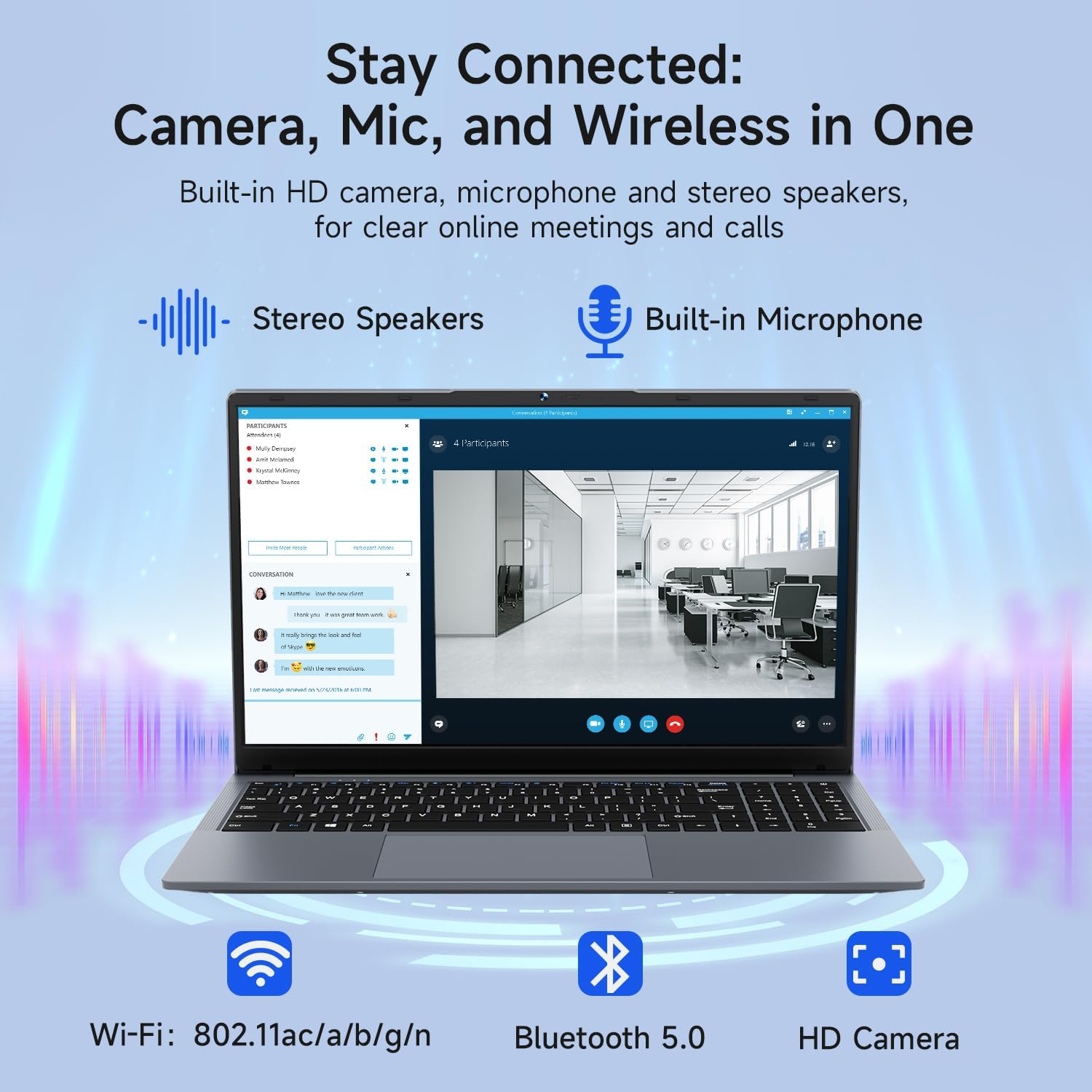
Image: The Bmax X15 Pro laptop with icons representing its integrated Wi-Fi, Bluetooth 5.0, and HD camera capabilities, emphasizing its comprehensive connectivity for communication.
6. การจัดเก็บและประสิทธิภาพ
The Bmax X15 Pro is equipped with robust components for efficient performance and ampที่เก็บของ
6.1. โปรเซสเซอร์
Powered by the Intel Celeron N95 Quad-Core Processor (up to 3.4GHz), featuring 4 cores and 4 threads with a 6MB cache, ensuring efficient performance for various tasks.

Image: A graphic detailing the Intel 12th Gen Processor N95, showing its 3.40GHz Turbo Frequency, 6MB Cache, 15W Power Consumption, and 4 cores/4 threads, alongside performance benchmarks.
6.2. หน่วยความจำและที่เก็บข้อมูล
The laptop includes 16GB DDR4 RAM and a 512GB SSD, providing substantial storage capacity and enabling efficient multitasking. An M.2_SATA 2280 expansion slot is available for additional storage.

Image: A visual representation of the Bmax X15 Pro laptop's internal components, highlighting its 16GB memory, 512GB high-speed SSD, and an accessible M.2 2280 expansion slot for storage upgrades.
7. คุณสมบัติการแสดงผล
Experience clear and vibrant visuals with the 15.6-inch FHD 1920x1080 IPS display, featuring a slim bezel design and 180° viewมุมการเอียง

Image: A graphic illustrating the Bmax X15 Pro laptop's display features, including its 15.6-inch IPS FHD screen, 1920x1080 resolution, 5.7mm ultra-narrow bezel, and 180° lay-flat design.
8. ระบบระบายความร้อน
The laptop incorporates intelligent fans and dual copper heat pipes to ensure rapid heat dissipation, maintaining optimal performance and preventing overheating during extended use.

Image: An internal diagram of the Bmax X15 Pro laptop, highlighting its dual copper heat pipes and silent smart fan, illustrating the efficient and quiet cooling system.
9. การจัดการแบตเตอรี่
The laptop is powered by a 51.3Wh battery, providing up to 6-8 hours of usage on a single charge, depending on usage patterns.
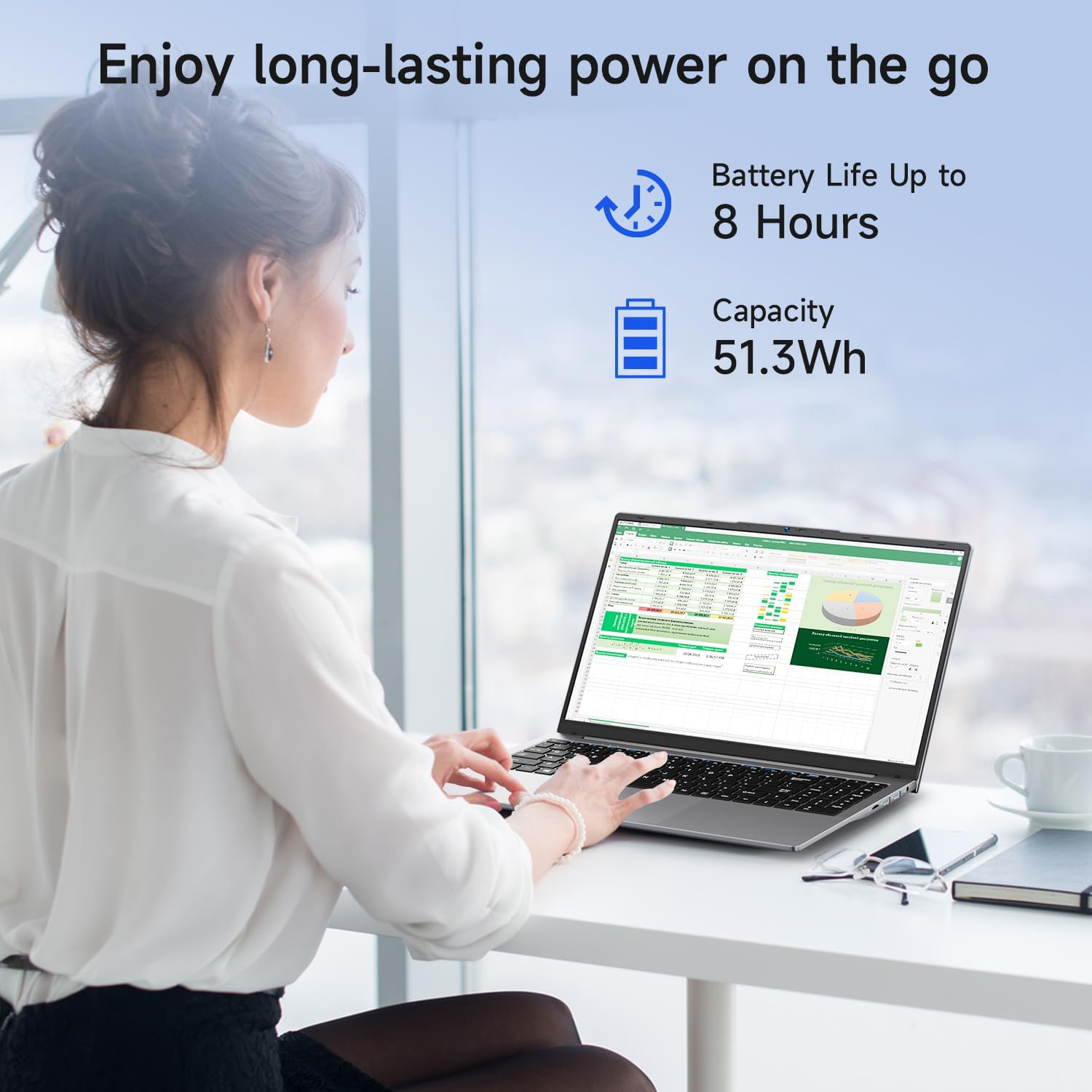
Image: A woman working on the Bmax X15 Pro laptop, with an overlay indicating a battery life of up to 8 hours and a capacity of 51.3Wh, emphasizing its long-lasting power.
10. การบำรุงรักษา
การบำรุงรักษาอย่างเหมาะสมจะช่วยให้แล็ปท็อปของคุณมีอายุการใช้งานยาวนานและมีประสิทธิภาพเหมาะสมที่สุด
- การทำความสะอาด: ใช้ผ้าเนื้อนุ่มที่ไม่เป็นขุยเช็ดทำความสะอาดหน้าจอและภายนอก หลีกเลี่ยงสารเคมีรุนแรง
- การระบายอากาศ : ตรวจสอบให้แน่ใจว่าช่องระบายอากาศไม่มีสิ่งกีดขวางเพื่อป้องกันความร้อนสูงเกินไป
- การอัปเดตซอฟต์แวร์: อัปเดตระบบปฏิบัติการและไดรเวอร์ของคุณเป็นประจำเพื่อรักษาความปลอดภัยและประสิทธิภาพ
- การดูแลแบตเตอรี่ Avoid fully discharging the battery frequently. Store the laptop in a cool, dry place if not used for extended periods.
11 การแก้ไขปัญหา
This section addresses common issues you might encounter with your Bmax X15 Pro laptop.
- แล็ปท็อปไม่สามารถเปิดเครื่องได้: ตรวจสอบให้แน่ใจว่าอะแดปเตอร์แปลงไฟเสียบแน่นดีแล้ว และแบตเตอรี่มีประจุเพียงพอ ลองเสียบกับปลั๊กไฟอื่นดู
- ปัญหาการแสดงผล: หากหน้าจอว่างเปล่า ให้ลองเชื่อมต่อจอภาพภายนอกเพื่อตรวจสอบว่าปัญหาอยู่ที่หน้าจอแล็ปท็อปหรือไม่ ปรับการตั้งค่าความสว่าง
- ปัญหาการเชื่อมต่อ Wi-Fi: ตรวจสอบให้แน่ใจว่าได้เปิดใช้งาน Wi-Fi ในการตั้งค่า Windows แล้ว รีสตาร์ทเราเตอร์และแล็ปท็อป ตรวจสอบไดรเวอร์ Wi-Fi ว่าเป็นเวอร์ชันล่าสุดหรือไม่
- ประสิทธิภาพช้า: ปิดแอปพลิเคชันที่ไม่จำเป็น ตรวจสอบหาโปรแกรมมัลแวร์ ตรวจสอบให้แน่ใจว่ามีพื้นที่ว่างใน SSD เพียงพอ
12. ข้อมูลจำเพาะ
| คุณสมบัติ | ข้อมูลจำเพาะ |
|---|---|
| ขนาดหน้าจอยืน | 15.6 นิ้ว |
| ความละเอียดหน้าจอ | 1920 x 1080 พิกเซล |
| ความละเอียดหน้าจอสูงสุด | 1920x1080 พิกเซล |
| โปรเซสเซอร์ | 3.4 GHz Celeron (Intel N95 Quad-Core) |
| แรม | แรม 16GB DDR4 |
| ความเร็วหน่วยความจำ | 2666 เมกะเฮิรตซ์ |
| ฮาร์ดไดรฟ์ | 512 GB SSD (PCIE x 4 interface) |
| โคโปรเซสเซอร์กราฟิก | กราฟิก Intel UHD |
| ขนาดแรมการ์ดจอ | 8 GB (Integrated) |
| ประเภทไร้สาย | 2.4 GHz Radio Frequency, 5 GHz Radio Frequency, 802.11a/b/g/n/ac, Bluetooth 5.0 |
| จำนวนพอร์ต USB 3.0 | 3 |
| อายุการใช้งานแบตเตอรี่โดยเฉลี่ย (เป็นชั่วโมง) | 4-8 Hours (51.3Wh) |
| ระบบปฏิบัติการ | วินโดวส์ 11 โปร |
| น้ำหนักสินค้า | 3.57 ปอนด์ |
| ขนาดสินค้า | 14.08 x 9.04 x 0.76 นิ้ว |
| สี | สีเทาสเปซเกรย์ |
| คุณสมบัติพิเศษ | HD Audio, Lightweight, Memory Card Slot, Numeric Keypad |
13. การรับประกันและการสนับสนุน
Your Bmax X15 Pro laptop comes with a 12-month warranty from the date of purchase. This warranty covers manufacturing defects and ensures product reliability.
- ระยะเวลารับประกัน: 12 months from the purchase date.
- นโยบายการคืนสินค้า: Worry-free 30-day return period.
- บริการลูกค้า: 7 days/24 hours friendly customer support.
- อุปกรณ์เสริมที่รวมอยู่: 2 replaceable plugs (US, EU) are included to meet diverse connectivity needs.
For technical assistance or warranty claims, please refer to the contact information provided with your purchase documentation or visit the official Bmax support webเว็บไซต์.
Ask a question about this manual
Ask about setup, troubleshooting, compatibility, parts, safety, or missing instructions. Manuals+ will review the question and use this page’s manual context to help answer it.