
VIRAN V11
คู่มือการใช้งานกล้องแอ็คชั่น VIRAN V11
รุ่น : V11
1. บทนำ
This manual provides comprehensive instructions for the operation, maintenance, and troubleshooting of your VIRAN V11 Action Camera. Please read this manual carefully before using the product to ensure proper functionality and to prevent damage.
The VIRAN V11 is a high-performance action camera designed for capturing dynamic video and photo content in various environments, including underwater. It features 5K video recording, 48MP photo resolution, advanced image stabilization, and wireless connectivity.
2. เนื้อหาบรรจุภัณฑ์
ตรวจสอบว่ารายการทั้งหมดที่ระบุไว้ด้านล่างนี้รวมอยู่ในแพ็คเกจของคุณ:
- VIRAN V11 Action Camera
- Waterproof Box (included with this model)
- รีโมทคอนโทรล
- Helmet Seat
- Transfer Bracket
- Transfer Joint
- ผ้าเช็ด
- สายดาต้า (Type-C)
- คำแนะนำ (คู่มือเล่มนี้)
- 1 Lithium Ion battery (pre-installed)

Figure 2.1: VIRAN V11 Action Camera with its primary accessories, including the camera itself, remote control, waterproof housing, and a carrying case.
3. สินค้าหมดview
3.1 ส่วนประกอบของกล้อง
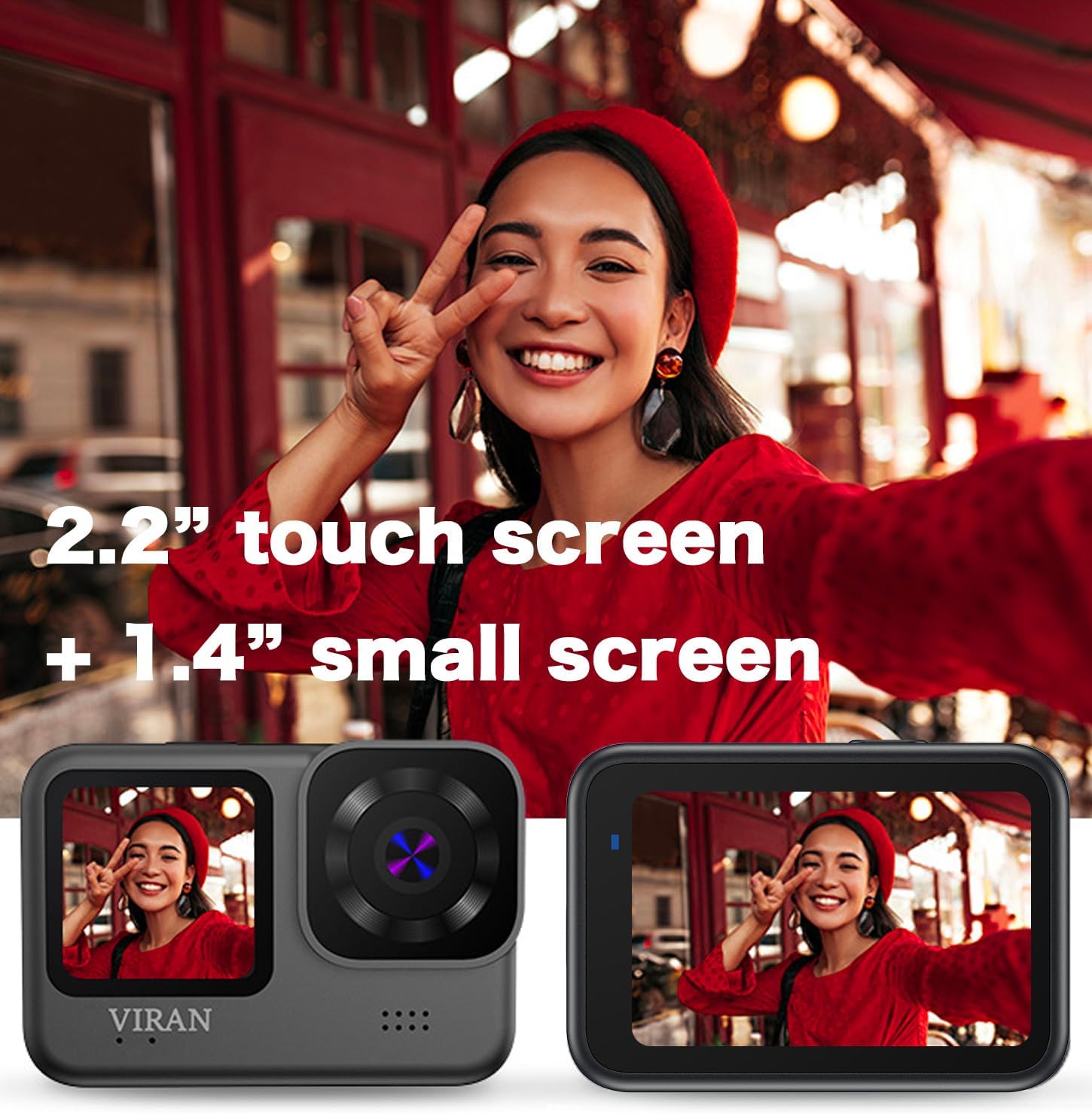
รูปที่ 3.1: ด้านหน้าและด้านหลัง views of the VIRAN V11 Action Camera, highlighting the 2.2-inch touch screen on the back and the 1.4-inch small screen on the front.
- เลนส์หลัก: Captures video and photo content.
- หน้าจอสัมผัสขนาด 2.2 นิ้ว: Rear display for live view, การเล่น และการนำทางเมนู
- 1.4-inch Front Screen: Small display for monitoring status and framing selfies.
- ปุ่มเปิด / ปิดโหมด: Turns the camera on/off and switches between modes.
- ปุ่มชัตเตอร์/บันทึก: เริ่มการถ่ายภาพหรือบันทึกวิดีโอ
- พอร์ต USB Type-C: สำหรับการชาร์จและถ่ายโอนข้อมูล
- ช่องเสียบการ์ด Micro SD: สำหรับการใส่การ์ดหน่วยความจำ
- ไมโครโฟน: บันทึกเสียง
- ผู้บรรยาย: สำหรับการเล่นเสียง
3.2 การควบคุมระยะไกล

Figure 3.2: The wireless remote control, used for convenient operation of the camera from a distance.
The remote control allows for convenient operation of the camera from a distance, enabling hands-free recording and photo capture. It typically includes buttons for starting/stopping recording and taking photos.
4. การตั้งค่า
4.1 การชาร์จแบตเตอรี่
The VIRAN V11 Action Camera has a built-in 1200mAh lithium-ion battery. Before first use, fully charge the camera.
- Locate the USB Type-C port on the side of the camera. This port is protected by a waterproof cover.
- Carefully open the waterproof cover. Note: This cover can be stiff and may require gentle prying. Ensure it is securely closed after charging to maintain waterproofing.
- Connect the provided USB Type-C data cable to the camera's port and the other end to a USB power adapter (not included) or a computer's USB port.
- ไฟแสดงสถานะการชาร์จจะสว่างขึ้น เมื่อชาร์จเต็มแล้ว ไฟจะเปลี่ยนหรือดับลง
A full charge typically takes approximately 90 minutes. The camera supports charging while in use.

Figure 4.1: The camera connected via USB Type-C, illustrating its use for data transfer or charging.
4.2 การใส่การ์ด Micro SD
A Micro SD card is required to store recordings. The camera supports Micro SD cards up to a certain capacity (e.g., 64GB). Use a high-speed card (Class 10 or UHS-I/U3 recommended).
- ตรวจสอบให้แน่ใจว่ากล้องปิดอยู่
- Open the waterproof cover protecting the USB Type-C port and Micro SD card slot.
- Insert the Micro SD card into the slot with the gold contacts facing the back of the camera until it clicks into place.
- ในการถอดออก ให้ดันการ์ดเบาๆ จนกว่าจะมีเสียงคลิก จากนั้นปล่อยเพื่อดีดออก
- Close the waterproof cover securely.
Figure 4.2: A Micro SD card shown alongside the camera, indicating its compatibility and necessity for storage.
4.3 การติดตั้งเคสกันน้ำ
The VIRAN V11 is waterproof up to 10 meters without a case. For depths up to 30 meters, use the included waterproof case.
- Ensure the camera's waterproof cover for the ports is securely closed.
- เปิดตัวล็อคบนเคสกันน้ำ
- ค่อยๆ ใส่กล้องลงในเคส ตรวจสอบให้แน่ใจว่าพอดีเป๊ะ
- Close the latch firmly to seal the case.
- Before diving, perform a dry test of the waterproof case without the camera inside to ensure no leaks.

Figure 4.3: The VIRAN V11 camera enclosed within its waterproof housing, ready for underwater use.
5. คู่มือการใช้งาน
5.1 การเปิด/ปิดเครื่อง
- การเปิดเครื่อง: Press and hold the Power/Mode button until the screen illuminates.
- วิธีปิดเครื่อง: Press and hold the Power/Mode button until the screen turns off.
5.2 การนำทางในเมนู
The VIRAN V11 features a 2.2-inch touch screen for intuitive navigation. Swipe and tap to access different modes and settings.
- ปัดไปทางซ้าย/ขวา: To switch between Video, Photo, and Playback modes.
- เลื่อนลง: To access quick settings (e.g., Wi-Fi, screen lock).
- แตะไอคอน: To enter specific settings menus within each mode.
5.3 การบันทึกวิดีโอ
The camera supports video resolutions up to 5K at 30 frames per second (FPS).

Figure 5.1: A dynamic shot of a motorcyclist, demonstrating the camera's 5K wide-angle video recording capabilities.
- From the main screen, ensure you are in Video mode.
- Tap the settings icon to adjust video resolution (e.g., 5K/30FPS, 4K/60FPS, 2.7K/60FPS, 1080P/120FPS, 720P/240FPS), EIS (Electronic Image Stabilization), and other parameters.
- Press the Shutter/Record button to start recording. A red indicator light will flash, and the recording timer will appear on the screen.
- กดปุ่มชัตเตอร์/บันทึกอีกครั้งเพื่อหยุดการบันทึก
ลดการสั่นไหวของภาพอิเล็กทรอนิกส์ (EIS)
The VIRAN V11 features 3.0 EIS anti-shake technology to improve video stability. EIS is available at resolutions up to 4K/30FPS.
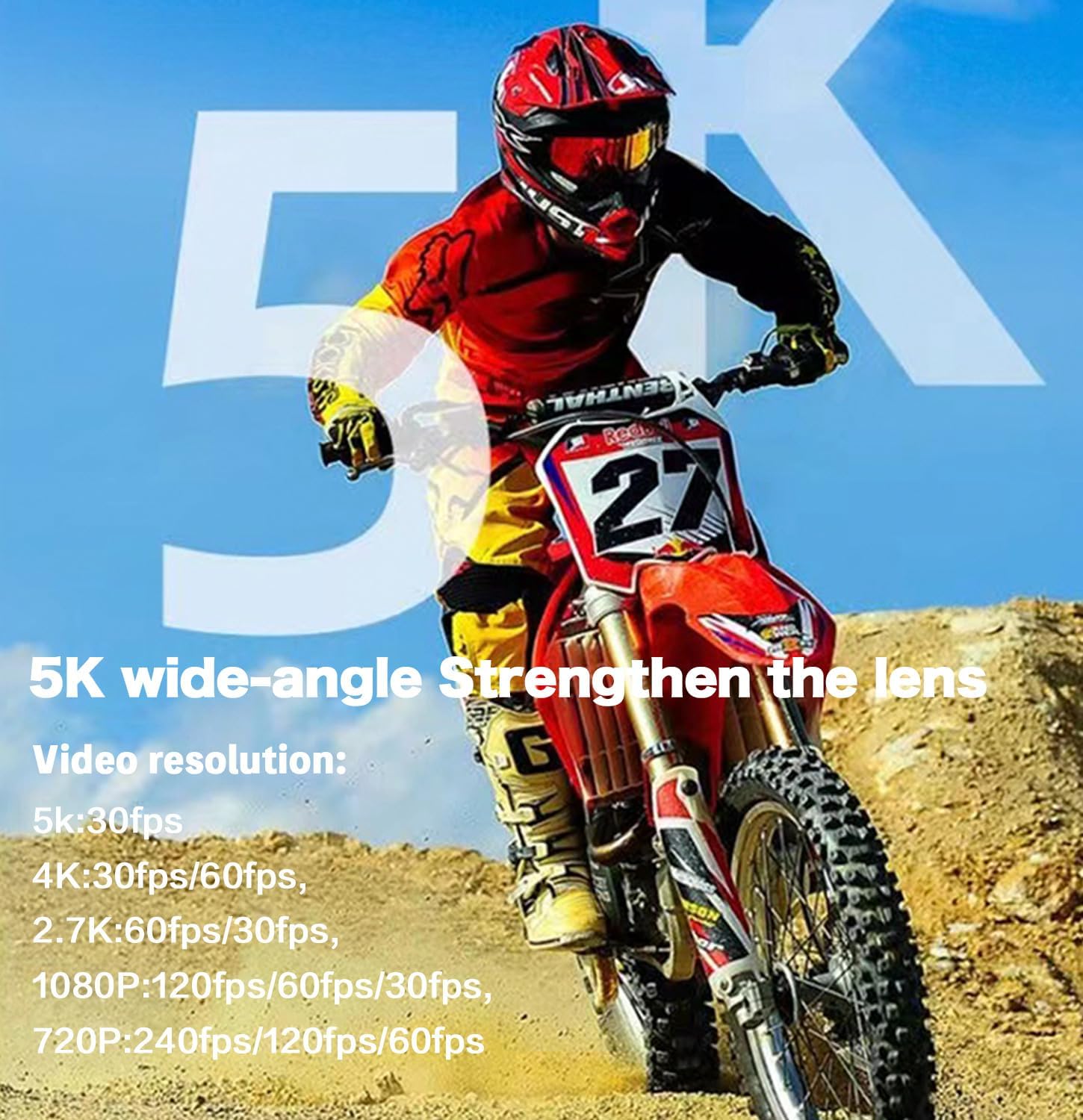
Figure 5.2: Visual comparison demonstrating the effect of Electronic Image Stabilization (EIS) on video smoothness, with EIS "ON" showing significantly less blur.
ฟังก์ชั่นการบันทึกล่วงหน้า
The pre-recording function allows the camera to store a short video segment before you press the record button, ensuring you don't miss critical moments. Available durations include 3s, 5s, 10s, 15s, and 25s, depending on the selected resolution.

Figure 5.3: An illustration detailing the pre-record function, showing how different video resolutions support various pre-recording durations (e.g., 5K/30FPS for 3s, 4K/30FPS/60FPS for 5s).
5.4 การจับภาพ
กล้องสามารถถ่ายภาพได้ความละเอียดสูงสุด 48 ล้านพิกเซล
- สลับไปที่โหมดภาพถ่าย
- Adjust photo settings (e.g., resolution, wide-angle) as needed.
- กดปุ่มชัตเตอร์/บันทึกเพื่อถ่ายภาพ
170° Adjustable Wide Angle Lens
The VIRAN V11 features a 170° adjustable wide-angle lens, allowing you to expand or narrow the field of view เพื่อให้เหมาะกับความต้องการในการถ่ายภาพของคุณ

Figure 5.4: A visual representation of the 170° wide-angle lens, highlighting its broad field of view and multi-glass lens construction.
5.5 การเชื่อมต่อ Wi-Fi และการควบคุมระยะไกล
Connect the camera to your smartphone or tablet via Wi-Fi using the dedicated app for remote control, live view, และ file โอน.
- Download the dedicated app from your device's app store.
- On the camera, enable Wi-Fi through the quick settings or menu.
- On your smartphone/tablet, connect to the camera's Wi-Fi network (SSID and password will be displayed on the camera screen).
- Open the app to control the camera remotely, view ฟูtagและโอนย้าย files.
The included wireless remote control also allows for basic camera operations without direct interaction with the camera itself.
Figure 5.5: The wireless remote control being used, demonstrating its convenience for hands-free operation during activities.
5.6 โหมดและคุณสมบัติพิเศษ
- โหมดดำน้ำ: Corrects underwater colors for more natural and realistic footage.
- การบันทึกแบบวนซ้ำ: เขียนทับ foo ที่เก่าที่สุดtage when the memory card is full, useful for dashcam use.
- วิดีโอไทม์แล็ปส์: บันทึกเฟรมภาพในช่วงเวลาที่กำหนดเพื่อสร้างวิดีโอแบบเร่งความเร็ว
- Slow/Fast Motion: Adjusts playback speed for creative effects.
- ถ่ายภาพต่อเนื่อง: ถ่ายภาพหลายภาพติดต่อกันอย่างรวดเร็ว
- โหมดการขับขี่: Optimizes settings for use as a car recorder.
- Inversion Mode: Flips the image 180 degrees, useful when mounting the camera upside down.
- Webฟังก์ชั่นลูกเบี้ยว: Can be connected to a computer and used as a webลูกเบี้ยว.

Figure 5.6: The VIRAN V11 camera mounted in a vehicle, demonstrating its use as a dashcam.
6. การบำรุงรักษา
6.1 การทำความสะอาดกล้องและเลนส์
- Use the provided wipe cloth or a soft, lint-free cloth to clean the camera body and screens.
- For the lens, use a lens cleaning solution and a microfiber cloth specifically designed for optical surfaces. Avoid abrasive materials.
- Do not use chemical cleaners or solvents on any part of the camera.
6.2 การดูแลรักษาเคสกันน้ำ
- After each use in water, especially saltwater, rinse the waterproof case with fresh water.
- ควรปล่อยให้กล่องแห้งสนิทก่อนจัดเก็บ
- Inspect the O-ring seal regularly for any debris, cracks, or damage. Clean the O-ring with a soft cloth and apply silicone grease if necessary to maintain its seal.
- Do not expose the waterproof case to extreme temperatures.
6.3 การดูแลแบตเตอรี่
- เก็บกล้องไว้ในที่เย็นและแห้งเมื่อไม่ใช้งาน
- Avoid fully discharging the battery for extended periods. Charge it periodically if storing for a long time.
- อย่าให้แบตเตอรี่ถูกอุณหภูมิสูงหรือถูกแสงแดดโดยตรง
7 การแก้ไขปัญหา
| ปัญหา | สาเหตุที่เป็นไปได้ | สารละลาย |
|---|---|---|
| กล้องไม่สามารถเปิดได้ | แบตเตอรี่หมด | Charge the camera fully using the provided USB Type-C cable. |
| กล้องหยุดนิ่งหรือไม่ตอบสนอง | ซอฟต์แวร์มีข้อผิดพลาดหรือข้อผิดพลาดชั่วคราว | Press and hold the Power/Mode button for 10 seconds to force a restart. If issue persists, ensure firmware is updated. |
| ไม่สามารถบันทึกวีดีโอ/ถ่ายภาพได้ | ไม่ได้เสียบการ์ด Micro SD หรือการ์ดเต็ม/เสียหาย | Insert a Micro SD card. Format the card in the camera's settings. Replace the card if corrupted. |
| Poor video quality (blurry, shaky). | Lens is dirty; EIS is off; low light conditions. | Clean the lens. Enable EIS in settings. Ensure adequate lighting. |
| Water leakage into waterproof case. | Case not properly sealed; O-ring damaged or dirty. | Ensure latch is firmly closed. Inspect and clean the O-ring. Replace O-ring if damaged. |
| ไม่สามารถเชื่อมต่อ Wi-Fi ได้ | ไม่ได้เปิดใช้งาน Wi-Fi บนกล้อง; รหัสผ่านไม่ถูกต้อง; ปัญหาจากแอป | Enable Wi-Fi on camera. Re-enter password. Restart camera and app. |
8. ข้อมูลจำเพาะ
| คุณสมบัติ | รายละเอียด |
|---|---|
| แบบอย่าง | วี11 |
| ความละเอียดวิดีโอ | Up to 5K/30FPS, 4K/60FPS, 2.7K/60FPS, 1080P/120FPS, 720P/240FPS |
| ความละเอียดของภาพ | สูงถึง 48MP |
| ระบบป้องกันภาพสั่นไหว | 3.0 EIS (Electronic Image Stabilization) |
| มุมเลนส์ | มุมกว้างปรับได้ 170° |
| หน้าจอแสดงผล | 2.2-inch Touch Screen (rear), 1.4-inch Small Screen (front) |
| Waterproof (Camera Only) | สูงถึง 10 เมตร (33 ฟุต) |
| Waterproof (With Case) | สูงถึง 30 เมตร (98 ฟุต) |
| ความจุของแบตเตอรี่ | ลิเธียมไออน 1200mAh (รวมอยู่ด้วย) |
| พอร์ตชาร์จ | ยูเอสบี ไทป์ ซี |
| พื้นที่จัดเก็บ | Micro SD Card (not included, supports up to 64GB) |
| การเชื่อมต่อ | Wi-Fi, Wireless Remote Control |
| น้ำหนักสินค้า | 1.21 ปอนด์ |
| ขนาด | 8.27 x 4.72 x 2.95 นิ้ว (บรรจุภัณฑ์) |
9. การรับประกันและการสนับสนุน
For warranty information and technical support, please refer to the official VIRAN website or contact their customer service directly. Contact details are typically found on the product packaging or the manufacturer's official online presence.
Manufacturer: Shenzhen VIRAN Communication Technology Co.,Ltd
หากต้องการความช่วยเหลือเพิ่มเติม โปรดไปที่ VIRAN Store on Amazon.
Ask a question about this manual
Ask about setup, troubleshooting, compatibility, parts, safety, or missing instructions. Manuals+ will review the question and use this page’s manual context to help answer it.