
Bluesound NODE ICON
Bluesound Node ICON Reference Multi-Room High Resolution Wireless Music Streamer
Model: NODE ICON | Brand: Bluesound
สินค้าเกินview
The Bluesound Node ICON is a high-resolution wireless music streamer designed to deliver an exceptional audio experience across multiple rooms. It features a meticulously crafted Dual-Mono DAC design with two ESS SABRE ES9039Q2M DACs, ensuring unparalleled dynamic range, ultra-low distortion, and superior resolution. The device integrates advanced technologies like MQA Labs' QRONO d2a for precise digital-to-analogue conversion and THX AAA for lifelike headphone listening. Its sleek design, intuitive controls, and comprehensive connectivity options make it a versatile centerpiece for any modern audio setup.

ด้านหน้า view of the Bluesound Node ICON, showcasing its sleek black finish and integrated display.
คู่มือการติดตั้ง
1. การแกะกล่องและการวางตำแหน่งเริ่มต้น
Carefully remove all components from the packaging. Ensure the Node ICON is placed on a stable, flat surface with adequate ventilation. Avoid placing it near heat sources or in direct sunlight.
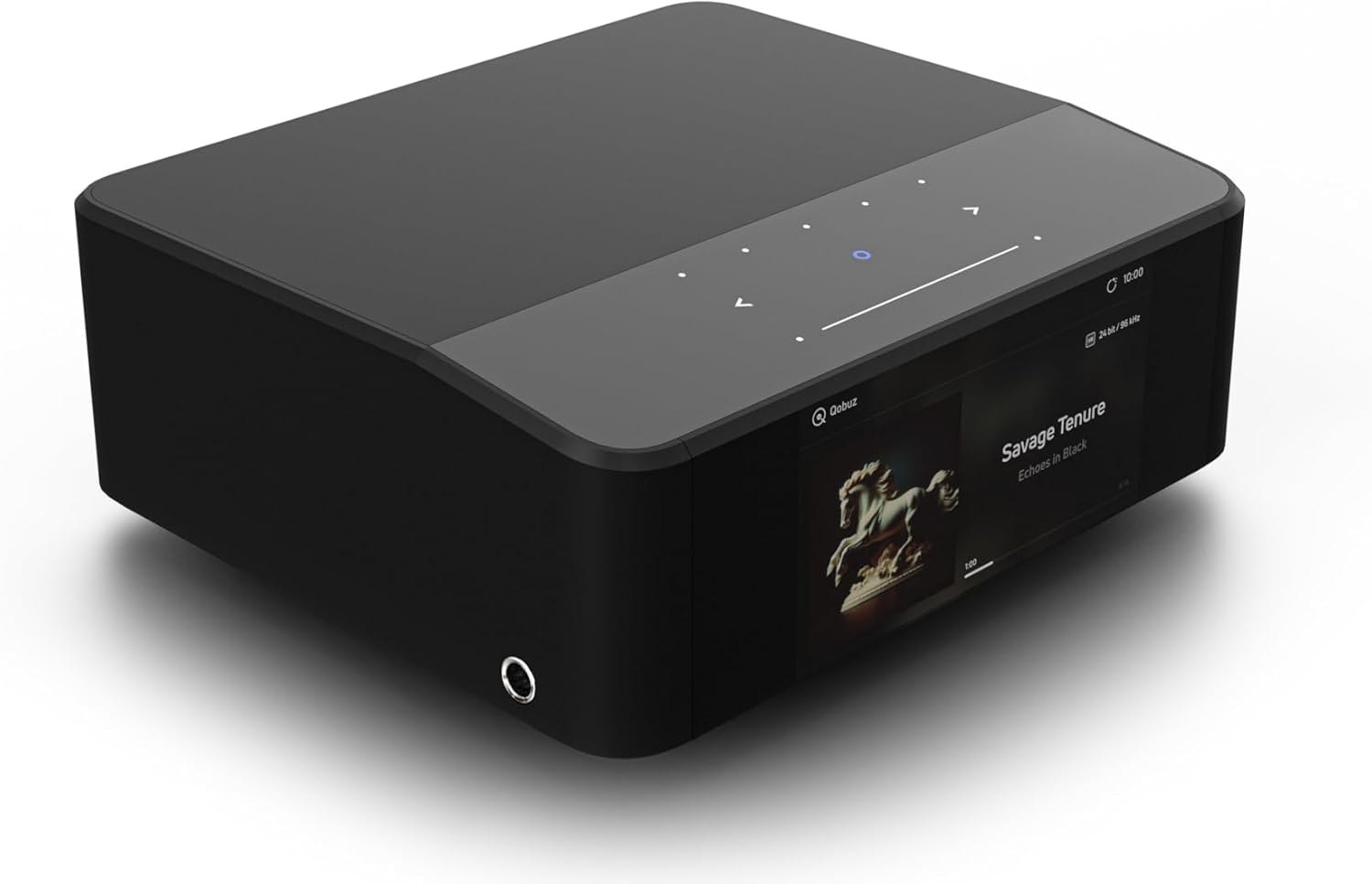
มุม view of the Node ICON, highlighting its compact and modern design.
2. กำลังเชื่อมต่อกับพลังงาน
Connect the provided 120V or 230V AC power cord to the AC Power input on the rear panel of the Node ICON. Plug the other end into a wall outlet.
3. การเชื่อมต่อเสียง
The Node ICON offers various audio output options:
- Analog Audio Out (RCA): Use the provided Stereo RCA to RCA cable to connect to your amplifier or receiver's analog input.
- Balanced Audio Out (XLR): For professional-grade connections, use XLR cables to connect to compatible ampลิตเตอร์
- เอาต์พุตโคแอกเซียล: Connect to a digital coaxial input on your DAC or ampชีวิต.
- ออปติคัลเอาท์: Connect to a digital optical input on your DAC or ampชีวิต.
- ซับวูฟเฟอร์ออก: Connect to a powered subwoofer for enhanced bass.
For audio input, the Node ICON features:
- Analog In (RCA): Connect external analog sources like a turntable (with a phono preamp) or CD player.
- ออปติคัลใน: Connect digital optical sources.
- USB-C (Audio In): Connect a computer or other USB audio source.
- HDMI eARC: Connect to your TV's HDMI eARC port for high-resolution TV audio.
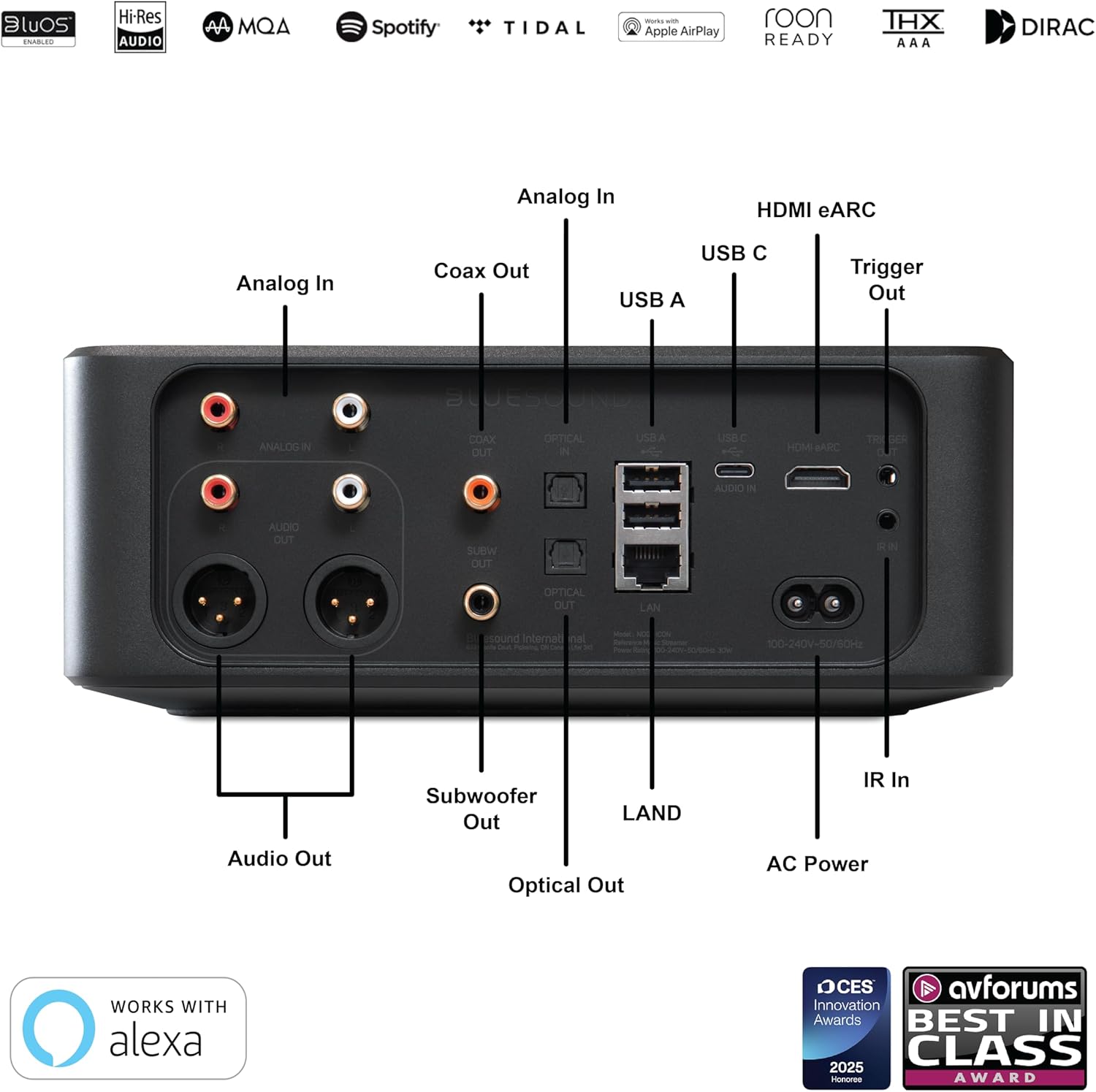
รายละเอียด view of the rear panel connections, including analog, digital, and network ports.
4. การเชื่อมต่อเครือข่าย
The Node ICON can connect to your network via Wi-Fi or Ethernet.
- ไวไฟ : The device supports dual-band Wi-Fi for stable wireless streaming. Follow the on-screen prompts or BluOS app instructions for Wi-Fi setup.
- อีเธอร์เน็ต (LAN): For the most stable connection, use the provided Ethernet cable to connect the Node ICON to your router or network switch.
คำแนะนำการใช้งาน
1. BluOS Controller App
The primary method for controlling your Node ICON is through the BluOS Controller app, available for iOS, Android, Windows, and macOS. Download the app from your device's app store or the Bluesound webเว็บไซต์.
- เปิดแอป: Open the BluOS Controller app on your smartphone, tablet, or computer.
- Discover Player: The app will automatically search for available Bluesound players on your network. Select your Node ICON.
- วิซาร์ดการตั้งค่า: Follow the on-screen setup wizard to configure network settings, add music services, and customize your preferences.
- การสตรีมเพลง: Access popular streaming services (e.g., Spotify Connect, Tidal Connect, Qobuz), internet radio, and your personal digital music libraries directly from the app.
- เสียงหลายห้อง: Group multiple Bluesound players together to create a seamless multi-room music system, playing the same music everywhere or different music in different rooms.

The BluOS Controller app interface, demonstrating multi-room control and music playback.
2. On-Device Controls and Display
The Node ICON features a 5-inch full-color HD display and touch-sensitive controls on its top panel for basic operations.
- แสดง: Shows album art, track information, time, and device status.
- แผงสัมผัส: Control playback (play/pause, skip tracks), adjust volume, and navigate menus directly on the device. The panel is motion-activated.

The Node ICON's front display showing album art and track information during playback.
3. Headphone Listening
Connect your high-performance headphones to the 1/4" headphone jack located on the side of the unit. The integrated THX AAA technology ensures a lifelike and high-fidelity listening experience with remarkably low noise and distortion.

The Node ICON with headphones connected, ready for a personal listening session.
4. Dirac Live Room Correction (Optional Upgrade)
The Node ICON is compatible with Dirac Live room correction software, available as an upgrade directly from Dirac. This technology helps to optimize your audio system's performance by correcting acoustic imperfections in your listening environment. A calibration kit with a high-sensitivity microphone is required for this feature.
การซ่อมบำรุง
To ensure the longevity and optimal performance of your Bluesound Node ICON, follow these maintenance guidelines:
- การทำความสะอาด: Use a soft, dry cloth to clean the exterior surfaces. For the display, use a microfiber cloth specifically designed for electronics. Avoid abrasive cleaners, solvents, or spray directly onto the unit.
- การระบายอากาศ : ตรวจสอบให้แน่ใจว่าช่องระบายอากาศไม่ถูกปิดกั้น การไหลเวียนของอากาศที่เหมาะสมมีความสำคัญอย่างยิ่งในการป้องกันความร้อนสูงเกินไป
- หมดแรง: If the unit will not be used for an extended period, disconnect it from the power outlet.
- การอัปเดตซอฟต์แวร์: Regularly check for and install software updates via the BluOS app to ensure the best performance and access to new features.
การแก้ไขปัญหา
If you encounter issues with your Node ICON, refer to the following common troubleshooting steps:
| ปัญหา | สาเหตุที่เป็นไปได้ / วิธีแก้ไข |
|---|---|
| ไม่มีไฟ / เครื่องไม่ตอบสนอง |
|
| ไม่มีเสียงออก |
|
| Cannot connect to Wi-Fi / Network issues |
|
| BluOS app not finding player |
|
ข้อมูลจำเพาะ
| คุณสมบัติ | รายละเอียด |
|---|---|
| ยี่ห้อ | บลูซาวด์ |
| ชื่อรุ่น | ไอคอนโหนด |
| น้ำหนักสินค้า | 6.61 ปอนด์ (3000 กรัม) |
| ขนาดสินค้า | 8.7 x 7.6 x 3.3 นิ้ว |
| สี | สีดำ |
| เทคโนโลยีการเชื่อมต่อ | บลูทูธ, Wi-Fi, USB, อีเทอร์เน็ต, HDMI |
| ประเภทของขั้วต่อ | HDMI eARC, Toslink Optical, RCA Analog, USB Type C (PC input) |
| ปณิธาน | 1080p (for display) |
| บริการอินเทอร์เน็ตที่รองรับ | Spotify Connect, Tidal Connect, Dirac Live Ready, Roon Ready |
| ประเภทตัวควบคุม | การควบคุมแอป, การควบคุมปุ่ม |
| แดช | Dual-Mono ESS SABRE ES9039Q2M DACs |
| Headphone Technology | THX AAA |
| เล่น DSD | Supported (via ES9826 SABRE ADC) |
มีอะไรอยู่ในกล่อง
The Bluesound Node ICON package includes the following items:
- Bluesound Node ICON Streamer
- สายไฟ AC 120V
- สายไฟ AC 230V
- สายเคเบิลอีเทอร์เน็ต
- สายสเตอริโอ RCA เป็น RCA
- คู่มือการติดตั้งด่วน
วิดีโอผลิตภัณฑ์อย่างเป็นทางการ
เจ้าหน้าที่คนหนึ่งview video from Bluesound US, showcasing the key features and design of the Node ICON Reference Multi-Room Music Streamer.
การรับประกันและการสนับสนุน
For warranty information, product registration, and technical support, please visit the official Bluesound webหรือติดต่อฝ่ายบริการลูกค้า เก็บหลักฐานการซื้อไว้เพื่อใช้ในการเคลมประกัน
แหล่งข้อมูลออนไลน์: www.bluesound.com
บริการลูกค้า: Refer to the contact information provided in your product's quick setup guide or on the Bluesound webเว็บไซต์.
Ask a question about this manual
Ask about setup, troubleshooting, compatibility, parts, safety, or missing instructions. Manuals+ will review the question and use this page’s manual context to help answer it.