
1. บทนำ
Thank you for choosing the Leaven K610 Tri-Mode Mechanical Wireless Gaming Keyboard. This manual provides detailed instructions on how to set up, operate, and maintain your new keyboard. Designed for versatility and performance, the K610 offers seamless connectivity via Bluetooth 5.0, 2.4 GHz wireless, and wired Type-C connections, along with vibrant RGB lighting and a satisfying mechanical typing experience.
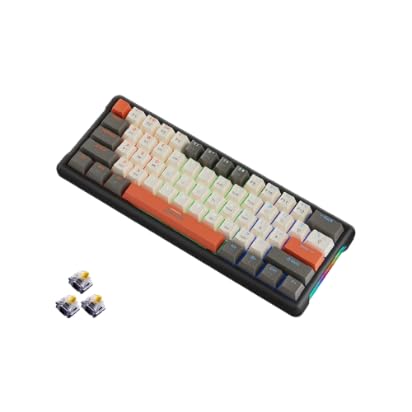
Image: Leaven K610 Tri-Mode Mechanical Wireless Gaming Keyboard, showcasing its compact design and included spare switches.
2. คุณสมบัติของผลิตภัณฑ์
- การเชื่อมต่อสามโหมด: Supports Bluetooth 5.0, 2.4 GHz wireless, and wired (Type-C) connections for maximum compatibility and flexibility.
- Mechanical Key Switches: Provides tactile feedback and a responsive typing experience, ensuring accuracy and durability.
- ดีไซน์แบบถอดเปลี่ยนได้ขณะใช้งาน: Allows for easy replacement of key switches without soldering, enabling customization and maintenance.
- แสงไฟ RGB ที่สดใส: Features 16.8 million colors with customizable backlighting to personalize your setup and enhance the gaming atmosphere.
- รูปแบบ 61 คีย์แบบกะทัดรัด: A streamlined arrangement that saves desk space while retaining essential functions.
- การออกแบบตามหลักสรีรศาสตร์: Crafted for comfortable typing posture, reducing strain during extended use.
- โครงสร้างทนทาน: Built with high-quality ABS material for long-lasting performance.
- แบตเตอรี่ใช้งานได้ยาวนาน: Ensures extended periods of uninterrupted wireless performance.

ภาพ: ระเบิด view diagram of the Leaven K610 keyboard, illustrating its internal components including ABS three-color keycaps, cover, RGB water cooling tube, pluggable mechanical switches, positioning plate, PCB board, and lower lid.
3. เนื้อหาบรรจุภัณฑ์
กรุณาตรวจสอบแพ็คเกจสำหรับรายการต่อไปนี้:
- Leaven K610 Tri-Mode Mechanical Wireless Gaming Keyboard
- สายเคเบิล USB Type-C
- 2.4 GHz USB Receiver (usually stored in the keyboard's battery compartment or a dedicated slot)
- คู่มือการใช้งาน (เอกสารนี้)
- Keycap Puller (may be included for hot-swappable switches)
- Switch Puller (may be included for hot-swappable switches)
- Spare Mechanical Switches (typically 2-3 pieces)
4. คู่มือการติดตั้ง
4.1. การชาร์จคีย์บอร์ด
Before first use, it is recommended to fully charge the keyboard. Connect the supplied USB Type-C cable to the keyboard's Type-C port and the other end to a USB power source (e.g., computer USB port, USB wall adapter). The charging indicator light will show the charging status and turn off when fully charged.
4.2. Connecting via 2.4 GHz Wireless Mode
- Locate the 2.4 GHz USB receiver. It is usually stored in a slot on the keyboard itself.
- เสียบตัวรับสัญญาณ USB 2.4 GHz เข้ากับพอร์ต USB ที่ว่างอยู่บนคอมพิวเตอร์ของคุณ
- Switch the keyboard's mode switch (usually on the back or side) to the "2.4G" or wireless icon position.
- The keyboard should automatically connect. If not, press the designated pairing key combination (refer to keyboard markings, often Fn + R or a specific key with a 2.4G icon) to initiate pairing.
4.3. การเชื่อมต่อผ่านโหมดบลูทูธ
- Switch the keyboard's mode switch to the "BT" or Bluetooth icon position.
- The keyboard typically has multiple Bluetooth channels (e.g., BT1, BT2, BT3). Press and hold the Fn key along with the corresponding Bluetooth channel key (e.g., Fn + Q for BT1, Fn + W for BT2, Fn + E for BT3) for 3-5 seconds until the indicator light flashes rapidly, indicating pairing mode.
- On your device (PC, smartphone, tablet), open Bluetooth settings and search for new devices.
- Select "Leaven K610" or a similar name from the list of available devices.
- Follow any on-screen prompts to complete the pairing process. The indicator light on the keyboard will stop flashing and remain solid when connected.
- To switch between paired Bluetooth devices, simply press Fn + Q/W/E (for BT1/BT2/BT3) once.
4.4. การเชื่อมต่อผ่านสาย LAN
- เชื่อมต่อสาย USB Type-C ที่ให้มากับพอร์ต Type-C ของคีย์บอร์ด
- เสียบปลายอีกด้านของสาย USB Type-C เข้ากับพอร์ต USB ที่ว่างอยู่บนคอมพิวเตอร์ของคุณ
- Switch the keyboard's mode switch to the "Wired" or cable icon position.
- The keyboard will be recognized as a standard USB keyboard and is ready for use.
5. คู่มือการใช้งาน
5.1. การควบคุมแสง RGB
The Leaven K610 features dynamic RGB lighting. Use the following key combinations to control the lighting effects:
- ฟน + \ |: สลับไปมาระหว่างเอฟเฟกต์/โหมดแสงต่างๆ
- เอฟเอ็น + [{: ลดความสว่างลง
- Fn + ]}: เพิ่มความสว่าง
- Fn + ;:: ลดความเร็วของแสงลง
- Fn + '": เพิ่มความเร็วในการส่องสว่าง
- Fn + Shift ขวา: Change lighting color (for static modes).

ภาพ: ด้านข้างแบบซูมใกล้ๆ view of the Leaven K610 keyboard, highlighting the "Side Wing Water Cooling Pipe" which illuminates with RGB lighting, adding to the aesthetic appeal.
5.2. Function Key Combinations (Fn Key)
Due to its compact 61-key layout, many functions are accessed via the Fn (Function) key in combination with other keys. Refer to the keycap legends for specific functions. Common combinations include:
- Fn + A/S/D: Switch between Bluetooth channels (BT1/BT2/BT3).
- เอฟเอ็น + อาร์: Activate 2.4G pairing mode.
- เอฟน์ + ที: สลับไปที่โหมดมีสาย
- Fn + แบ็คสเปซ: Delete (on some layouts).
- Fn + P: พิมพ์หน้าจอ
- เอฟเอ็น + แอล: ปุ่มล็อค Windows
- Fn + U/I/O/P/J/K/L: Media controls (Play/Pause, Stop, Previous, Next, Mute, Volume Down, Volume Up).
- Fn + M/<, Fn + >./ Fn + ?/: Navigation keys (Home, End, Page Up, Page Down).
Note: Specific key combinations may vary slightly. Always refer to the legends printed on your keycaps.

Image: Diagram illustrating the 61-key compact arrangement of the Leaven K610 keyboard, emphasizing its minimalist design while retaining essential functionality.
6. การบำรุงรักษาและการดูแล
- การทำความสะอาด: Use a soft, dry cloth to wipe the keyboard surface. For deeper cleaning, use a can of compressed air to remove dust and debris from between keycaps. For stubborn stains, a slightly damp สามารถใช้ผ้าชุบน้ำสบู่ชนิดอ่อนๆ เช็ดได้ โดยให้แน่ใจว่าไม่มีของเหลวเข้าไปในแป้นพิมพ์
- การเปลี่ยนคีย์แคปและสวิตช์: If your keyboard comes with a keycap puller and switch puller, you can carefully remove keycaps and switches for cleaning or replacement. Always pull keycaps straight up to avoid damaging the switch stem. When replacing switches, align the pins correctly before gently pushing them into the hot-swap socket.
- พื้นที่จัดเก็บ: เก็บแป้นพิมพ์ไว้ในที่แห้งและเย็น หลีกเลี่ยงแสงแดดโดยตรงและอุณหภูมิที่สูงหรือต่ำเกินไป
- หลีกเลี่ยงของเหลว: Do not expose the keyboard to water or other liquids. Liquid damage is not covered under warranty.

ภาพ: ภาพระยะใกล้ view of a mechanical switch on the Leaven K610 keyboard, demonstrating the hot-swappable nature of the switches, allowing for easy replacement or customization.
7 การแก้ไขปัญหา
- แป้นพิมพ์ไม่ตอบสนอง:
- ตรวจสอบให้แน่ใจว่าแป้นพิมพ์มีประจุไฟแล้ว
- Check the mode switch (Wired/2.4G/BT) is in the correct position.
- สำหรับระบบ 2.4G โปรดตรวจสอบให้แน่ใจว่าตัวรับสัญญาณ USB เสียบแน่นดีแล้ว ลองใช้พอร์ต USB อื่นดู
- For Bluetooth, ensure Bluetooth is enabled on your device and the keyboard is paired to the correct channel. Try re-pairing.
- For wired mode, ensure the Type-C cable is securely connected to both the keyboard and the computer. Try a different cable or USB port.
- รีสตาร์ทคอมพิวเตอร์/อุปกรณ์ของคุณ
- คีย์ไม่ลงทะเบียนหรือพิมพ์ซ้ำ:
- ทำความสะอาดใต้ปุ่มคีย์โดยใช้ลมอัด
- If hot-swappable, try removing and re-inserting the switch. If the issue persists, replace the switch with a spare one.
- แสง RGB ไม่ทำงาน:
- ตรวจสอบให้แน่ใจว่าแป้นพิมพ์เปิดอยู่
- Try cycling through lighting modes and adjusting brightness using Fn key combinations.
- ตรวจสอบให้แน่ใจว่าเฟิร์มแวร์ของคีย์บอร์ดเป็นเวอร์ชันล่าสุด (หากมี ให้ตรวจสอบกับผู้ผลิต) webเว็บไซต์).
- การเชื่อมต่อบลูทูธไม่เสถียร:
- Ensure there are no strong interferences (e.g., other wireless devices, thick walls).
- Keep the keyboard within the recommended Bluetooth range.
- Try forgetting the device on your computer/smartphone and re-pairing.
8. ข้อมูลจำเพาะ
| พารามิเตอร์ | รายละเอียด |
|---|---|
| แบบอย่าง | เค610 |
| การเชื่อมต่อ | Bluetooth 5.0, 2.4 GHz Wireless, USB Type-C Wired |
| ประเภทแป้นพิมพ์ | Mechanical, Hot-Swappable |
| เค้าโครงคีย์ | 61-Key Compact Arrangement |
| การแบ็คไลท์ | RGB (16.8 ล้านสี) |
| วัสดุ | อะคริโลไนไตรล์ บิวทาไดอีน สไตรีน (ABS) |
| แหล่งพลังงาน | Battery Powered and USB Cable |
| อุปกรณ์ที่รองรับ | Laptop, PC (Win XP/7/8/10, MAC and Above 10.2), Mobile Devices |
| ขนาดสินค้า | 30 x 11 x 2 ซม. |
| น้ำหนักสินค้า | 400 กรัม |
| ประเทศต้นกำเนิด | จีน |
9. การรับประกันและการสนับสนุน
This Leaven K610 keyboard comes with a รับประกัน 6 เดือน from the date of purchase. This warranty covers manufacturing defects and issues arising from normal use. It does not cover damage caused by misuse, accidents, unauthorized modifications, or liquid damage.
For warranty claims or technical support, please contact your retailer or the manufacturer's authorized service center. Please retain your proof of purchase for warranty validation.