
1. สินค้าหมดview
The vLinker MS Bluetooth OBD2 Diagnostic Scan Tool is designed to provide comprehensive vehicle diagnostics for iOS, Android, and Windows devices. This adapter supports all standard OBD2 protocols and extends compatibility with five additional CAN protocols: HS-CAN, MS-CAN, SW-CAN, CH-CAN, and LS-CAN. It features advanced BatterySaver Technology, ensuring the device can remain plugged in without draining your vehicle's battery, and offers high-speed data transfer for efficient diagnostics.

Image: The vLinker MS Bluetooth OBD2 Diagnostic Scan Tool, a compact black device.
คุณสมบัติหลัก:
- Extended Protocol Support: In addition to standard OBD2, supports HS-CAN, MS-CAN, SW-CAN, CH-CAN, and LS-CAN.
- เทคโนโลยีประหยัดแบตเตอรี่: Automatic sleep and wake-up mode with low power consumption (28mA operating, 3mA sleep) and protection against over-voltage, over-current, over-temperature, and battery drain.
- ความเข้ากันได้กับยานพาหนะที่กว้าง: Works with all 1996 and newer 12V/24V petrol vehicles and 1996 and newer 12V/24V small diesel vehicles (up to 6.5T) that support OBD2 protocols.
- การถ่ายโอนข้อมูลความเร็วสูง: Up to 3Mbps baud rate with OBD request bytes supporting up to 4K for efficient communication.
- Active Testing Capability: Enables sending commands from your smartphone to the vehicle's ECU for active testing (functionality depends on the app used and vehicle model).
- Apple MFI Certified: Ensures reliable connectivity with iOS devices.

Image: A detailed graphic highlighting the vLinker MS's support for 5 CAN protocols, BatterySaver Technology, hacker-proof design, and long frame communication.
2. คำแนะนำในการตั้งค่า
2.1 การติดตั้งทางกายภาพ
- ค้นหาพอร์ต OBD2 ของรถยนต์ของคุณ โดยปกติจะอยู่ใต้แผงหน้าปัดด้านคนขับ
- Ensure your vehicle's ignition is in the ON position (engine can be off).
- Plug the vLinker MS device firmly into the OBD2 port. The device will power on, indicated by its LED lights.

Image: A visual guide showing the vLinker MS being inserted into the OBD2 port, with the car's ignition button highlighted.
2.2 การติดตั้งแอพ
The vLinker MS does not include its own application. You will need to download a compatible third-party OBD2 diagnostic app from your device's app store (e.g., Apple App Store for iOS, Google Play Store for Android). Popular compatible apps include FORScan, Car Scanner, Dr. Prius, OBD JScan, Multiecuscan, shift OBD, and OBD Auto Doctor. Please verify app compatibility with your specific operating system.
2.3 การจับคู่บลูทูธ
- After plugging in the vLinker MS, press the 'Connect' button on the device. This activates its Bluetooth discoverability.
- สำหรับอุปกรณ์ iOS:
- Go to your iPhone/iPad's Bluetooth settings.
- Look for 'vLinker MS XXXX' (where XXXX is a unique serial number) in the list of available devices.
- Tap to pair. iOS may generate a random pairing code; confirm if prompted.
- Open your chosen OBD2 app and follow its instructions to connect to the vLinker MS. Note: Some apps only connect via Bluetooth LE (4.0+). If connection issues occur, use the 'VgateFwUpdate' app to change the connection type from 'Bluetooth MFI' to 'BLE+BT'.
- สำหรับอุปกรณ์ Android:
- Go to your Android device's Bluetooth settings.
- ค้นหา 'vLinker MS XXXX' and pair.
- Open your chosen OBD2 app. Within the app's settings, select 'vLinker MS' as your OBD2 adapter and establish the connection.

ภาพ: ภาพระยะใกล้ view of the vLinker MS, indicating the location of the 'Connect' button.

Image: Screenshots demonstrating the Bluetooth pairing steps for both Android and iOS devices with the vLinker MS.
3. คู่มือการใช้งาน
3.1 ฟังก์ชั่นการวินิจฉัย
Once connected via your chosen third-party app, the vLinker MS allows you to access various diagnostic functions:
- อ่านรหัสข้อผิดพลาด: Retrieve Diagnostic Trouble Codes (DTCs) from your vehicle's Engine Control Unit (ECU).
- ล้างรหัสข้อผิดพลาด: Erase DTCs and turn off the Check Engine Light (MIL).
- ความพร้อมของ I/M: ตรวจสอบสถานะของระบบตรวจสอบที่เกี่ยวข้องกับการปล่อยมลพิษ
- ตรึงข้อมูลเฟรม: View a snapshot of sensor readings at the moment a fault code was set.
- การทดสอบจอภาพออนบอร์ด: Access results of on-board diagnostic monitoring tests for specific components.
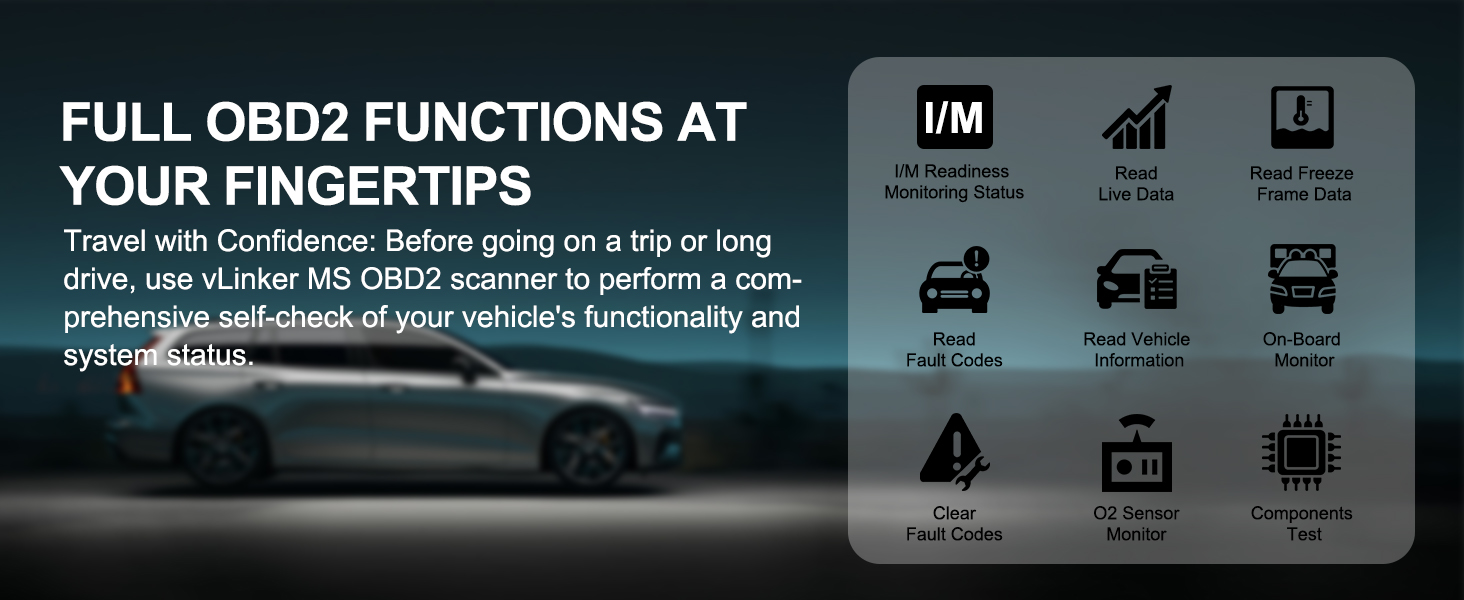
Image: A graphic displaying icons for full OBD2 functions, including I/M Readiness, Read Live Data, Read Freeze Frame Data, Read Fault Codes, Read Vehicle Information, On-Board Monitor, Clear Fault Codes, O2 Sensor Monitor, and Components Test.
3.2 การตรวจสอบข้อมูลสด
Many compatible apps allow you to view real-time sensor data from your vehicle. This 'Live Data' feature can display parameters such as engine RPM, vehicle speed, coolant temperature, fuel system status, and more. The specific data available depends on your vehicle and the capabilities of the chosen app.

ภาพ: หน้าจอสมาร์ทโฟนหลายจอแสดงasing various live data dashboards from different diagnostic applications.
3.3 Advanced Functions (Coding & Active Testing)
For advanced users, certain third-party applications, in conjunction with the vLinker MS, can perform coding and active testing. Coding allows for customization of vehicle settings, while active testing enables sending commands to specific vehicle components (e.g., activating ABS pump, cycling fuel pump) to aid in diagnosis. The availability and safety of these functions are entirely dependent on the specific app and your vehicle's make, model, and year. Always exercise caution and consult professional resources when performing advanced operations.

Image: An illustration depicting the bi-directional communication flow between the vLinker MS, a smartphone running a diagnostic app, and a vehicle's systems, enabling commands and data reception.
4. การบำรุงรักษา
4.1 BatterySaver Technology
The vLinker MS incorporates BatterySaver Technology, allowing it to remain plugged into your vehicle's OBD2 port without causing battery drain. The device automatically enters a low-power sleep mode after 30 minutes of inactivity and wakes up upon OBD bus activity or a change in battery voltage. This feature protects your car's battery from discharge.

Image: A visual representation of the vLinker MS's Smart Auto Sleep & Wake-Up function, detailing auto sleep after 30 minutes and auto wake on OBD bus activity or battery voltage การเปลี่ยนแปลง
การอัปเดตเฟิร์มแวร์ 4.2 รายการ
To ensure optimal performance and compatibility, it is recommended to keep your vLinker MS firmware updated. Firmware updates are provided free for life. You can update the firmware using the dedicated 'VgateFwUpdate' app, available for download. The app will guide you through the update process.

Image: A step-by-step visual guide demonstrating the process of updating the vLinker MS Bluetooth Adapter firmware using a smartphone app. For the firmware update app, visit: https://qr19.cn/DzGyXo
5 การแก้ไขปัญหา
5.1 ปัญหาการเชื่อมต่อ
- ไม่พบอุปกรณ์: Ensure the vLinker MS is firmly plugged into the OBD2 port and the vehicle's ignition is on. Press the 'Connect' button on the device to make it discoverable.
- ความล้มเหลวในการจับคู่บลูทูธ: For iOS, ensure you are pairing directly from the Bluetooth settings. If issues persist, try restarting both the vLinker MS (by unplugging and replugging) and your smart device.
- App Connection Failure (iOS Specific): Some iOS apps may require the vLinker MS to be in 'BLE+BT' mode instead of 'Bluetooth MFI'. Use the 'VgateFwUpdate' app to switch modes if necessary.
- แอปไม่รู้จักอุปกรณ์: Verify that your chosen third-party app is compatible with the vLinker MS. Check the app's settings to ensure the correct adapter type (e.g., vLinker, ELM327) is selected.
5.2 Data Reading Issues
- No Data or Incomplete Data: Ensure the vehicle's ignition is on. Some advanced functions or specific data parameters may not be supported by all vehicles or all third-party apps.
- Slow Data Refresh: Check the app settings for data refresh rates. Ensure no other Bluetooth devices are interfering with the connection.
5.3 ประสิทธิภาพโดยรวม
- อุปกรณ์ไม่ตอบสนอง: Unplug the vLinker MS from the OBD2 port, wait a few seconds, and plug it back in. If the issue persists, ensure your vehicle's battery is adequately charged.
- แอปขัดข้อง: This is often related to the third-party app itself. Ensure the app is updated to its latest version. Try a different compatible app if problems continue.
6. ข้อมูลจำเพาะ
| คุณสมบัติ | รายละเอียด |
|---|---|
| แบบอย่าง | vLinker MS |
| การเชื่อมต่อ | Bluetooth (MFI for iOS, BLE+BT for Android/Windows) |
| ระบบปฏิบัติการที่รองรับ | ไอโอเอส, แอนดรอยด์, วินโดวส์ |
| แหล่งพลังงาน | ยานพาหนะขับเคลื่อน |
| ขนาด (กว้าง x ยาว x สูง) | 2.55" x 1.77" x 0.98" (6.48 ซม. x 4.5 ซม. x 2.49 ซม.) |
| น้ำหนักสินค้า | 35 กรัม |
| กระแสไฟฟ้าที่ใช้งาน | 28มิลลิแอมป์ |
| Sleep Current | 3มิลลิแอมป์ |
| ความเร็วในการถ่ายโอนข้อมูล | Up to 3Mbps baud rate |
| OBD Request Bytes | สูงถึง 4K |
| Supported CAN Protocols | HS-CAN, MS-CAN, SW-CAN, CH-CAN, LS-CAN |
| ส่วนประกอบที่รวมอยู่ | 1 x vLinker MS, 1 x User Manual, 1 x Packing Box |

Image: A visual breakdown of the five additional CAN protocols (CH CAN, HS CAN, LS CAN, MS CAN, SW CAN) supported by the vLinker MS.
7. ความเข้ากันได้
7.1 ความเข้ากันได้ของยานพาหนะ
The vLinker MS is compatible with:
- All 1996 and newer 12V/24V petrol vehicles that support standard OBD2 protocols.
- All 1996 and newer 12V/24V small diesel vehicles with a load of 6.5T or less that support OBD2 protocols.
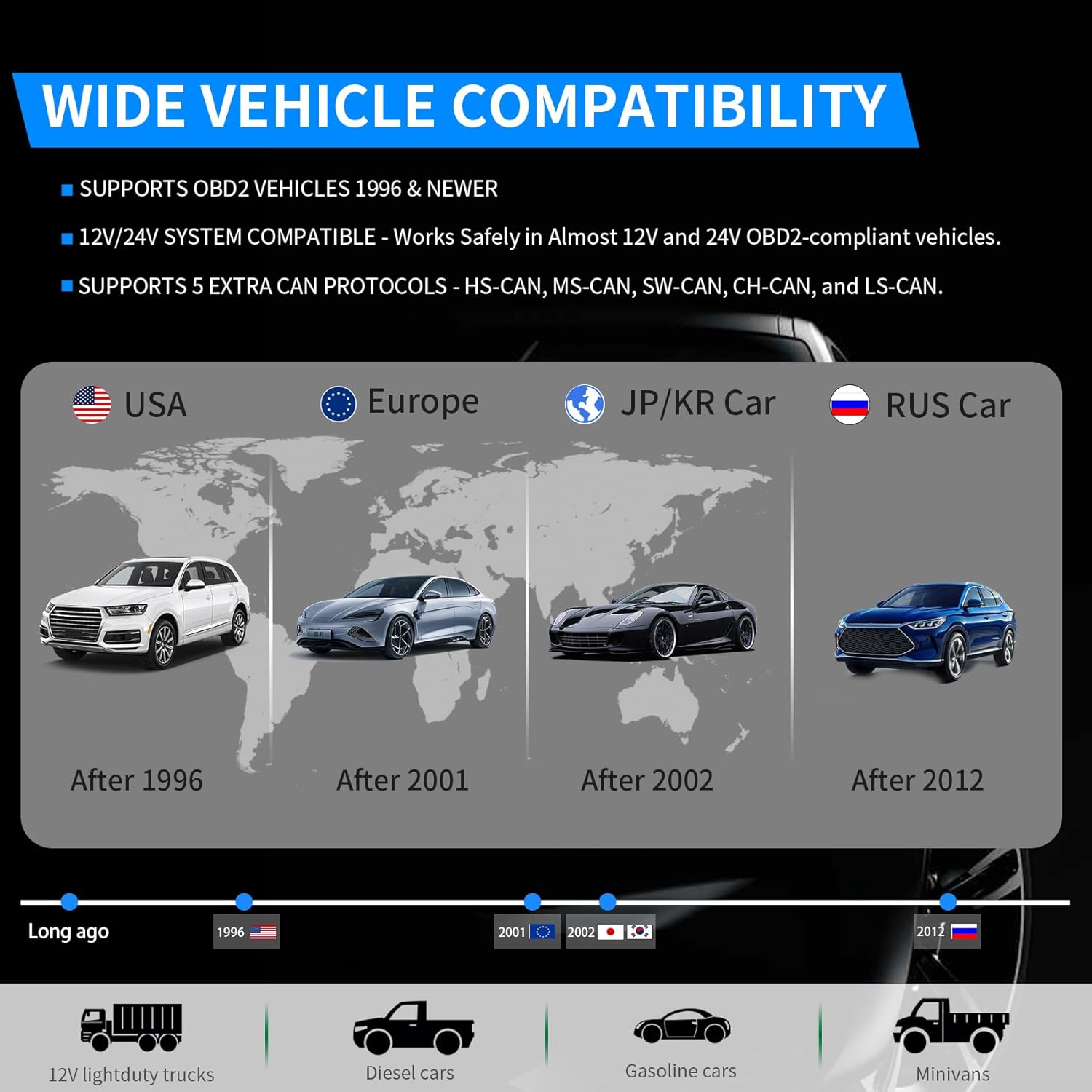
Image: A world map illustrating the wide vehicle compatibility of the vLinker MS, showing support for vehicles from USA (after 1996), Europe (after 2001), JP/KR (after 2002), and RUS (after 2012).
7.2 Third-Party App Compatibility
The vLinker MS is designed to work with a wide range of third-party OBD2 diagnostic applications. These apps are not included with the device and must be downloaded or purchased separately. Examples of compatible apps include:
- ฟอร์สแกน
- เครื่องสแกนรถยนต์
- ดร.พริอุส
- OBD JSCan
- Multiecuscan
- Shift OBD
- แพทย์รถยนต์ OBD
- AlfaOBD
- บิมเมอร์โค้ด
- LeafSpy Pro
- Torque Pro
- PHEV Watchdog
บันทึก: Many apps are currently only available on the Android system. Please confirm compatibility with iOS app providers before purchase or download.

Image: A compilation of logos for various third-party applications compatible with the vLinker MS, including FORScan, Car Scanner, Dr. Prius, and others.
8. การรับประกันและการสนับสนุน
8.1 ข้อมูลการรับประกัน
The vLinker MS Bluetooth diagnostic scanner comes with a รับประกัน 1 ปี นับจากวันที่ซื้อ การรับประกันนี้ครอบคลุมข้อบกพร่องในการผลิตและรับประกันการทำงานที่เชื่อถือได้ภายใต้สภาวะการใช้งานปกติ
8.2 การสนับสนุนด้านเทคนิค
vLinker provides lifetime firmware updates and round-the-clock technical support. Should you encounter any issues, including device connection problems or operational queries, please contact our responsive support team for assistance. Our team is available to provide fast responses and technical guidance.