
การแนะนำ
This manual provides detailed instructions for the VENTION External USB DAC 7.1 Sound Card (Model CVAB0). This device enhances your audio experience with virtual 7.1 surround sound, high-fidelity 24-bit/192kHz audio, and versatile connectivity, making it suitable for gaming, movies, and general audio use across various platforms.

คำอธิบายภาพ: ด้านหน้า view of the VENTION External USB DAC 7.1 Sound Card, showcasing its sleek design and dynamic RGB lighting. The device features a central control knob and several buttons for audio adjustments.
คุณสมบัติผลิตภัณฑ์
- Immersive 7.1 Virtual Surround Sound: Utilizes advanced audio processing for virtual 7.1 surround sound, providing an immersive listening experience for gaming and movies by clearly distinguishing sounds from different directions.
- เสียงที่มีความเที่ยงตรงสูง: Supports 24-bit/192kHz high-resolution audio with a professional DSP sound card chip, ensuring clear, detailed, and rich sound quality.
- การเชื่อมต่อที่หลากหลาย: Equipped with USB-C and three 3.5mm jacks (for microphone, headphones, and other audio devices). Supports both TRS and TRRS microphones.
- ความเข้ากันได้กว้าง: Compatible with PCs, laptops, gaming consoles (PS5, PS4, Xbox One, Nintendo Switch), and speaker systems. Driver-free support for Windows 8/8.1/10/11, Mac OS, and Linux systems.
- Powerful Sound Adjustment and Control: Features an independent equalizer with 16 preset sound effects. Includes volume control, one-click mute, and one-click switching between Game, Movie, and Standard audio modes.
- ออกแบบมาเพื่อการเล่นเกมโดยเฉพาะ: Precise sound effects help capture key audio cues in games, improving reaction times. Four additional game sound effects are available.
- Dual Output Support: Allows simultaneous connection of headphones and external speakers.
- แสงไฟ RGB: Features vibrant RGB lighting, specifically designed to enhance your gaming setup.
- Easy Software Installation: Install the VENTION Audio Center software for full audio performance and customization. The software supports multiple languages.
การตั้งค่า
1. การเชื่อมต่อฮาร์ดแวร์
- Connect the VENTION External USB DAC to your computer or gaming console using the provided USB-C cable.
- เสียบหูฟังของคุณเข้ากับแจ็คหูฟัง
- If using a microphone, connect it to the microphone jack.
- For external speakers, connect them to the audio output jack.

คำอธิบายภาพ: A diagram illustrating the available ports on the VENTION sound card, including the microphone input, headphone connection, and a general audio interface for headphones or speakers. It highlights the dual output capability.
2. Driver Installation (Optional for Full Features)
The device supports driver-free operation on Windows 8/8.1/10/11, Mac OS, and Linux for basic functionality. However, to unlock the full performance, including virtual 7.1 surround sound and advanced equalizer settings, it is recommended to install the VENTION Audio Center software.
- Visit the official VENTION website to download the latest VENTION Audio Center software.
- ปฏิบัติตามคำแนะนำบนหน้าจอเพื่อทำการติดตั้งให้เสร็จสมบูรณ์
- รีสตาร์ทคอมพิวเตอร์ของคุณหากได้รับแจ้ง

คำอธิบายภาพ: A compatibility chart detailing various 3.5mm jack devices (headphones, headsets, speakers, microphones, audio cables) and USB-connected devices (laptops, desktops, PS4/PS5, Switch). It also lists supported operating systems: macOS, Windows, and Linux.
คำแนะนำการใช้งาน
1. การควบคุมพื้นฐาน
- การควบคุมระดับเสียง: Use the central knob to adjust the master volume.
- ฟังก์ชั่นปิดเสียง: Press the dedicated mute button to quickly mute/unmute audio.
- ปิดเสียงไมโครโฟน: Press the microphone mute button to mute/unmute your microphone.
2. โหมดเสียง
The sound card offers three distinct audio modes for different scenarios. Press the mode button to cycle through them:
- โหมดเกม: Enhances gaming positioning and sound effects for a more immersive and competitive experience.
- โหมดภาพยนตร์: Optimized for cinematic audio, providing a rich and enveloping soundstage สำหรับภาพยนตร์
- โหมดมาตรฐาน: A balanced audio profile suitable for music listening, calls, and general use.

คำอธิบายภาพ: An illustration depicting the three one-touch switchable audio modes: Game Mode for enhanced positioning, Movie Mode for immersive viewing and listening, and Standard Mode for clear music and calls.
3. Game/Voice Volume Control
The device features independent control for game audio volume and voice chat volume.
- การปรับระดับเสียงเกม: Press and hold the "GAME VOL" button to increase the game volume (main application) and decrease the voice chat volume (secondary application).
- Adjusting Voice Volume: Conversely, press and hold the "VOICE VOL" button to increase the voice chat volume and decrease the game volume accordingly.

คำอธิบายภาพ: A visual representation of the Game Volume and Voice Volume controls, indicating how to adjust the balance between game audio and voice chat.
4. VENTION Audio Center Software
Once installed, the VENTION Audio Center software provides advanced customization options:
- Equalizer: Fine-tune audio frequencies with the independent equalizer, offering 16 preset sound effects.
- ระบบเสียงรอบทิศทาง 7.1: Enable and configure the virtual 7.1 surround sound feature for precise directional audio.
- Gaming Sound Effects: Access and apply four additional game-specific sound effects (FPS, RPG, MMORPG, Sports).

คำอธิบายภาพ: A screenshot of the VENTION Audio Center software interface, showing the independent equalizer adjustment with various frequency bands and 16 sound effects. It also highlights four new game sound effects: FPS, RPG, MMORPG, and Sports.
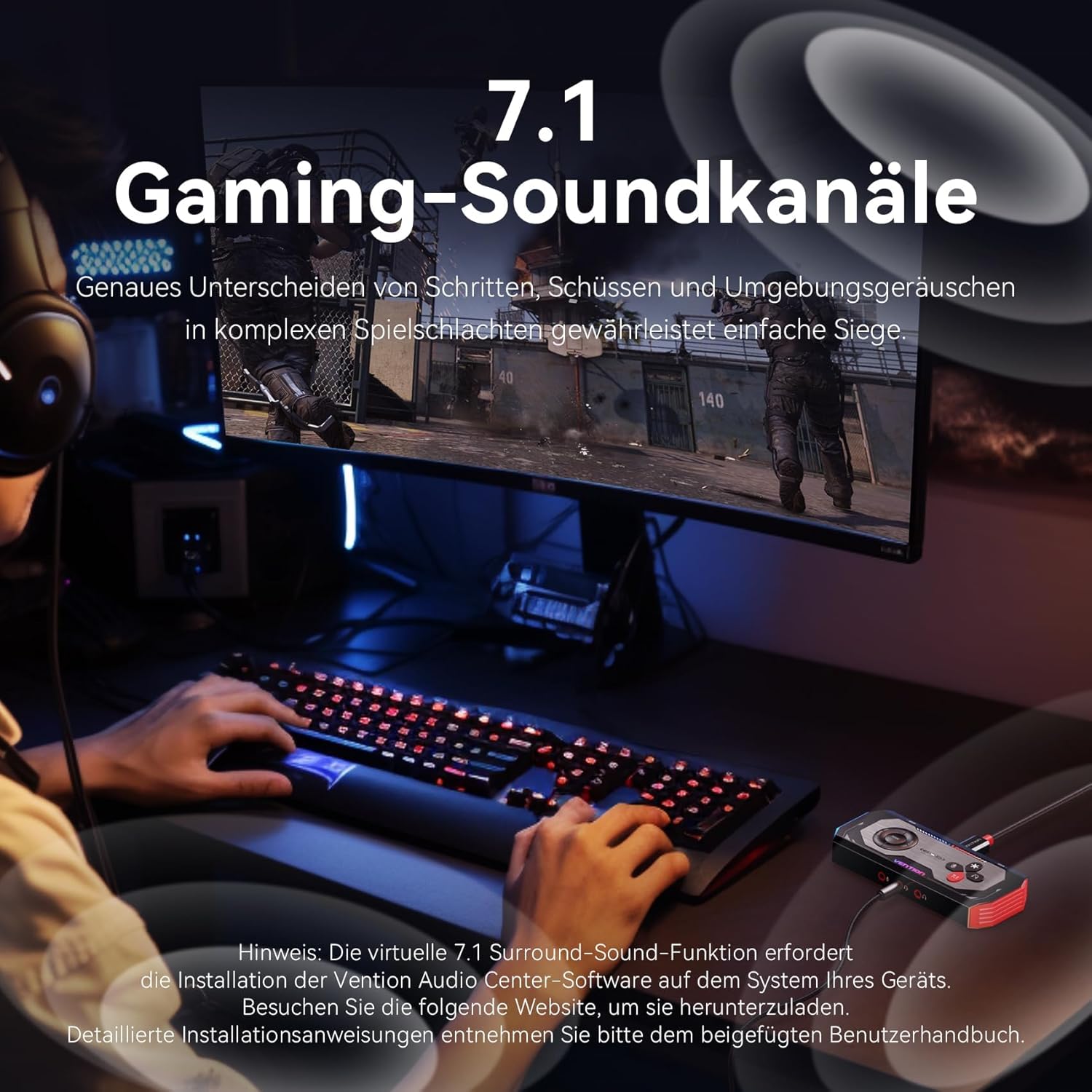
คำอธิบายภาพ: A gamer using a headset in front of a monitor, with an overlay indicating "7.1 Gaming Sound Channels." The text emphasizes precise distinction of footsteps, shots, and environmental sounds for complex game battles. A note below mentions that the virtual 7.1 surround sound function requires the VENTION Audio Center software.
การซ่อมบำรุง
- รักษาความสะอาดของอุปกรณ์โดยการเช็ดด้วยผ้าแห้งนุ่มๆ หลีกเลี่ยงการใช้น้ำยาทำความสะอาด
- เก็บอุปกรณ์ไว้ในที่แห้งและเย็น หลีกเลี่ยงแสงแดดโดยตรงและอุณหภูมิที่สูงหรือต่ำเกินไป
- หลีกเลี่ยงการทำอุปกรณ์หล่นหรือกระแทกอย่างรุนแรง
- Ensure cables are connected securely but without excessive force to prevent damage to ports.
การแก้ไขปัญหา
- ไม่มีเสียงออก:
- ตรวจสอบการเชื่อมต่อสายเคเบิลทั้งหมด (USB, หูฟัง, ลำโพง)
- Ensure the device is selected as the default audio output in your operating system's sound settings.
- Verify that the volume is not muted on the device or in your system settings.
- If using the VENTION Audio Center software, ensure it is correctly installed and configured.
- ไมโครโฟนไม่ทำงาน:
- Ensure the microphone is properly connected to the correct jack.
- Check if the microphone is muted on the device or in your system's sound input settings.
- Verify that the VENTION device is selected as the default input device.
- Confirm your microphone type (TRS/TRRS) is compatible.
- ปัญหาซอฟต์แวร์/ไดรเวอร์:
- If experiencing issues with advanced features (e.g., 7.1 surround sound, equalizer), ensure the VENTION Audio Center software is installed correctly and is up to date.
- Try reinstalling the software if problems persist.
- Consult the VENTION support website for the latest drivers and troubleshooting guides.
- คุณภาพเสียงไม่ดี:
- Ensure you are using high-quality audio sources.
- Check your equalizer settings in the VENTION Audio Center software; reset to default if necessary.
- Test with different headphones/speakers to rule out issues with peripherals.
ข้อมูลจำเพาะ
| ยี่ห้อ | เวนชั่น |
| หมายเลขรุ่น | CVAB0 |
| อินเทอร์เฟซ | USB 3.0 (USB-C connection) |
| โหมดเอาต์พุตเสียง | 7.1 Virtual Surround Sound |
| แม็กซ์ เอสampลิงอัตรา | 192 kHz / 24 บิต |
| อุปกรณ์ที่รองรับ | PS5, PS4, Xbox One, Nintendo Switch, PC, Headphones |
| แพลตฟอร์มที่เข้ากันได้ | Windows 8/8.1/10/11, Mac OS, ลินุกซ์ |
| แพลตฟอร์มฮาร์ดแวร์ | เครื่องคอมพิวเตอร์ส่วนบุคคล |

คำอธิบายภาพ: A close-up image of a DSP (Digital Signal Processor) sound card chip, emphasizing the high-quality sound capabilities. The text highlights that with a DSP sound card chip, the 192kHz@24bit sampling rate offers higher audio resolution and a wider dynamic range than standard CD quality (44.1kHz@16bit).
ข้อมูลการรับประกัน
Specific warranty details for the VENTION External USB DAC 7.1 Sound Card (Model CVAB0) are typically provided with the product packaging or on the official VENTION webเว็บไซต์นี้ โปรดอ้างอิงแหล่งข้อมูลเหล่านี้สำหรับข้อกำหนดและเงื่อนไขการรับประกันที่ถูกต้องและเป็นปัจจุบันที่สุด
สนับสนุน
For technical support, product inquiries, or further assistance, please visit the official VENTION support website. You can usually find contact information, FAQs, and additional resources there.
แหล่งข้อมูลออนไลน์:
- Official VENTION Webเว็บไซต์: www.ventiontech.com (หรือเว็บไซต์ระดับภูมิภาคที่เกี่ยวข้อง)
- Product Support Page: Check the VENTION website for a dedicated support page for model CVAB0.