
FLYINGVOICE P23GW
คู่มือการใช้งานโทรศัพท์ VoIP FLYINGVOICE P23GW
Model: P23GW
Your guide to setting up, operating, and maintaining your advanced business IP phone.
1. บทนำ
The FLYINGVOICE P23GW is an advanced business IP phone designed for modern communication needs. It features dual-band WiFi, Bluetooth 4.2, a USB port for expansion, and a vibrant color screen. This manual provides detailed instructions to help you maximize the functionality of your P23GW VoIP phone.
2. เนื้อหาบรรจุภัณฑ์
ก่อนดำเนินการติดตั้ง โปรดตรวจสอบว่าแพ็คเกจของคุณมีรายการทั้งหมดหรือไม่:
- FLYINGVOICE P23GW VoIP Phone Unit
- โทรศัพท์มือถือ
- สายโทรศัพท์
- สายเคเบิลอีเทอร์เน็ต
- อะแดปเตอร์แปลงไฟ
- คู่มือการติดตั้งแบบด่วน

รูปที่ 2.1: The P23GW VoIP Phone with its power adapter, as typically found in the package.
3. การตั้งค่า
3.1 การเชื่อมต่อทางกายภาพ
- เชื่อมต่อโทรศัพท์มือถือ: เสียบปลายด้านหนึ่งของสายหูฟังแบบขดเข้าในหูฟัง และเสียบปลายอีกด้านหนึ่งเข้าในพอร์ตหูฟังบนฐานโทรศัพท์
- เชื่อมต่อกับเครือข่าย: Connect one end of the Ethernet cable to the LAN port on the phone and the other end to your network router or switch. If you are using the phone to provide network access to a computer, connect the computer to the PC port on the phone.
- เชื่อมต่อพลังงาน: เสียบอะแดปเตอร์แปลงไฟเข้ากับพอร์ตจ่ายไฟบนโทรศัพท์ จากนั้นเสียบเข้ากับเต้ารับไฟฟ้า โทรศัพท์จะเปิดเครื่องโดยอัตโนมัติ
3.2 การกำหนดค่าเริ่มต้น
Upon first boot, the phone will attempt to obtain network settings via DHCP. You may need to configure SIP accounts manually or through auto-provisioning, depending on your service provider.
- การตั้งค่าเครือข่าย: Navigate to the 'Network' menu on the phone's color screen to configure IP settings if DHCP is not used.
- การลงทะเบียน SIP: Access the 'SIP Account' menu to enter your SIP server address, username, and password. The phone supports quick SIP registration directly from the LCD screen.
4. คู่มือการใช้งาน
4.1 ฟังก์ชันการโทรพื้นฐาน
- การโทร: Pick up the handset or press the Speaker button, then dial the number and press the 'Dial' or 'Send' soft key.
- รับสาย: Pick up the handset or press the 'Speaker' button when the phone rings.
- การวางสาย: วางสายหรือกดปุ่ม 'วางสาย' บนซอฟต์คีย์
- ระงับ/ดำเนินการต่อ: During a call, press the 'Hold' soft key. Press it again to resume the call.
- โอน: During a call, press the 'Transfer' soft key, dial the new number, and press 'Transfer' again.
4.2 Display and Keypad Navigation
The P23GW features a 2.8-inch color display with a 7-level adjustable backlight for optimal visibility in various lighting conditions.

รูปที่ 4.1: Adjusting the backlight on the P23GW's color display for improved readability.
Use the navigation keys (Up, Down, Left, Right, OK) to browse menus and select options. The soft keys below the display change functionality based on the current context.
คุณสมบัติขั้นสูง 4.3 ประการ
4.3.1 Wireless Connectivity (Dual-Band WiFi & AP Mode)
The P23GW supports 2.4G and 5GHz dual-band WiFi, providing flexible network connection options. It also features AP (Access Point) and Wi-Fi to LAN capabilities, allowing the phone to share its network connection with other devices.

รูปที่ 4.2: The P23GW operating in Wireless AP Mode, demonstrating its ability to share network connectivity with other devices.
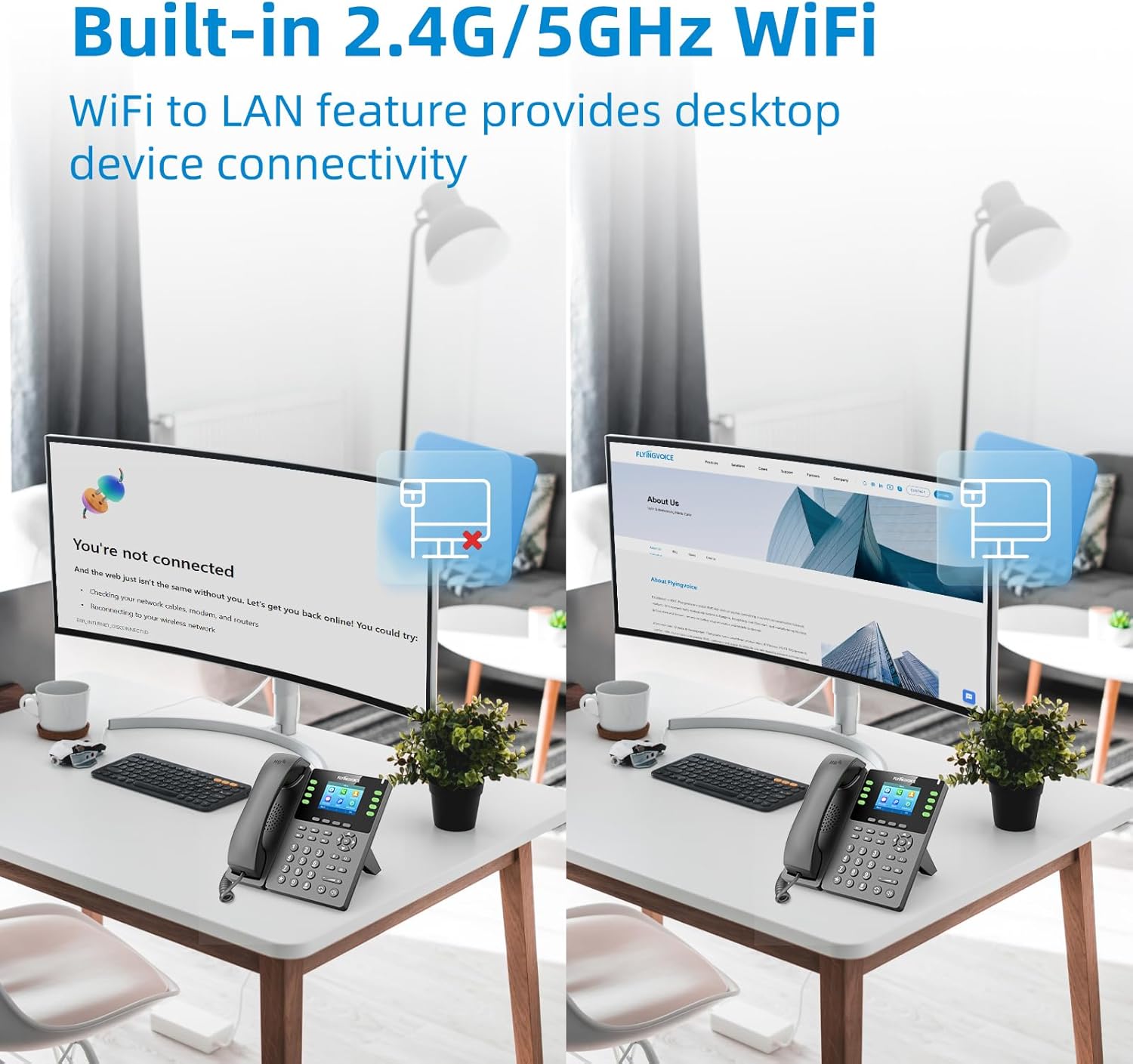
รูปที่ 4.3: The P23GW's built-in 2.4G/5GHz WiFi enabling desktop device connectivity via its Wi-Fi to LAN feature.
4.3.2 บลูทู ธ 4.2
Integrated Bluetooth 4.2 allows for seamless pairing with wireless headsets, offering enhanced mobility and comfort during calls. To pair a device, navigate to the 'Bluetooth' menu in the phone settings.
4.3.3 USB Expansion
The USB 2.0 port expands the phone's functionality. It can be used for connecting various external devices, including:
- USB drives for automatic or manual call recording.
- Bluetooth adapters (if not already integrated).
- Wireless headsets.
- Expansion modules (e.g., P2EXP for additional programmable keys).

รูปที่ 4.4: The P23GW's USB 2.0 and dual Ethernet ports, illustrating connectivity options for expanded functions.
4.3.4 คุณสมบัติการจัดการการโทร
- Multiple VoIP Accounts: Supports up to 8 VoIP accounts, allowing for flexible line management.
- Speed Dial Keys: Utilize the 6 dedicated speed dial keys for quick access to frequently called numbers.
- การประชุม 6 ทาง: Facilitate multi-party conversations with the built-in 6-way audio conferencing feature.

รูปที่ 4.5: Visual representation of the P23GW's six-way audio conference capability, enabling easier communication and collaboration.
4.3.5 Local Phonebook
The phone includes a local phonebook capable of storing up to 2,000 contacts, ensuring all your important contacts are readily accessible.
5. การบำรุงรักษา
5.1 การทำความสะอาด
To maintain the phone's appearance and functionality, regularly clean its surfaces. Use a soft, dry cloth for the display and a slightly damp cloth for the body. Avoid using harsh chemicals or abrasive cleaners.
การอัปเดตเฟิร์มแวร์ 5.2 รายการ
FLYINGVOICE periodically releases firmware updates to improve performance, add features, and address security concerns. The P23GW supports unified firmware. Check the official FLYINGVOICE website for the latest firmware versions and instructions on how to update your device.
6 การแก้ไขปัญหา
This section addresses common issues you might encounter with your P23GW VoIP phone.
| ปัญหา | สาเหตุที่เป็นไปได้ | สารละลาย |
|---|---|---|
| ไม่มีเสียงสัญญาณโทรศัพท์ | Phone not powered on; Network cable loose; SIP account not registered. | Check power connection; Ensure Ethernet cable is securely plugged in; Verify SIP account registration status in settings. |
| ไม่สามารถโทรออก/รับสายได้ | SIP account issues; Network connectivity problems; Firewall blocking VoIP traffic. | Confirm SIP account credentials; Check network connection; Consult your network administrator about firewall settings. |
| Poor call quality (echo, static) | Network congestion; Low bandwidth; Faulty handset/headset. | Ensure stable internet connection; Reduce network traffic; Test with a different handset or headset. |
| การเชื่อมต่อ WiFi ไม่เสถียร | Weak signal; Interference; Incorrect WiFi settings. | Move phone closer to WiFi router; Check for interfering devices; Re-enter WiFi password and settings. |
For more advanced diagnostics, the P23GW supports remote management tools, allowing administrators to monitor and configure the device remotely.

รูปที่ 6.1: Examples of remote management interfaces that can be used for troubleshooting and configuration of the P23GW.
7. ข้อมูลจำเพาะทางเทคนิค
| คุณสมบัติ | คำอธิบาย |
|---|---|
| ยี่ห้อ | ฟลายอิ้งวอยซ์ |
| แบบอย่าง | P23GW |
| สี | สีดำ |
| ประเภทโทรศัพท์ | Cordless (VoIP IP Phone) |
| แหล่งพลังงาน | อะแดปเตอร์ AC |
| แสดง | 2.8-inch Color Screen with 7-level adjustable backlight |
| บัญชี VoIP | บัญชี SIP 8 บัญชี |
| ไวไฟ | 2.4G/5GHz Dual-Band WiFi, AP & Wi-Fi to LAN features |
| บลูทูธ | บลูทูธ 4.2 |
| พอร์ต USB | USB 2.0 for expansion (e.g., recording, headsets) |
| ปุ่มโทรด่วน | ปุ่มตั้งโปรแกรมได้ 6 ปุ่ม |
| การประชุมทางไกล | การประชุม 6 ทาง |
| ความจุสมุดโทรศัพท์ | สูงสุด 2,000 รายชื่อติดต่อ |
| อุปกรณ์ที่รองรับ | Computers, Wireless Headsets, Answering Machines, Bluetooth-enabled Devices |
8. การสนับสนุนและการรับประกัน
8.1 การสนับสนุนด้านเทคนิค
For technical assistance or inquiries, FLYINGVOICE offers dedicated 1-to-1 tech support. Please refer to the contact information provided with your product or visit the official FLYINGVOICE webเว็บไซต์สำหรับทรัพยากรสนับสนุน
8.2 การรับประกันสินค้า
The FLYINGVOICE P23GW VoIP Phone comes with a standard manufacturer's warranty. Please refer to the warranty card included in your product packaging for specific terms, conditions, and duration of the warranty. Keep your purchase receipt as proof of purchase for warranty claims.
เอกสารที่เกี่ยวข้อง - P23GW
 |
Flyingvoice P23G/GW Quick Installation Guide Quickly set up your Flyingvoice P23G/GW IP Phone with this essential installation guide. Learn about assembly, network configuration, and SIP registration for seamless communication. |
 |
คู่มือผู้ใช้โทรศัพท์ IP Flyingvoice P23G/P23GW คู่มือผู้ใช้ฉบับสมบูรณ์นี้ให้คำแนะนำโดยละเอียดเกี่ยวกับการตั้งค่า กำหนดค่า และการใช้งานโทรศัพท์ IP Flyingvoice P23G และ P23GW เรียนรู้เกี่ยวกับคุณสมบัติฮาร์ดแวร์ การนำทางบนหน้าจอ การจัดการสาย การตั้งค่าเครือข่าย และฟังก์ชันขั้นสูง |
 |
คู่มือผู้ใช้โทรศัพท์ IP Flyingvoice P23G/P23GW คู่มือผู้ใช้ที่ครอบคลุมสำหรับโทรศัพท์ IP Flyingvoice P23G และ P23GW ซึ่งมีรายละเอียดการตั้งค่า คุณสมบัติ การจัดการการโทร และการบำรุงรักษาเพื่อการสื่อสารทางธุรกิจที่มีประสิทธิภาพ |
 |
คู่มือการติดตั้งโทรศัพท์ IP ซีรีส์ Flyingvoice P2X อย่างรวดเร็ว คู่มือย่อสำหรับการติดตั้งและกำหนดค่าโทรศัพท์ IP Flyingvoice P2X Series ครอบคลุมตั้งแต่การประกอบ การตั้งค่าเครือข่าย และการลงทะเบียน |
 |
Flyingvoice P23G/P23GW: โทรศัพท์ IP สำหรับธุรกิจที่อัดแน่นไปด้วยคุณสมบัติ พร้อม HD Voice และ Wi-Fi พบกับ Flyingvoice P23G/P23GW โทรศัพท์ IP อเนกประสงค์สำหรับธุรกิจพร้อมหน้าจอสีขนาด 2.8 นิ้ว เสียง HD Wi-Fi ดูอัลแบนด์ (P23GW) Gigabit Ethernet และการเชื่อมต่อ USB เพื่อการทำงานร่วมกันในสำนักงานที่ดียิ่งขึ้น |
 |
คู่มือผู้ใช้โทรศัพท์ IP Flyingvoice P23G/P23GW Comprehensive user guide for the Flyingvoice P23G/P23GW IP phone, covering hardware overview, setup, call features, advanced functions, and maintenance. Learn to quickly use your new IP phone with detailed instructions and explanations. |
Ask a question about this manual
Ask about setup, troubleshooting, compatibility, parts, safety, or missing instructions. Manuals+ will review the question and use this page’s manual context to help answer it.