สินค้าเกินview
This document provides instructions for the installation, operation, and maintenance of the Laptop Keyboard for MEDION AKOYA S4402 MD63410 Swiss SW with Backlit Black. This keyboard is designed as a replacement part for compatible laptop models, offering a Swiss (SW) layout and integrated backlighting for improved visibility in low-light conditions.
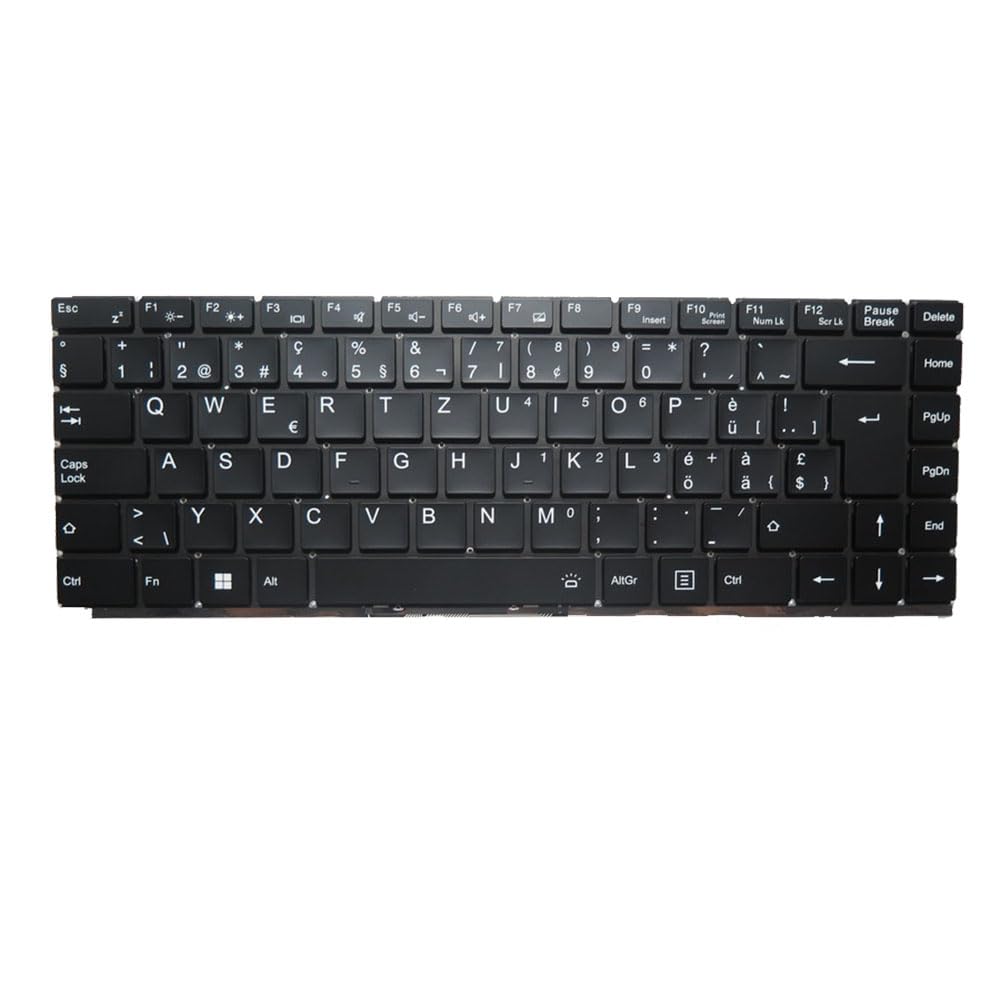
ภาพ: ด้านหน้า view of the Laptop Keyboard for MEDION AKOYA S4402 MD63410. The keyboard features a black finish with white key legends, including a full alphanumeric section, function keys (F1-F12), navigation keys, and a numeric keypad. The layout is Swiss (SW), indicated by specific characters like '§', '€', 'é', 'à', 'ö', 'ä', 'ü', and '£'. The keyboard includes dedicated keys for backlight control (likely via Fn combinations) and standard laptop keyboard functions.
ข้อมูลจำเพาะ
| คุณสมบัติ | รายละเอียด |
|---|---|
| ประเภทสินค้า | Laptop Keyboard Replacement Part |
| ความเข้ากันได้ | MEDION AKOYA S4402 MD63410 |
| เค้าโครง | Swiss (SW) |
| แสงไฟแบ็คไลท์ | ใช่ |
| สี | สีดำ |
| ขนาดสินค้า | 11.81 x 7.87 x 3.94 นิ้ว |
| น้ำหนักสินค้า | 1.76 ปอนด์ |
| ผู้ผลิต | ทั่วไป |
| หมายเลขรุ่น | MD63410-5. |
| ประเทศต้นกำเนิด | จีน |
การติดตั้งและการตั้งค่า
Installing a laptop keyboard typically requires technical expertise and careful handling of internal components. It is highly recommended to consult your laptop's official service manual or seek professional assistance for installation to avoid damage to your device.
General Guidelines (Consult Professional for Specific Steps):
- หมดแรง: Ensure the laptop is completely powered off and disconnected from all power sources, including the battery.
- ถอดชิ้นส่วน: Carefully disassemble the laptop components that obstruct access to the keyboard. This may involve removing the bottom cover, battery, optical drive, or top case, depending on the laptop model.
- Disconnect Old Keyboard: Locate the keyboard ribbon cable connector on the motherboard. Gently unlatch the connector and disconnect the old keyboard's cable.
- ถอดคีย์บอร์ดเก่าออก: Unscrew or unclip the old keyboard from its housing.
- ติดตั้งคีย์บอร์ดใหม่: Position the new keyboard into the housing. Ensure it fits correctly and all mounting points align.
- เชื่อมต่อคีย์บอร์ดใหม่: Carefully insert the new keyboard's ribbon cable into the connector on the motherboard and secure the latch. Ensure the cable is not bent or creased.
- การประกอบกลับ: Reassemble the laptop components in reverse order. Double-check all connections before fully closing the laptop.
- ทดสอบฟังก์ชันการทำงาน: Power on the laptop and test all keyboard keys, including the backlight function, to ensure proper installation.
ข้อสงวนสิทธิ์: Improper installation can lead to damage to your laptop. The manufacturer is not responsible for any damage incurred during self-installation.
คำแนะนำการใช้งาน
This keyboard functions as a standard laptop keyboard with additional features specific to the Swiss (SW) layout and integrated backlighting.
ฟังก์ชั่นหลัก:
- แป้นพิมพ์ตัวอักษรและตัวเลขมาตรฐาน: ใช้สำหรับพิมพ์ตัวอักษร ตัวเลข และสัญลักษณ์
- ปุ่มฟังก์ชั่น (F1-F12): ปุ่มเหล่านี้มักมีฟังก์ชันรอง (เช่น การควบคุมระดับเสียง ความสว่างหน้าจอ การเปิด/ปิด Wi-Fi) เมื่อกดพร้อมกับปุ่มอื่นๆ Fn key. Refer to your laptop's specific documentation for exact Fn key combinations.
- การควบคุมแบ็คไลท์: The keyboard features integrated backlighting. Typically, the backlight can be toggled on/off or adjusted in brightness using a specific Fn key combination (e.g., เอฟเอ็น + เอฟเอ็กซ์, where Fx is a function key with a backlight icon). Locate the key with a backlight symbol (often resembling a sun or light bulb) to control this feature.
- Swiss (SW) Layout Specifics: This keyboard includes characters and symbols specific to the Swiss layout, such as '§', '€', 'é', 'à', 'ö', 'ä', 'ü', and '£'. Familiarize yourself with the placement of these characters.
- ปุ่มนำทาง: Includes Home, End, PgUp (Page Up), PgDn (Page Down), and arrow keys for document navigation.
การซ่อมบำรุง
การบำรุงรักษาอย่างถูกวิธีจะช่วยยืดอายุการใช้งานของคีย์บอร์ดและทำให้ได้ประสิทธิภาพการทำงานที่ดีที่สุด
- การทำความสะอาด: Regularly clean the keyboard surface with a soft, lint-free cloth slightly dampened with water or a mild, non-abrasive cleaning solution. Avoid spraying liquids directly onto the keyboard.
- การกำจัดฝุ่น: ใช้ลมอัดเพื่อกำจัดฝุ่นและเศษผงออกจากซอกนิ้ว ถือกระป๋องให้ตั้งตรงและฉีดพ่นเป็นช่วงสั้นๆ
- หลีกเลี่ยงการหกเลอะ: ปกป้องแป้นพิมพ์จากของเหลวหกซึ่งอาจทำให้เกิดความเสียหายถาวรได้
- การใช้งานอย่างอ่อนโยน: ควรหลีกเลี่ยงการออกแรงกดมากเกินไปขณะพิมพ์ เพื่อป้องกันการสึกหรอของปุ่มก่อนเวลาอันควร
การแก้ไขปัญหา
If you encounter issues with your keyboard, consider the following common troubleshooting steps:
- แป้นพิมพ์ไม่ตอบสนอง:
- ตรวจสอบให้แน่ใจว่าสายแพของแป้นพิมพ์เชื่อมต่อกับเมนบอร์ดอย่างแน่นหนาแล้ว
- รีสตาร์ทแล็ปท็อปของคุณ
- Check device drivers in your operating system. Reinstall or update if necessary.
- คีย์บางอันไม่ทำงาน:
- Check for physical obstructions or debris under the non-functional keys.
- If multiple keys in a specific area are not working, it might indicate a cable connection issue or a defect in the keyboard itself.
- แสงไฟไม่ทำงาน:
- Ensure the backlight function is enabled via the appropriate Fn key combination.
- Check your laptop's BIOS/UEFI settings for keyboard backlight options.
- พิมพ์อักขระไม่ถูกต้อง:
- Verify that the correct keyboard layout (Swiss SW) is selected in your operating system settings.
If issues persist after attempting these steps, professional diagnosis and repair may be required.
การรับประกันและการสนับสนุน
ผลิตภัณฑ์นี้มาพร้อมกับ รับประกัน 90 วัน นับจากวันที่ซื้อ การรับประกันนี้ครอบคลุมถึงข้อบกพร่องจากการผลิตและรับรองว่าผลิตภัณฑ์ทำงานได้ตามที่ระบุไว้ภายใต้การใช้งานปกติ
การรับประกันไม่ครอบคลุมถึงความเสียหายที่เกิดจาก:
- Improper installation or handling.
- Accidental damage, spills, or physical abuse.
- การซ่อมแซมหรือดัดแปลงโดยไม่ได้รับอนุญาต
- การสึกหรอตามปกติ
For warranty claims or technical support, please contact the seller or retailer from whom you purchased this product. Ensure you have your proof of purchase readily available.


