
1. บทนำ
The BoxWave AllReader SD Card Reader is a versatile device designed for easy transfer of files between various devices and SD or microSD cards. It features multiple interfaces for broad compatibility, allowing you to access photos, videos, music, and other data on the go. This manual provides instructions for setting up, operating, and maintaining your AllReader SD Card Reader.
2. การตั้งค่า
Follow these steps to set up your BoxWave AllReader SD Card Reader:
- ใส่การ์ดหน่วยความจำ: Locate the appropriate slot on the AllReader for your SD or microSD card. Gently insert the card until it clicks into place. Ensure the card is inserted correctly to avoid damage.
- เชื่อมต่อกับอุปกรณ์: The AllReader features four different connectors: USB-A, USB-C, Micro-USB, and Apple Lightning. Select the connector compatible with your smartphone, tablet, laptop, or desktop computer. Plug the AllReader firmly into the corresponding port on your device.
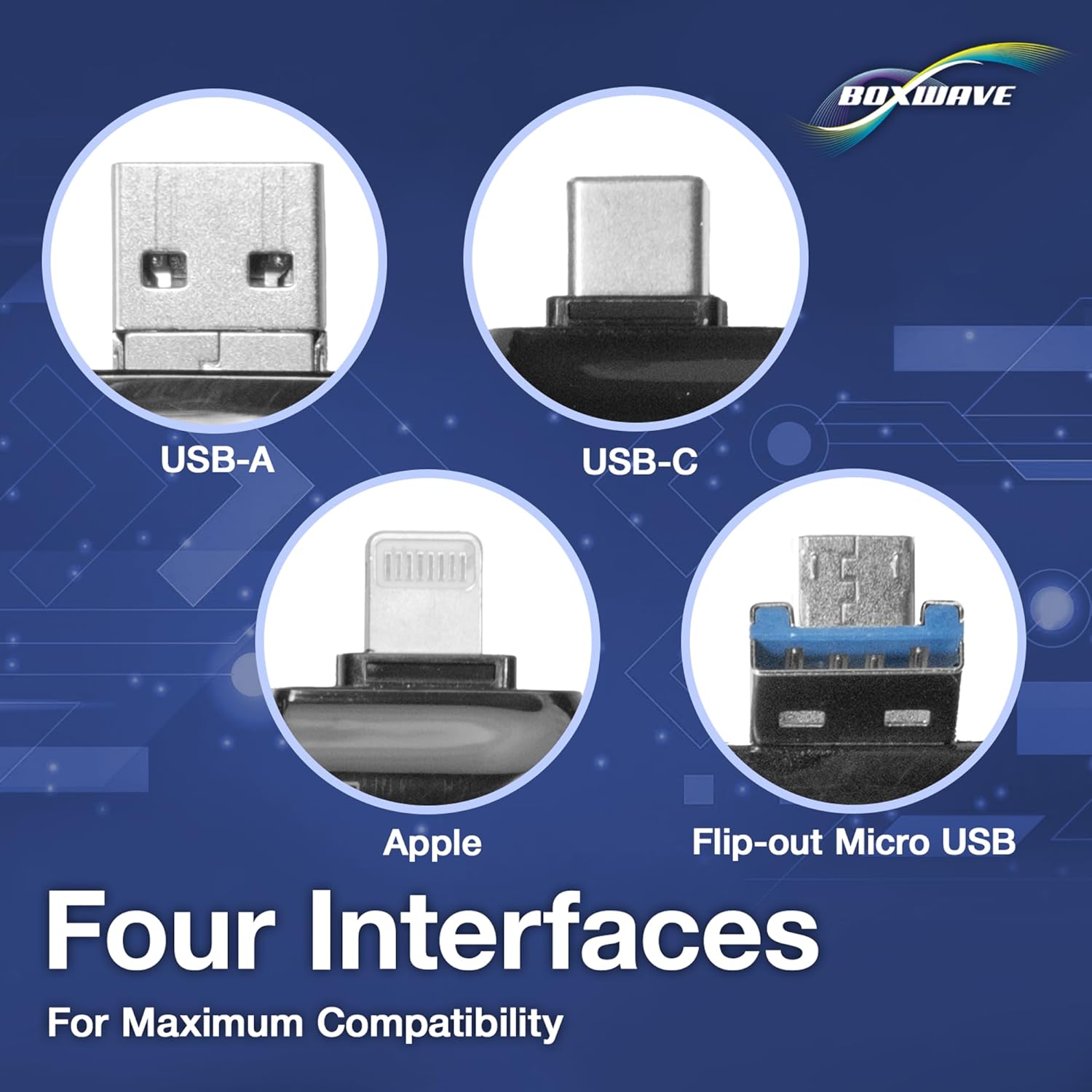

Once connected, your device should recognize the AllReader as an external storage device, allowing you to access the contents of the inserted memory card.
3. คู่มือการใช้งาน
The AllReader SD Card Reader operates on a plug-and-play principle, requiring no additional drivers for most modern operating systems.
- การเข้าถึง Files: After connecting the AllReader with an inserted memory card to your device, navigate to your device's file manager or photo gallery application. The memory card will appear as a removable drive or external storage.
- การโอนย้าย Files: คุณสามารถคัดลอก ย้าย หรือลบ files between your device's internal storage and the memory card. Select the desired files, then choose the appropriate action (e.g., 'Copy', 'Move') and destination folder.
- การดีดตัวออกจากเครื่องบินอย่างปลอดภัย: Before disconnecting the AllReader, always safely eject the device from your operating system to prevent data corruption. On computers, this is typically done via the 'Safely Remove Hardware' option. On mobile devices, simply unplugging after file operations are complete is usually sufficient, but confirm your device's specific guidelines.

4. การบำรุงรักษา
To ensure the longevity and optimal performance of your AllReader SD Card Reader:
- รักษาอุปกรณ์ให้สะอาด ปราศจากฝุ่นและเศษขยะ ใช้ผ้านุ่มและแห้งเช็ดทำความสะอาด
- หลีกเลี่ยงการให้เครื่องสัมผัสกับอุณหภูมิที่สูง ความชื้น หรือแสงแดดโดยตรง
- Do not force memory cards or connectors into their slots, as this can cause damage.
- Store the AllReader in a protective case or bag when not in use to prevent scratches or impacts.
5 การแก้ไขปัญหา
If you encounter issues with your AllReader SD Card Reader, consider the following:
- ไม่รู้จักอุปกรณ์:
- Ensure the AllReader is fully inserted into your device's port.
- Try a different port on your device, if available.
- Verify that the memory card is correctly inserted into the AllReader.
- Test with a different memory card to rule out card issues.
- Restart your host device (smartphone, computer).
- ความเร็วในการถ่ายโอนข้อมูลช้า:
- Transfer speeds can vary based on the memory card's speed class and the host device's USB version.
- Ensure your memory card is not damaged or corrupted.
- ไม่สามารถเข้าถึง Files:
- Check if the memory card is formatted correctly for your device (e.g., FAT32, exFAT).
- Ensure your device has the necessary permissions to read external storage.
If problems persist, consult the support section of the BoxWave webเว็บไซต์.
6. ข้อมูลจำเพาะ
| คุณสมบัติ | คำอธิบาย |
|---|---|
| ชื่อรุ่น | AllReader SD Card Reader |
| อินเทอร์เฟซ | USB-A, USB-C, Micro-USB, Apple Lightning |
| ความเข้ากันได้ของบัตร | เอสดี, ไมโครเอสดี |
| ออกแบบ | Compact, Multi-port |
| น้ำหนัก | 6 ออนซ์ |
| ผู้ผลิต | บ็อกซ์เวฟ |

7. การรับประกันและการสนับสนุน
For information regarding product warranty, technical support, or customer service, please visit the official BoxWave website or contact their customer support directly. Details can typically be found in the product packaging or on the manufacturer's webเว็บไซต์.