
การแนะนำ
This manual provides detailed instructions for the Netac US9 Portable External USB 3.2 Solid State Drive. It covers product features, setup, operation, maintenance, troubleshooting, and technical specifications to ensure safe and efficient use of your device.
The Netac US9 is a high-speed portable SSD designed for reliable data storage and transfer across various devices, featuring both USB-A and USB-C interfaces.
สินค้าเกินview
The Netac US9 Portable SSD offers a compact and durable solution for expanding storage and transferring large files quickly. Key features include:
- การถ่ายโอนข้อมูลความเร็วสูง: Supports read speeds up to 1000MB/s and write speeds up to 920MB/s, utilizing USB 3.2 Gen 2 technology. Actual speeds may vary based on host device and usage.
- Dual Interface Connectivity: Features both USB Type-C and USB 3.2 (Type-A) connectors for broad compatibility with various devices.
- โครงสร้างทนทาน: Encased in a high-quality zinc alloy for enhanced resistance to physical impact and scratches.
- การป้องกันอินเทอร์เฟซ: A double-sided metal flip cover design protects the USB interfaces from damage.
- ขนาดกะทัดรัดและน้ำหนักเบา: Designed for portability, with dimensions of approximately 78x23x9.65 mm and a weight of about 50g.
- File Encryption Support: Compatible with operating system-level file encryption features for data security.
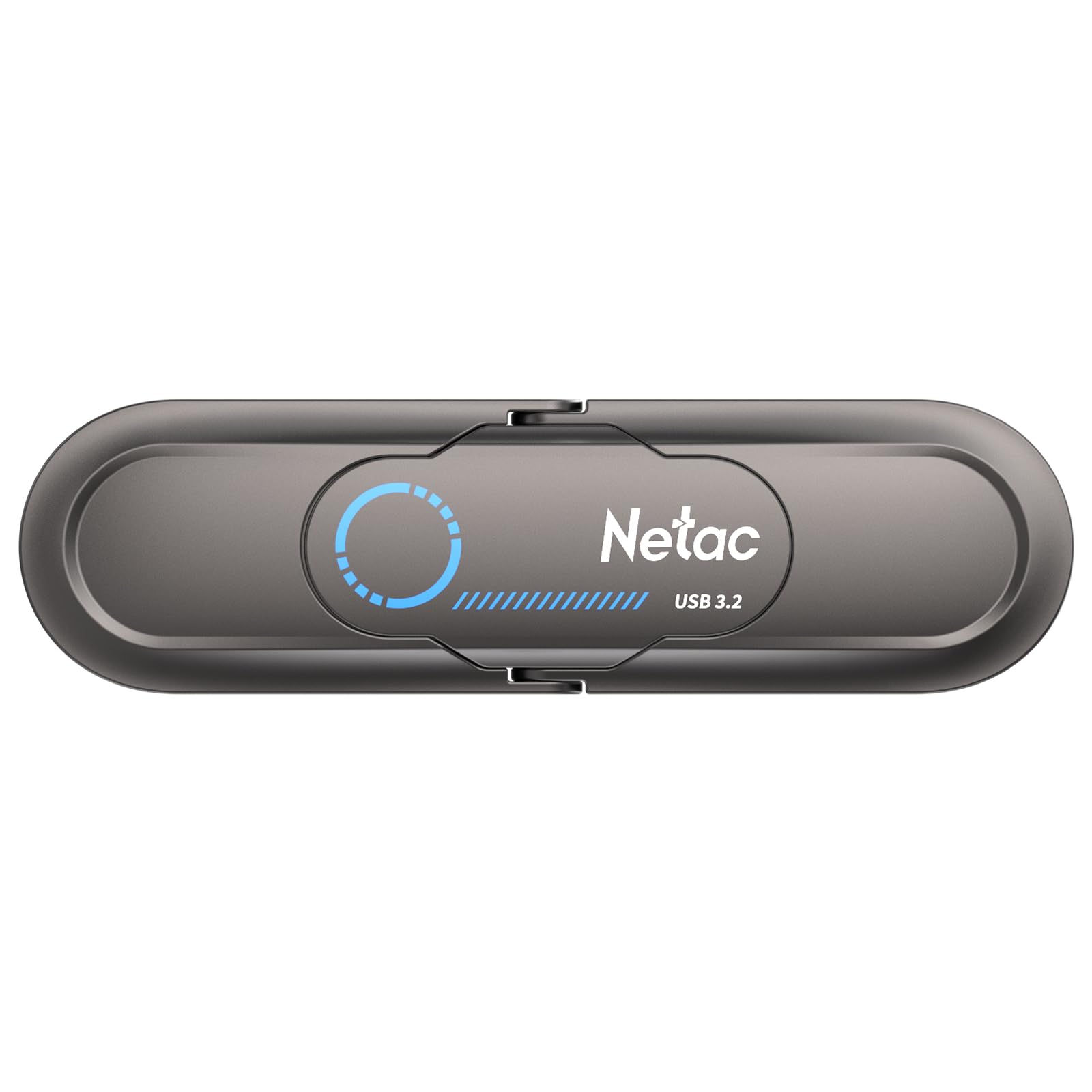
Image: The Netac US9 Portable SSD showcasing its dual USB-A and USB-C interfaces with a protective flip cover.

Image: The Netac US9 Portable SSD with both USB-A and USB-C connectors extended, illustrating its versatile connectivity.
การตั้งค่า
- แกะอุปกรณ์ออกจากกล่อง: Carefully remove the Netac US9 SSD from its packaging.
- Identify the Correct Port: Determine whether your host device (computer, game console, smartphone) has a USB-A or USB-C port.
- เชื่อมต่อ SSD:
- For USB-A: Flip open the metal cover to expose the USB-A connector and insert it into an available USB-A port on your device.
- For USB-C: Flip open the metal cover to expose the USB-C connector and insert it into an available USB-C port on your device.
- การรับรู้อุปกรณ์: Your operating system should automatically detect the Netac US9 SSD. It may appear as a new drive letter (e.g., E:, F:) on Windows, or as an external volume on macOS/Linux.
- การจัดรูปแบบเบื้องต้น (ไม่บังคับ): The drive comes pre-formatted. If you wish to reformat it for a specific file system (e.g., NTFS for Windows, HFS+ for macOS, exFAT for cross-platform compatibility), refer to your operating system's disk management tools. Reformatting will erase all data on the drive.

Image: The Netac US9 Portable SSD connected to a laptop via its USB-A interface and to a smartphone via its USB-C interface, demonstrating dual connectivity.
คำแนะนำการใช้งาน
การโอนข้อมูล
- เข้าถึงไดรฟ์: Once recognized, open File Explorer (Windows) or Finder (macOS) and navigate to the Netac US9 drive.
- สำเนา Files: ลากและวาง files or folders from your computer to the Netac US9 drive, or vice versa. You can also use copy-paste functions.
- Monitor Transfer: A progress bar will indicate the status of your data transfer. For optimal speed, ensure you are connected to a USB 3.2 Gen 2 compatible port.

Image: The Netac US9 Portable SSD positioned on a laptop keyboard, with a graphic indicating a read speed of up to 1000MB/s, highlighting its high-speed data transfer capability.
การเคลื่อนย้ายอย่างปลอดภัย
ควรถอดไดรฟ์ออกอย่างปลอดภัยทุกครั้งก่อนถอดออกเพื่อป้องกันข้อมูลเสียหาย
- หน้าต่าง: Click the "Safely Remove Hardware and Eject Media" icon in the system tray, then select the Netac US9 drive.
- MacOS: ลากไอคอนไดรฟ์จากเดสก์ท็อปไปที่ถังขยะ หรือคลิกขวา (กด Control ค้างไว้แล้วคลิก) ที่ไอคอนไดรฟ์ แล้วเลือก "ดีดออก"
File Encryption (If Supported by OS)
The Netac US9 supports file encryption to protect your data. This feature is typically managed through your operating system's built-in encryption tools (e.g., BitLocker for Windows, FileVault for macOS). Consult your OS documentation for specific instructions on enabling drive encryption.

Image: The Netac US9 Portable SSD connected to a laptop, with a graphic overlay showing a shield icon containing a locked folder, representing the device's support for file การเข้ารหัส
การซ่อมบำรุง
- การดูแลทางกายภาพ: Keep the drive clean and free from dust. Use a soft, dry cloth for cleaning. Avoid exposing the drive to extreme temperatures, direct sunlight, or moisture.
- ป้องกันขั้วต่อ: Always use the integrated metal flip cover to protect the USB-A and USB-C connectors when not in use.
- หลีกเลี่ยงการหยด: ในขณะที่โลหะผสมสังกะสี casing offers durability, avoid dropping the drive to prevent potential internal damage.
- การสำรองข้อมูลปกติ: Periodically back up important data stored on the SSD to another location to prevent data loss from unforeseen circumstances.

Image: The Netac US9 Portable SSD with an arrow illustrating the movement of its protective metal flip cover, emphasizing the interface protection design.
การแก้ไขปัญหา
- ไม่รู้จักไดรฟ์:
- ตรวจสอบให้แน่ใจว่าเสียบไดรฟ์เข้ากับพอร์ต USB อย่างแน่นหนาแล้ว
- ลองใช้พอร์ต USB อื่นบนอุปกรณ์ของคุณ
- Try connecting to a different computer or device to rule out port issues.
- Check your operating system's Disk Management (Windows) or Disk Utility (macOS) to see if the drive is detected but uninitialized or unformatted.
- ความเร็วในการถ่ายโอนข้อมูลช้า:
- Ensure you are connected to a USB 3.2 Gen 2 compatible port for maximum performance. Older USB 2.0 or 3.0 ports will result in lower speeds.
- ตรวจสอบให้แน่ใจว่าไดรเวอร์สำหรับพอร์ต USB ในคอมพิวเตอร์ของคุณเป็นเวอร์ชันล่าสุด
- จำนวนมากของขนาดเล็ก fileการถ่ายโอนช้ากว่าขนาดใหญ่จำนวนน้อย files.
- Other background processes on your computer can affect transfer speeds.
- หัวอ่านจะร้อนขึ้นขณะใช้งาน:
It is normal for the drive to become warm during extended high-speed data transfers due to the nature of SSD technology and the metal casing acting as a heat sink. This does not indicate a malfunction.
ข้อมูลจำเพาะ
| คุณสมบัติ | รายละเอียด |
|---|---|
| ยี่ห้อ | เนแทค |
| ชื่อรุ่น | สหรัฐ9 |
| ความจุของหน่วยความจำ | 512GB |
| เทคโนโลยีการเชื่อมต่อ | ยูเอสบี |
| ฮาร์ดแวร์อินเตอร์เฟซ | USB Type C, USB 3.2 Gen 2 |
| ความเร็วในการอ่าน (สูงสุด) | 1000 เมกะไบต์/วินาที |
| ความเร็วในการเขียน (สูงสุด) | 920 เมกะไบต์/วินาที |
| วัสดุ | โลหะผสมสังกะสี |
| ขนาด | 78 x 23 x 9.65 มม. (โดยประมาณ) |
| น้ำหนักสินค้า | น้ำหนักประมาณ 50 กรัม (1.76 ออนซ์) |
| ระบบที่รองรับ | Windows, macOS, Linux, Android, HarmonyOS, iOS |
| คุณสมบัติพิเศษ | Encrypted (OS-dependent) |

Image: A detailed specification table for the Netac US9 Portable SSD, listing features such as brand, model, interface, capacity, size, material, color, supported systems, and warranty.
การรับประกันและการสนับสนุน
The Netac US9 Portable External USB 3.2 Solid State Drive comes with a รับประกัน 5 ปี ไร้กังวล. For technical assistance, product inquiries, or warranty claims, please contact Netac customer service.
Refer to the official Netac website or the contact information provided with your product packaging for the most up-to-date support channels.