
การแนะนำ
This manual provides detailed instructions for the setup, operation, maintenance, and troubleshooting of your OBSBOT Tail Air Bundle. This bundle includes the OBSBOT Tail Air 4K smart streaming PTZ camera, a SanDisk Extreme 128 GB microSDXC card, and a Pearstone Standard Series HDMI to HDMI High-Speed Ethernet Cable.
The OBSBOT Tail Air is designed to provide high-quality video capture and streaming with advanced AI tracking capabilities, making it suitable for remote work, content creation, and conference environments.
มีอะไรอยู่ในกล่อง
โปรดตรวจสอบว่าสินค้าทั้งหมดที่ระบุไว้ด้านล่างนี้มีอยู่ในแพ็คเกจของคุณ:
- 1x OBSBOT Tail Air Camera (OSB-2108-CW)
- 1x กล่องเก็บของ
- 1x USB-C Male to Dual USB-C Female Splitter
- 1x สาย USB-C
- อะแดปเตอร์ USB-C เป็น USB-A จำนวน 1 ชิ้น
- 1x SanDisk Extreme 128 GB microSDXC Card (SDSQXA1-128G-AN6MA)
- 1x Pearstone Standard Series HDMI to HDMI High-Speed Ethernet Cable (PEHDA106), 6'
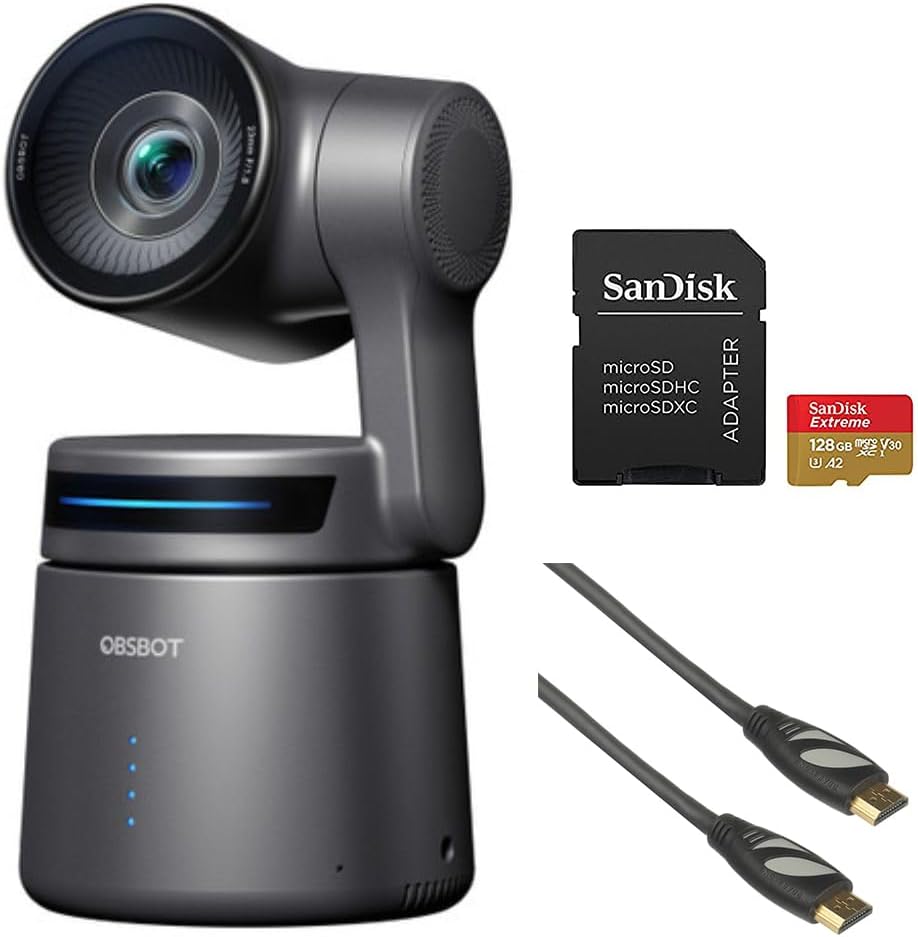
Image: Contents of the OBSBOT Tail Air Bundle, showing the camera, SanDisk Extreme 128 GB microSDXC card, and Pearstone 6' HDMI cable.
การตั้งค่า
1. การวางตำแหน่งกล้อง
Place the OBSBOT Tail Air camera on a stable, flat surface or mount it on a compatible tripod. Ensure the camera has a clear line of sight to the area you intend to capture.
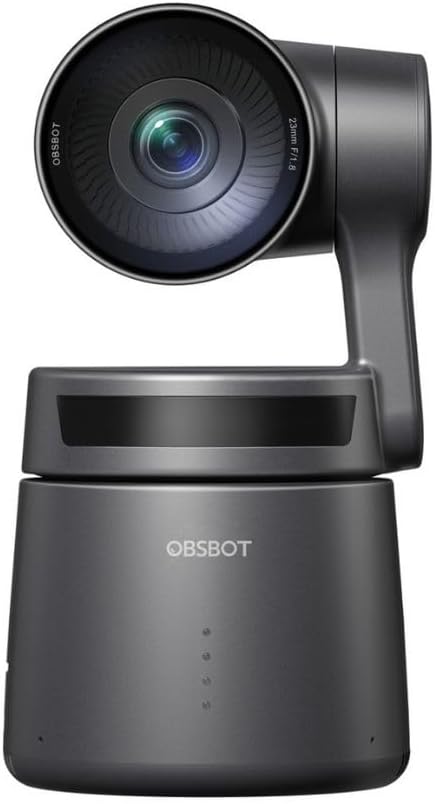
ภาพ: ด้านหน้า view of the OBSBOT Tail Air camera, showing the lens and base.
2. การเชื่อมต่อไฟฟ้า
- Connect the USB-C cable to the camera's USB-C port.
- Connect the other end of the USB-C cable to a power source (e.g., a USB wall adapter or computer USB port). Use the provided USB-C to USB-A adapter if your power source only has USB-A ports.
- The camera's indicator lights will illuminate upon successful power connection.

Image: OBSBOT Tail Air camera with its blue indicator lights active, signifying power or operational status.
3. การติดตั้งการ์ด microSD
To enable local recording, insert the SanDisk Extreme 128 GB microSDXC card into the camera's microSD card slot. Ensure the card is inserted with the correct orientation until it clicks into place.

Image: SanDisk Extreme 128 GB microSDXC card, suitable for high-speed data storage.
4. ตัวเลือกการเชื่อมต่อ
The OBSBOT Tail Air offers multiple connectivity options:
- ยูเอสบี: Connect the camera to a computer via USB-C for use as a webกล้องหรือสำหรับการถ่ายโอนข้อมูล
- ช่องต่อ HDMI: Use the Pearstone HDMI cable to connect the camera's micro-HDMI output to a display or capture card for high-quality video output.
- Ethernet/PoE: For network connectivity and Power over Ethernet (PoE), an optional adapter is required. This enables NDI|HX3 support for professional streaming setups.
- ไวไฟ : Connect the camera to your wireless network for remote control and streaming via the OBSBOT app.

ภาพ: ด้านหลัง view of the OBSBOT Tail Air camera, highlighting its various connectivity ports including USB-C and micro-HDMI.

Image: Pearstone Standard Series HDMI to HDMI High-Speed Ethernet Cable, 6 feet in length.
Operating the OBSBOT Tail Air
1. เปิดเครื่องครั้งแรก
Once powered, the camera will perform a self-calibration. The lens will pan and tilt to its home position. Wait for the indicator lights to stabilize before proceeding.
2. OBSBOT App Control
For full control and advanced features, download the official OBSBOT app on your smartphone or tablet. Connect the camera to the app via Wi-Fi or USB.
- รีโมทคอนโทรล: Pan, tilt, and zoom the camera remotely.
- การติดตาม AI: Activate and manage AI human, animal, or object tracking.
- การควบคุมท่าทาง 2.0: Learn and utilize various hand gestures for quick control of tracking, recording, and zoom.
- การตั้งค่า: Adjust video resolution (up to 4K), frame rate, exposure, white balance, and other camera parameters.
3. AI Tracking Features
The Tail Air features advanced AI tracking:
- การติดตามมนุษย์: Automatically follows a designated person, keeping them centered in the frame.
- การติดตามร่องรอยสัตว์: Capable of tracking pets or other animals.
- การติดตามวัตถุ: Can track specific objects, useful for demonstrations or product showcases.
To activate tracking, use the OBSBOT app or specific gesture controls.
4. การบันทึกและการสตรีมมิ่ง
- การบันทึกในเครื่อง: วิดีโอ footage can be recorded directly to the inserted microSD card.
- ถ่ายทอดสด: The camera supports direct streaming to platforms via the OBSBOT app or through NDI|HX3 (with optional adapter) for professional broadcast setups.
- อินพุตเสียง: Utilize the 3.5mm audio input jack for external microphone connection to enhance audio quality.
การซ่อมบำรุง
1. การทำความสะอาด
- ใช้ผ้าแห้งนุ่มๆ เช็ดทำความสะอาดตัวกล้อง
- สำหรับการทำความสะอาดเลนส์ ให้ใช้ผ้าทำความสะอาดเลนส์และน้ำยาทำความสะอาดเลนส์โดยเฉพาะ หลีกเลี่ยงวัสดุที่มีฤทธิ์กัดกร่อน
- ห้ามใช้ผงซักฟอกหรือตัวทำละลายที่มีฤทธิ์รุนแรง
2. การจัดเก็บ
When not in use, store the camera in its provided storage case in a cool, dry place, away from direct sunlight and extreme temperatures.
3. การอัปเดตเฟิร์มแวร์
Regularly check for firmware updates via the OBSBOT app to ensure optimal performance and access to new features. Follow the app's instructions carefully during updates.
การแก้ไขปัญหา
| ปัญหา | สาเหตุที่เป็นไปได้ | สารละลาย |
|---|---|---|
| กล้องไม่สามารถเปิดได้ | Loose power connection; faulty cable/adapter; insufficient power source. | Check all cable connections. Try a different USB port or power adapter. Ensure power source meets camera requirements. |
| AI tracking not working. | Poor lighting; subject too far/close; camera obstruction; AI tracking not activated. | Ensure adequate lighting. Position subject within optimal range (1-5 meters). Clear any obstructions. Activate tracking via the OBSBOT app or gesture. |
| ไม่พบการ์ด microSD | Card not inserted correctly; card corrupted; incompatible card. | Reinsert the card. Try formatting the card (this will erase data). Ensure the card is a genuine SanDisk Extreme 128 GB microSDXC or similar compatible card. |
| ไม่มีการส่งสัญญาณภาพออกทาง HDMI | HDMI cable faulty; display input not selected; camera not in video output mode. | Check the Pearstone HDMI cable for damage. Ensure the display is set to the correct HDMI input. Verify camera settings in the OBSBOT app. |
| ปัญหาการเชื่อมต่อแอป | Wi-Fi interference; incorrect network; camera not discoverable. | Ensure camera and device are on the same Wi-Fi network. Restart both camera and app. Check for app updates. |
ข้อมูลจำเพาะ
| คุณสมบัติ | รายละเอียด |
|---|---|
| แบบอย่าง | OBSBOT Tail Air (OSB-2108-CW) |
| เซ็นเซอร์ | เซ็นเซอร์ CMOS 1/1.8 นิ้ว ความละเอียด 8 ล้านพิกเซล |
| ความละเอียดในการจับภาพวิดีโอ | สูงถึง 4K |
| เทคโนโลยีการเชื่อมต่อ | USB-C, Micro-HDMI, Wi-Fi, Ethernet (with optional adapter) |
| อินพุตเสียง | แจ็คขนาด 3.5 มม. |
| การติดตาม | AI Human/Animal/Object Tracking |
| ควบคุม | Gesture Control 2.0, OBSBOT App |
| พื้นที่จัดเก็บ | MicroSDXC (SanDisk Extreme 128 GB included) |
| ยูพีซี | 810160682202 |
การรับประกันและการสนับสนุน
สำหรับข้อมูลการรับประกันและการสนับสนุนทางเทคนิค โปรดดูเอกสารทางการของ OBSBOT webหรือติดต่อฝ่ายบริการลูกค้าโดยตรง โปรดเก็บใบเสร็จรับเงินไว้เป็นหลักฐานการซื้อ
OBSBOT Official Webเว็บไซต์: www.obsbot.com