
การแนะนำ
ขอบคุณสำหรับการซื้อasing the KTC H27S17 27-inch WQHD 180Hz Curved Gaming Monitor. This manual provides essential information for the safe and efficient use of your new monitor. Please read it thoroughly before use and retain it for future reference.
สินค้าเกินview วีดีโอ
วิดีโอ: วิดีโอแสดงผลิตภัณฑ์อย่างเป็นทางการasing the key features and design of the KTC H27S17 27-inch Curved Gaming Monitor.
เนื้อหาแพ็คเกจ
ตรวจสอบว่ารายการทั้งหมดที่ระบุไว้ด้านล่างนี้รวมอยู่ในแพ็คเกจของคุณ:
- สายไฟ
- สายเคเบิล DisplayPort
- อะแดปเตอร์แปลงไฟ
- ขาตั้งจอภาพ
- ฐานตั้ง
- แผ่นซีดีไดร์เวอร์ (หรือลิงก์ดาวน์โหลด)
- สกรูยึด
- คู่มือการใช้งาน (ฉบับภาษาญี่ปุ่น)
- คู่มือเริ่มต้นอย่างรวดเร็ว
- บัตรรับประกัน
คำแนะนำการตั้งค่า
1. การประกอบขาตั้ง
Attach the stand base to the monitor stand using the provided screws. Then, securely attach the assembled stand to the back of the monitor.
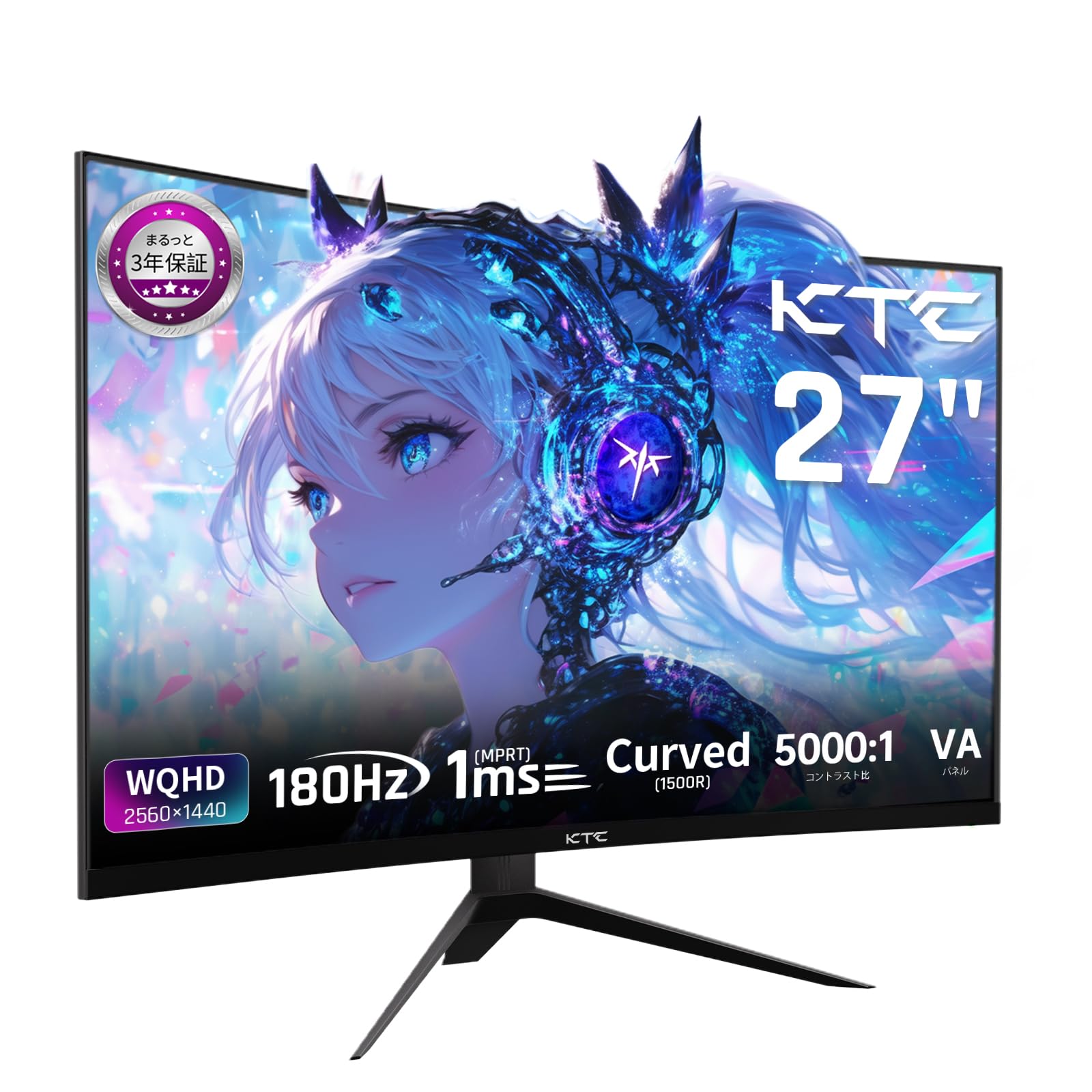
Image: The KTC H27S17 monitor fully assembled with its stand, viewเอ็ดจากด้านหน้า
2. การเชื่อมต่อกับแหล่งจ่ายไฟ
เชื่อมต่ออะแดปเตอร์แปลงไฟเข้ากับพอร์ตอินพุต DC ของจอภาพ จากนั้นเสียบสายไฟเข้ากับเต้ารับที่ผนัง
3. การเชื่อมต่อกับอุปกรณ์
Use the appropriate cable (DisplayPort or HDMI) to connect your computer or gaming console to the monitor. Ensure the cable is securely connected to both the monitor and your device.

ภาพ: ด้านหลัง view of the monitor showing the various input ports including DC, USB, HDMI, DisplayPort, and headphone jack.
4. การติดตั้งแบบ VESA (ตัวเลือกเสริม)
The monitor supports VESA 100mm x 100mm mounting. If using a VESA mount, remove the stand and attach the monitor to your VESA-compatible arm or wall mount using appropriate screws.
Image: Diagram illustrating the VESA 100x100mm mounting pattern and tilt adjustment range on the back of the monitor.
คำแนะนำการใช้งาน
เปิด/ปิดเครื่อง
กดปุ่มเปิด/ปิด ซึ่งโดยปกติจะอยู่ด้านหลังหรือด้านล่างของจอภาพ เพื่อเปิดหรือปิดเครื่อง ไฟแสดงสถานะจะสว่างขึ้นเมื่อจอภาพเปิดอยู่
เมนูที่แสดงบนหน้าจอ (OSD)
Use the joystick or buttons on the monitor to navigate the OSD menu. This menu allows you to adjust various display settings such as brightness, contrast, color temperature, input source, and gaming features.
การเลือกแหล่งที่มาของข้อมูล
If multiple devices are connected, use the OSD menu to select the desired input source (HDMI 1, HDMI 2, DisplayPort 1, DisplayPort 2).
คุณสมบัติการแสดงผล
Curved Display (1500R)
ความโค้ง 1500R มอบประสบการณ์การรับชมที่สมจริง viewing experience, reducing eye strain during extended use by matching the natural curve of the human eye.

Image: A curved monitor displaying a vibrant image, highlighting the 1500R curvature for an immersive experience.
WQHD Resolution (2560x1440)
Experience detailed visuals with WQHD (2560x1440) resolution, offering approximately 1.7 times the pixel density of Full HD displays.

Image: A monitor displaying a high-resolution image, emphasizing the clarity of WQHD (2560x1440) compared to lower resolutions.
High Refresh Rate (180Hz) and Fast Response Time (1ms MPRT)
The 180Hz refresh rate and 1ms (MPRT) response time ensure smooth, blur-free visuals, crucial for fast-paced gaming and action scenes.

Image: A split screen comparison on the monitor, demonstrating the difference between 180Hz/1ms and 60Hz/5ms, highlighting reduced motion blur.
Vibrant Color Reproduction and HDR10
With sRGB 132%, DCI-P3 104%, Adobe RGB 112% color volume, and HDR10 support, the monitor delivers accurate and vivid colors with enhanced contrast between bright and dark areas.

Image: A monitor displaying a colorful scene, illustrating the wide color gamut and high contrast ratio (5000:1).
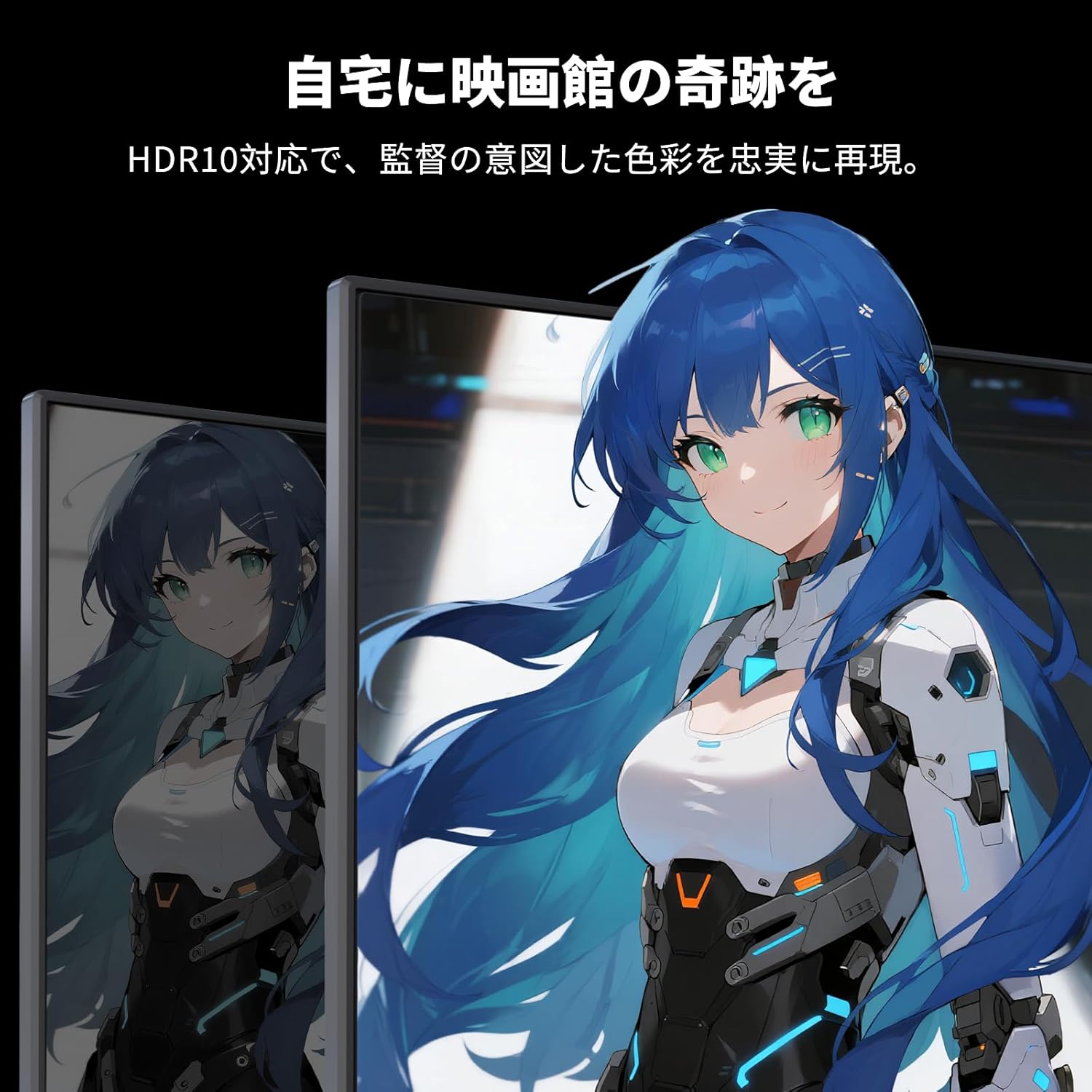
Image: A monitor showing a scene with HDR10 enabled, demonstrating improved dynamic range and detail in both bright and dark areas.
เทคโนโลยี Adaptive Sync
Adaptive Sync (FreeSync and G-Sync compatible) eliminates screen tearing and stuttering, providing a fluid gaming experience.

Image: A split screen comparison on the monitor, showing the difference between Adaptive Sync OFF (screen tearing) and ON (smooth image).
คุณสมบัติการดูแลดวงตา
The monitor includes Flicker-Free technology and a Low Blue Light mode to reduce eye strain during prolonged use.

Image: Illustrations demonstrating Flicker-Free technology and Low Blue Light mode, designed to reduce eye fatigue.
การเชื่อมต่อ
จอภาพ KTC H27S17 มีตัวเลือกการเชื่อมต่อที่หลากหลาย:
- 2 x HDMI 2.0: รองรับความละเอียด WQHD (2560x1440) ที่ 144Hz
- 2 x DisplayPort 1.4: รองรับความละเอียด WQHD (2560x1440) ที่ 180Hz
- 1 x ยูเอสบี 2.0: For firmware upgrades only.
- 1 x 3.5mm Headphone Jack: สำหรับเอาต์พุตเสียง
- 1 x DC Input: สำหรับการเชื่อมต่อไฟฟ้า
ภาพ: รายละเอียด view of the monitor's rear panel, highlighting the DC input, USB port, HDMI ports, DisplayPort inputs, and headphone jack.
Physical Adjustments
การปรับความเอียง
The monitor stand allows for tilt adjustment from -5 to 15 degrees, enabling you to find an optimal viewมุมเพื่อความสะดวกสบาย
Image: Diagram illustrating the tilt adjustment range of the monitor stand.
ความเข้ากันได้ของ VESA
The monitor is compatible with VESA 100mm x 100mm mounting standards, allowing for flexible installation with monitor arms or wall mounts.
การซ่อมบำรุง
การทำความสะอาดหน้าจอ
เช็ดหน้าจอเบาๆ ด้วยผ้านุ่มที่ไม่เป็นขุย สำหรับรอยฝังแน่น ให้เช็ดเบาๆampชุบผ้าด้วยน้ำหรือน้ำยาทำความสะอาดหน้าจอ หลีกเลี่ยงการใช้สารเคมีรุนแรงหรือวัสดุที่มีฤทธิ์กัดกร่อน
Cleaning the Monitor Body
Wipe the monitor body with a soft, dry cloth. Do not use liquid cleaners directly on the monitor.
พื้นที่จัดเก็บ
เมื่อไม่ได้ใช้งานเป็นเวลานาน ควรเก็บจอภาพไว้ในที่แห้งและเย็น หลีกเลี่ยงแสงแดดโดยตรงและอุณหภูมิที่สูงหรือต่ำเกินไป
การแก้ไขปัญหา
หากคุณพบปัญหาเกี่ยวกับจอภาพของคุณ โปรดดูวิธีแก้ไขทั่วไปต่อไปนี้:
- ไม่มีไฟฟ้า: Ensure the power cable and adapter are securely connected and the power outlet is functional.
- ไม่มีสัญญาณ: Verify that the input cable (HDMI/DisplayPort) is correctly connected to both the monitor and the source device. Select the correct input source via the OSD menu.
- ภาพกระพริบ/บิดเบี้ยว: Check cable connections. Ensure your graphics card drivers are up to date. Try adjusting the refresh rate in your device's display settings.
- พิกเซลที่ตายแล้ว: While rare, a small number of dead pixels may be within manufacturing tolerances. Refer to the warranty policy for details.
- ปัญหาเกี่ยวกับเสียง (ช่องเสียบหูฟัง): Ensure headphones are fully plugged in. Check audio settings on your connected device.
หากต้องการความช่วยเหลือเพิ่มเติม โปรดติดต่อฝ่ายบริการลูกค้าของ KTC
ข้อมูลจำเพาะ
| คุณสมบัติ | ข้อมูลจำเพาะ |
|---|---|
| ยี่ห้อ | เคทีซี |
| แบบอย่าง | H27S17 |
| ขนาดหน้าจอ | 27 นิ้ว |
| ปณิธาน | WQHD (2560 x 1440 พิกเซล) |
| อัตราส่วนภาพ | 16:9 น. |
| ความโค้ง | 1500อาร์ |
| ประเภทแผง | VA |
| อัตราการรีเฟรช | 180 เฮิรตซ์ |
| เวลาตอบสนอง | 1 มิลลิวินาที (MPRT) |
| อัตราส่วนคอนทราสต์ | 5000:1 น. |
| ความสว่าง | 300 ซีดี/ตรม. |
| ช่วงสี | sRGB 132% / DCI-P3 104% / Adobe RGB 112% |
| รองรับ HDR | HDR10 |
| การซิงค์แบบปรับตัว | FreeSync, G-Sync Compatible |
| การเชื่อมต่อ | 2x HDMI 2.0, 2x DisplayPort 1.4, 1x USB 2.0 (Upgrade only), 1x Headphone Jack |
| แท่นยึด VESA | 100มม. x 100มม. |
| การปรับความเอียง | -5 ถึง 15 องศา |
| คุณสมบัติการดูแลดวงตา | แสงสีฟ้าอ่อน ไม่กระพริบ |
การรับประกันและการสนับสนุน
KTC provides a 3-year warranty and a 12-month exchange service for this product. For any questions or issues, please contact customer support.
- โทรศัพท์: 050-3606-8990
- อีเมล: support@ktcplay.com

Image: Information regarding KTC's 3-year warranty and contact details for customer support.
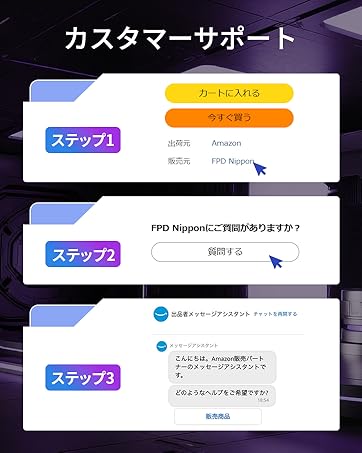
Image: Step-by-step guide on how to contact customer support via Amazon.