
1. บทนำ
This manual provides essential instructions for setting up, operating, and maintaining your Brother DCP-L2622DW multifunction laser printer. The Brother DCP-L2622DW is a versatile device offering print, scan, and copy functionalities, designed for efficient use in home or small office environments. It features high-resolution monochrome printing, automatic duplex printing, and flexible connectivity options including Wi-Fi and USB.
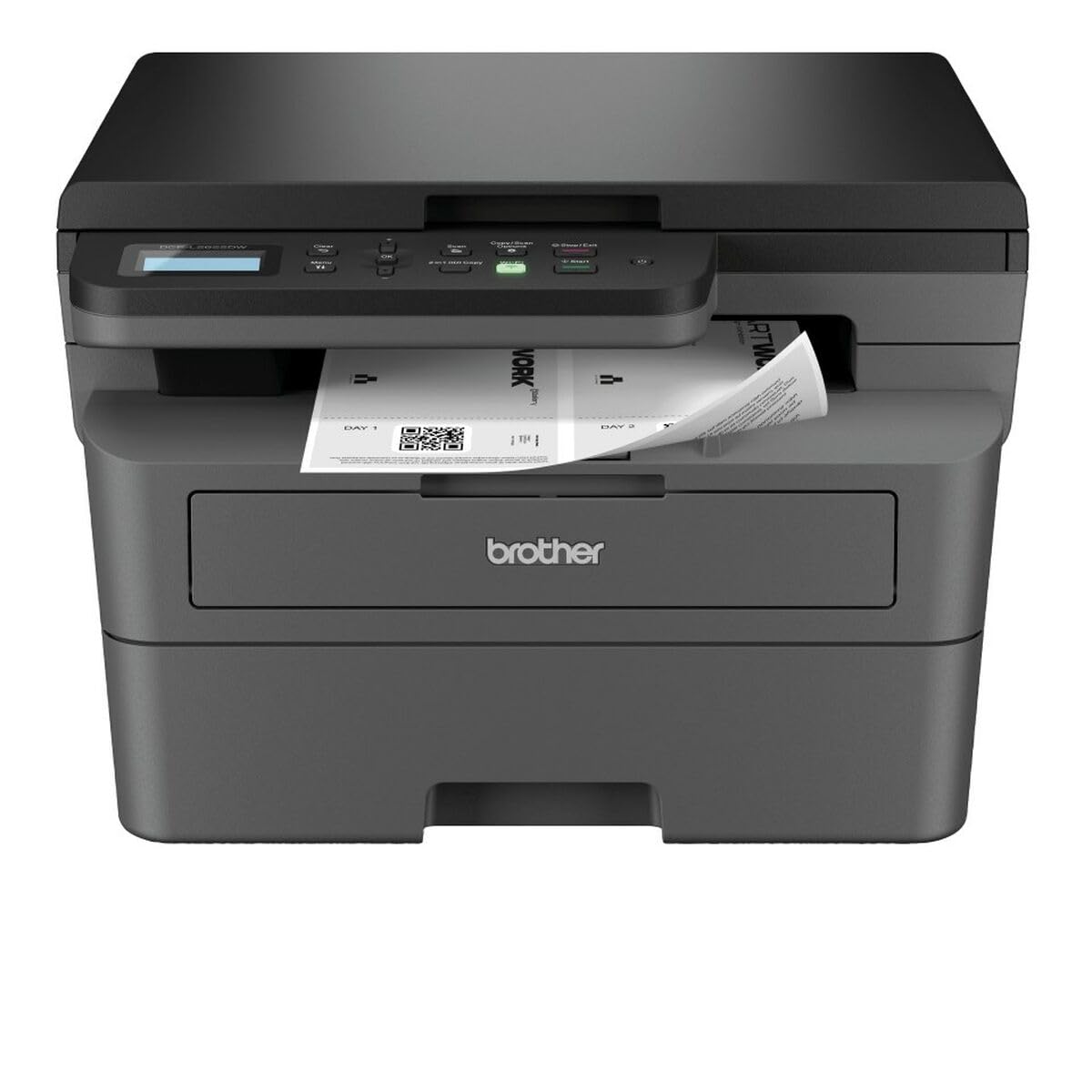
รูปที่ 1: Brother DCP-L2622DW Multifunction Laser Printer. This image displays the front view of the printer, highlighting its compact design and integrated control panel.
2. การตั้งค่า
2.1 การแกะและการจัดวาง
- นำเครื่องพิมพ์ออกจากบรรจุภัณฑ์อย่างระมัดระวัง
- นำเทปกาวป้องกันและวัสดุบรรจุภัณฑ์ทั้งหมดออกจากภายนอกและภายในเครื่องพิมพ์
- วางเครื่องพิมพ์บนพื้นผิวเรียบและมั่นคงที่มีการระบายอากาศเพียงพอ
2.2 การเชื่อมต่อสายไฟ
- ต่อสายไฟเข้ากับช่องเสียบสายไฟของเครื่องพิมพ์
- เสียบปลายอีกด้านของสายไฟเข้ากับเต้ารับไฟฟ้าที่มีสายดิน
- Do not power on the printer until all other setup steps are complete.
2.3 การติดตั้งตลับหมึกและชุดดรัม
- เปิดฝาครอบด้านหน้าของเครื่องพิมพ์
- นำตลับหมึกและชุดดรัมออกจากถุงป้องกัน
- ใส่ตลับหมึกเข้าไปในชุดดรัมให้แน่นจนกระทั่งล็อคเข้าที่
- Slide the combined toner and drum unit assembly into the printer until it clicks.
- ปิดฝาครอบด้านหน้า
2.4 กำลังโหลดกระดาษ
- ดึงถาดกระดาษออกมาให้สุด
- Adjust the paper guides to fit the paper size (e.g., A4).
- ใส่กระดาษลงในถาด โดยตรวจสอบให้แน่ใจว่ากระดาษเรียบและไม่เกินเส้นกำหนดระดับสูงสุด
- ค่อยๆ ดันถาดกระดาษกลับเข้าไปในเครื่องพิมพ์
2.5 Connecting to a Computer (USB/Wi-Fi)
- การเชื่อมต่อ USB: Connect a USB cable (not included) from the printer to your computer.
- การเชื่อมต่อ Wi-Fi:
- เปิดเครื่องพิมพ์
- Use the printer's control panel to navigate to the Network settings.
- เลือก ไว-แลน แล้วจากนั้น ตัวช่วยการตั้งค่า.
- เลือกเครือข่าย Wi-Fi ของคุณจากรายการและป้อนรหัสผ่าน
- ยืนยันการเชื่อมต่อ
2.6 การติดตั้งไดรเวอร์
- Insert the installation CD (if provided) into your computer, or download the latest drivers from the official Brother support webเว็บไซต์.
- ปฏิบัติตามคำแนะนำบนหน้าจอเพื่อดำเนินการติดตั้งไดรเวอร์ให้เสร็จสมบูรณ์
3. การใช้งานเครื่องพิมพ์
3.1 การพิมพ์ขั้นพื้นฐาน
- เปิดเอกสารที่คุณต้องการพิมพ์บนคอมพิวเตอร์ของคุณ
- เลือก พิมพ์ จากเมนูของแอปพลิเคชัน (เช่น File > พิมพ์).
- Ensure the Brother DCP-L2622DW is selected as the printer.
- Adjust print settings such as number of copies, paper size, and duplex printing (if desired).
- คลิก พิมพ์.
3.2 การพิมพ์สองด้านอัตโนมัติ
- When printing from your computer, access the printer properties or preferences.
- Look for an option related to การพิมพ์ 2 ด้าน or ดูเพล็กซ์.
- Select the desired duplex setting (e.g., Long-edge binding, Short-edge binding).
- Proceed with printing. The printer will automatically print on both sides of the paper.
3.3 การสแกนเอกสาร
- Place the document face down on the scanner glass, aligning it with the guide marks.
- From your computer, open the Brother iPrint&Scan application or other scanning software.
- เลือก สแกน and choose your desired settings (e.g., resolution, color mode, destination).
- คลิก สแกน to begin the process.
- Alternatively, you can initiate a scan from the printer's control panel and send it to your computer.
3.4 การคัดลอกเอกสาร
- วางเอกสารคว่ำหน้าลงบนกระจกสแกนเนอร์
- บนแผงควบคุมของเครื่องพิมพ์ ให้กดปุ่ม สำเนา ปุ่ม.
- Use the arrow keys to adjust the number of copies or other settings (e.g., reduce/enlarge).
- กด เริ่ม เพื่อเริ่มการคัดลอก
4. การบำรุงรักษา
4.1 การทำความสะอาดเครื่องพิมพ์
- ภายนอก: เช็ดทำความสะอาดภายนอกเครื่องพิมพ์ด้วยผ้าเนื้อนุ่มที่ไม่เป็นขุย ห้ามใช้สารทำความสะอาดที่มีฤทธิ์กัดกร่อนหรือตัวทำละลาย
- กระจกสแกนเนอร์: Gently clean the scanner glass with a soft, lint-free cloth moistened with a non-abrasive glass cleaner.
- สายไฟโคโรนา: Periodically clean the corona wire inside the drum unit by sliding the green tab from left to right several times.
4.2 การเปลี่ยนตลับหมึกและชุดดรัม
- When the printer indicates a low toner or drum life, order a replacement.
- Open the front cover and remove the old toner/drum assembly.
- Separate the toner cartridge from the drum unit.
- Unpack the new toner cartridge and insert it into the old or new drum unit until it clicks.
- ใส่ชุดประกอบใหม่เข้าไปในเครื่องพิมพ์แล้วปิดฝาครอบด้านหน้า
- Reset the drum counter if prompted by the printer.
4.3 การแก้ไขปัญหากระดาษติด
- If a paper jam occurs, the printer's display will show an error message.
- Open the appropriate covers (front cover, back cover, or paper tray) as indicated by the error message.
- ค่อยๆ ดึงกระดาษที่ติดอยู่ตามทิศทางของช่องป้อนกระดาษ ระวังอย่าให้กระดาษฉีกขาด
- Close all covers and trays. The printer should resume printing.
5 การแก้ไขปัญหา
5.1 ปัญหาทั่วไปและแนวทางแก้ไข
| ปัญหา | สาเหตุที่เป็นไปได้ | สารละลาย |
|---|---|---|
| เครื่องพิมพ์ไม่พิมพ์ | Not powered on, cable disconnected, driver issue, paper jam, out of toner. | Check power and connections. Reinstall drivers. Clear jams. Replace toner. |
| คุณภาพการพิมพ์ไม่ดี | Low toner, dirty drum unit, incorrect paper type, fuser issue. | Replace toner. Clean corona wire/drum. Use recommended paper. Contact support if fuser issue suspected. |
| การเชื่อมต่อ Wi-Fi ไม่เสถียร | Weak signal, incorrect password, router issue. | Move printer closer to router. Re-enter Wi-Fi password. Restart router and printer. |
| ข้อผิดพลาดกระดาษติด | Paper stuck in paper path. | Follow instructions in section 4.3 to clear the jam. |
5.2 ข้อความแสดงข้อผิดพลาด
Refer to the printer's LCD display for specific error codes or messages. Consult the full online manual or Brother support website for detailed explanations and solutions for each error code.
6. ข้อมูลจำเพาะ
| คุณสมบัติ | รายละเอียด |
|---|---|
| ชื่อรุ่น | DCP-L2622DW |
| ฟังก์ชั่น | พิมพ์ สแกน ถ่ายสำเนา |
| พิมพ์เทคโนโลยี | เลเซอร์ |
| ผลลัพธ์การพิมพ์ | เอกรงค์ |
| ความเร็วในการพิมพ์สูงสุด (ขาวดำ) | 34 หน้าต่อนาที |
| ความละเอียดการพิมพ์สูงสุด | 1200 x 1200 จุดต่อนิ้ว |
| เวลาออกหน้าแรก | 8.5 วินาที |
| การพิมพ์สองหน้า | อัตโนมัติ |
| ประเภทสแกนเนอร์ | รถบรรทุกพื้นเรียบ |
| Max Scan Resolution | 1200 x 1200 จุดต่อนิ้ว |
| การเชื่อมต่อ | ยูเอสบี, ไวไฟ |
| หน่วยความจำภายใน | 256MB |
| ความจุกระดาษเข้า | 250 แผ่น |
| ความจุกระดาษออก | 120 แผ่น |
| ขนาดสื่อที่รองรับ | A4, A5, A6, B5, Envelopes, Labels |
| ขนาด (D x W x H) | 42.5 x 57.5 x 42.5 ซม. |
| น้ำหนักสินค้า | 10100 กรัม |
| การใช้พลังงาน | 470 วัตต์ |
7. ข้อมูลการรับประกัน
This Brother DCP-L2622DW multifunction laser printer comes with a การรับประกันแบบจำกัด. For detailed information regarding the terms, conditions, and duration of your warranty, please refer to the warranty card included with your product or visit the official Brother support webไซต์นี้ โปรดเก็บหลักฐานการซื้อไว้เพื่อใช้ยืนยันการรับประกัน
8. การสนับสนุนลูกค้า
หากต้องการความช่วยเหลือเพิ่มเติม การสนับสนุนทางเทคนิค การดาวน์โหลดไดรเวอร์ หรือเข้าถึงคู่มือผู้ใช้ฉบับสมบูรณ์ โปรดไปที่เว็บไซต์สนับสนุนอย่างเป็นทางการของ Brother website. You can typically find support resources by searching for your model number (DCP-L2622DW) on their webเว็บไซต์.
ฝ่ายสนับสนุนอย่างเป็นทางการของ Brother Webเว็บไซต์: www.brother.com/support