1. บทนำ
Thank you for choosing the Generic Ultra Slim Wireless Bluetooth Keyboard with Touchpad. This device is designed to enhance your productivity and convenience across various operating systems and devices. This manual provides essential information for proper setup, operation, and maintenance.

Image 1.1: The Ultra Slim Wireless Bluetooth Keyboard with Touchpad.
2. สินค้าหมดview
The keyboard features a QWERTY layout, an integrated touchpad, and Bluetooth 3.0 connectivity. It is designed for portability and ease of use with tablets, smartphones, and other compatible devices.
คุณสมบัติหลัก:
- ทัชแพดแบบบูรณาการ: Allows for navigation and control without an external mouse.
- แบตเตอรี่แบบชาร์จไฟได้: แบตเตอรี่ลิเธียมขนาด 420mAh ในตัว ใช้งานได้ยาวนานขึ้น
- บางเฉียบและพกพาสะดวก: ดีไซน์น้ำหนักเบา พกพาสะดวก
- Magnetic Detachable: Can be attached to compatible protective cases (not included).
- ความเข้ากันได้กว้าง: รองรับระบบปฏิบัติการ iOS, Android และ Windows

Image 2.1: Demonstrates the touchpad functionality. For iOS devices, ensure Assistive Touch is enabled for full touchpad use.
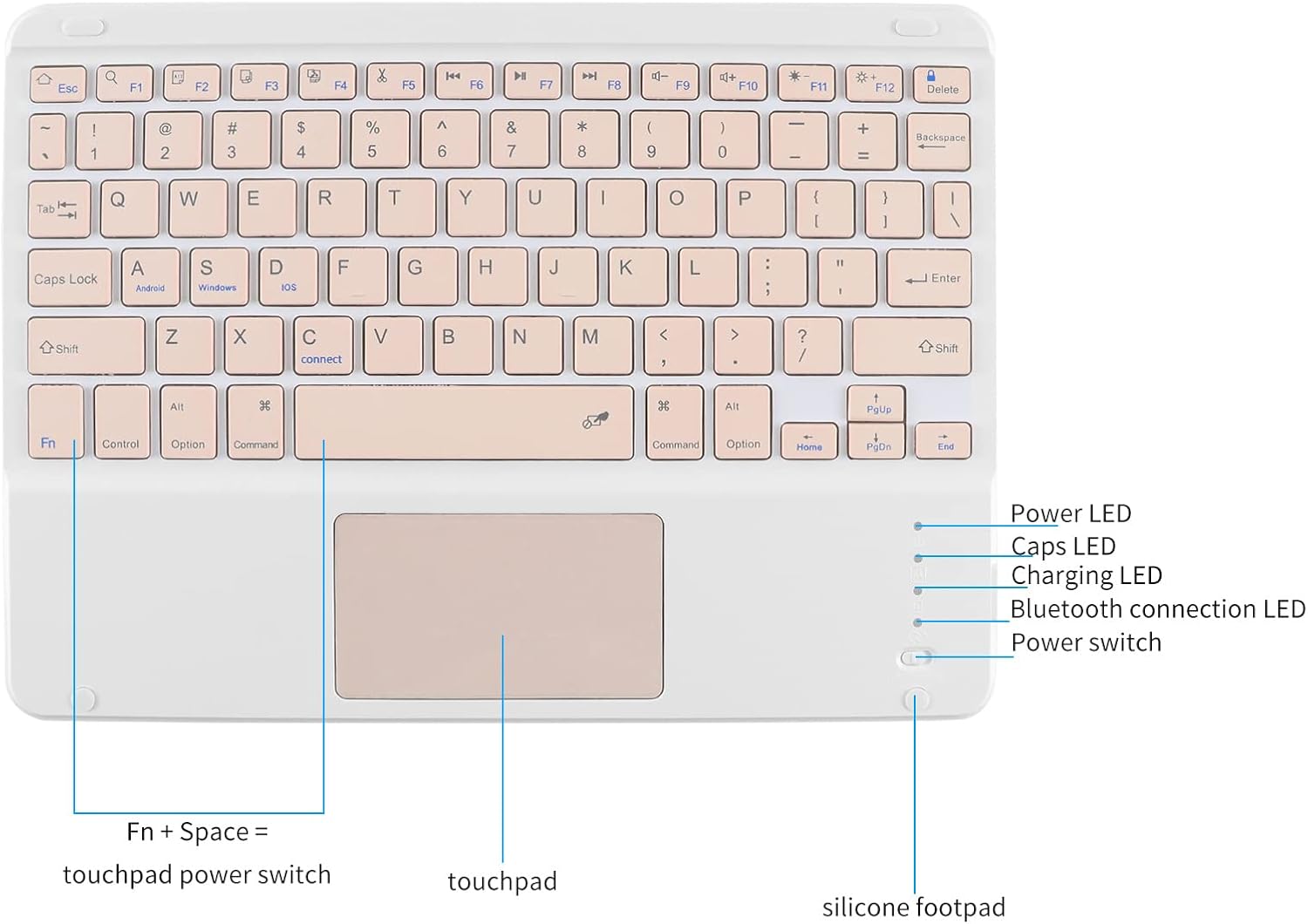
ภาพที่ 2.2: รายละเอียด view of the keyboard layout, including indicator lights for power, Caps Lock, charging, and Bluetooth connection, along with the touchpad power switch (Fn + Space).
3. การตั้งค่า
3.1 การชาร์จคีย์บอร์ด
- ค้นหาพอร์ตชาร์จ Type-C บนแป้นพิมพ์
- Connect the provided Type-C charging cable to the keyboard and a suitable USB power source.
- The charging indicator light will illuminate during charging. A full charge typically takes 2-3 hours.
- Once fully charged, the charging indicator light will turn off or change color.

Image 3.1: The keyboard's Type-C charging port and included cable.
3.2 การจับคู่บลูทูธ
- ตรวจสอบให้แน่ใจว่าแป้นพิมพ์มีประจุไฟเต็มแล้ว
- Slide the ON/OFF switch to the "ON" position. The power indicator light will illuminate for 3 seconds.
- กดปุ่ม เอฟเอ็น + ซี กดปุ่มพร้อมกัน ไฟแสดงสถานะบลูทูธจะกะพริบ แสดงว่าคีย์บอร์ดอยู่ในโหมดจับคู่
- On your device (tablet, smartphone, etc.), enable Bluetooth and search for available devices.
- Select "Bluetooth Keyboard" from the list of found devices.
- Follow any on-screen prompts to complete the pairing process. Once connected, the Bluetooth indicator light will stop flashing.
4. คู่มือการใช้งาน
4.1 การสลับระบบ
The keyboard supports multiple operating systems. Use the following key combinations to switch between modes:
- Fn + ถาม: สำหรับอุปกรณ์ Android
- Fn + W: For Windows devices.
- Fn + อี: สำหรับอุปกรณ์ iOS

Image 4.1: The keyboard is compatible with Windows, Mac OS, iOS, and Android systems.
4.2 ฟังก์ชันการทำงานของทัชแพด
The integrated touchpad allows for mouse-like navigation. Basic gestures include:
- แตะนิ้วเดียว: คลิกซ้าย.
- แตะด้วยสองนิ้ว: คลิกขวา (เมนูบริบท)
- การเลื่อนด้วยสองนิ้ว: เลื่อนขึ้น/ลง หรือ ซ้าย/ขวา
- บีบเพื่อซูม: ซูมเข้า/ออก
Important for iOS users: To utilize the touchpad function on iOS devices, you must enable the "Assistive Touch" feature in your device's accessibility settings.
4.3 มัลติมีเดียและปุ่มลัด
The keyboard includes various function keys for quick access to common commands. These typically require pressing the Fn key in combination with the desired function key (F1-F12, etc.). Exampรวมถึง:
- หน้าแรก
- ค้นหา
- การควบคุมระดับเสียง
- การควบคุมการเล่นเพลง
Note: This keyboard is primarily designed for office typing and general entertainment. It does not support gaming, desktop computers, or smart TVs.
4.4 โหมดสลีปอัตโนมัติ
To conserve battery life, the keyboard will automatically enter a sleep state if it is not used for more than a few minutes. To wake it up, simply press any key.
5. การบำรุงรักษา
5.1 การทำความสะอาด
ในการทำความสะอาดแป้นพิมพ์ ให้เช็ดพื้นผิวเบาๆ ด้วยผ้าเนื้อนุ่มและแห้งamp cloth. Avoid using harsh chemicals or abrasive materials that could damage the finish or internal components. Ensure the keyboard is powered off before cleaning.

Image 5.1: The keyboard features a metal wire drawing surface, which is anti-fingerprint and smooth to the touch.
5.2 พื้นที่จัดเก็บ
When not in use for extended periods, store the keyboard in a cool, dry place away from direct sunlight and extreme temperatures. Ensure the keyboard is powered off to prevent battery drain.
6 การแก้ไขปัญหา
6.1 แป้นพิมพ์ไม่เชื่อมต่อผ่านบลูทูธ
- ตรวจสอบให้แน่ใจว่าคีย์บอร์ดได้รับการชาร์จและเปิดอยู่
- ตรวจสอบว่าเปิดใช้งาน Bluetooth บนอุปกรณ์ของคุณแล้ว
- Make sure the keyboard is in pairing mode (Bluetooth indicator flashing after pressing เอฟเอ็น + ซี).
- Delete any previous "Bluetooth Keyboard" connections from your device's Bluetooth settings and attempt to re-pair.
- Ensure the keyboard is within the operating distance of 10 meters from your device.
6.2 ทัชแพดไม่ตอบสนอง
- Ensure the touchpad is enabled (press Fn + ช่องว่าง (เพื่อสลับ)
- For iOS devices, confirm that "Assistive Touch" is enabled in your device's accessibility settings.
- โปรดรีสตาร์ททั้งแป้นพิมพ์และอุปกรณ์ที่เชื่อมต่ออยู่
6.3 ปุ่มกดใช้งานไม่ถูกต้อง
- Verify that the keyboard is set to the correct operating system mode (Fn + Q/W/E).
- ตรวจสอบให้แน่ใจว่าแป้นพิมพ์มีประจุไฟเต็มแล้ว
- If specific keys are not working, try cleaning around them to remove any debris.
7. ข้อมูลจำเพาะ
| ขนาดสินค้า | 9.64"ยาว x 7.08"กว้าง x 0.2"สูง (24.48 x 17.98 x 0.5 ซม.) |
| น้ำหนักสินค้า | 8.5 ออนซ์ (241 กรัม) |
| เวอร์ชันบลูทูธ | บลูทูธ 3.0 |
| ระยะการทำงาน | สูงถึง 10 เมตร (33 ฟุต) |
| ความจุของแบตเตอรี่ | แบตเตอรี่ลิเธียม 420mAh |
| พอร์ตชาร์จ | ประเภทซี |
| เวลาในการชาร์จ | 2-3 ชั่วโมง |
| เวลาสแตนด์บาย | นานถึง 90 วัน |
| เวลาทำงานที่ยั่งยืน | มากกว่า 20 วัน |
| จำนวนแป้นคีย์บอร์ด | 78 คีย์ |
| อุปกรณ์ที่รองรับ | Tablet, Smartphone, Laptop, PC (with Bluetooth) |
| ระบบปฏิบัติการที่รองรับ | iOS, Android, Windows, Mac OS |

Image 7.1: Physical dimensions and weight of the keyboard.
8. เนื้อหาบรรจุภัณฑ์
แพ็คเกจประกอบด้วยรายการต่อไปนี้:
- 1 x Ultra Slim Wireless Bluetooth Keyboard with Touchpad
- สายชาร์จ Type-C 1 เส้น
- 1 x คู่มือผู้ใช้ (เอกสารนี้)
9. การรับประกันและการสนับสนุน
This product comes with a standard manufacturer's warranty. For specific warranty details, please refer to the product packaging or contact the retailer where you purchased the item. If you encounter any issues or require technical assistance, please contact customer support through your purchase platform or the manufacturer's official webเว็บไซต์.