
1. บทนำ
This manual provides comprehensive instructions for the installation, operation, and maintenance of your new Android 12 Car Stereo. Designed for Ford F150, F250, and F350 models from 2004 to 2008, this 7-inch IPS touchscreen unit offers advanced features including Wireless CarPlay, Android Auto, GPS navigation, Bluetooth connectivity, and FM/RDS radio. Please read this manual thoroughly before installation and use to ensure proper functionality and safety.
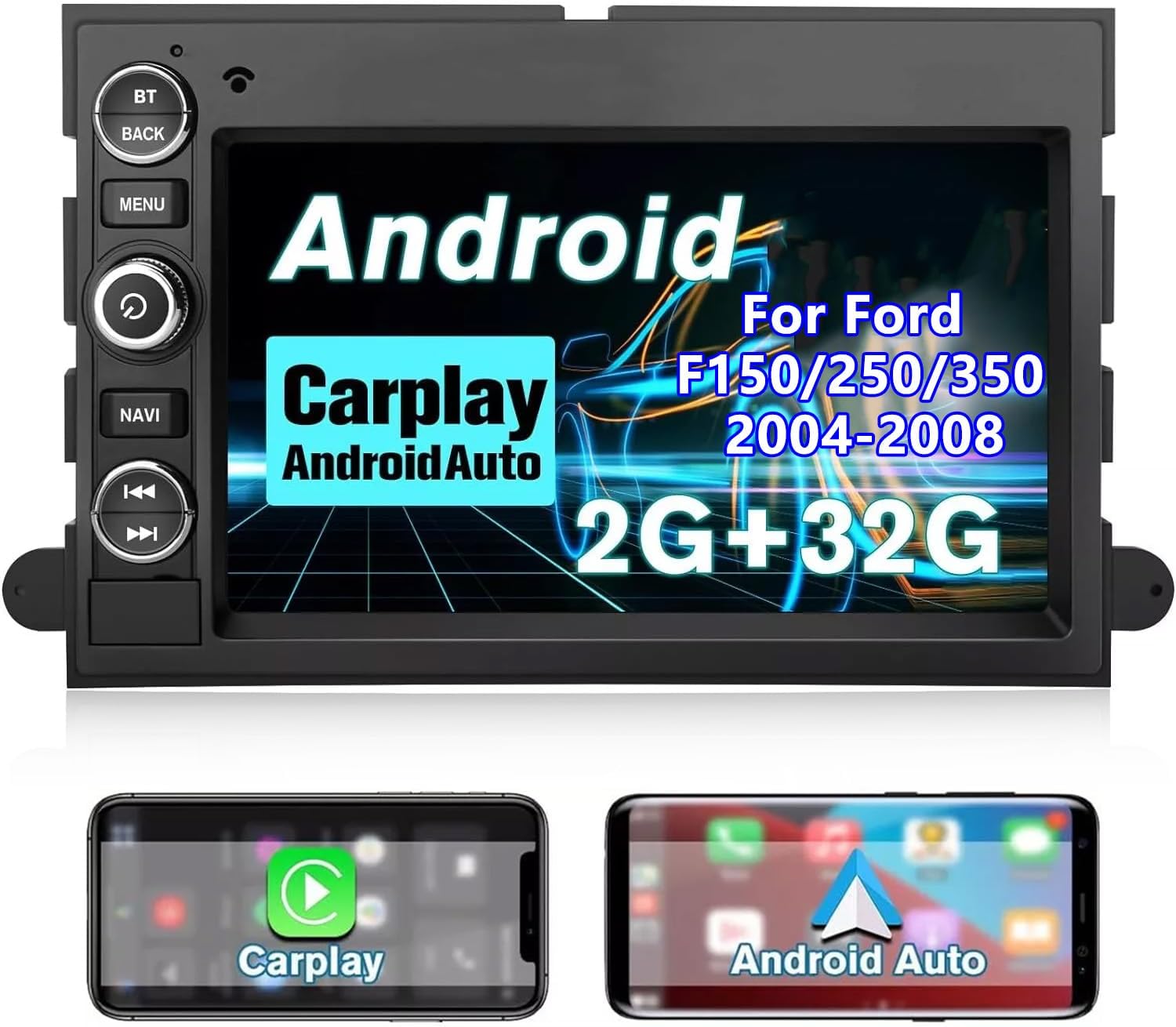
Image: The 7-inch IPS touchscreen car stereo unit, showcasing its Android interface and highlighting Wireless CarPlay and Android Auto capabilities. Below the main unit, two smartphone screens illustrate the CarPlay and Android Auto interfaces.
2. เนื้อหาบรรจุภัณฑ์
ตรวจสอบว่ารายการทั้งหมดที่ระบุไว้ด้านล่างนี้รวมอยู่ในแพ็คเกจของคุณ:
- 1 x 7-inch Screen Car Radio Unit
- 1 x Power Cord/Harness
- เสาอากาศ GPS 1 เส้น
- ไมโครโฟน 1 ตัว
- สาย 1 x RCA
- สาย USB 1 เส้น
- 1 x คู่มือผู้ใช้ (คู่มือนี้)
- Installation Tools (if included in your specific package)
3. คุณสมบัติของผลิตภัณฑ์
3.1 ระบบ Android 12
Equipped with Android 12, 2GB RAM, and 32GB ROM, this system ensures smooth operation and quick response times. The ample storage allows for installation of various applications. With Wi-Fi connectivity, you can access the Application Store and enjoy online surfing directly from your car stereo.
3.2 CarPlay ไร้สายและ Android Auto
Seamlessly integrate your smartphone with the car stereo using wireless CarPlay and Android Auto. This feature allows you to use voice commands (Siri or Google Assistant) for calls, music, messages, and navigation, promoting safer driving by minimizing distractions.
3.3 ระบบนำทาง GPS
The unit supports both offline and online GPS navigation, providing voice and visual turn-by-turn directions. Pre-installed offline maps are available, and the system is compatible with popular navigation apps like Google Maps, Waze, and Navitel.

Image: The car stereo display showing a GPS navigation map with route details, alongside icons for Google Map, Waze, Sygic, and Navitel applications.
3.4 การเชื่อมต่อบลูทูธ
Connect your phone via Bluetooth for hands-free calling and audio streaming. The built-in microphone ensures clear call quality, allowing you to stay connected safely while driving.
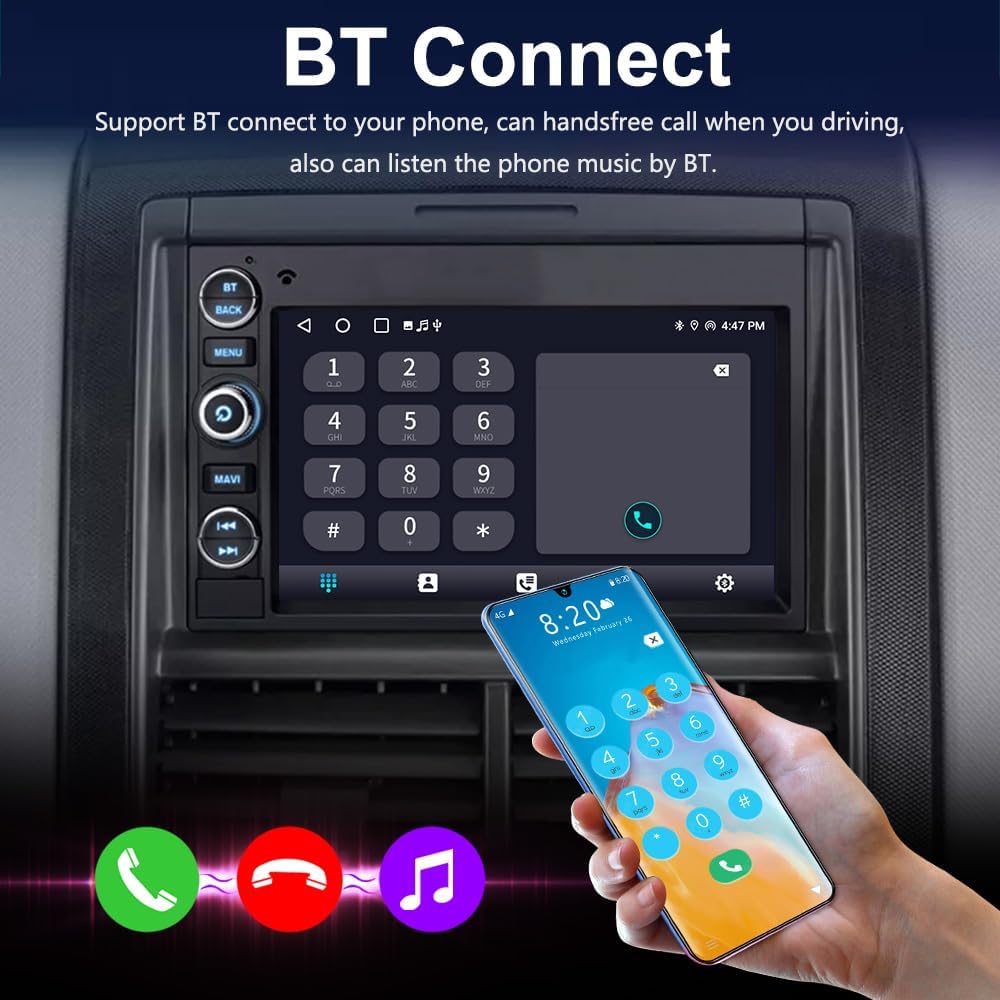
Image: The car stereo display showing the Bluetooth connection interface with a phone dial pad. A hand holds a smartphone, illustrating the connection process, with music and call icons at the bottom.
3.5 Multi EQ Settings & FM/RDS Radio
Customize your audio experience with preset multi EQ settings and adjustable volume, balance, treble, and bass controls. The built-in FM/RDS radio provides excellent reception, allowing you to enjoy your favorite stations.

Image: The car stereo display showing the Digital Sound Processor (DSP) system's equalizer settings with frequency adjustments and sound position adjustment interface.

Image: The car stereo display showing the FM Radio interface, displaying the current frequency (90.10 MHz) and preset station buttons.
4. การตั้งค่าและการติดตั้ง
This section provides general guidelines for installing the car stereo. Professional installation is recommended if you are unfamiliar with car audio wiring.
4.1 ความเข้ากันได้
This unit is designed to fit Ford F150, F250, and F350 models manufactured between 2004 and 2008.

Image: A side-by-side comparison showing the vehicle's dashboard with the original radio ("Before installation") and the new Android 12 car stereo installed ("After installation") in a Ford F150 (2004-2008).
4.2 การเชื่อมต่อสายไฟ
Refer to the diagram below for connecting the various cables to the back of the unit. Ensure all connections are secure before powering on the device.

ภาพ: รายละเอียด view of the car stereo's rear panel, indicating various connection ports with numbered labels: (1) Power Cable interface, (2) Fuse (10A), (3) RCA harness Cable, (4) USB Cable Adapter 1, (5) Reversing camera adapter cable input, (6) USB Cable Adapter 2, (7) Radio Antenna, (8) GPS Antenna.
- ถอดแบตเตอรี่: ก่อนเริ่มต้น ให้ถอดขั้วลบของแบตเตอรี่รถของคุณออกเพื่อป้องกันไฟฟ้าลัดวงจร
- นำวิทยุเครื่องเก่าออก: ถอดวิทยุติดรถยนต์เดิมออกจากแผงหน้าปัดอย่างระมัดระวัง
- เชื่อมต่อสายไฟ: Connect the provided power harness to the vehicle's wiring harness. Match wire colors and functions.
- เชื่อมต่อเสาอากาศ: Connect the GPS antenna (8) and Radio antenna (7) to their respective ports. Position the GPS antenna in a location with a clear view ของท้องฟ้า
- Connect USB/RCA Cables: Connect the USB cable adapters (4, 6) and RCA harness cable (3) as needed for external devices or ampลิตเตอร์
- Connect Reverse Camera (Optional): If installing a reverse camera, connect its cable to the reversing camera adapter cable input (5).
- ติดตั้งวิทยุใหม่: ติดตั้งเครื่องเสียงรถยนต์ใหม่ให้แน่นหนาในช่องเปิดบนแผงหน้าปัด
- ทดสอบฟังก์ชันการทำงาน: Reconnect the vehicle battery and test all functions of the stereo (power, audio, radio, GPS, Bluetooth, CarPlay/Android Auto) before fully reassembling the dashboard.
- ประกอบแดชบอร์ดใหม่: Once all functions are verified, carefully reassemble the dashboard components.
5. คู่มือการใช้งาน
This section details the operation of your car stereo's main features.
5.1 แผงควบคุมด้านหน้า
Familiarize yourself with the physical buttons on the left side of the unit:

ภาพ: ด้านหน้า view of the car stereo, highlighting the physical buttons on the left side with corresponding labels: (1) BT (Bluetooth), (2) BACK, (3) MENU, (4) Power, (5) NAVI (Navigation), (6) Previous Track, (7) Next Track.
- 1. BT (Bluetooth): Access Bluetooth functions for pairing and calls.
- 2. กลับ: กลับไปที่หน้าจอหรือเมนูก่อนหน้า
- 3. เมนู: เข้าถึงเมนูหลักหรือการตั้งค่า
- 4. กำลัง: Turn the unit on/off or mute/unmute audio (short press).
- 5. NAVI (Navigation): Quickly launch the navigation application.
- 6. Previous Track: Skip to the previous audio track.
- 7. Next Track: Skip to the next audio track.
5.2 ระบบนำทาง Android
The touchscreen interface operates similarly to an Android tablet. Swipe to navigate between screens, tap icons to open applications, and use the 'Back' button or on-screen navigation bar for system control.
5.3 CarPlay ไร้สายและ Android Auto
- ตรวจสอบให้แน่ใจว่าเปิดใช้งาน Bluetooth และ Wi-Fi บนสมาร์ทโฟนของคุณแล้ว
- ในเครื่องเสียงรถยนต์ เปิดแอปพลิเคชัน CarPlay หรือ Android Auto
- ทำตามคำแนะนำบนหน้าจอเพื่อจับคู่โทรศัพท์ของคุณผ่านบลูทูธ
- Once paired, the system will automatically connect to CarPlay or Android Auto via Wi-Fi.
- Use voice commands (Siri/Google Assistant) or the touchscreen to control navigation, music, calls, and messages.
5.4 การทำงานของบลูทูธ
- Press the 'BT' button or tap the Bluetooth icon on the screen.
- เปิดใช้งานบลูทูธบนโทรศัพท์ของคุณและค้นหาอุปกรณ์ที่มีอยู่
- Select "HC-8163-RK-F150" (or similar name) from your phone's list and confirm pairing.
- เมื่อเชื่อมต่อแล้ว คุณสามารถโทรออก/รับสาย เข้าถึงสมุดโทรศัพท์ และสตรีมเสียงได้
วิทยุ FM/RDS 5.5
- Tap the "Radio" icon on the main screen.
- Use the on-screen arrows or seek function to tune to stations.
- กดปุ่มตั้งค่าล่วงหน้า (P1-P6) ค้างไว้เพื่อบันทึกสถานีปัจจุบัน
- ระบบ RDS (Radio Data System) จะแสดงข้อมูลสถานีวิทยุหากมีให้บริการ
5.6 อีควอไลเซอร์เสียง (EQ)
- เข้าถึงแอปพลิเคชั่น "DSP" หรือ "EQ" จากเมนูหลัก
- Choose from various preset EQ modes (e.g., Pop, Rock, Jazz).
- Adjust individual frequency bands, balance, and fader settings to customize your sound.
6. การบำรุงรักษา
- การทำความสะอาด: ใช้ผ้าแห้งนุ่มๆ เช็ดทำความสะอาดหน้าจอและตัวเครื่อง สำหรับคราบสกปรกที่ขจัดยาก ให้ใช้ผ้าชุบน้ำหมาดๆ เช็ดเบาๆamp cloth with a mild, non-abrasive cleaner can be used, then wipe dry immediately. Do not use harsh chemicals or abrasive materials.
- การอัปเดตซอฟต์แวร์: ตรวจสอบการอัปเดตซอฟต์แวร์เป็นระยะผ่านการตั้งค่าระบบหรือของผู้ผลิต webไซต์เพื่อให้มั่นใจถึงประสิทธิภาพที่เหมาะสมที่สุดและการเข้าถึงฟีเจอร์ใหม่ ๆ
- การเปลี่ยนฟิวส์: If the unit loses power, check the 10A fuse located on the power cable (refer to Section 4.2, item 2). Replace with a fuse of the same rating if blown.
7 การแก้ไขปัญหา
| ปัญหา | สาเหตุที่เป็นไปได้ | สารละลาย |
|---|---|---|
| ไม่มีไฟฟ้า | ฟิวส์ขาด; การเดินสายไฟไม่ถูกต้อง; การเชื่อมต่อไฟหลวม | Check the 10A fuse. Verify all power connections are secure. Consult a professional if wiring is suspected. |
| ไม่มีเสียง | Volume too low; mute activated; speaker wiring issue; incorrect audio source. | Increase volume. Check if unit is muted. Verify speaker connections. Ensure correct audio source is selected. |
| GPS ใช้งานไม่ได้ / สัญญาณอ่อน | GPS antenna not connected or poorly positioned; software issue. | Ensure GPS antenna is securely connected and placed in a clear line of sight to the sky. Restart the unit. |
| ไม่ได้เชื่อมต่อบลูทูธ | Bluetooth not enabled on phone/unit; incorrect pairing process; interference. | Ensure Bluetooth is on for both devices. Delete previous pairings and re-pair. Move phone closer to unit. |
| CarPlay/Android Auto ไม่เปิดใช้งาน | Incorrect phone settings; app not installed/updated; connection issue. | Ensure Wi-Fi and Bluetooth are on. Check phone settings for CarPlay/Android Auto permissions. Restart phone and unit. |
8. ข้อมูลจำเพาะ
Key technical specifications for the HC-8163-RK-F150 Car Stereo:
- ชื่อรุ่น : HC-8163-RK-F150
- ยี่ห้อ: ทั่วไป
- ระบบปฏิบัติการ: แอนดรอยด์ 12
- หน่วยความจำ: แรม 2GB + รอม 32GB
- ขนาดจอแสดงผล: หน้าจอสัมผัส IPS ขนาด 7 นิ้ว
- ขนาดสินค้า : 7.4 x 3.54 x 11.42 นิ้ว
- น้ำหนักสินค้า: 3.97 ปอนด์
- เทคโนโลยีการเชื่อมต่อ: บลูทูธ, ไวไฟ, ยูเอสบี
- คุณสมบัติพิเศษ: Touchscreen, Bluetooth, Wireless CarPlay, Android Auto, GPS, FM/RDS Radio, Multi EQ Settings
- โหมดเอาต์พุตเสียง: สเตอริโอ
- ประเภทการติดตั้ง: แผงหน้าปัด
- คำสั่งเสียง: Via Touchscreen, Microphone
- ประเภทแผนที่: North America (pre-installed offline maps)

Image: A diagram illustrating the physical dimensions of the car stereo unit, showing measurements of 198mm (7.8 inches) width at the top, 188mm (7.4 inches) width at the bottom, 130mm (5.1 inches) height, and 120mm (4.7 inches) screen height, with a total width of 226mm (8.9 inches) including mounting brackets.
9. การรับประกันและการสนับสนุน
9.1 ข้อมูลการรับประกัน
ผลิตภัณฑ์นี้มาพร้อมกับ รับประกัน 1 ปี from the date of purchase. The warranty covers defects in materials and workmanship under normal use. It does not cover damage caused by improper installation, accident, misuse, abuse, neglect, or unauthorized modification.
9.2 การสนับสนุนลูกค้า
For technical assistance, troubleshooting, or warranty claims, please contact the seller or manufacturer through the platform where the product was purchased. Please have your purchase details and product model number (HC-8163-RK-F150) ready when contacting support.