
บอทสแล็บ HK30
BOTSLAB HK30 Car Dash Cam User Manual
4K+1080P+1080P Car Dash Cam with Angle Front Camera and Color Night Vision
1. บทนำ
Thank you for choosing the BOTSLAB HK30 Car Dash Cam. This manual provides detailed instructions for the installation, operation, and maintenance of your new dash camera system. Please read this manual thoroughly before using the product to ensure proper function and safety. Keep this manual for future reference.
2. ข้อมูลด้านความปลอดภัย
- ห้ามใช้งานกล้องติดรถยนต์หรือเข้าถึงการตั้งค่าขณะขับรถ ควรจอดรถข้างทางอย่างปลอดภัยก่อนทำการปรับเปลี่ยนใดๆ เสมอ
- ตรวจสอบให้แน่ใจว่ากล้องติดรถยนต์ติดตั้งอย่างแน่นหนาและไม่บดบังทัศนวิสัยของคนขับ view หรือขัดขวางการทำงานของถุงลมนิรภัย
- Use only the original power adapter and cables provided with the device. Using unauthorized accessories may damage the product and void the warranty.
- ควรหลีกเลี่ยงการนำกล้องติดรถยนต์ไปวางไว้ในที่ที่มีอุณหภูมิสูงหรือต่ำเกินไป แสงแดดส่องโดยตรงเป็นเวลานาน หรือความชื้นมากเกินไป
- อย่าพยายามถอดประกอบหรือซ่อมแซมอุปกรณ์ด้วยตนเอง ติดต่อฝ่ายสนับสนุนลูกค้าเพื่อขอความช่วยเหลือ
- Regularly format the memory card to ensure optimal recording performance.
3. เนื้อหาบรรจุภัณฑ์
กรุณาตรวจสอบแพ็คเกจสำหรับรายการต่อไปนี้:
- BOTSLAB HK30 Dash Cam Unit
- ที่ชาร์จในรถยนต์ (สายไฟ)
- Mounting Bracket (with adhesive pad)
- คู่มือการใช้งาน
- Optional: Rear Camera (if purchased as a bundle)
- ตัวเลือกเพิ่มเติม: โมดูล GPS
4. สินค้าหมดview
The BOTSLAB HK30 is a multi-channel dash cam designed to provide comprehensive coverage of your driving environment. It features a main front camera with 4K resolution, and supports additional cameras for rear and interior views (sold separately or as part of a bundle).

Image: The main BOTSLAB HK30 dash cam unit, showing the front lens and the Botslab branding.
คุณสมบัติที่สำคัญ ได้แก่:
- กล้องหน้า 4K: บันทึกวิดีโอความละเอียดสูงของถนนข้างหน้า
- กว้าง 140° Viewอิงมุม: Provides extensive coverage, minimizing blind spots.
- การมองเห็นสีกลางคืน: Enhances visibility and clarity in low-light conditions.
- GPS ในตัว: Records speed and location data for your journeys.
- จีเซ็นเซอร์: ล็อกวิดีโอโดยอัตโนมัติ files upon impact to prevent overwriting.
- การบันทึกแบบวนซ้ำ: บันทึกอย่างต่อเนื่องโดยการเขียนทับข้อมูลที่เก่าที่สุด fileเมื่อเมมโมรี่การ์ดเต็ม
- การตรวจสอบที่จอดรถ: Offers 24-hour surveillance with time-lapse recording and collision-triggered normal recording (requires buck line kit, sold separately).
- การควบคุมแอพ: Connects to your smartphone for easy settings adjustment, live view, and video download.

Image: An illustration demonstrating the 140-degree wide viewing angle of the dash cam, showing its ability to capture a broad perspective of the road.
5. การตั้งค่าและการติดตั้ง
5.1 การใส่การ์ดหน่วยความจำ
Before first use, insert a high-speed (Class 10 or higher) microSD card (up to 256GB recommended) into the dash cam's memory card slot. Ensure the card is inserted correctly until it clicks into place. Format the card via the dash cam's settings menu or the mobile app before initial recording.
5.2 การติดตั้ง Dash Cam
- ทำความสะอาดบริเวณกระจกหน้ารถที่คุณต้องการติดตั้งกล้องติดรถยนต์ ตรวจสอบให้แน่ใจว่าปราศจากฝุ่นและคราบไขมัน
- Attach the adhesive pad to the mounting bracket, then firmly press the bracket onto the chosen spot on your windshield, ideally behind the rearview กระจกเพื่อประสิทธิภาพสูงสุด view และมีสิ่งกีดขวางน้อยที่สุด
- Slide the dash cam unit onto the mounted bracket until it locks securely.
- Adjust the camera lens angle to ensure it captures the road ahead clearly, with approximately 60% road and 40% sky visible.
5.3 การเชื่อมต่อสายไฟ
- Connect the provided car charger cable to the dash cam's power input port.
- เสียบปลายอีกด้านหนึ่งของเครื่องชาร์จในรถยนต์เข้ากับเต้ารับไฟ 12V ของรถของคุณ (ช่องจุดบุหรี่)
- Route the power cable neatly along the edge of the windshield and dashboard to conceal it and prevent interference with driving.
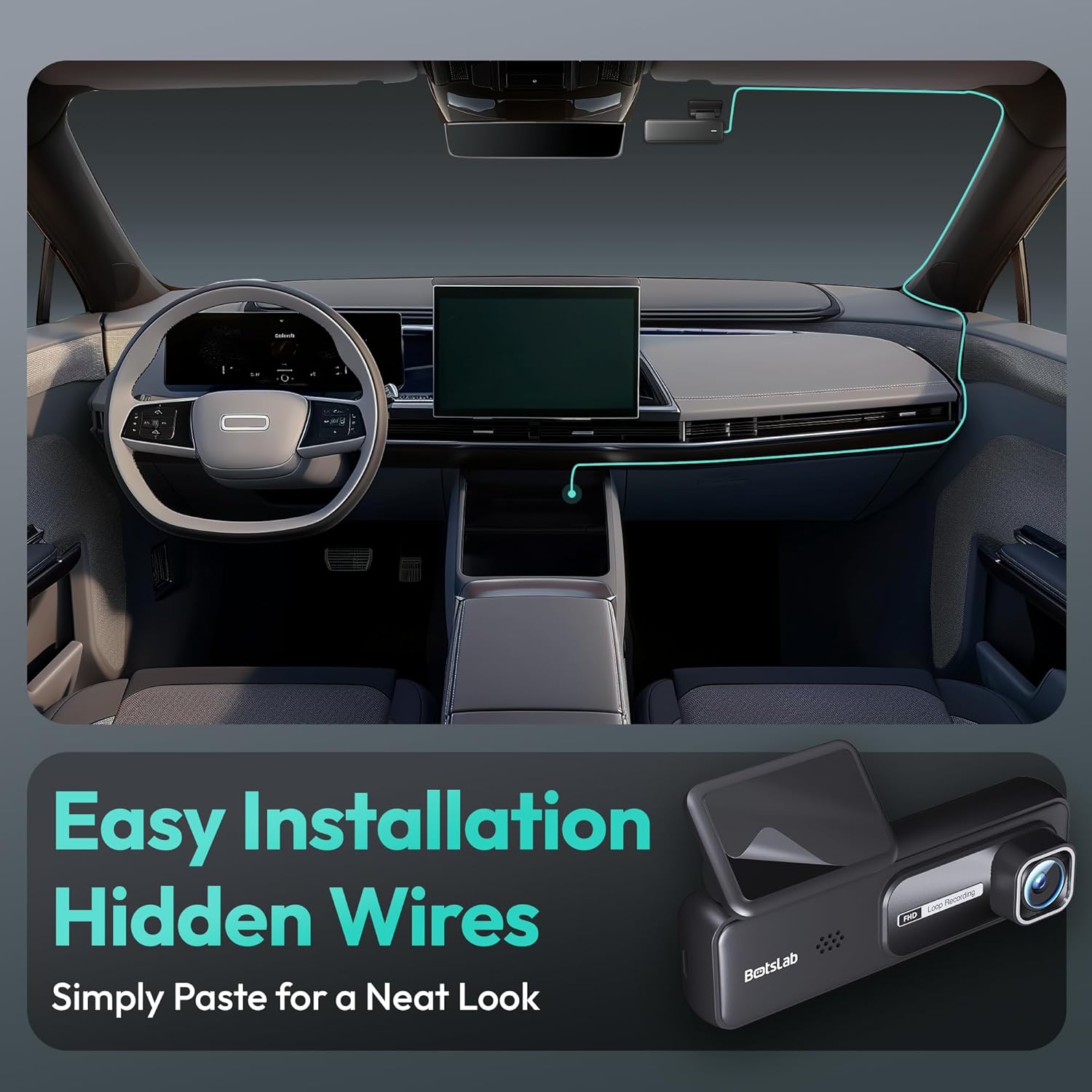
Image: A visual guide illustrating the process of easy dash cam installation with hidden wires, showing how to route the cable neatly along the car's interior for a clean look.
5.4 GPS Module Connection (if applicable)
If your package includes a separate GPS module, connect it to the designated port on the dash cam. Ensure the GPS module is placed in an area with a clear view ของท้องฟ้าเพื่อการรับสัญญาณที่ดีที่สุด
6. คู่มือการใช้งาน
6.1 การบันทึกอัตโนมัติ
Once powered on and connected to your vehicle's ignition, the dash cam will automatically start recording when the engine is started. It will stop recording and power off shortly after the engine is turned off.
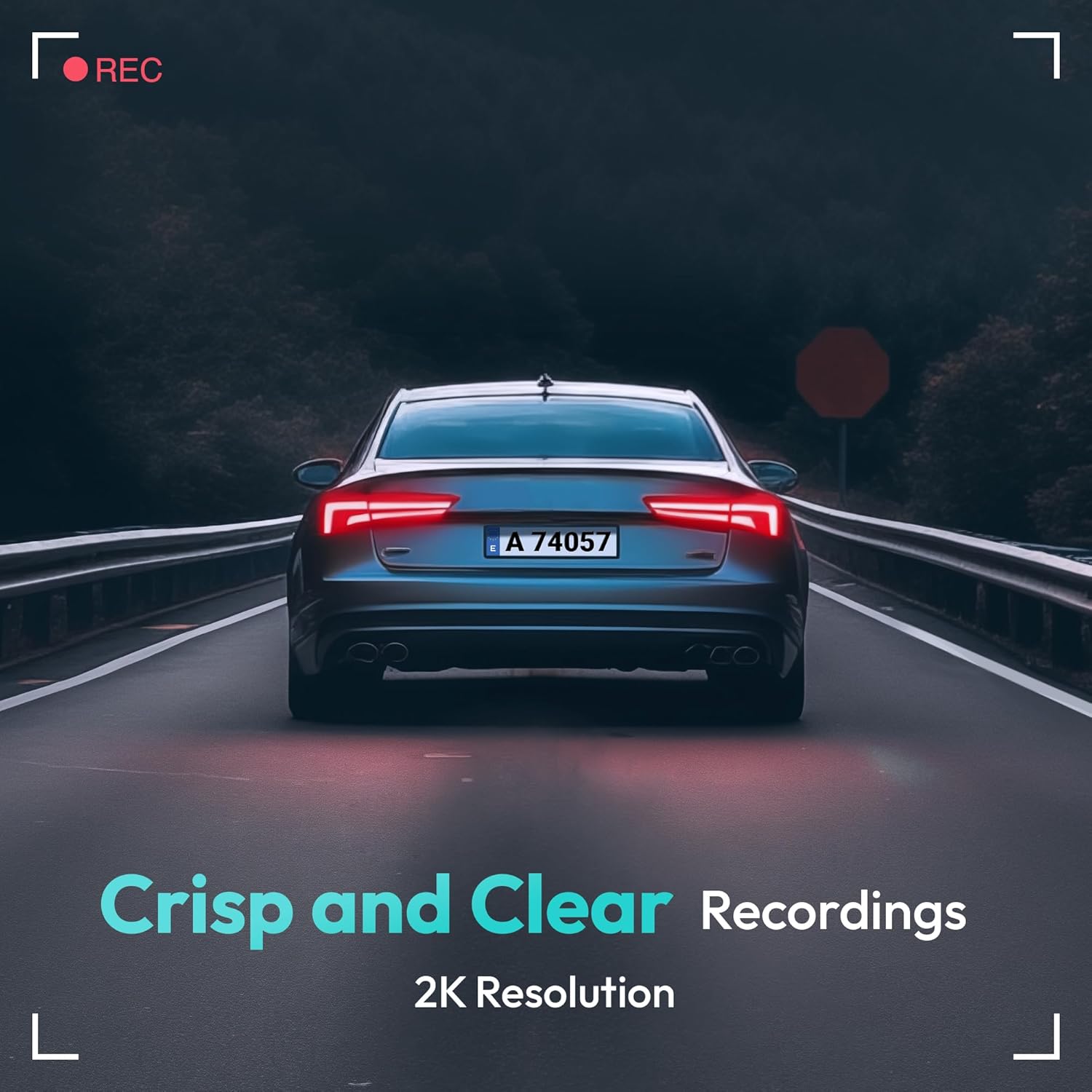
Image: A visual representation highlighting the crisp and clear recording capabilities of the dash cam, indicating 2K resolution for detailed footage.
6.2 การบันทึกแบบวนซ้ำ
The dash cam records video in continuous loops (e.g., 1, 3, or 5-minute segments). When the memory card is full, the oldest unlocked fileไฟล์ s จะถูกบันทึกทับโดยอัตโนมัติด้วยไฟล์บันทึกใหม่ ซึ่งช่วยให้สามารถบันทึกได้อย่างต่อเนื่องโดยไม่ต้องมีการแทรกแซงด้วยตนเอง
6.3 เซ็นเซอร์ G (การบันทึกฉุกเฉิน)
The built-in G-Sensor detects sudden impacts or collisions. When an impact is detected, the current video segment will be automatically locked and saved to a protected folder on the memory card, preventing it from being overwritten by loop recording. These files are crucial for accident evidence.
6.4 การตรวจสอบที่จอดรถ
For 24-hour parking surveillance, a hardwire kit (buck line) is required (sold separately). Once installed, the dash cam can utilize:
- การบันทึกไทม์แลปส์: Records continuously at a low frame rate to save storage space while providing a full overview of parking events.
- Collision-Triggered Recording: If an impact is detected while parked, the dash cam will wake up and record a short video segment, which will be locked.

Image: An illustration depicting the 24/7 parking monitoring feature, highlighting time-lapse recording and collision-triggered normal recording capabilities, with a shield icon indicating protection.
6.5 การควบคุมแอปและการเชื่อมต่อ
Download the official BOTSLAB app from your smartphone's app store. Connect your phone to the dash cam's Wi-Fi network (SSID and password usually found on the device or in the manual). Through the app, you can:
- View ฟีดวิดีโอสด
- Adjust dash cam settings (resolution, G-sensor sensitivity, loop recording duration, etc.).
- เล่นวิดีโอที่บันทึก
- ดาวน์โหลดวีดีโอ fileตรงไปยังโทรศัพท์ของคุณ
- อัปเดตเฟิร์มแวร์
6.6 GPS Tracking and Playback
With the GPS module connected, the dash cam records your vehicle's speed and location data. This information can be viewed during video playback using the dedicated PC viewer software (available for download from the BOTSLAB website) or within the mobile app, often overlaid on a map (e.g., Google Maps).
7. การบำรุงรักษา
7.1 การทำความสะอาดเครื่อง
Use a soft, dry cloth to clean the dash cam's lens and body. Do not use liquid cleaners or abrasive materials, as they may damage the device.
7.2 การจัดการการ์ดหน่วยความจำ
It is recommended to format the microSD card once a month to maintain optimal performance and prevent data corruption. Back up any important fileก่อนทำการฟอร์แมต
การอัปเดตเฟิร์มแวร์ 7.3 รายการ
Periodically check the BOTSLAB official website or the mobile app for available firmware updates. Firmware updates can improve performance, add new features, or fix bugs. Follow the instructions provided with the firmware update carefully.
8 การแก้ไขปัญหา
| ปัญหา | สาเหตุที่เป็นไปได้ | สารละลาย |
|---|---|---|
| กล้องติดรถยนต์ไม่สามารถเปิดได้ | ไม่มีไฟเลี้ยง; สายไฟชำรุด; ช่องเสียบไฟในรถยนต์มีปัญหา | Check power cable connection; try another power outlet; ensure vehicle ignition is on. |
| การบันทึกหยุดหรือหยุดนิ่ง | Memory card full or corrupted; slow memory card; firmware issue. | Format memory card; use a high-speed (Class 10+) card; update firmware. |
| คุณภาพวิดีโอไม่ดี | เลนส์สกปรก; ฟิล์มป้องกันยังติดอยู่บนเลนส์; การตั้งค่าความละเอียดไม่ถูกต้อง | Clean the lens; remove protective film; set recording resolution to highest available. |
| ไม่พบสัญญาณ GPS | GPS module not connected; poor satellite reception. | Ensure GPS module is connected; move vehicle to an open area with clear sky view. |
| ไม่สามารถเชื่อมต่อ Wi-Fi/แอปได้ | Incorrect Wi-Fi password; phone too far from device; app not updated. | Verify Wi-Fi password; ensure phone is close to dash cam; update app. |
9. ข้อมูลจำเพาะ
| คุณสมบัติ | รายละเอียด |
|---|---|
| ชื่อรุ่น | 30 เหรียญฮ่องกง |
| ความละเอียดในการจับภาพวิดีโอ | Front: 4K (1944p), Rear/Interior: 1080P (if applicable) |
| Viewอิงแองเกิล | 140° (ด้านหน้า) |
| เทคโนโลยีการเชื่อมต่อ | พอร์ต USB, ไร้สาย (Wi-Fi) |
| คุณสมบัติพิเศษ | App Control, G-Sensor, Loop Recording, Parking Monitor, Color Night Vision |
| พื้นที่จัดเก็บ | MicroSD Card (up to 256GB, Class 10 or higher) |
| ประเภทการติดตั้ง | ที่ยึดกระจกหน้า |
| แหล่งพลังงาน | Car Charger (12V) |
| ขนาดสินค้า | 2 x 5.5 x 5.5 นิ้ว |
| น้ำหนักสินค้า | 9.6 ออนซ์ |
10. การรับประกันและการสนับสนุน
BOTSLAB products come with a limited warranty. Please refer to the warranty card included in your package or visit the official BOTSLAB website for detailed warranty terms and conditions. For technical support, troubleshooting assistance, or any inquiries, please contact BOTSLAB customer service through the contact information provided on their official webบนเว็บไซต์หรือภายในแอปพลิเคชันบนมือถือ
Webเว็บไซต์: www.botslab.com (อดีตampโปรดดูเอกสารผลิตภัณฑ์จริงเพื่อความถูกต้อง URL)
Ask a question about this manual
Ask about setup, troubleshooting, compatibility, parts, safety, or missing instructions. Manuals+ will review the question and use this page’s manual context to help answer it.