
1. บทนำ
This manual provides essential instructions for the safe and efficient use of your Brother DCP-L2605DW Auto Duplex Laser Printer. This multifunction device offers print, scan, and copy capabilities, designed for home and small office environments. Please read this manual thoroughly before operating the printer and keep it for future reference.

Image: The Brother DCP-L2605DW multifunction laser printer, a compact device for printing, scanning, and copying.
2. อะไรอยู่ในกล่อง
ตรวจสอบว่าบรรจุภัณฑ์มีส่วนประกอบทั้งหมด:
- Brother DCP-L2605DW Laser Printer Unit
- สายไฟ
- สาย USB
- แผ่นซีดีการติดตั้ง (สำหรับไดรเวอร์และซอฟต์แวร์)
- Inbox Toner Cartridge (TN-2570XL, approximately 3000 pages yield)
3. การตั้งค่า
3.1 การแกะกล่องและการวางตำแหน่งเริ่มต้น
Carefully remove the printer from its packaging. Place the printer on a stable, flat surface with adequate ventilation. Ensure sufficient space around the printer for paper trays and cable connections.
3.2 การติดตั้งตลับหมึก
- เปิดฝาครอบด้านหน้าของเครื่องพิมพ์
- นำชุดดรัมและตลับหมึกออกจากถุงป้องกัน
- เขย่าตลับหมึกเบาๆ ในแนวนอนหลายๆ ครั้ง เพื่อกระจายผงหมึกให้ทั่วถึง
- ใส่ตลับหมึกเข้าไปในชุดดรัมให้แน่นจนกระทั่งล็อคเข้าที่
- เลื่อนชุดดรัมและตลับหมึกกลับเข้าไปในเครื่องพิมพ์
- ปิดฝาครอบด้านหน้า
3.3 กำลังโหลดกระดาษ
- ดึงถาดกระดาษออกจากเครื่องพิมพ์จนสุด
- ปรับตัวกั้นกระดาษให้พอดีกับขนาดของกระดาษที่คุณกำลังใส่เข้าไป
- Load up to 250 sheets of paper (up to 163 GSM) into the tray. Ensure the paper is flat and not curlบก.
- ค่อยๆ ดันถาดกระดาษกลับเข้าไปในเครื่องพิมพ์จนกระทั่งได้ยินเสียงคลิกเข้าที่
3.4 การเชื่อมต่อสายไฟ
Connect the power cable to the printer and then to a grounded electrical outlet. Turn on the printer using the power button.
3.5 ตัวเลือกการเชื่อมต่อ
Your printer supports multiple connectivity methods:
- ยูเอสบี 2.0: เชื่อมต่อเครื่องพิมพ์เข้ากับคอมพิวเตอร์โดยตรงโดยใช้สาย USB ที่ให้มา
- อีเธอร์เน็ต (LAN): Connect the printer to your network router or switch using an Ethernet cable for wired network access.
- Wi-Fi (เครือข่ายไร้สาย): Connect the printer to your wireless network. Follow the on-screen instructions on the printer's LCD display to configure Wi-Fi settings.
- Wi-Fi Direct: Allows direct connection from mobile devices without a router. Refer to the printer's LCD menu for Wi-Fi Direct setup.
3.6 การติดตั้งไดรเวอร์และซอฟต์แวร์
Insert the included Installation CD into your computer's CD-ROM drive and follow the on-screen instructions to install the necessary drivers and software. Alternatively, download the latest drivers from the official Brother support webเว็บไซต์.
วิดีโอ: สั้นเกินไปview of the Brother DCP-L2605DW printer, highlighting its features and specifications. This video provides a visual summary of the product's capabilities and design.
4. คู่มือการใช้งาน
4.1 การพิมพ์เอกสาร
วิธีการพิมพ์จากคอมพิวเตอร์หรืออุปกรณ์มือถือ:
- Ensure the printer is powered on and connected to your device or network.
- เปิดเอกสารหรือรูปภาพที่คุณต้องการพิมพ์
- เลือก พิมพ์ จากเมนูของแอปพลิเคชัน
- เลือก บราเธอร์ ดีซีพี-แอล2605ดีดับบลิว ในฐานะเครื่องพิมพ์ของคุณ
- Adjust print settings such as paper size, orientation, and number of copies.
- สำหรับ Automatic Duplex Printing (2-sided printing), select the duplex option in your printer settings.
- คลิก พิมพ์.

Image: Icon representing automatic duplex printing, a feature that allows printing on both sides of the paper automatically.
4.2 การสแกนเอกสาร
You can scan documents using the flatbed scanner:
- วางเอกสารคว่ำหน้าลงบนกระจกสแกนเนอร์
- From your computer, open the Brother ControlCenter software or a compatible scanning application.
- เลือก สแกน and choose your desired scan settings (e.g., resolution, color mode, destination).
- เริ่มการสแกน ภาพที่สแกนแล้วจะถูกบันทึกไว้ในตำแหน่งที่คุณระบุ
4.3 การคัดลอกเอกสาร
To make copies directly from the printer:
- วางเอกสารคว่ำหน้าลงบนกระจกสแกนเนอร์
- Use the control panel on the printer to select สำเนา.
- Adjust settings such as number of copies, enlarge/reduce, and quality.
- กดปุ่ม เริ่ม ปุ่มเพื่อเริ่มการคัดลอก
4.3.1 2-in-1 (ID) Copy Function
This feature allows you to copy both sides of an ID card onto a single sheet of paper.
- Place the ID card on the scanner glass, aligning it with the indicated marks.
- กดปุ่ม 2 ใน 1 (ID) สำเนา ปุ่มบนแผงควบคุม
- Follow the prompts on the LCD display to scan the first side, then flip the card and scan the second side.
- The printer will print both sides onto one page.

Image: Close-up of the printer's control panel, highlighting the '2 in 1 (ID) Copy' button for convenient ID card copying.
5. การบำรุงรักษา
5.1 การเปลี่ยนตลับหมึก
When the 'Toner Low' or 'Replace Toner' message appears on the LCD, it's time to replace the toner cartridge.
- เปิดฝาครอบด้านหน้าของเครื่องพิมพ์
- Remove the drum unit and old toner cartridge assembly.
- Press the release lever on the drum unit and remove the old toner cartridge.
- Unpack the new TN-2570XL toner cartridge and gently shake it.
- Insert the new toner cartridge into the drum unit until it clicks.
- Slide the drum unit and new toner cartridge assembly back into the printer.
- ปิดฝาครอบด้านหน้า
5.2 การทำความสะอาดเครื่องพิมพ์
การทำความสะอาดอย่างสม่ำเสมอช่วยรักษาคุณภาพการพิมพ์และยืดอายุการใช้งานของเครื่องพิมพ์
- ภายนอก: เช็ดทำความสะอาดภายนอกเครื่องพิมพ์ด้วยผ้าเนื้อนุ่มที่ไม่เป็นขุย
- กระจกสแกนเนอร์: เช็ดทำความสะอาดกระจกสแกนเนอร์ด้วยผ้าแห้งเนื้อนุ่ม สำหรับคราบฝังแน่น ให้ใช้ผลิตภัณฑ์ทำความสะอาดกระจกปริมาณเล็กน้อยชุบลงบนผ้า (อย่าใช้โดยตรงกับกระจก)
- สายไฟโคโรนา: Periodically clean the corona wire inside the drum unit by sliding the green tab from left to right several times. Return the tab to its home position.
5.3 การแก้ไขปัญหากระดาษติด
If a paper jam occurs, the printer's LCD will display an error message. Follow the on-screen instructions or refer to the full user guide for detailed steps to clear the jam from various locations (e.g., paper tray, fuser unit, back cover).
6 การแก้ไขปัญหา
This section addresses common issues you might encounter. For more detailed troubleshooting, refer to the comprehensive user manual or Brother's support webเว็บไซต์.
- เครื่องพิมพ์ไม่ตอบสนอง: Check power connections, USB/Ethernet cables, and Wi-Fi status. Restart the printer and computer.
- คุณภาพการพิมพ์ไม่ดี: Check toner levels. Clean the corona wire. Ensure correct paper type and quality settings.
- กระดาษติด: Follow the instructions in Section 5.3 to clear any jammed paper. Ensure paper is loaded correctly and not overfilled.
- ปัญหาการเชื่อมต่อเครือข่าย: Verify Wi-Fi password, network cable connection, and router status. Try restarting your router and printer.
- ปัญหาไดร์เวอร์: Reinstall printer drivers from the installation CD or Brother's webเว็บไซต์.
7. ข้อมูลจำเพาะ
| คุณสมบัติ | คำอธิบาย |
|---|---|
| ประเภทเครื่องพิมพ์ | เลเซอร์ขาวดำ |
| ฟังก์ชั่น | พิมพ์ สแกน ถ่ายสำเนา |
| ความเร็วในการพิมพ์ (ขาวดำ) | สูงสุด 30 หน้าต่อนาที (ppm) |
| ความละเอียดในการพิมพ์ | สูงสุด 1200 x 1200 dpi |
| การพิมพ์สองหน้า | ระบบอัตโนมัติ (2 ด้าน) |
| การเชื่อมต่อ | Hi-Speed USB 2.0, Ethernet, Wi-Fi (IEEE 802.11a/b/g/n), Wi-Fi Direct |
| หน่วยความจำ | 256MB |
| ความจุกระดาษเข้า | 250 แผ่น (ถาดมาตรฐาน) |
| ประเภทสื่อ | กระดาษธรรมดา |
| ขนาดสื่อ | A4, Letter, B5 (JIS), B5 (ISO), A5, A6, Executive, Legal, Folio, etc. |
| ประเภทสแกนเนอร์ | รถบรรทุกพื้นเรียบ |
| ความเร็วในการถ่ายเอกสาร (ขาวดำ) | สูงสุด 30 สำเนาต่อนาที (cpm) |
| ขนาด (D x W x H) | 39.9D x 41W x 27.2H เซนติเมตร |
| น้ำหนัก | 10.1 กิโลกรัม |
| ระบบปฏิบัติการที่รองรับ | วินโดวส์, แมค, ลินุกซ์ |
| ความเข้ากันได้กับอุปกรณ์พกพา | แอนดรอยด์, ไอโอเอส |
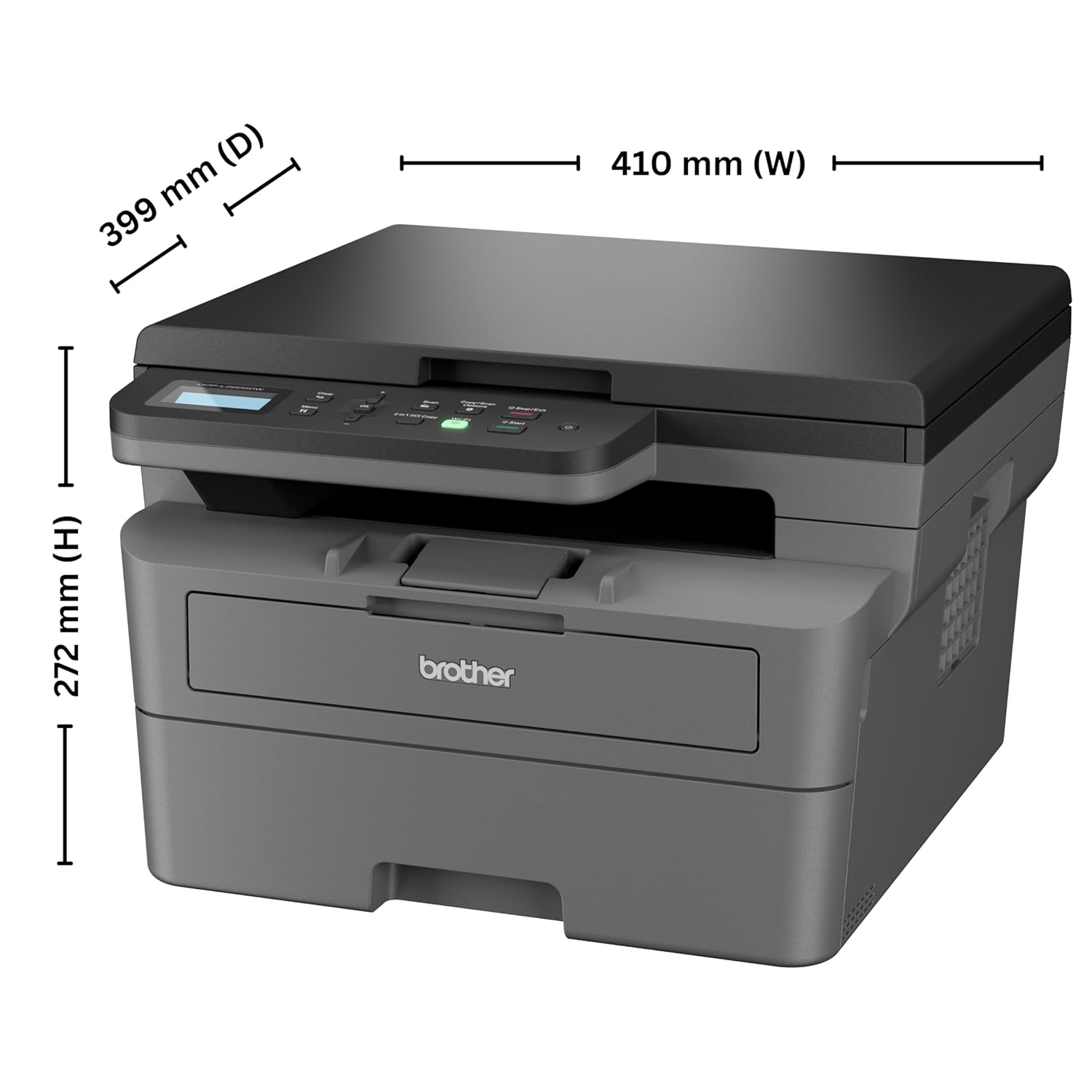
Image: Diagram showing the dimensions of the Brother DCP-L2605DW printer: 399 mm (D), 410 mm (W), 272 mm (H).
8. ข้อมูลการรับประกัน
Your Brother DCP-L2605DW printer comes with a การรับประกันจากผู้ผลิต 1 ปี. Please retain your purchase receipt as proof of purchase for warranty claims. For detailed terms and conditions, refer to the warranty card included with your product or visit the official Brother webเว็บไซต์.
9. การสนับสนุนและการติดต่อ
For technical assistance, product inquiries, or service requests, please contact Brother support:
- หมายเลขโทรฟรี:
- 1-800-222-422 (For MTNL and BSNL users)
- 1-800-209-8904 (For Others and all Mobiles)
Operating Hours: Monday to Friday - 8:30 AM - 6:30 PM | Saturday - 9:00 AM - 6:00 PM
- การสนับสนุนทางอีเมล์: customercare@brother.in
- การสนับสนุน WhatsApp: 7045 450 450
- เป็นทางการ Webเว็บไซต์: www.brother.in

Image: Graphic displaying Brother's customer support contact details, including toll-free numbers, email, WhatsApp, and webเว็บไซต์.