
1. บทนำ
The OBSBOT Tiny 2 Lite is an advanced AI-powered 4K UHD PTZ webcam designed for various applications including live streaming, online meetings, and educational purposes. It features AI auto-tracking with auto-zoom, gesture control, and a high-quality 1/2" CMOS sensor for stunning video clarity. This manual provides detailed instructions for setting up, operating, maintaining, and troubleshooting your OBSBOT Tiny 2 Lite webลูกเบี้ยว.
2. สินค้าหมดview
2.1 เนื้อหาบรรจุภัณฑ์
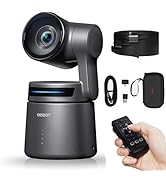
- OBSBOT Tiny 2 Lite Webลูกเบี้ยว
- ขาตั้งกล้องขนาดเล็ก
- สาย USB-C ถึง USB-A
- อะแดปเตอร์ USB-A เป็น USB-C
- คู่มือการใช้งาน (เอกสารนี้)
2.2 ส่วนประกอบของกล้อง

The OBSBOT Tiny 2 Lite features several key components:
- 4K Ultra HD Lens: The primary camera lens for capturing high-resolution video.
- ตัวระบุกล้อง: An LED light that indicates the camera's status (e.g., active, tracking, sleep mode).
- ไมโครโฟนคู่: Built-in omni-directional microphones for clear audio capture with noise reduction.
- พอร์ต USB-C: The main connection port for power and data transfer to your computer.
- UNC 1/4-20 Interface: A standard tripod mount located at the bottom for attaching to the included mini tripod or other compatible mounts.
2.3 คุณสมบัติหลัก
- AI Auto Tracking with Auto Zoom: Utilizes a deep neural learning network algorithm for real-time tracking with improved framing and customizable composition lines. Automatically adjusts zoom to keep the subject in frame.
- Accurate Body Part Tracking: Supports close-up tracking for detailed video and upper body tracking for smooth, accurate framing.
- Customized Preset Modes: Enhance productivity with pre-configured PTZ (Pan-Tilt-Zoom) positions, AI Tracking Modes, adaptable Focus Modes, and customizable image settings.
- การควบคุมท่าทาง 2.0: Activate various features from a distance using hand gestures, including locking/unlocking target, zooming in/out, and dynamic zoom.
- Stunning 4K Video Quality: Captures UHD 4K resolution at 30fps and 1080P at 60fps for high-quality video.
- Reliable 1/2" CMOS Sensor: Advanced sensor enhances image quality, providing superior low-light performance and optimized HDR capabilities.
- Precise, Deft Auto Focus (PDAF): Phase Detection Auto Focus technology quickly identifies and locks onto objects for consistent performance.
- โหมดถ่ายภาพสร้างสรรค์: Supports Landscape, Portrait, and Upside-down shooting modes for versatile filming scenarios.
- OBSBOT Center App: ขยายออกไป webcam's potential with PTZ control, Beauty Mode, Preset Modes setups, and other features.
- Dynamic HDR AutoLight Correction: Intelligent HDR imaging for clarity and balance in various lighting conditions.
- Dual-Mic Clarity Boost: Capture pristine audio even in noisy environments with adjustable noise reduction and voice boost.
3. การตั้งค่า
3.1 การเชื่อมต่อ Webลูกเบี้ยว
The OBSBOT Tiny 2 Lite is designed for plug-and-play operation, requiring no driver installation for basic functionality.
- Attach the mini tripod to the UNC 1/4-20 interface at the bottom of the webcam, if desired.
- Connect the USB-C end of the provided cable to the USB-C port on the OBSBOT Tiny 2 Lite.
- ต่อปลายอีกด้านของสายเคเบิล (USB-A หรือ USB-C โดยใช้อะแดปเตอร์หากจำเป็น) เข้ากับพอร์ต USB ที่ว่างอยู่บนคอมพิวเตอร์ของคุณ
- The camera indicator light will illuminate, indicating the device is powered on and initializing.
Note: For Mac users, you may need to authorize webcam permissions in your system settings. This process does not involve any user privacy leakage issues.
3.2 Installing OBSBOT Center Software (Optional)
To unlock the full potential and advanced features of your OBSBOT Tiny 2 Lite, it is recommended to download and install the OBSBOT Center software from the official OBSBOT webเว็บไซต์.
- Visit the official OBSBOT webเว็บไซต์.
- Navigate to the support or download section for the OBSBOT Tiny 2 Lite.
- Download the latest version of the OBSBOT Center software compatible with your operating system.
- ปฏิบัติตามคำแนะนำบนหน้าจอเพื่อทำการติดตั้งให้เสร็จสมบูรณ์

4. คู่มือการใช้งาน
4.1 AI Auto Tracking and Auto Zoom
The OBSBOT Tiny 2 Lite uses an advanced AI algorithm to track your movement and automatically adjust the zoom, keeping you perfectly framed.

The system can perform:
- Close-up Tracking: Captures detailed and high-quality video for an engaging viewการสร้างประสบการณ์
- Upper Body Tracking: Focuses on your upper body, ensuring accurate and smooth tracking for optimal video quality.

4.2 การควบคุมด้วยท่าทาง 2.0
Gesture Control 2.0 allows you to activate various features on the Tiny 2 Lite from a distance. Ensure your face is not blocked and your hand is positioned correctly.

Available gestures:
- Lock / Unlock Target: Use a specific hand gesture to lock or unlock the AI tracking on a subject.
- ซูมเข้า / ออก: Control the camera's zoom level with a simple hand movement.
- Dynamic Zoom In / Out: Provides more fluid and continuous zoom adjustments.
Gesture Control Instructions:
| ท่าทาง | การกระทำ | หมายเหตุ |
|---|---|---|
| ซูมเข้า/ออก | Put your hand right next to your head, then drop it after the light turns blue and flashes green again. | Do not block your face. |
| Lock/unlock the target | Put your hand right next to your head, open the palm slightly and spread the fingers naturally. | Do not block your face. |
Important Gesture Control Tips:
- Ensure your face is not blocked.
- Maintain an appropriate distance from the camera (not too far or too close).
- Keep your fingers spread naturally for recognition.
4.3 Customizable Preset Modes
The OBSBOT Tiny 2 Lite allows you to save and recall ideal PTZ positions and image settings for different scenarios.

คุณสมบัติ ได้แก่:
- Preset PTZ Positions: Configure and save specific pan, tilt, and zoom settings.
- AI Tracking Modes: Assign different AI tracking behaviors to each preset position.
- Adaptable Focus Mode: Adjust focus modes to suit various needs and scenarios.
- Customizable Image Settings: Fine-tune image parameters, background blur, and other visual settings.
4.4 Video Quality and Sensor
Experience stunning video quality with the Tiny 2 Lite's advanced sensor and resolution options.

- UHD 4K Clarity: Capture moments in stunning UHD 4K resolution at 30 frames per second (fps).
- 1080P at 60fps: For smoother motion, the camera also offers 1080P resolution at 60fps.
- 1/2" CMOS Sensor: The advanced 1/2" CMOS sensor enhances image quality, providing superior low-light performance and optimized HDR capabilities.

4.5 โฟกัสอัตโนมัติ
The Tiny 2 Lite features Phase Detection Auto Focus (PDAF) technology for quick and reliable focusing.

4.6 Creative Shooting Modes
การ webcam supports various shooting orientations to adapt to any filming scenario.

- โหมดแนวนอน: การวางแนวแนวนอนมาตรฐาน
- โหมดแนวตั้ง: Vertical orientation, ideal for mobile viewing or specific content formats.
- Upside-down Mode: Allows for flexible mounting options while maintaining correct image orientation.
4.7 Advanced Features via OBSBOT Center App
The OBSBOT Center application provides access to additional features and settings:
- Dynamic HDR AutoLight Correction: Intelligently adjusts HDR for clarity and balance in any lighting.
- Dual-Mic Clarity Boost: Fine-tune audio with adjustable noise reduction and voice boost.
- Magical Beauty Mode: Customizable beauty mode fine-tunes skin texture to facial contours.
- โหมดสลีป: Choose from three unique sleep mode display types for personalized privacy protection when the video stream is not active.
5. การบำรุงรักษา
To ensure the longevity and optimal performance of your OBSBOT Tiny 2 Lite, follow these maintenance guidelines:
- การทำความสะอาดเลนส์: ใช้ผ้าเนื้อนุ่ม ปราศจากขน ที่ออกแบบมาสำหรับเลนส์กล้องโดยเฉพาะ เช็ดเลนส์เบาๆ หลีกเลี่ยงวัสดุที่มีฤทธิ์กัดกร่อนหรือสารเคมีรุนแรง
- ทำความสะอาดร่างกาย: Wipe the camera body with a dry, soft cloth. If necessary, a slightly damp cloth can be used, but ensure no moisture enters the ports or openings.
- พื้นที่จัดเก็บ: เมื่อไม่ใช้งาน ให้เก็บ webcam in a clean, dry place away from direct sunlight, extreme temperatures, and excessive dust.
- หลีกเลี่ยงการตกและการกระแทก: จัดการกับ webcam with care to prevent damage to the internal components and the motorized gimbal.
- การอัปเดตซอฟต์แวร์: Regularly check for and install firmware updates via the OBSBOT Center software to ensure the best performance and access to new features.
6 การแก้ไขปัญหา
This section addresses common issues you might encounter with your OBSBOT Tiny 2 Lite.
6.1 Indicator Status Guide
Understanding the camera indicator light can help diagnose issues:
| สถานะอุปกรณ์ | สถานะตัวบ่งชี้ |
|---|---|
| การเริ่มต้นเปิดเครื่อง | ไฟสีฟ้ากระพริบช้าๆ |
| ไม่มีการเลือกเป้าหมาย | ไฟเขียวยังคงสว่าง |
| ดำเนินการควบคุมด้วยท่าทาง | ตัวบ่งชี้สถานะปัจจุบันจะกะพริบสองครั้งติดต่อกัน โดยจะสลับไปที่สถานะตัวบ่งชี้หลังการจดจำเมื่อการจดจำสำเร็จ หรือคงสถานะตัวบ่งชี้ก่อนการจดจำไว้ในกรณีที่การจดจำล้มเหลว |
| เปิดใช้งานการติดตามของมนุษย์ | แสงสีฟ้ายังคงสว่างอยู่ |
| เสียเป้า | ไฟสีเหลืองติดสว่าง |
| เปิดใช้งานโหมดกลุ่ม | แสงสีม่วงยังคงเปิดอยู่ |
| อัพเกรดเฟิร์มแวร์ | แฟลชสีน้ำเงิน/เหลืองสลับกัน |
| อัพเกรดเฟิร์มแวร์ล้มเหลว | ไฟสีแดงกระพริบช้าๆ |
| อุปกรณ์มีข้อผิดพลาด เช่น gimbal ล้มเหลว ข้อผิดพลาด AI ฯลฯ | ไฟแดงยังคงติดอยู่ |
| โหมดสลีป | ไฟดับ |
6.2 ปัญหาทั่วไปและแนวทางแก้ไข
- ไม่มีการแสดงผลภาพ/วิดีโอ:
- ตรวจสอบให้แน่ใจว่าสาย USB เชื่อมต่ออย่างแน่นหนากับทั้งสอง webแคมและคอมพิวเตอร์ของคุณ
- ลองใช้พอร์ต USB อื่นบนคอมพิวเตอร์ของคุณ
- รีสตาร์ทเครื่องคอมพิวเตอร์ของคุณ
- Check if the camera is selected as the video input device in your application (e.g., Zoom, OBS Studio).
- Verify that the camera indicator light is on. If it's off, check power connection.
- ระบบติดตามด้วย AI ไม่ทำงาน:
- Ensure you are within the recommended tracking range (typically 0.5m to 2.5m).
- Check lighting conditions; very dim or overly bright backlighting can affect tracking.
- Ensure no objects are obstructing the camera's view ของคุณ.
- Confirm that AI tracking is enabled in the OBSBOT Center software.
- Perform the 'Lock/Unlock Target' gesture to re-engage tracking.
- Video Lag or Choppy Footage (especially with OBS Studio):
- Ensure your computer meets the minimum system requirements for 4K video processing.
- ลองเชื่อมต่อดู webcam to a different, high-bandwidth USB port (e.g., USB 3.0/3.1/3.2).
- อัปเดตไดร์เวอร์กราฟิกของคอมพิวเตอร์ของคุณ
- In OBS Studio or similar software, check video settings (resolution, FPS) and try reducing them to 1080P@30fps to see if performance improves.
- Ensure no other applications are heavily utilizing your CPU or GPU.
- Check for and install the latest firmware for your OBSBOT Tiny 2 Lite via OBSBOT Center.
- If using OBS Studio, experiment with different video capture device settings and buffer options.
- Gesture Control Not Responding:
- Ensure your hand gestures are clear and performed within the camera's field of view.
- Avoid blocking your face during gestures.
- Ensure adequate lighting for gesture recognition.
- Confirm Gesture Control 2.0 is enabled in the OBSBOT Center software.
- Audio Issues (No Sound/Poor Quality):
- Ensure the OBSBOT Tiny 2 Lite microphone is selected as the audio input device in your application.
- Check microphone volume levels in your computer's sound settings and within the OBSBOT Center app.
- ตรวจสอบให้แน่ใจว่าไมโครโฟนไม่ได้ถูกกีดขวาง
- Adjust noise reduction and voice boost settings in OBSBOT Center.
7. ข้อมูลจำเพาะ
Detailed technical specifications for the OBSBOT Tiny 2 Lite webลูกเบี้ยว:
| คุณสมบัติ | ข้อมูลจำเพาะ |
|---|---|
| ขนาด | 48.37 x 46.46 x 64.2 มม. |
| น้ำหนัก | 91.4 กรัม (0.2 ปอนด์) |
| พลัง | 5V/0.6A |
| เซ็นเซอร์รับภาพ | 1/2" CMOS |
| พิกเซลที่มีประสิทธิภาพ | 48เมตร |
| รูรับแสง | เอฟ/1.8 |
| FOV (D) | 79.4° (4:3) |
| FOV (H) | 67.2° (4:3) |
| ระยะโฟกัสเทียบเท่า | 26 มม. |
| ระยะโฟกัสขั้นต่ำ | 10 ซม. |
| ซูมดิจิตอล | 1-4X |
| ประเภทโฟกัส | AF/MF (Auto Focus/Manual Focus) |
| เอชดีอาร์ | สนับสนุน |
| Supported Frame Rate (MJPEG) | 3840x2160@30 25 24 20 15, 1920x1080@60 50 30 25 24 20 15, 1280x720@60 50 30 25 24 20 15 |
| Supported Frame Rate (YUV) | 640x480@30 25 24 20 15, 640x360@30 25 24 20 15 |
| อินพุตเสียง | Built-in dual omni-directional mics |
| โหมดเสียง | Noise-Reduction/Automatic Gain Control |
| 2-axis Gimbal Controllable Range | Pan: ±140°, Tilt: -30°~70° |
| เครื่องจักรกล | แพน: ±150°, ก้มเงย: ±90° |
| ความเร็วควบคุมได้สูงสุด | 120°/วินาที |
| สภาพแวดล้อมการทำงาน | 0°C-40°C (32°F-104°F) |
8. การรับประกันและการสนับสนุน
8.1 บริการหลังการขาย
OBSBOT is committed to providing exceptional customer experience. If you encounter any issues during the use of your OBSBOT Tiny 2 Lite, please do not hesitate to contact our customer support team.
8.2 ข้อมูลการติดต่อ
For support, warranty claims, or technical assistance, please visit the official OBSBOT webไซต์หรือดูข้อมูลการติดต่อที่ให้มาพร้อมกับบรรจุภัณฑ์ผลิตภัณฑ์ของคุณ
โปรดเก็บหลักฐานการซื้อไว้เพื่อวัตถุประสงค์การรับประกัน