
1. บทนำ
Welcome to the user manual for your KTC 24 Inch 1500R Curved Gaming Monitor. This document provides essential information for setting up, operating, maintaining, and troubleshooting your new monitor. Please read through these instructions carefully to ensure optimal performance and longevity of your device.

Figure 1: KTC 24 Inch 1500R Curved Gaming Monitor
2. เนื้อหาบรรจุภัณฑ์
โปรดตรวจสอบว่ารายการทั้งหมดที่ระบุไว้ด้านล่างมีอยู่ในแพ็คเกจของคุณหรือไม่:
- 24 inch Curved Gaming Monitor (x1)
- HDMI 2.0 Signal Cable (x1)
- อะแดปเตอร์ไฟ (x1)
- สายไฟ (x1)
- ไขควง (x1)
- ใบรับประกัน (x1)
- ฐาน (x1)
3. สินค้าหมดview
3.1 คุณสมบัติหลัก
- Immersive 1500R Curvature & High Refresh Rate: Experience an enveloping visual field with the 1500R curved screen, paired with a 165Hz refresh rate for exceptionally smooth motion.
- จอแสดงผลสีสดใส: Enjoy rich and accurate colors with 250cd/m2 brightness, 8-bit color depth, 16.7 million colors, a 3000:1 dynamic contrast ratio, and 90% DCI-P3 color gamut coverage.
- เทคโนโลยี Adaptive Sync: Eliminates screen tearing and stuttering, providing fluid and artifact-free gameplay.
- Ultra-Fast 1ms Response Time: Minimizes motion blur and ghosting, ensuring clear and responsive visuals in fast-paced scenes.
- Versatile Connectivity & Ergonomics: Equipped with 2x HDMI 2.0 ports, 1x DisplayPort 1.4, and an audio out jack. The monitor supports VESA 100x100mm mounting and offers tilt adjustment from -5 degrees to -20 degrees for comfortable viewการไอเอ็นจี
- คุณสมบัติความสบายตา: Integrated Flicker-Free technology and a Blue Light Filter help reduce eye strain during extended use.
3.2 พอร์ตและปุ่มควบคุม
Familiarize yourself with the monitor's connection ports and control interface.

Figure 2: Monitor Dimensions and Port Layout
- อินพุตไฟ DC: เชื่อมต่ออะแดปเตอร์ไฟฟ้าที่นี่
- พอร์ต HDMI 2.0 (x2): Connect to devices such as PCs, gaming consoles (e.g., PS5), or other HDMI-compatible media players.
- DisplayPort 1.4 (x1): Connect to devices with DisplayPort output for high-resolution and high-refresh-rate signals.
- เสียงออก: เชื่อมต่อหูฟังหรือลำโพงภายนอก
- OSD Rocker Switch: Located on the rear, this joystick-like control is used to navigate the On-Screen Display (OSD) menu and adjust monitor settings.
4. คำแนะนำในการตั้งค่า
4.1 การประกอบขาตั้ง
- Carefully remove the monitor and its base components from the packaging.
- Attach the monitor stand base to the stand neck using the provided screws and screwdriver.
- Align the assembled stand with the mounting points on the back of the monitor. Securely fasten the stand to the monitor.
4.2 การเชื่อมต่อกับแหล่งจ่ายไฟ
- เชื่อมต่อสายไฟเข้ากับอะแดปเตอร์ไฟ
- Plug the power adapter into the DC power input port on the monitor.
- เสียบปลายสายไฟอีกด้านเข้ากับเต้ารับที่ผนัง
4.3 การเชื่อมต่อกับอุปกรณ์ต้นทาง
Use the appropriate cable (HDMI or DisplayPort) to connect your computer, gaming console, or other video source to the monitor.
- Connect one end of the HDMI or DisplayPort cable to the corresponding port on your source device.
- ต่อปลายอีกด้านของสายเคเบิลเข้ากับพอร์ต HDMI หรือ DisplayPort ที่ว่างอยู่บนจอภาพ
- If using external audio, connect your headphones or speakers to the Audio Out port.
4.4 การเปิดเครื่องครั้งแรก
Press the power button (often integrated into the OSD rocker switch) to turn on the monitor. The monitor should automatically detect the active input source. If not, you may need to manually select the input source via the OSD menu.
5. คู่มือการใช้งาน
5.1 การนำทางเมนู OSD
The On-Screen Display (OSD) menu allows you to adjust various monitor settings. Use the OSD rocker switch on the back of the monitor to navigate:
- Press the switch inward to enter the OSD menu or confirm a selection.
- Move the switch up/down/left/right to navigate through menu options.
- Move the switch left to exit a submenu or the OSD menu.
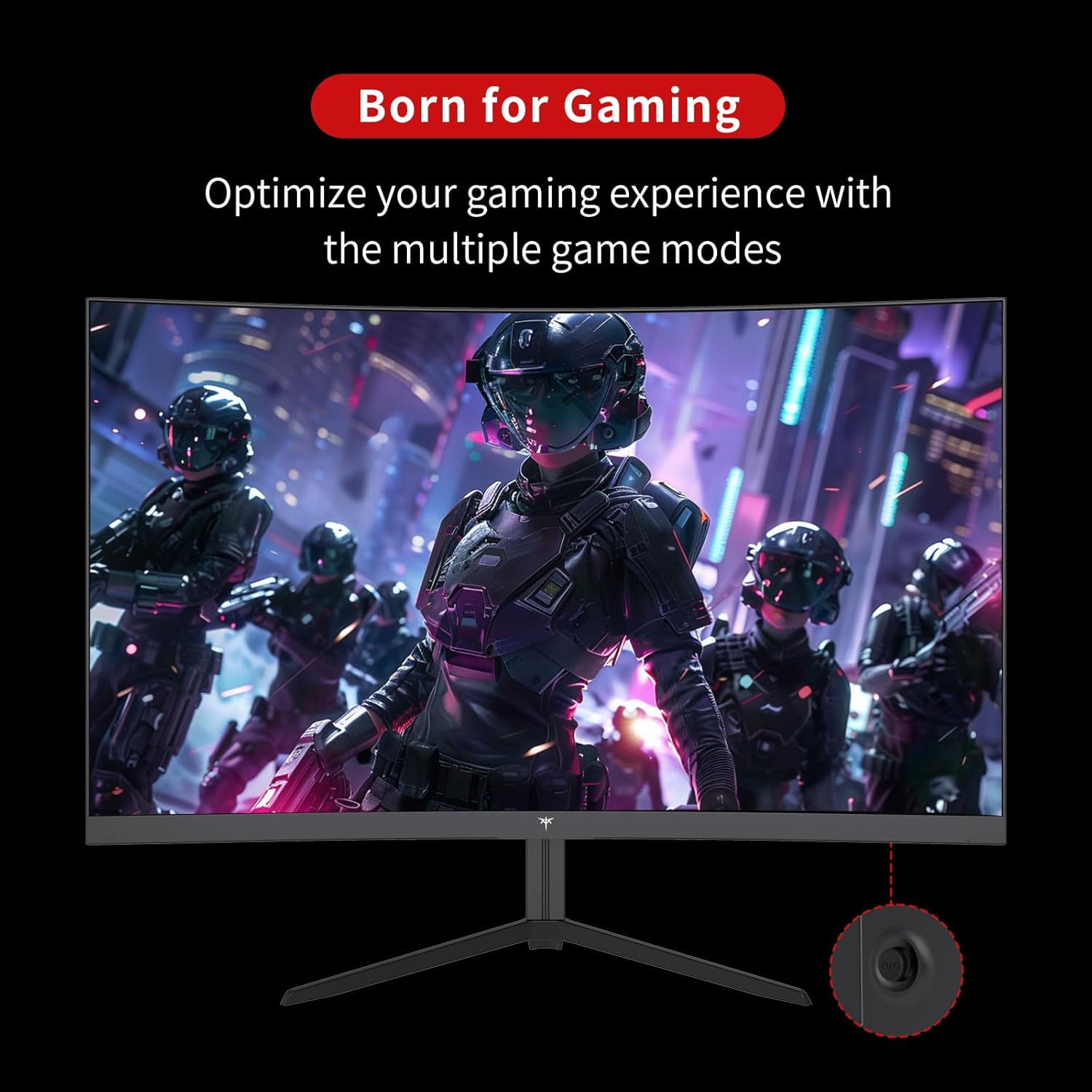
Figure 3: OSD Rocker Switch for Menu Navigation
5.2 การตั้งค่าการแสดงผล
Within the OSD menu, you can adjust:
- ความสว่าง/คอนทราสต์: ปรับระดับความสว่างและความคมชัดโดยรวม
- การตั้งค่าสี: ปรับอุณหภูมิสี เฉดสี และความอิ่มตัวของสีให้เหมาะสม
- อัตราส่วนภาพ: Select between various aspect ratio modes (e.g., Full, 1:1).
5.3 คุณสมบัติการเล่นเกม
Enhance your gaming experience with these dedicated features:
- การซิงค์แบบปรับได้ (FreeSync): Enable this feature in the OSD menu and on your graphics card settings to synchronize the monitor's refresh rate with your GPU's frame rate, eliminating screen tearing.

Figure 4: FreeSync ON vs. FreeSync OFF Visual Comparison
- Game Assists: Access features like customizable crosshairs, a black stabilizer to enhance visibility in dark game areas, and an on-screen game timer.

Figure 5: In-Game Assist Features
5.4 คุณสมบัติการดูแลดวงตา
To reduce eye strain during prolonged use:
- เทคโนโลยีปราศจากการสั่นไหว: This monitor is designed to eliminate screen flickering, which can cause eye fatigue.
- ตัวกรองแสงสีฟ้า: Activate the low blue light mode in the OSD menu to reduce harmful blue light emissions.

Figure 6: Eye Comfort Features in Action
5.5 วิดีโอผลิตภัณฑ์อย่างเป็นทางการ
Watch this official product video for a visual guide to the monitor's features and capabilities:
Video 1: Official KTC product video showcasing the 24-inch curved gaming monitor's features, including its 165Hz refresh rate, 1ms response time, and 1500R curvature, with dynamic visuals.
6. การบำรุงรักษา
การบำรุงรักษาอย่างถูกต้องจะช่วยให้จอภาพของคุณมีอายุการใช้งานยาวนานและมีประสิทธิภาพสูงสุด:
- การทำความสะอาดหน้าจอ: ใช้ผ้านุ่มไม่เป็นขุยค่อยๆ งampened with water or a specialized screen cleaner. Avoid using alcohol-based cleaners or abrasive materials.
- การดูแลทั่วไป: Keep the monitor in a clean, dry environment. Avoid exposing it to direct sunlight, extreme temperatures, or high humidity. Do not block ventilation openings.
- ปิดเครื่องเมื่อไม่ใช้งาน: ปิดจอภาพเมื่อไม่ได้ใช้งานเป็นเวลานานเพื่อประหยัดพลังงานและยืดอายุการใช้งาน
7 การแก้ไขปัญหา
หากคุณพบปัญหาเกี่ยวกับจอภาพของคุณ โปรดดูขั้นตอนการแก้ไขปัญหาทั่วไปต่อไปนี้:
| ปัญหา | สาเหตุที่เป็นไปได้ | สารละลาย |
|---|---|---|
| ไม่มีภาพบนหน้าจอ | สายไฟถูกตัดการเชื่อมต่อ; สายวิดีโอถูกตัดการเชื่อมต่อ; เลือกแหล่งสัญญาณอินพุตไม่ถูกต้อง | ตรวจสอบให้แน่ใจว่าสายไฟและสายวิดีโอเชื่อมต่อแน่นดีแล้ว เลือกแหล่งสัญญาณเข้าที่ถูกต้องผ่านเมนู OSD |
| ภาพสั่นไหว | Video cable issue; Graphics card driver outdated; Refresh rate mismatch. | Check video cable connection. Update graphics card drivers. Ensure refresh rate is set correctly in your system settings. |
| สีที่ปรากฏไม่ถูกต้อง | การตั้งค่าสีไม่ถูกต้อง; สายวิดีโอชำรุด | ปรับการตั้งค่าสีในเมนู OSD ลองใช้สายวิดีโอเส้นอื่น |
| จอภาพไม่เปิด | สายไฟหลุด เต้ารับไฟฟ้าไม่ทำงาน | Verify power cable connection to both monitor and outlet. Test the outlet with another device. |
8. ข้อมูลจำเพาะ
Detailed technical specifications for the KTC 24 Inch 1500R Curved Gaming Monitor:
| ข้อมูลจำเพาะ | ค่า |
|---|---|
| หมายเลขรุ่น | 99 Null 5 |
| ขนาดหน้าจอ | 24 นิ้ว |
| ความโค้ง | 1500อาร์ |
| ปณิธาน | ความละเอียด Full HD 1080p (1920 x 1080 พิกเซล) |
| อัตราการรีเฟรช | 165Hz (up to 180Hz as per product title) |
| เวลาตอบสนอง | 1มิลลิวินาที |
| ประเภทแผง | VA |
| อัตราส่วนภาพ | 16:9 น. |
| ความสว่างของภาพ | 250 Candela (cd/m2) |
| ช่วงสี | 90% DCI-P3, 110% sRGB |
| อัตราส่วนคอนทราสต์แบบไดนามิก | 3000:1 น. |
| รองรับ HDR | ใช่ |
| การเชื่อมต่อ | 2x HDMI 2.0, 1x DisplayPort 1.4, ช่องต่อสัญญาณเสียงออก |
| ความเข้ากันได้ของ VESA | 100x100มม. |
| การปรับความเอียง | -5 degrees to -20 degrees |
| ขนาดสินค้า | 24 x 18 x 5 นิ้ว |
| น้ำหนักสินค้า | 6.17 ปอนด์ |
| เล่มที่tage | 12 โวลต์ (กระแสตรง) |
| คำอธิบายพื้นผิวหน้าจอ | แมทต์ |
9. การรับประกันและการสนับสนุน
Your KTC 24 Inch 1500R Curved Gaming Monitor comes with a warranty. Please refer to the included Warranty Card in your package for detailed information regarding warranty terms, conditions, and duration.
For technical support, service inquiries, or any questions not covered in this manual, please contact KTC customer support through the official channels provided on your warranty card or the KTC webเว็บไซต์.