
การแนะนำ
Thank you for choosing the TECKNET TK-MS317 Bluetooth Wireless Mouse. This manual provides detailed instructions for setting up, operating, and maintaining your mouse to ensure optimal performance. Please read this manual thoroughly before use and retain it for future reference.
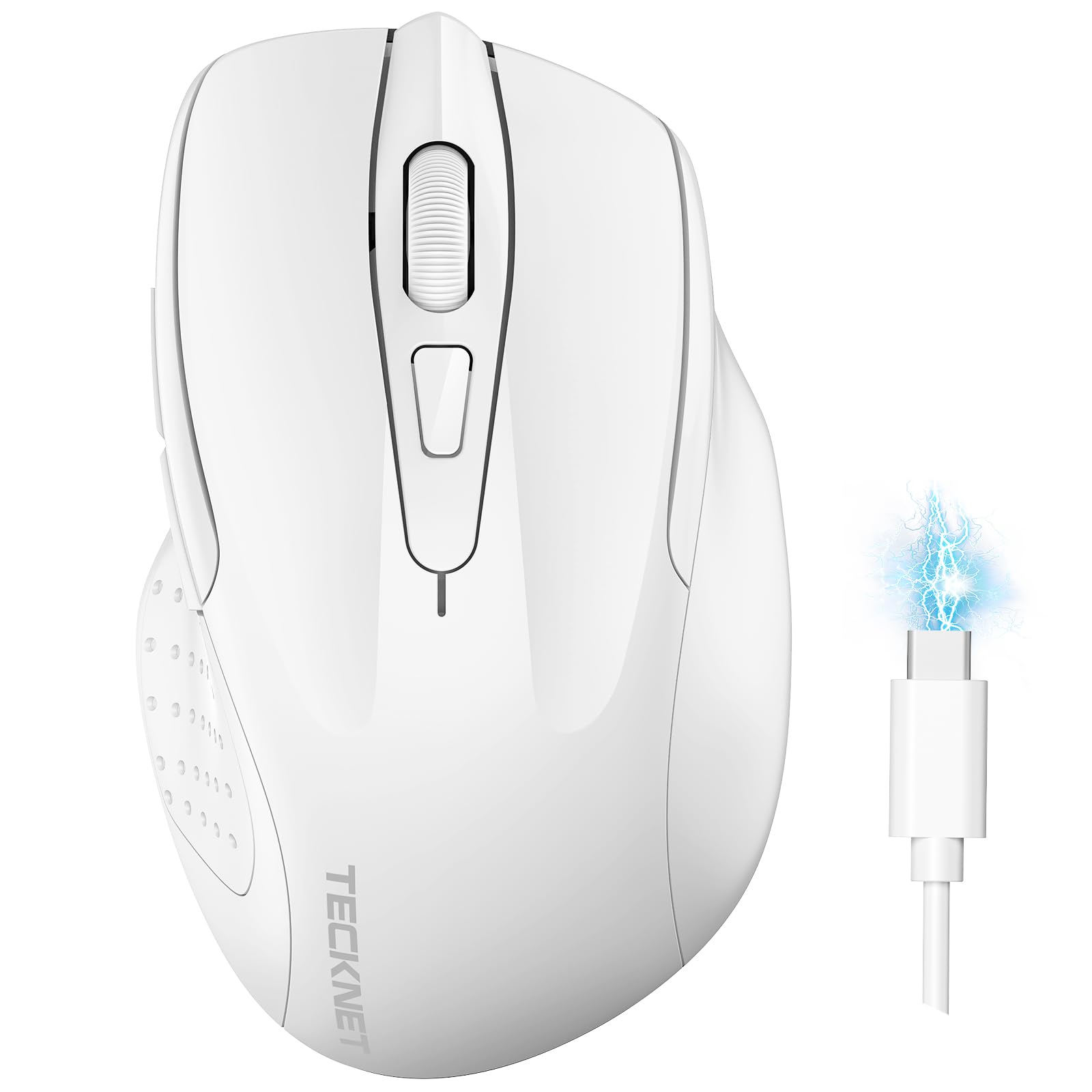
Image: The TECKNET TK-MS317 Bluetooth Wireless Mouse, showcasing its ergonomic design and sleek white finish.
คุณสมบัติผลิตภัณฑ์
- โหมดการเชื่อมต่อสามแบบ: Supports Bluetooth 5.0, Bluetooth 3.0, and 2.4GHz wireless connectivity, allowing seamless switching between up to two devices.
- DPI ที่ปรับได้: Six adjustable DPI levels (800/1200/1600/2400/3200/4800) for precise control and adaptability to various tasks.
- แบตเตอรี่แบบชาร์จไฟได้: Equipped with a 700 mAh rechargeable battery, providing extended usage on a single charge. Can be used while charging via USB-C.
- คลิกเงียบ: Designed for quiet operation, reducing click noise by 90% for a focused work environment.
- การออกแบบตามหลักสรีรศาสตร์: Contoured shape fits comfortably in the palm, reducing hand fatigue during prolonged use.
- การประหยัดพลังงาน: Features a key-wake function and automatic sleep mode to conserve battery life.
- เข้ากันได้สากล: Compatible with Windows 11/10/8/7/XP/Vista, Mac OS, Linux, Android, and iOS (BT 5.0 for iOS 10.4+).

Image: Illustration highlighting the silent click feature of the mouse, showing a quiet work environment.

Image: Diagram illustrating the ergonomic curvature of the TECKNET TK-MS317 mouse, designed for comfortable hand fit.
คำแนะนำการตั้งค่า
1. การชาร์จเมาส์
Before first use, or when the battery is low, connect the mouse to a power source using the provided USB-C cable. The charging indicator light will illuminate. A full charge typically takes about two hours and can last for 1 to 2 months of intensive use.

Image: The TECKNET TK-MS317 mouse connected via a USB-C cable for charging, highlighting its 700mAh battery capacity.
2 การเชื่อมต่อผ่านระบบไร้สาย 2.4GHz
- Locate the USB 2.4G receiver, usually stored in a compartment on the underside of the mouse.
- เสียบตัวรับสัญญาณ USB เข้ากับพอร์ต USB-A ที่ว่างอยู่บนคอมพิวเตอร์ของคุณ
- เลื่อนตัวเลือกโหมดที่ด้านล่างของเมาส์ไปที่ตำแหน่ง "2.4G"
- The mouse should automatically connect to your computer. If not, try moving the mouse or restarting your computer.
3 การเชื่อมต่อผ่านบลูทูธ (BT5.0 / BT3.0)
- Switch the mode selector on the bottom of the mouse to either "BT5.0" or "BT3.0" position.
- Press and hold the Bluetooth pairing button (usually located near the mode switch) for 3-5 seconds until the indicator light starts flashing, indicating pairing mode.
- On your device (computer, laptop, tablet, smartphone), go to Bluetooth settings.
- ค้นหา new devices. You should see "TECKNET Mouse" or a similar name appear in the list.
- Select the mouse to pair. Once connected, the indicator light on the mouse will stop flashing.
- To switch between paired Bluetooth devices or to the 2.4G mode, simply use the mode selector switch on the bottom of the mouse.

Image: Diagram showing the three connection modes (2.4G, Bluetooth 5.0, Bluetooth 3.0) of the TECKNET TK-MS317 mouse, connecting to a laptop and a tablet.
คำแนะนำการใช้งาน
1. การปรับ DPI
The mouse features a DPI button, typically located behind the scroll wheel. Press this button to cycle through the six available DPI settings: 800, 1200, 1600, 2400, 3200, and 4800. Select the DPI that best suits your task and preference for cursor speed and precision.

Image: Visual representation of the TECKNET TK-MS317 mouse highlighting its 6 levels of adjustable DPI, up to 4800 DPI.
2. การสลับโหมด
Use the physical switch on the underside of the mouse to select your desired connection mode: 2.4G, BT5.0, or BT3.0. This allows you to quickly switch between different devices without re-pairing.
3. โหมดประหยัดพลังงาน
The mouse will automatically enter sleep mode after a period of inactivity to conserve battery. To wake the mouse, simply move it or click any button.
การซ่อมบำรุง
1. การทำความสะอาด
ในการทำความสะอาดเมาส์ ให้ใช้ผ้านุ่มและแห้ง สำหรับสิ่งสกปรกฝังแน่น ให้เช็ดเบาๆamp cloth with mild soap can be used, ensuring no liquid enters the mouse. Avoid using harsh chemicals or abrasive materials.
2. การดูแลแบตเตอรี่
- หลีกเลี่ยงการปล่อยแบตเตอรี่จนหมดบ่อยครั้ง
- เก็บเมาส์ไว้ในที่แห้งและเย็นเมื่อไม่ได้ใช้งานเป็นเวลานาน
- ใช้เฉพาะสาย USB-C ที่ให้มาหรือสายที่ได้รับการรับรองเทียบเท่าสำหรับการชาร์จ
การแก้ไขปัญหา
- เมาส์ไม่ตอบสนอง:
- ตรวจสอบให้แน่ใจว่าเมาส์ได้รับการชาร์จแล้ว
- Check if the mode switch is set correctly (2.4G, BT5.0, or BT3.0).
- สำหรับโหมด 2.4G โปรดตรวจสอบให้แน่ใจว่าได้เสียบตัวรับสัญญาณ USB เข้ากับปลั๊กอย่างแน่นหนาแล้ว
- For Bluetooth mode, ensure Bluetooth is enabled on your device and the mouse is paired. Try re-pairing if necessary.
- Try connecting the mouse to a different USB port or device to rule out port/device issues.
- การเชื่อมต่อไม่ต่อเนื่อง:
- เลื่อนเมาส์ให้เข้าใกล้ตัวรับสัญญาณ/อุปกรณ์มากขึ้น
- ควรหลีกเลี่ยงการใช้เมาส์บนพื้นผิวโลหะ เนื่องจากอาจรบกวนสัญญาณไร้สายได้
- ตรวจสอบให้แน่ใจว่าไม่มีแหล่งกำเนิดสัญญาณรบกวนไร้สายแรงๆ อื่นๆ อยู่ใกล้เคียง
- การเคลื่อนไหวของเคอร์เซอร์ไม่แน่นอน:
- ทำความสะอาดเซ็นเซอร์ออปติคัลที่อยู่ใต้เมาส์
- ลองใช้เมาส์บนพื้นผิวอื่นหรือแผ่นรองเมาส์ดู
- ปรับการตั้งค่า DPI ให้ต่ำลง
ข้อมูลจำเพาะ
| หมายเลขรุ่น | ทีเค-MS317 |
| ยี่ห้อ | TECKNET |
| โหมดการเชื่อมต่อ | ระบบไร้สาย 2.4GHz, บลูทูธ 5.0, บลูทูธ 3.0 |
| ระดับ DPI | 800, 1200, 1600, 2400, 3200, 4800 |
| จำนวนปุ่ม | 6 |
| ประเภทแบตเตอรี่ | Built-in 700 mAh Rechargeable Lithium Battery |
| พอร์ตชาร์จ | ยูเอสบี-ซี |
| น้ำหนัก | 150 กรัม |
| ความเข้ากันได้ | Windows 11/10/8/7/XP/Vista, Mac OS, Linux, Android, iOS (10.4+ for BT 5.0) |
การรับประกันและการสนับสนุน
TECKNET offers a 36-month warranty for registered users of this product. If you encounter any issues with your TECKNET TK-MS317 Bluetooth Wireless Mouse, please do not hesitate to contact our professional customer service team for assistance.
สำหรับการเรียกร้องการรับประกันหรือการสนับสนุนทางเทคนิค โปรดไปที่เว็บไซต์อย่างเป็นทางการของ TECKNET webไซต์หรือดูข้อมูลการติดต่อที่ให้มาพร้อมกับบรรจุภัณฑ์ผลิตภัณฑ์ของคุณ