
1. บทนำ
This manual provides detailed instructions for the setup, operation, maintenance, and troubleshooting of your TouchWo 17.3-inch Touchscreen Industrial Computer Monitor. This versatile device is designed for various applications, including office, classroom, retail, and industrial environments, offering a responsive 10-point touch display with robust performance.

Figure 1.1: TouchWo 17.3-inch Touchscreen Industrial Computer Monitor in use, demonstrating its touch capabilities.
1.1 ผลิตภัณฑ์เกินview
The TouchWo TD173 is a 17.3-inch industrial-grade touchscreen monitor featuring a 1080P display, powered by a Core i7 processor with 8GB RAM and a 512GB SSD, running Windows 11 Pro. Its 10-point capacitive touch screen allows for intuitive interaction, similar to a tablet. The monitor is designed with a true flat seamless design and an IP65 standard touch screen, making it suitable for demanding environments. It supports various connectivity options including USB, VGA, HDMI, LAN, and WiFi, and includes built-in speakers.
1.2 เนื้อหาบรรจุภัณฑ์
โปรดตรวจสอบว่าสินค้าทั้งหมดที่ระบุไว้ด้านล่างนี้มีอยู่ในแพ็คเกจของคุณ:
- 1 x Touchscreen Smart PC
- อะแดปเตอร์ไฟฟ้า 1 ตัว
- 1 x Power Line (1.5m)
- 1 x คู่มือผลิตภัณฑ์ (เอกสารนี้)
- 1 x Wall-Mounted Bracket (standard)
- เสาอากาศ 1 x WiFi

รูปที่ 1.2: สิ่งของที่บรรจุอยู่ในบรรจุภัณฑ์ของผลิตภัณฑ์
1.3 ข้อมูลด้านความปลอดภัย
เพื่อให้มั่นใจถึงการทำงานที่ปลอดภัยและป้องกันความเสียหาย โปรดอ่านและปฏิบัติตามแนวทางด้านความปลอดภัยต่อไปนี้:
- อย่าให้จอภาพสัมผัสกับอุณหภูมิหรือความชื้นที่สูงเกินไป
- Use only the provided power adapter and power line.
- หลีกเลี่ยงการปิดกั้นช่องระบายอากาศ
- อย่าพยายามถอดประกอบหรือซ่อมแซมอุปกรณ์ด้วยตนเอง โปรดติดต่อช่างผู้ชำนาญการ
- เช็ดหน้าจอด้วยผ้าเนื้อนุ่มที่ไม่เป็นขุย หลีกเลี่ยงการใช้น้ำยาทำความสะอาดที่มีฤทธิ์กัดกร่อน
2. การตั้งค่า
2.1 วิธีการติดตั้ง
The TouchWo TD173 monitor offers flexible installation options to suit various environments. The standard package includes a wall-mounted bracket. Other bracket types (Simple Bracket, VESA Bracket, Desktop Folding Bracket, Desktop Stand) may need to be purchased separately.
- ติดผนัง: Use the included wall-mounted bracket for secure installation on a vertical surface.
- ตัวยึด VESA: The monitor features 100x100 VESA holes, allowing compatibility with various VESA-compliant arms and stands.
- ขาตั้งเดสก์ท็อป: For desktop use, a compatible stand can be attached to the monitor.

Figure 2.1: Available installation methods for the monitor.
2.2 การเชื่อมต่ออุปกรณ์ต่อพ่วง
The monitor is equipped with multiple interfaces for connecting external devices:
- พอร์ต USB (4x): Connect keyboards, mice, external storage, or other USB devices.
- VGA & HDMI: For video input from external sources if using the monitor as a display only.
- แลน (อีเธอร์เน็ต): สำหรับการเชื่อมต่อเครือข่ายแบบใช้สาย
- อินเตอร์เน็ตไร้สายและบลูทูธ: Built-in wireless connectivity for internet access and pairing Bluetooth devices.
- 3.5mm Audio & Mic Jack: For connecting external headphones, speakers, or microphones.
To connect the WiFi antenna, screw it into the designated port on the back of the monitor until secure.
2.3 การเปิดเครื่องครั้งแรก
- Connect the power adapter to the monitor's power input port.
- Plug the power line into a suitable electrical outlet.
- Press the power button, usually located on the side or back of the monitor.
- The monitor will boot up, displaying the Windows 11 Pro operating system. Follow the on-screen prompts for initial Windows setup if this is the first use.
3. คู่มือการใช้งาน
3.1 ฟังก์ชันหน้าจอสัมผัส
The TouchWo monitor features advanced 10-point capacitive touch technology, allowing for precise and responsive interaction. No additional drivers are required for basic touch functionality.
- แตะครั้งเดียว: Functions like a mouse click to select items or open applications.
- แตะสองครั้ง: เปิด files or folders, similar to a double-click.
- ลาก: Touch and hold an item, then move your finger to drag it across the screen.
- บีบเพื่อซูม: Use two fingers to pinch in (zoom out) or spread out (zoom in) on images, maps, or documents.
- การเคลื่อนไหวหลายนิ้ว: The 10-point touch supports various multi-finger gestures for navigation and control within Windows 11 and compatible applications.

Figure 3.1: Demonstrating 10-point touch screen interaction.

Figure 3.2: Common touchscreen gestures for interaction.
3.2 สถานการณ์การใช้งาน
The TouchWo TD173 is a versatile smart PC suitable for a wide range of applications:
- การควบคุมอุตสาหกรรม: Ideal for factory automation, monitoring systems, and interactive displays in industrial settings.
- Retail & POS: Can be integrated into Point-of-Sale (POS) systems, interactive kiosks, or menu screens in restaurants and bars.
- Office & Classroom: Functions as a smart board for presentations, collaborative work, or general computing tasks.
- การตรวจสอบความปลอดภัย: Can serve as a CCTV monitor for security camera systems.
- Self-Service Kiosks: Suitable for interactive information points or self-service terminals.

รูปที่ 3.3: อดีตamples of multiple usage scenarios for the monitor.

Figure 3.4: Diverse applications of the TouchWo monitor in different environments.
4. การบำรุงรักษา
4.1 การทำความสะอาดจอภาพ
Regular cleaning helps maintain the monitor's performance and appearance. The IP65 standard touch screen offers protection against dust and water splashes.
- หน้าจอ: เช็ดหน้าจอเบาๆ ด้วยผ้านุ่มที่ไม่เป็นขุย สำหรับรอยเปื้อนฝังแน่น ให้เช็ดเบาๆampชุบผ้าด้วยน้ำหรือน้ำยาทำความสะอาดหน้าจอโดยเฉพาะ อย่าฉีดน้ำยาลงบนหน้าจอโดยตรง
- ร่างกาย: Use a soft, dry cloth to wipe the aluminum alloy frame and back-shell.
- หลีกเลี่ยง: Do not use abrasive cleaners, alcohol, ammonia, or benzene-based solvents, as these can damage the screen or finish.
4.2 การดูแลทั่วไป
- ตรวจสอบให้แน่ใจว่ามีการระบายอากาศที่เหมาะสมรอบๆ จอภาพเพื่อป้องกันความร้อนสูงเกินไป
- หลีกเลี่ยงการวางวัตถุหนักบนจอภาพหรือสายเคเบิล
- Protect the monitor from direct sunlight and heat sources.
- When moving the monitor, handle it carefully to avoid drops or impacts.
5 การแก้ไขปัญหา
ส่วนนี้มีวิธีแก้ปัญหาทั่วไปที่คุณอาจพบเจอ หากปัญหายังคงอยู่ โปรดติดต่อฝ่ายบริการลูกค้า
| ปัญหา | สาเหตุที่เป็นไปได้ | สารละลาย |
|---|---|---|
| จอภาพไม่เปิดขึ้นมา | No power, faulty power adapter/cable, or power button issue. |
|
| Touchscreen is unresponsive or inaccurate. | Screen dirty, calibration needed, or software issue. |
|
| No display/black screen. | Power issue, input source not selected (if external), or system crash. |
|
| ไม่มีเสียงออกจากลำโพง | Volume too low, muted, or audio driver issue. |
|
6. ข้อมูลจำเพาะ
Detailed technical specifications for the TouchWo 17.3-inch Touchscreen Industrial Computer Monitor (Model TD173):
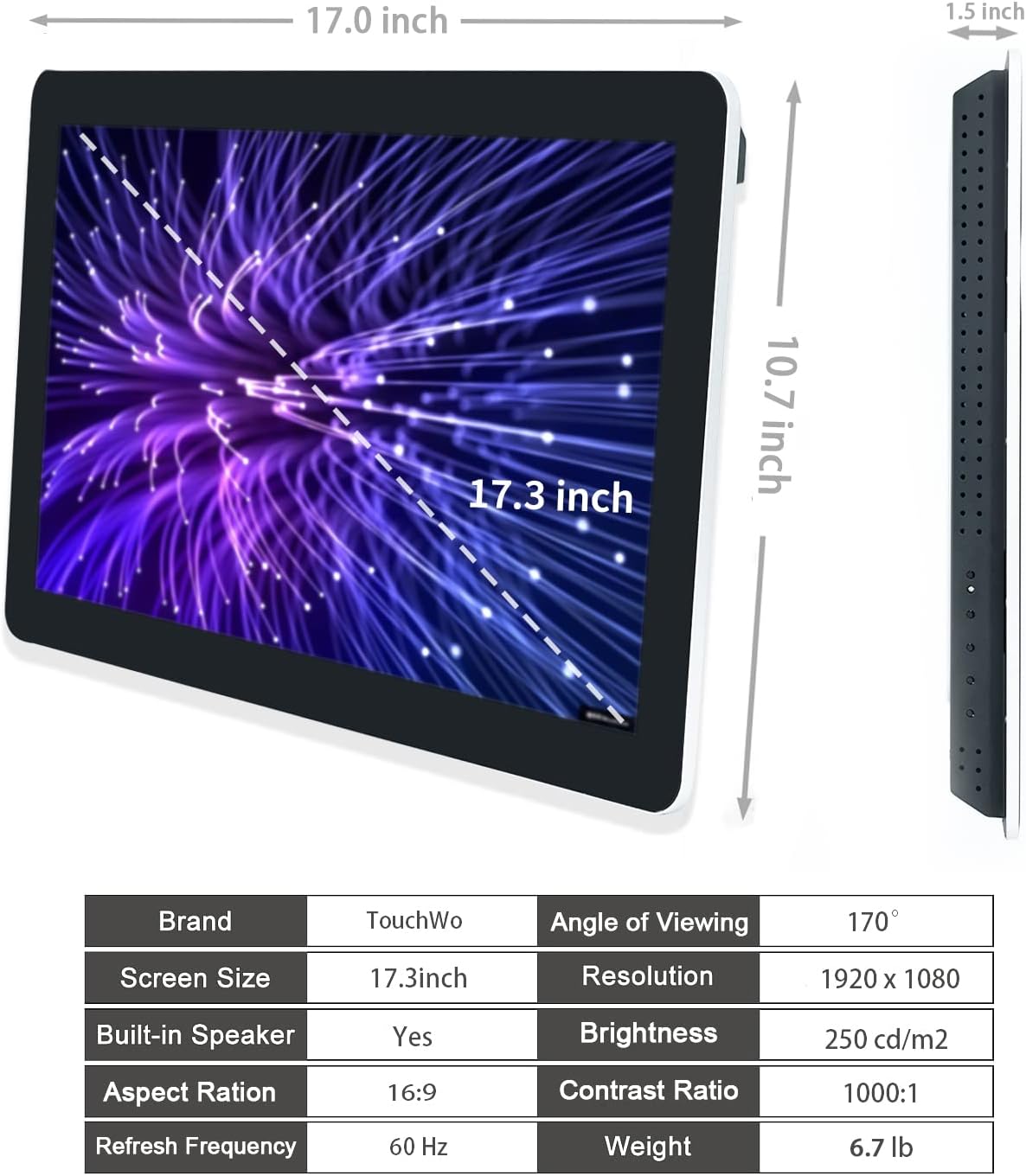
Figure 6.1: Dimensions and key specifications of the monitor.

รูปที่ 6.2: เกินview of TD Series Touchscreen HD Monitor features.

Figure 6.3: Performance and durability features of the monitor.
| คุณสมบัติ | ข้อมูลจำเพาะ |
|---|---|
| หมายเลขรุ่น | TD173 |
| ขนาดหน้าจอ | 17.3 นิ้ว |
| ปณิธาน | 1920 x 1080 พิกเซล (FHD 1080p) |
| อัตราส่วนภาพ | 16:9 น. |
| ความสว่าง | 250 cd/m² (250 lm) |
| อัตราส่วนคอนทราสต์ | 1000:1 น. |
| Viewอิงแองเกิล | 178° |
| แตะเทคโนโลยี | 10 คะแนน Capacitive Touch |
| ระบบปฏิบัติการ | Windows 11 Pro (Core i7, 8GB RAM, 512GB SSD configuration) |
| การเชื่อมต่อ | 4x USB, VGA, HDMI, LAN, WiFi, Bluetooth, 3.5mm Audio & Mic Jack |
| ลำโพงในตัว | ใช่ |
| ระดับการป้องกันน้ำและฝุ่น (IP) | IP65 (แผงด้านหน้า) |
| ขนาดสินค้า | 1.5 x 17 x 10.7 นิ้ว |
| น้ำหนักสินค้า | 6.7 ปอนด์ |
| เล่มที่tage | 12 โวลต์ (กระแสตรง) |
| การรับรอง | ใบรับรอง CE, RoHS |
7. การรับประกันและการสนับสนุน
7.1 นโยบายการรับประกัน
TouchWo offers a one-year warranty for this touchscreen monitor, covering manufacturing defects and malfunctions under normal use. The factory holds ISO9001 quality management certification, ensuring product quality.
For warranty claims, please retain your proof of purchase. The warranty does not cover damage caused by misuse, accidents, unauthorized repairs, or natural disasters.
7.2 การสนับสนุนลูกค้า
For any assistance, technical support, or inquiries, please feel free to reach out to TouchWo customer service. We are committed to providing 24/7 online customer support.
- อีเมลอย่างเป็นทางการ: touchwoamz@outlook.com
- หน้าผู้ขาย Amazon: For more information or to contact the seller directly, visit the TouchWo Seller Page on Amazon.
- Bulk or Custom Orders: Please reach out to the provided email for inquiries regarding bulk purchases or custom orders.

Figure 7.1: Contact information for customer assistance.