
1. บทนำ
This manual provides instructions for the installation, operation, and maintenance of your Unitek DiskGuard Raiden 2.5" USB-C to SATA III Hard Disk Enclosure. This enclosure is designed to convert a 2.5-inch SATA I/II/III HDD or SSD into an external USB-C storage device, offering convenient data transfer and portability.
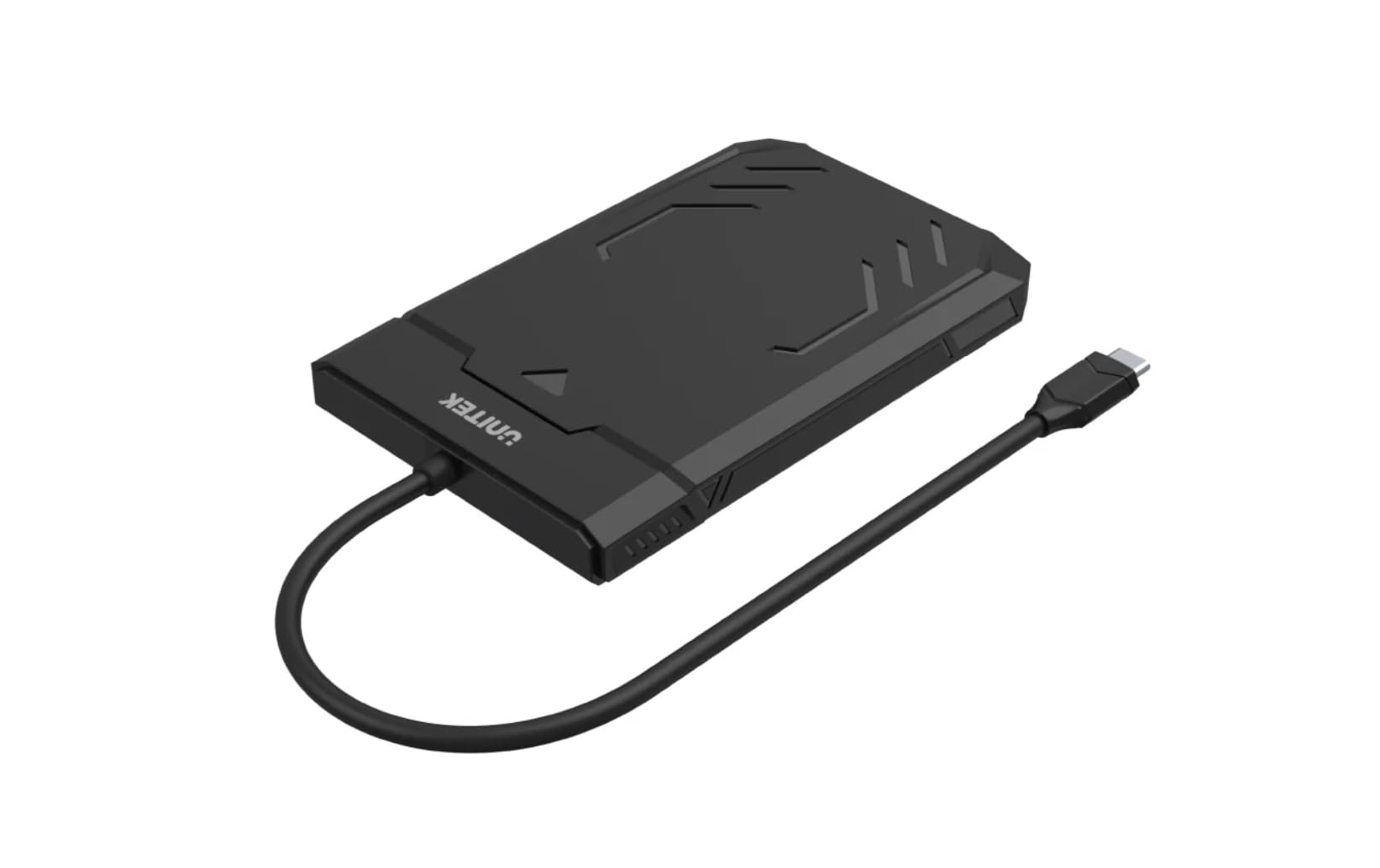
Figure 1: Unitek DiskGuard Raiden 2.5" USB-C to SATA III Hard Disk Enclosure. This image shows the compact, black enclosure with its integrated USB-C cable.
2. เนื้อหาบรรจุภัณฑ์
โปรดตรวจสอบว่าสินค้าทั้งหมดมีอยู่ในแพ็คเกจ:
- 1 x Unitek DiskGuard Raiden 2.5" USB-C to SATA III Hard Disk Enclosure
- 1 x คู่มือผู้ใช้
3. คุณสมบัติของผลิตภัณฑ์
- Supports most 7mm/9.5mm 2.5-inch SATA I/II/III HDDs and SSDs.
- USB 3.0 specification for data transfer rates up to 5Gbps.
- เข้ากันได้กับ USB 2.0
- Features a sleep mode function for energy saving during idle periods.
- Tool-free installation for quick and easy setup.
- Supports hot-swap functionality.
- Plug and Play operation, requiring no driver installation.
- Durable ABS housing.
4. คำแนะนำในการตั้งค่า
ทำตามขั้นตอนต่อไปนี้เพื่อติดตั้งฮาร์ดไดรฟ์ SATA ขนาด 2.5 นิ้ว หรือ SSD ลงในเคส:
4.1 การเปิดสิ่งที่แนบมา
- Gently slide the top cover of the enclosure to open it. The enclosure is designed for tool-free access.

Figure 2: The enclosure features a tool-free design, allowing the top cover to slide open for drive installation.
4.2 Installing the HDD/SSD
- Align your 2.5-inch SATA HDD or SSD with the SATA connector inside the enclosure.
- Gently push the drive into the connector until it is firmly seated. Ensure the drive is flush with the enclosure's internal tray.
4.3 การปิดล้อม
- เลื่อนฝาครอบด้านบนกลับเข้าที่จนกระทั่งได้ยินเสียงคลิกและแน่นสนิท
4.4 การเชื่อมต่อกับคอมพิวเตอร์
- Connect the integrated USB-C cable from the enclosure to an available USB-C port on your computer.
- The enclosure is plug-and-play; your operating system should automatically detect the new storage device.
- If this is a new HDD/SSD, it may need to be initialized and formatted before use. Refer to your operating system's documentation for instructions on disk management.
5. คู่มือการใช้งาน
5.1 การถ่ายโอนข้อมูล
Once connected, the enclosure will appear as an external drive on your computer. You can drag and drop files, copy, paste, and perform other standard file operations as you would with any other storage device. The USB 3.0 interface supports data transfer speeds up to 5Gbps.

Figure 3: The enclosure supports fast data transfer speeds up to 5Gbps, significantly faster than USB 2.0.
5.2 ไฟแสดงสถานะ LED
ตัวเรือนมีไฟ LED แสดงสถานะสองดวง:
- ไฟ LED สีเขียว: Indicates power status. It will turn on when the enclosure is connected to a power source (via USB-C).
- ไฟ LED สีฟ้า: Indicates read and write status. It will flash when data is being transferred to or from the drive.

Figure 4: The enclosure's LED lights provide visual feedback on power and data activity. The green light indicates power, and the blue light flashes during data transfer.
5.3 โหมดสลีป
The enclosure is equipped with a sleep mode function. If the drive is idle for a period (typically 10-15 minutes, depending on the operating system and drive settings), it will enter sleep mode to conserve energy and extend the life of the drive. The drive will automatically wake up when accessed.
6. การบำรุงรักษา
- รักษาความสะอาดของกล่องให้ปราศจากฝุ่น ใช้ผ้านุ่มและแห้งเช็ดทำความสะอาด
- ควรหลีกเลี่ยงการวางตู้เลี้ยงไว้ในที่ที่มีอุณหภูมิ ความชื้น หรือแสงแดดจัดเกินไป
- ห้ามทำตกหรือกระแทกตัวเครื่องอย่างรุนแรง
- Ensure proper ventilation around the enclosure during operation.
- Always safely eject the drive from your operating system before disconnecting the USB-C cable to prevent data corruption.
7 การแก้ไขปัญหา
7.1 ไม่พบไดรฟ์
- ตรวจสอบการเชื่อมต่อ: ตรวจสอบให้แน่ใจว่าได้เสียบสาย USB-C เข้ากับตัวเคสและคอมพิวเตอร์ของคุณอย่างแน่นหนาแล้ว
- ลองใช้พอร์ต USB อื่น: Connect the enclosure to a different USB-C port on your computer.
- Verify Drive Installation: Open the enclosure and ensure the HDD/SSD is correctly seated in the SATA connector.
- ตรวจสอบสถานะไดรฟ์: สำหรับไดรฟ์ใหม่ โปรดตรวจสอบให้แน่ใจว่าไดรฟ์ได้รับการเริ่มต้นระบบและฟอร์แมตในระบบจัดการดิสก์ (Windows) หรือยูทิลิตี้ดิสก์ (macOS) ของระบบปฏิบัติการของคุณแล้ว
- ทดสอบกับฮาร์ดไดรฟ์/คอมพิวเตอร์เครื่องอื่น: If possible, test the enclosure with a different 2.5-inch SATA drive or connect it to another computer to isolate the issue.
7.2 ความเร็วในการถ่ายโอนข้อมูลช้า
- พอร์ต USB 3.0: Ensure the enclosure is connected to a USB 3.0 (or higher) port on your computer. Connecting to a USB 2.0 port will limit speeds to USB 2.0 performance.
- Drive Performance: ความเร็วในการถ่ายโอนข้อมูลจริงนั้นถูกจำกัดด้วยความเร็วของ HDD/SSD ที่ติดตั้งไว้ด้วยเช่นกัน
- คุณภาพสายเคเบิล: While the enclosure has an integrated cable, ensure no other factors are affecting USB performance.
7.3 Enclosure Gets Warm
It is normal for the enclosure to become warm during extended use, especially during heavy data transfer. This is due to heat generated by the internal HDD/SSD. Ensure adequate airflow around the enclosure.
8. ข้อมูลจำเพาะ
| ชื่อรุ่น | DiskGuard Raiden 2.5" USB-C to SATA III Hard Disk Enclosure |
| ยี่ห้อ | ยูนิเทค |
| ฮาร์ดแวร์อินเตอร์เฟซ | USB4 Type C (Note: Product description states USB3.0, please refer to product packaging for exact USB version.) |
| ไดรฟ์ที่เข้ากันได้ | 2.5-inch SATA I/II/III HDD & SSD (7mm/9.5mm thickness) |
| ความจุหน่วยความจำสูงสุด | 20TB |
| อัตราการถ่ายโอนข้อมูล | สูงสุด 5 กิกะบิตต่อวินาที (USB 3.0) |
| วัสดุของตู้หุ้ม | ที่อยู่อาศัย ABS |
| สี | สีดำ |
| Supported Devices Quantity | 1 |
| ASIN | B0D4XQVFDM |
| GTIN | 04894160044570 |
หมายเหตุ: ข้อมูลจำเพาะอาจมีการเปลี่ยนแปลงได้โดยไม่ต้องแจ้งให้ทราบล่วงหน้า
9. การรับประกันและการสนับสนุน
Unitek products are covered by a limited warranty. For detailed warranty information, technical support, or customer service, please refer to the official Unitek webหรือติดต่อตัวแทนจำหน่ายในพื้นที่ของคุณ โปรดเก็บหลักฐานการซื้อไว้เพื่อใช้ในการเคลมประกัน
หากต้องการความช่วยเหลือเพิ่มเติม โปรดไปที่: Unitek Official Store on Amazon