
1. บทนำ
Welcome to your new MAXLEGEN Alder Lake N95 15.6-inch laptop. This manual provides essential information for setting up, operating, and maintaining your device. Please read this manual thoroughly to ensure proper use and to maximize the performance and longevity of your laptop.
2. เนื้อหาบรรจุภัณฑ์
กรุณาตรวจสอบสิ่งของภายในบรรจุภัณฑ์เมื่อแกะกล่องเพื่อให้แน่ใจว่ามีสินค้าครบทั้งหมด:
- 1 x MAXLEGEN 15.6-inch Notebook Laptop (pre-installed with Windows 11 Professional)
- 1 x เมาส์แบบมีสาย
- อะแดปเตอร์ไฟฟ้า 1 ตัว
- 1 x คู่มือผู้ใช้
3. สินค้าหมดview
Familiarize yourself with the key components and ports of your laptop.
3.1 ด้านหน้า View
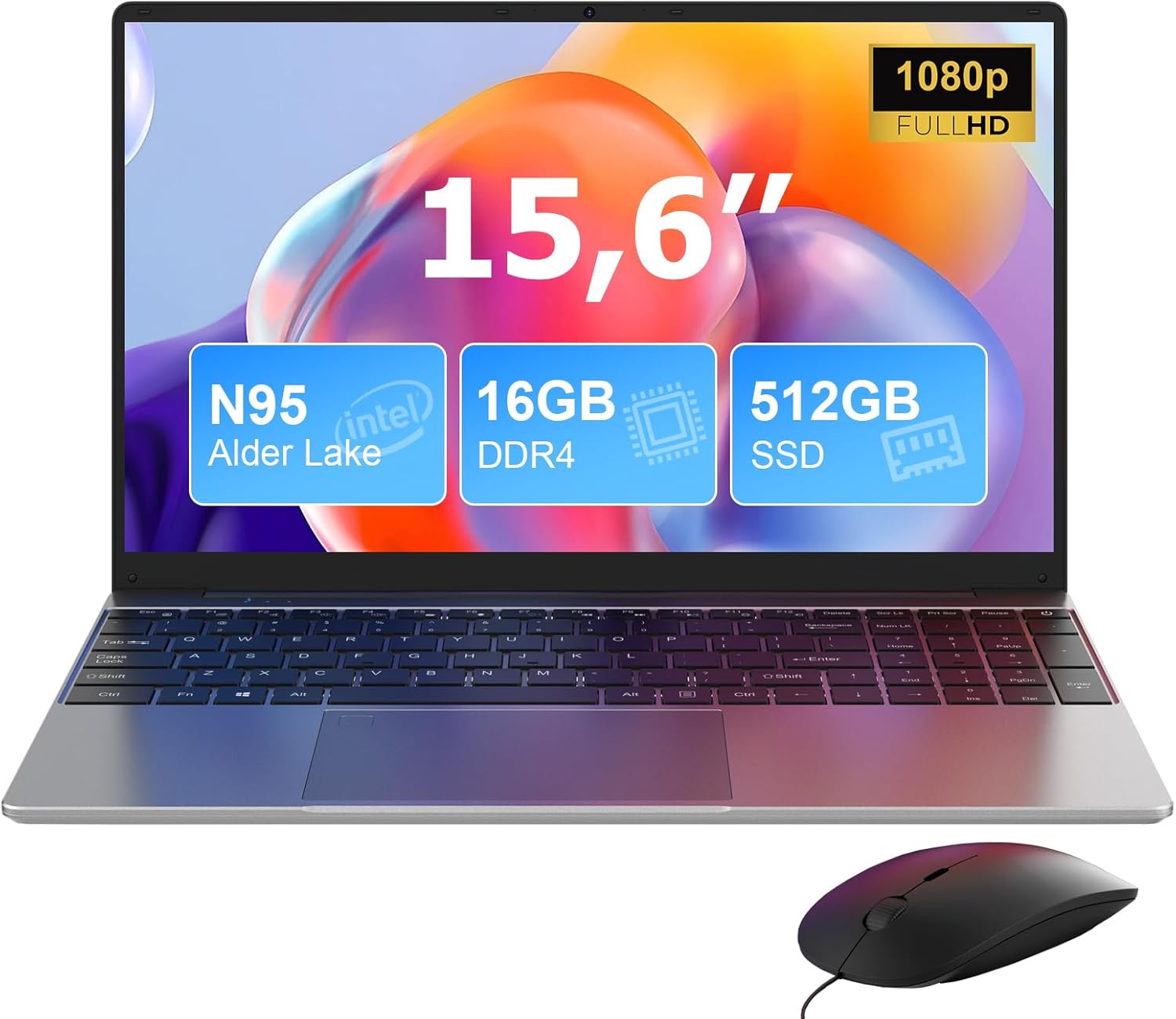
This image shows the MAXLEGEN 15.6-inch laptop from the front, highlighting its display and keyboard. Key specifications like N95 Intel Alder Lake processor, 16GB DDR4 RAM, and 512GB SSD are overlaid on the screen.
3.2 โปรเซสเซอร์และประสิทธิภาพ

This diagram illustrates the Intel N95 Alder Lake processor, detailing its 3.4 GHz Turbo Boost, 4 cores, 4 threads, and 6MB L3 cache. A performance comparison chart shows its multi-core and single-core performance against other Intel processors.
3.3 ความสามารถในการทำงานหลายอย่างพร้อมกัน

The image displays the laptop screen running multiple applications simultaneously, demonstrating its multitasking capabilities with Windows 11, 16GB DDR4 RAM, and 512GB SSD.
3.4 คุณสมบัติการแสดงผล

This image highlights the 15.6-inch 1920x1080 Full HD IPS display, emphasizing features like bright view, eye protection, 180-degree elevation angle, and a backlit keyboard. A numeric keypad is also visible.
3.5 พอร์ตและตัวเชื่อมต่อ

ภาพนี้ให้รายละเอียด view of the laptop's side ports, including a 3.5mm earphone jack, Micro SD card slot, USB 3.0 ports, charging port, Micro HDMI, and Type-C port. It also illustrates the built-in fan technology for optimal thermal management.
3.6 เค้าโครงแป้นพิมพ์

The image shows the QWERTY keyboard of the laptop, indicating its support for multi-language input. The laptop is placed on a stand, connected to a wired mouse.
4. การตั้งค่า
4.1 การเปิดเครื่องครั้งแรก
Connect the power adapter to the laptop's DC-in port and then to a working power outlet. Press the power button located on the keyboard. The laptop will automatically boot into Windows 11 Professional.
4.2 การตั้งค่า Windows 11
Follow the on-screen instructions to complete the initial Windows 11 setup. This typically includes selecting your language, connecting to a Wi-Fi network, accepting the license agreement, and creating a user account.
5. คู่มือการใช้งาน
5.1 เปิด/ปิดเครื่อง
- การเปิดเครื่อง: กดปุ่มเปิด/ปิด
- วิธีปิดเครื่อง: คลิกปุ่มเริ่ม จากนั้นคลิกปุ่มเปิด/ปิด และเลือก "ปิดเครื่อง"
- ในการรีสตาร์ท: คลิกปุ่มเริ่ม จากนั้นคลิกปุ่มเปิด/ปิด และเลือก "เริ่มระบบใหม่"
- การนอนหลับ: ปิดฝาหรือคลิกปุ่มเริ่ม จากนั้นคลิกปุ่มเปิด/ปิด และเลือก "โหมดสลีป"
5.2 Keyboard Backlight Activation
The keyboard features a 3-level adjustable backlight:
- กด Fn + F5 simultaneously to enable the keyboard backlight.
- กด Fn + F5 successively to cycle through brightness levels (low, medium, high, off).
5.3 Battery and Charging Indicator
The LED indicator near the DC power port provides charging status:
- ไฟ LED สีแดง: The laptop is currently charging.
- ไฟ LED สีฟ้า: แบตเตอรี่ชาร์จเต็มแล้ว
5.4 การเชื่อมต่อแบบไร้สาย
5.4.1ไวไฟ
Your laptop supports dual-band Wi-Fi (2.4GHz and 5GHz). To connect:
- คลิกไอคอน Wi-Fi ในแถบงาน
- เลือกเครือข่ายที่คุณต้องการจากรายการ
- กรอกรหัสผ่านเครือข่ายหากได้รับแจ้งและคลิก "เชื่อมต่อ"
5.4.2 บลูทู ธ
The laptop is equipped with Bluetooth 5.0. To connect a Bluetooth device:
- ไปที่ การตั้งค่า > บลูทูธและอุปกรณ์.
- ตรวจสอบให้แน่ใจว่าบลูทูธเปิดอยู่ On.
- คลิก เพิ่มอุปกรณ์ และทำตามคำแนะนำบนหน้าจอเพื่อจับคู่กับอุปกรณ์ของคุณ
5.5 Using the Wired Mouse
The included wired mouse connects via a USB port. Simply plug the mouse's USB connector into an available USB port on the laptop. The system will automatically detect and install the necessary drivers.

This image shows the laptop in use with the included wired mouse. Information about the 7.7V/5000mAh battery capacity and approximately 3 hours for a full charge is also presented.
6. การบำรุงรักษา
Proper maintenance helps extend the life of your laptop:
- รักษาความสะอาดของแล็ปท็อปโดยการเช็ดพื้นผิวด้วยผ้าแห้งนุ่มๆ หลีกเลี่ยงการใช้สารทำความสะอาดที่มีฤทธิ์กัดกร่อน
- หลีกเลี่ยงการวางแล็ปท็อปไว้ในที่ที่มีอุณหภูมิสูง แสงแดดโดยตรง หรือความชื้นสูง
- Do not block the ventilation openings to ensure proper cooling and prevent overheating.
- สำรองข้อมูลสำคัญของคุณไปยังไดรฟ์ภายนอกหรือที่เก็บข้อมูลบนคลาวด์เป็นประจำ
- Keep the operating system and software updated for optimal performance and security.
7 การแก้ไขปัญหา
หัวข้อนี้จะกล่าวถึงปัญหาทั่วไปที่คุณอาจพบเจอ:
7.1 Laptop does not power on
- ตรวจสอบให้แน่ใจว่าอะแดปเตอร์ไฟฟ้าเชื่อมต่อกับแล็ปท็อปและเต้ารับไฟฟ้าที่ใช้งานได้แน่นหนา
- ตรวจสอบว่าเต้ารับไฟฟ้าใช้งานได้หรือไม่โดยเสียบอุปกรณ์อื่นเข้าไป
- ควรปล่อยให้แล็ปท็อปชาร์จไฟอย่างน้อย 30 นาที ก่อนที่จะลองเปิดเครื่องอีกครั้ง
7.2 Keyboard backlight not working
- กด Fn + F5 to activate or adjust the backlight brightness.
7.3 Wi-Fi connection issues
- ตรวจสอบให้แน่ใจว่าได้เปิดใช้งาน Wi-Fi ในการตั้งค่า Windows
- รีสตาร์ทเราเตอร์และโมเด็มของคุณ
- Try connecting to a different Wi-Fi network to determine if the issue is with your laptop or the network.
7.4 Slow performance
- ปิดแอปพลิเคชันที่ไม่จำเป็นซึ่งทำงานอยู่เบื้องหลัง
- ตรวจสอบและติดตั้งการอัปเดต Windows ที่รอดำเนินการอยู่
- ตรวจสอบให้แน่ใจว่ามีพื้นที่ว่างเพียงพอบน SSD
- รันการสแกนระบบเพื่อหามัลแวร์หรือไวรัส
8. ข้อมูลจำเพาะทางเทคนิค
| คุณสมบัติ | ข้อมูลจำเพาะ |
|---|---|
| ยี่ห้อ | แม็กซ์เลเจน |
| ชื่อรุ่น | ML156 / Alder Lake N95 |
| โปรเซสเซอร์ | Intel Alder Lake N95 Quad-Core (up to 3.4GHz) |
| ระบบปฏิบัติการ | วินโดวส์ 11 โปร |
| แรม | แรม 16GB DDR4 |
| พื้นที่จัดเก็บ | 256GB SSD (expandable via TF card up to 128GB) |
| ขนาดหน้าจอ | 15.6 นิ้ว |
| ปณิธาน | 1920 x 1080 (Full HD IPS) |
| กราฟฟิก | แบบบูรณา Intel Graphics |
| ไร้สาย | Wi-Fi 5G/2.4GHz, Bluetooth 5.0 |
| กล้องหน้า | 2MP |
| แบตเตอรี่ | 7.7V 5000mAh |
| พอร์ต | 2x USB 3.0, 1x HDMI, 1x Type-C (data), 1x Power DC in, 1x Headphone jack, 1x TF card slot |
| ขนาด | 35.8 x 23 x 1.6 ซม. |
| น้ำหนัก | 1.5 กก. |
| คุณสมบัติพิเศษ | Backlit Keyboard (3-level), Numeric Keypad, 180-degree opening |
9. การรับประกันและการสนับสนุน
MAXLEGEN provides a 1-year warranty and lifetime technical service support for your laptop.
If you have any questions or require assistance, please contact our customer service. We aim to reply within 12 hours.
For further assistance, please refer to the contact information provided with your purchase or visit the official MAXLEGEN webเว็บไซต์.