
1. บทนำ
The ZTE MF286C is a high-performance 5G/4G wireless router designed to provide fast and reliable internet connectivity for homes and small offices. Supporting both 5G and 4G networks, this device offers versatile connectivity options. With advanced Wi-Fi 6 technology, it delivers high wireless data rates, enabling smooth streaming, gaming, and browsing for multiple connected devices simultaneously.
2. เนื้อหาบรรจุภัณฑ์
โปรดตรวจสอบสิ่งของภายในบรรจุภัณฑ์อย่างละเอียด หากมีสินค้าใดสูญหายหรือเสียหาย โปรดติดต่อผู้ขาย
- ZTE MF286C 5G/4G Router
- Power Adapter (Power cord)
- สายเคเบิลอีเทอร์เน็ต
- คู่มือเริ่มต้นใช้งานฉบับย่อ (ไม่รวมอยู่ในคู่มือนี้)
3. สินค้าหมดview
Familiarize yourself with the router's physical features, ports, and indicator lights.
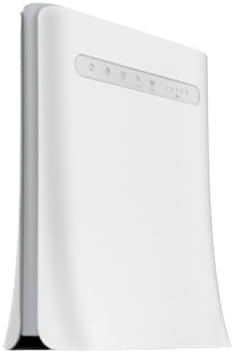
รูปที่ 3.1: ด้านข้าง view of the ZTE MF286C router, showing its sleek white design and ventilation.

รูปที่ 3.2 : ด้านหน้า view of the ZTE MF286C router, displaying the power, Wi-Fi, phone, 5G/4G, and signal strength indicator lights, along with the ZTE logo.
ไฟแสดงสถานะ 3.1 ดวง
- ไฟแสดงสถานะพลังงาน: ระบุสถานะพลังงานของอุปกรณ์
- ตัวบ่งชี้ Wi-Fi: แสดงสถานะของเครือข่าย Wi-Fi
- Phone Indicator: (If applicable) Indicates voice call status.
- 5G/4G Indicator: Displays the current network type (5G or 4G) and connection status.
- ตัวบ่งชี้ความแรงของสัญญาณ: Multiple bars indicating the strength of the cellular signal.
4. การตั้งค่า
Follow these steps to set up your ZTE MF286C router for the first time.
- ใส่ซิมการ์ด: Locate the SIM card slot (usually on the bottom or side). Insert a standard Nano-SIM card into the slot with the gold contacts facing down and the notched corner oriented correctly. Ensure it clicks into place.
- เชื่อมต่อพลังงาน: Connect the power adapter to the router's power port and then plug it into a wall outlet. The Power indicator light should turn on.
- เปิดเครื่อง: Press the Power button (if available) or wait for the router to automatically power on. The indicator lights will cycle as the device starts up and connects to the cellular network.
- การเชื่อมต่อเครือข่าย: Wait for the 5G/4G indicator to show a stable connection (e.g., solid blue or green) and for the signal strength indicators to light up, indicating a good cellular signal.
- เชื่อมต่ออุปกรณ์:
- ผ่าน Wi-Fi: On your computer or mobile device, search for available Wi-Fi networks. Select the network name (SSID) printed on the label on the bottom of your router. Enter the Wi-Fi password (Key) also found on the label.
- ผ่านสายอีเธอร์เน็ต: Connect one end of the Ethernet cable to a LAN port on the router and the other end to the Ethernet port on your computer or other network device.
- เข้าถึง Web อินเทอร์เฟซ: เปิด web เบราว์เซอร์และป้อนที่อยู่ IP เริ่มต้น (เช่น 192.168.0.1 or 192.168.1.1) into the address bar. Log in using the default username and password (usually "admin" for both, or as specified on the router label).
5. คู่มือการใช้งาน
5.1 การเชื่อมต่อกับ Wi-Fi
To connect a device to the router's Wi-Fi network:
- Ensure the router is powered on and the Wi-Fi indicator is active.
- On your device, enable Wi-Fi and scan for networks.
- Select the SSID (network name) of your ZTE MF286C router.
- Enter the Wi-Fi password (Key) when prompted. This information is typically found on a sticker on the router.
5.2 Managing Network Settings
You can customize your router settings through the web อินเทอร์เฟซ:
- เข้าถึง web interface using the IP address and login credentials (refer to Section 4.5).
- Navigate to the Wi-Fi settings section to change the SSID or password.
- Explore other settings such as parental controls, guest networks, or advanced network configurations as needed.
6. การบำรุงรักษา
การบำรุงรักษาอย่างถูกต้องจะช่วยให้เราเตอร์ของคุณทำงานได้อย่างมีประสิทธิภาพสูงสุดและมีอายุการใช้งานยาวนาน
- การจัดวาง: Place the router in an open area, away from obstructions, large metal objects, and other electronic devices that may cause interference. Avoid placing it in enclosed spaces.
- การทำความสะอาด: รักษาเราเตอร์ให้สะอาดและปราศจากฝุ่น ใช้ผ้านุ่มและแห้งเช็ดทำความสะอาดภายนอก ห้ามใช้น้ำยาทำความสะอาดหรือสเปรย์
- อัพเดตเฟิร์มแวร์: ตรวจสอบผู้ผลิตเป็นระยะ webเว็บไซต์สำหรับอัปเดตเฟิร์มแวร์ การอัปเดตเฟิร์มแวร์เราเตอร์ให้เป็นเวอร์ชันล่าสุดจะช่วยเพิ่มประสิทธิภาพ ความปลอดภัย และเพิ่มคุณสมบัติใหม่ๆ ได้
- การระบายอากาศ : ตรวจสอบให้แน่ใจว่ารูระบายอากาศไม่ถูกปิดกั้นเพื่อป้องกันความร้อนสูงเกินไป
7 การแก้ไขปัญหา
หากคุณพบปัญหาเกี่ยวกับเราเตอร์ของคุณ ให้ลองทำตามขั้นตอนการแก้ไขปัญหาต่อไปนี้:
- ไม่มีการเชื่อมต่ออินเทอร์เน็ต:
- ตรวจสอบว่าใส่ซิมการ์ดถูกต้องหรือไม่
- Verify that the 5G/4G indicator is stable and not blinking rapidly.
- Ensure you have an active data plan with your mobile network operator.
- รีสตาร์ทเราเตอร์โดยถอดปลั๊กอะแดปเตอร์ไฟ รอ 10 วินาที แล้วเสียบกลับเข้าไปใหม่
- ความเร็วอินเตอร์เน็ตช้า:
- Check the signal strength indicators. A weak signal can lead to slow speeds. Try repositioning the router.
- Ensure there are not too many devices connected simultaneously, exceeding the router's capacity.
- Perform a speed test to confirm the actual speed.
- ไม่สามารถเชื่อมต่อกับ Wi-Fi ได้:
- ตรวจสอบรหัสผ่าน Wi-Fi อีกครั้ง
- ตรวจสอบให้แน่ใจว่าอุปกรณ์ของคุณเปิดใช้งาน Wi-Fi แล้ว
- รีสตาร์ทเราเตอร์และอุปกรณ์เชื่อมต่อของคุณ
- รีเซ็ตเราเตอร์: If problems persist, you may need to perform a factory reset. Locate the reset button (often a small pinhole) on the router. With the router powered on, use a paperclip to press and hold the reset button for about 5-10 seconds until the lights flash. This will restore the router to its factory default settings, including Wi-Fi name and password.
8. ข้อมูลจำเพาะ
| คุณสมบัติ | คำอธิบาย |
|---|---|
| แบบอย่าง | เอ็มเอฟทูซี |
| เทคโนโลยีการเชื่อมต่อ | 5G, 4G, Wi-Fi 6 |
| Max Wireless Data Rate | Up to 3.8 Gbps (Wi-Fi 6) |
| Max LAN Data Rate | 300 เมกะบิตต่อวินาที |
| ผู้ใช้พร้อมกัน | สูงถึง 64 |
| ขนาด (กว้าง x ยาว x สูง) | 60 x 25 x 25 เซนติเมตร |
| ส่วนประกอบที่รวมอยู่ | Power Adapter, Ethernet Cable |
9. การรับประกันและการสนับสนุน
This ZTE MF286C router comes with a รับประกัน 6 เดือน นับจากวันที่ซื้อ โปรดเก็บหลักฐานการซื้อไว้เพื่อใช้ในการเคลมประกัน
For technical support, troubleshooting assistance, or warranty inquiries, please contact your retailer or the manufacturer's official support channels. Refer to the packaging or the manufacturer's webไซต์สำหรับข้อมูลการติดต่อที่เฉพาะเจาะจง