
1. บทนำ
The PGST Wireless GSM 2G/WIFI Home Alarm System (Model PG105-2GEU-D) is designed to provide comprehensive security for your home or office. This system integrates both GSM 2G and Wi-Fi connectivity, offering reliable alerts via SMS and app notifications. It supports various wireless accessories, including door/window sensors, PIR motion detectors, remote controls, and SOS buttons, ensuring a customizable and effective security solution. This manual provides detailed instructions for setup, operation, and maintenance of your alarm system.
2. ข้อมูลด้านความปลอดภัย
- Ensure the control panel is installed in a central location, away from direct sunlight, heat sources, and moisture.
- ใช้เฉพาะอะแดปเตอร์ที่ให้มาเท่านั้น
- Keep the system away from strong electromagnetic interference.
- อย่าพยายามถอดประกอบหรือซ่อมแซมอุปกรณ์ด้วยตนเอง โปรดติดต่อช่างผู้ชำนาญการเพื่อขอรับบริการ
- Regularly test the system and its sensors to ensure proper functionality.
- เก็บแบตเตอรี่ให้พ้นมือเด็ก ทิ้งแบตเตอรี่ที่ใช้แล้วตามระเบียบข้อบังคับของท้องถิ่น
3. เนื้อหาบรรจุภัณฑ์
ตรวจสอบว่ามีรายการทั้งหมดอยู่ในแพ็คเกจของคุณ:
- 1 x PGST Alarm Control Panel (PG105-2GEU-D)
- อะแดปเตอร์ไฟฟ้า 1 ตัว
- Wireless Door/Window Sensors (Quantity may vary by kit)
- Wireless PIR Motion Detector (Quantity may vary by kit)
- Remote Controls (Quantity may vary by kit)
- SOS Button (Quantity may vary by kit)
- คู่มือผู้ใช้ (เอกสารนี้)
- ฮาร์ดแวร์สำหรับติดตั้ง
4. สินค้าหมดview
The PGST alarm system features a central control panel with a 2.4-inch TFT display, supporting both Wi-Fi and GSM 2G networks. It allows for comprehensive home protection with various sensors and smart home integration.

Figure 4.1: PGST Alarm Control Panel with 2.4-inch TFT Display. Shows the screen displaying time, date, weather, and arming status.

รูปที่ 4.2: รายละเอียด view of the PGST Alarm Control Panel, highlighting the speaker, SOS button, RFID card sensing area, dialing buttons, TFT display screen, up/down/function buttons, back/cancel button, and confirm button. The rear view shows the anti-prying switch, 3.5mm siren interface, wired arming area interface, SIM card slot, ON/OFF switch, and Micro USB 110/220V AC to 5V power input.
คุณสมบัติหลัก:
- การเชื่อมต่อเครือข่ายแบบคู่: Supports both Wi-Fi and GSM 2G for reliable alarm notifications via app push, SMS, and phone calls.
- การรวมระบบบ้านอัจฉริยะ: Compatible with Tuya/Smart Life App, Amazon Alexa, and Google Assistant for voice control and remote management.
- ระบบที่ขยายได้: Connects to various wireless accessories including door/window sensors, PIR motion detectors, remote controls, and SOS buttons.
- ฟังก์ชั่น SOS ฉุกเฉิน: One-button SOS call for immediate assistance, ideal for elderly or children.
- การตรวจสอบตามเวลาจริง: Receive instant notifications on your mobile phone when the system is triggered.
- เสียงอินเตอร์คอม: (Requires compatible camera accessory) Allows two-way communication.
- การแจ้งเตือนแบตเตอรี่ต่ำ: Wireless sensors provide low battery warnings.
5. การตั้งค่า
5.1 การเพิ่มพลังเริ่มต้น
- Connect the power adapter to the control panel and plug it into a power outlet.
- Flip the ON/OFF switch on the back of the panel to the 'ON' position.
- The panel will power on and display the startup screen.
5.2 SIM Card Installation (for GSM 2G functionality)
- Ensure the control panel is powered off.
- Locate the SIM card slot on the back of the panel (refer to Figure 4.2).
- Insert a valid 2G GSM SIM card into the slot, ensuring correct orientation.
- Power on the control panel. The network status icon on the display should indicate GSM signal strength.

Figure 5.1: The alarm panel with a SIM card being inserted, illustrating the capability to preset five alarm call numbers for emergency notifications.
5.3 การเชื่อมต่อ Wi-Fi
- On the control panel, navigate to the 'Settings' menu.
- Select 'Wi-Fi Settings' and choose your home Wi-Fi network.
- Enter your Wi-Fi password using the keypad.
- Confirm the connection. The Wi-Fi icon on the display should indicate a successful connection.
5.4 การดาวน์โหลดและการลงทะเบียนแอปพลิเคชัน
- Download the 'Tuya Smart' or 'Smart Life' app from your smartphone's app store (iOS App Store or Google Play Store).
- ลงทะเบียนเพื่อสร้างบัญชี หรือเข้าสู่ระบบหากคุณมีบัญชีอยู่แล้ว
- In the app, tap '+' to add a new device. Select 'Security & Video Surveillance' > 'Alarm (Wi-Fi)'.
- Follow the in-app instructions to connect your alarm control panel to the app. This usually involves putting the panel into pairing mode and confirming the Wi-Fi network.

Figure 5.2: Real-time control of the alarm system through the Smart Life application on a smartphone, showing options for Disarmed, Away, Home, and SOS modes.
5.5 การจับคู่เซ็นเซอร์ไร้สาย
To pair sensors, put the control panel into pairing mode (refer to the panel's on-screen menu for 'Add Sensor'). Then, activate each sensor according to its specific instructions (e.g., separate the magnetic parts of a door sensor, press the test button on a PIR sensor or SOS button).
- เซ็นเซอร์ประตู/หน้าต่าง: Install on doors and windows. When opened, the sensor triggers.
- เซ็นเซอร์ตรวจจับความเคลื่อนไหว PIR: Install in areas where motion detection is needed. Avoid placing near heat sources or direct sunlight.
- ปุ่ม SOS: Can be carried or placed in an accessible location for emergencies.

Figure 5.3: A PIR motion detector installed in a living room, illustrating its 110-degree detection range for high sensitivity and abnormal alarm reminders.
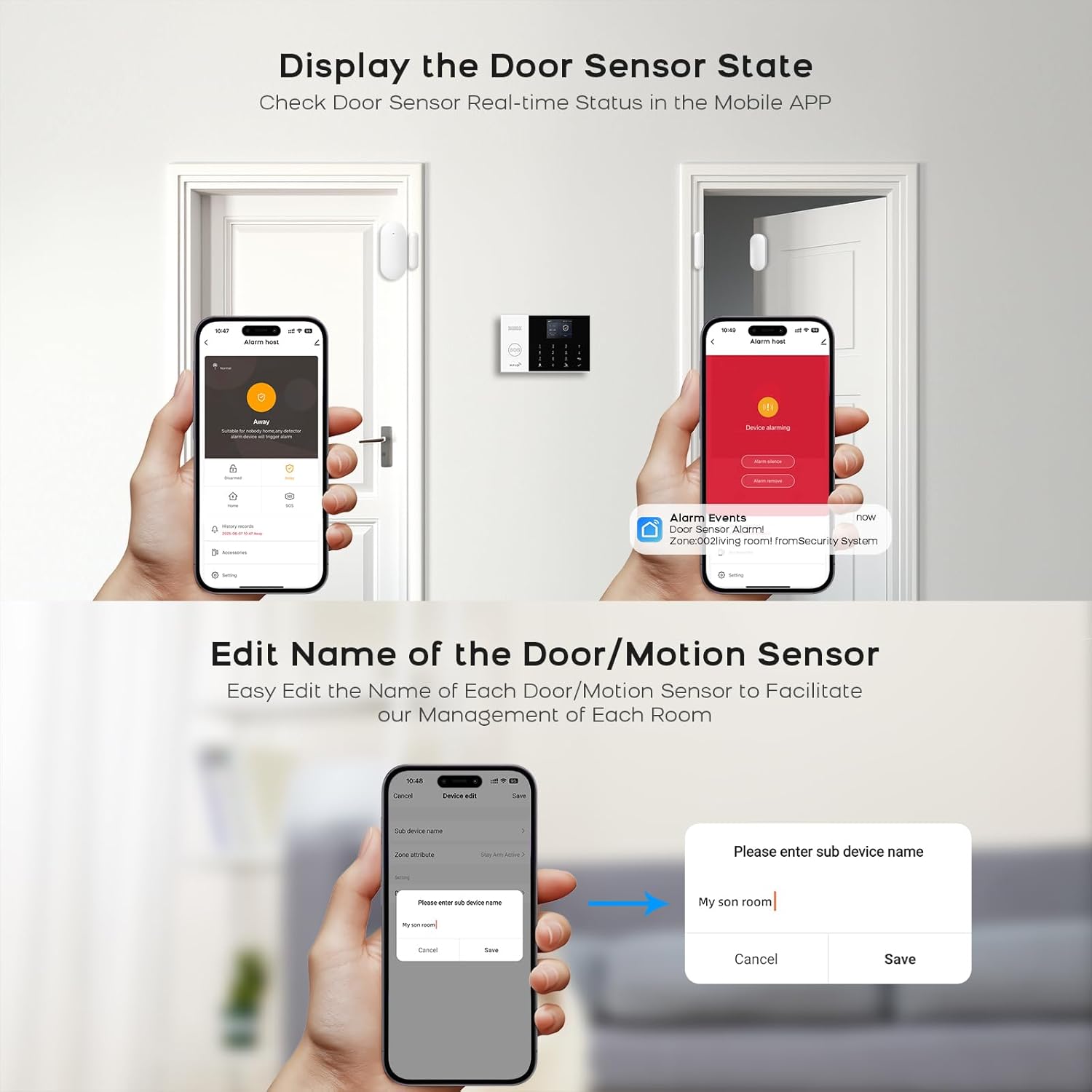
Figure 5.4: The mobile app displaying the real-time status of a door sensor and providing options to edit the name of door/motion sensors for easier management of each room.
5.6 Setting Alarm Numbers
You can set up to 5 groups of phone numbers for alarm calls and 2 groups for SMS alerts. Navigate to the 'Phone Settings' or 'Alarm Numbers' menu on the control panel to input these numbers. When an alarm is triggered, the system will call and send SMS to these preset numbers.
6. คู่มือการใช้งาน
6.1 การเปิดใช้งานและปิดใช้งานระบบ
- เปิดใช้งานระบบรักษาความปลอดภัย (โหมดไม่อยู่บ้าน): Activates all sensors. Use when leaving the premises. Can be done via control panel, remote control, or mobile app.
- ระบบล็อกประตู (โหมดสแตนด์บาย): Activates perimeter sensors (e.g., door/window sensors) but bypasses internal motion sensors, allowing movement within the home. Can be done via control panel, remote control, or mobile app.
- ปลดอาวุธ: Deactivates all sensors. Can be done via control panel (using password), remote control, or mobile app.
6.2 ฟังก์ชัน SOS
Press the SOS button on the control panel or the dedicated wireless SOS button in an emergency. The system will immediately trigger an alarm and notify the preset emergency contacts via call and SMS.
Video 6.1: Demonstrates the SOS alarm function, showing how pressing the SOS button can alert contacts in case of an accident, such as a fall, enabling timely assistance.
6.3 Smart App Control and Notifications
The Tuya Smart/Smart Life app allows you to remotely arm/disarm the system, check sensor status, customize accessory names, and receive instant push notifications for all alarm events. This provides real-time control and awareness of your security system from anywhere.
6.4 การควบคุมด้วยเสียง (Alexa, Google Assistant)
Integrate your PGST alarm system with Amazon Alexa or Google Assistant through the Tuya Smart/Smart Life app. Once linked, you can use voice commands to arm or disarm your system (a PIN may be required for disarming for security).
6.5 Voice Intercom (with compatible camera)
If you have a compatible smart camera integrated with the system, the app allows for voice intercom functionality. This enables two-way communication, for example, to speak to visitors at your door or deter intruders.
Video 6.2: Illustrates the voice intercom feature, showing how linked cameras can be used to communicate with individuals, such as deterring potential intruders or speaking to delivery personnel.
7. การบำรุงรักษา
7.1 Battery Replacement for Wireless Sensors
When a sensor's battery is low, the control panel and app will display a low battery warning. Replace batteries promptly to ensure continuous protection. Refer to individual sensor manuals for specific battery types and replacement procedures.
7.2 การทำความสะอาด
Wipe the control panel and sensors with a soft, dry cloth. Do not use liquid cleaners or abrasive materials, as these can damage the devices.
7.3 การทดสอบระบบ
It is recommended to test your alarm system periodically (e.g., monthly) to ensure all sensors are functioning correctly and that alarm notifications are being received. Put the system in test mode if available, or notify your monitoring contacts before testing.
8 การแก้ไขปัญหา
- ไม่มีการเชื่อมต่อ Wi-Fi: Ensure your Wi-Fi network is 2.4GHz (5GHz is not supported). Check Wi-Fi password and signal strength. Restart your router and the alarm panel.
- No GSM Signal: Ensure the SIM card is correctly inserted and has an active 2G plan. Check for network coverage in your area.
- เซ็นเซอร์ไม่ส่งสัญญาณเตือน: Verify sensors are properly paired and their batteries are not low. Check sensor placement and ensure they are within range of the control panel.
- ไม่มีการแจ้งเตือนจากแอป: Ensure the app has necessary permissions (notifications, background activity) on your smartphone. Check your phone's internet connection.
- สัญญาณเตือนที่ผิดพลาด: Check PIR sensor placement to avoid direct sunlight, pets, or moving objects. Ensure door/window sensors are securely mounted and not easily dislodged.
9. ข้อมูลจำเพาะ
| คุณสมบัติ | คำอธิบาย |
|---|---|
| ยี่ห้อ | ป.ป.ช |
| แบบอย่าง | พีจี105-2จีอียู-ดี |
| เทคโนโลยีการเชื่อมต่อ | Wireless (Wi-Fi, GSM 2G) and Wired |
| แหล่งพลังงาน | Battery (for sensors), AC (for control panel) |
| อุปกรณ์ที่รองรับ | Smartphones (via Tuya/Smart Life App), Amazon Alexa, Google Assistant |
| แสดง | หน้าจอ TFT ขนาด 2.4 นิ้ว |
| การแจ้งเตือนภัย | App Push, SMS, Phone Call |
| ฟังก์ชั่น SOS | One-button emergency alert |
10. ข้อมูลการรับประกัน
PGST products are covered by a manufacturer's warranty. Please refer to the warranty card included in your product packaging or visit the official PGST webดูรายละเอียดเงื่อนไขและข้อกำหนดการรับประกันได้ที่เว็บไซต์ โปรดเก็บใบเสร็จรับเงินไว้เป็นหลักฐานสำหรับการเคลมประกัน
11. การสนับสนุนลูกค้า
For technical assistance, troubleshooting, or any questions regarding your PGST Wireless GSM 2G/WIFI Home Alarm System, please contact PGST customer support. Contact information can typically be found on the product packaging, the official PGST website, or within the Tuya Smart/Smart Life application's help section.
คุณยังสามารถเยี่ยมชม ร้าน PGST บน Amazon สำหรับข้อมูลผลิตภัณฑ์และทรัพยากรสนับสนุนเพิ่มเติม