
1. บทนำ
This manual provides detailed instructions for the installation, operation, and maintenance of the Intellinet 48-Port L3 Managed Gigabit PoE+ Switch, Model 562041. This device is designed for enterprise networks requiring efficient and scalable routing solutions with high-powered Power over Ethernet (PoE) capabilities.
2. ข้อมูลด้านความปลอดภัย
Observe the following safety precautions to prevent damage to the device and injury to personnel:
- ตรวจสอบให้แน่ใจว่ามีการต่อสายดินของอุปกรณ์อย่างเหมาะสม
- อย่าให้สวิตช์โดนน้ำหรือความชื้นสูงเกินไป
- ใช้งานอุปกรณ์ภายในช่วงอุณหภูมิและความชื้นที่กำหนด
- Use only the power cable provided or a compatible replacement.
- ห้ามเปิดสวิตช์asinก. ส่งต่อการบริการไปยังบุคลากรที่มีคุณสมบัติ
- ตรวจสอบให้แน่ใจว่ามีการระบายอากาศที่เพียงพอรอบสวิตช์เพื่อป้องกันความร้อนสูงเกินไป
3. เนื้อหาบรรจุภัณฑ์
ตรวจสอบว่ามีรายการทั้งหมดอยู่ในแพ็คเกจ:
- Intellinet 48-Port L3 Managed Gigabit PoE+ Switch (Model 562041)
- สายไฟ
- 19" rackmount brackets
- ขาเป็นยาง
- คำแนะนำ (คู่มือเล่มนี้)
4. สินค้าหมดview
The Intellinet 562041 is a robust Layer 3 managed switch featuring 48 Gigabit PoE+ ports and six 10G SFP+ uplink slots. It supports a total power budget of 850 watts for PoE devices.
4.1 แผงด้านหน้า
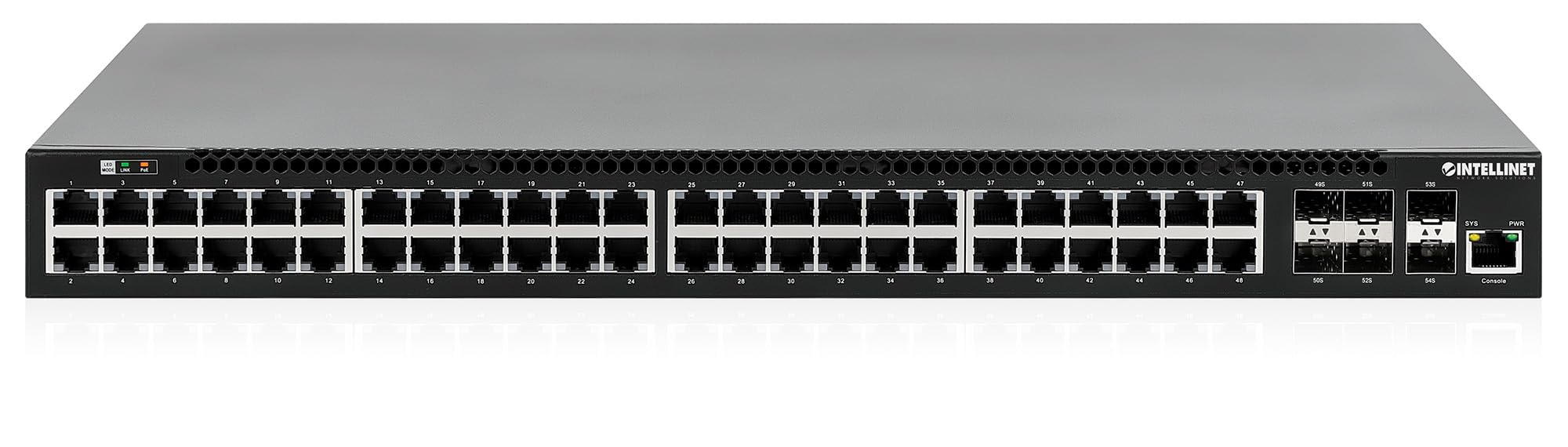
แผงด้านหน้าประกอบด้วย:
- 48 x 10/100/1000 Mbps RJ45 Ports: These ports support Power over Ethernet Plus (PoE+) for connecting compatible devices.
- 6 x 10 Gigabit SFP+ Slots: For high-speed uplink connections to other network devices.
- ไฟ LED แสดงสถานะ: Provide status information for power, system, link activity, and PoE status.
- พอร์ตคอนโซล: For local management and configuration.


4.2 แผงด้านหลัง

The rear panel typically includes the AC power input and cooling fans for heat dissipation.

5. การตั้งค่า
5.1 การติดตั้งทางกายภาพ
สามารถติดตั้งสวิตช์นี้ในตู้แร็คอุปกรณ์มาตรฐานขนาด 19 นิ้ว หรือวางบนโต๊ะทำงานได้
- การติดตั้งแร็คเมาท์: Attach the provided rackmount brackets to the sides of the switch using the included screws. Secure the switch into a standard 19-inch rack.
- การติดตั้งเดสก์ท็อป: Attach the provided rubber feet to the bottom of the switch to prevent scratching and ensure stability. Place the switch on a flat, stable surface.
5.2 การเชื่อมต่อสายไฟ
Connect the provided power cable to the AC power input on the rear panel of the switch and then to a grounded electrical outlet. Ensure the power switch is in the OFF position before connecting the power cable.
5.3 การเชื่อมต่อเครือข่าย
- อุปกรณ์ PoE: Connect PoE-compatible devices (e.g., IP cameras, VoIP phones, wireless access points) to any of the 48 Gigabit RJ45 ports. The switch will automatically detect and provide power to these devices.
- การเชื่อมต่ออัพลิงค์: Insert compatible SFP+ transceivers into the 10 Gigabit SFP+ slots and connect them to your core network or other high-speed devices using appropriate fiber optic cables.
- การเชื่อมต่อคอนโซล: For initial configuration or direct management, connect a console cable from your computer to the console port on the switch.
5.4 การกำหนดค่าเริ่มต้น
Refer to the separate software configuration guide for detailed instructions on accessing the switch's management interface (web-based GUI or command-line interface via console port) and performing initial setup, including IP address assignment, user accounts, and basic network settings.
6. คู่มือการใช้งาน
6.1 Layer 3 Routing
This switch offers dynamic Layer 3 IP routing capabilities, including OSPF (Open Shortest Path First), RIP (Routing Information Protocol), and VRRP (Virtual Router Redundancy Protocol). These protocols enable efficient and scalable routing within complex network environments.

6.2 การใช้พลังงานผ่านอีเทอร์เน็ต (PoE+)
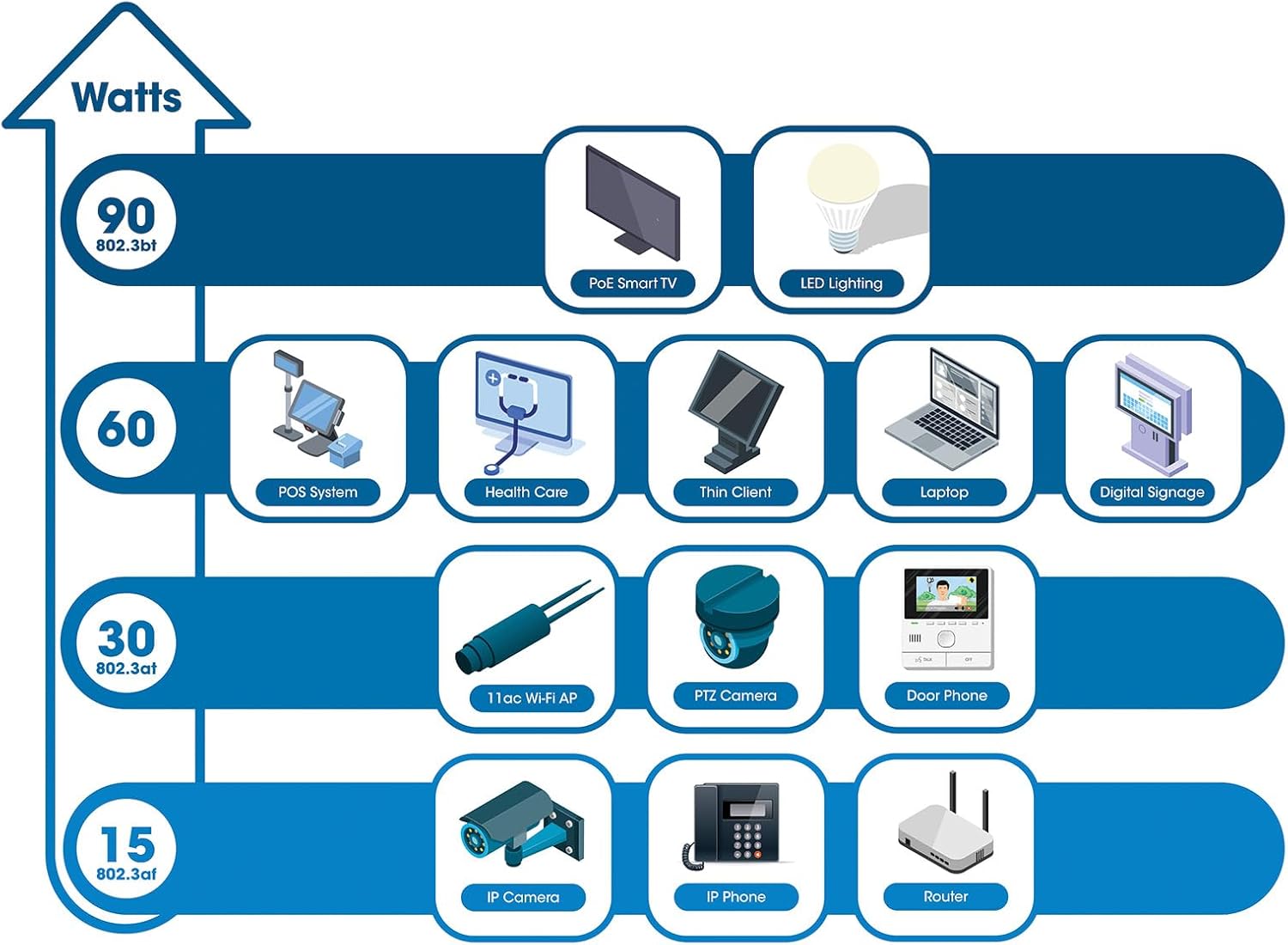
The switch provides up to 30 watts of power per port across its 48 PoE+ ports, with a total power budget of 850 watts. This allows for seamless integration of various PoE devices without the need for separate power adapters.
6.3 PoE Scheduling
The switch supports PoE scheduling, allowing administrators to define specific times for powering on, powering off, or rebooting connected PoE devices. This feature can optimize power consumption and enhance network security.


6.4 Self-Healing Functionality (PDM)
The Powered Device Monitor (PDM) feature enables the switch to proactively monitor the status of connected PoE devices. If a device becomes unresponsive, the PDM can automatically restart the PoE port to restore functionality, minimizing downtime and maintaining network integrity.
6.5 การจัดการคลาวด์
The switch supports cloud management capabilities, allowing for remote configuration, monitoring, and troubleshooting of the device from a centralized platform. Refer to the cloud management documentation for setup and usage details.
7. การบำรุงรักษา
การอัปเดตเฟิร์มแวร์ 7.1 รายการ
Regularly check the Intellinet Network Solutions website for the latest firmware updates. Applying firmware updates can improve performance, add new features, and address security vulnerabilities. Follow the instructions provided with the firmware update package carefully.
7.2 การทำความสะอาด
To clean the switch, power it off and disconnect all cables. Use a soft, dry cloth to wipe the exterior. Do not use liquid or aerosol cleaners. Ensure ventilation openings are free from dust and debris.
7.3 ข้อพิจารณาด้านสิ่งแวดล้อม
Ensure the switch operates within its specified temperature and humidity ranges. Avoid placing the switch in direct sunlight, near heat sources, or in areas with high dust accumulation.
8 การแก้ไขปัญหา
ส่วนนี้จะกล่าวถึงปัญหาทั่วไปที่คุณอาจพบเจอขณะใช้งานสวิตช์
8.1 ไม่มีไฟฟ้า
- ตรวจสอบว่าสายไฟเชื่อมต่อกับสวิตช์และเต้ารับไฟฟ้าที่ใช้งานได้แน่นหนา
- ตรวจสอบให้แน่ใจว่าสวิตช์เปิด/ปิดที่แผงด้านหลังอยู่ในตำแหน่งเปิด (ON)
- ตรวจสอบปลั๊กไฟด้วยอุปกรณ์อื่นเพื่อยืนยันว่าใช้งานได้ปกติ
8.2 ไม่มีลิงก์บนพอร์ต
- ตรวจสอบการเชื่อมต่อสายอีเธอร์เน็ตที่ปลายทั้งสองด้าน ตรวจสอบให้แน่ใจว่าเสียบแน่นสนิทแล้ว
- Verify the cable is not damaged. Try a different cable.
- ตรวจสอบให้แน่ใจว่าอุปกรณ์ที่เชื่อมต่อเปิดอยู่และทำงานอย่างถูกต้อง
- ตรวจสอบสถานะพอร์ตในอินเทอร์เฟซการจัดการสวิตช์
8.3 อุปกรณ์ PoE ไม่ได้รับพลังงาน
- Confirm the connected device is a PoE-compatible device.
- ตรวจสอบไฟ LED สถานะ PoE สำหรับพอร์ตเฉพาะ
- Verify the total PoE power budget (850W) is not exceeded by all connected devices.
- Utilize the Powered Device Monitor (PDM) feature to automatically restart the port if the device is unresponsive.
- Check PoE settings in the switch's management interface.
9. ข้อมูลจำเพาะ
| คุณสมบัติ | ข้อมูลจำเพาะ |
|---|---|
| หมายเลขรุ่น | 562041 |
| ยี่ห้อ | โซลูชั่นเครือข่าย INTELLINET |
| จำนวนพอร์ต | 54 (48 x Gigabit PoE+, 6 x 10G SFP+) |
| ประเภทอินเทอร์เฟซ | PoE, SFP |
| กำลังไฟสูงสุด (งบประมาณ PoE) | 850 วัตต์ |
| อัตราการถ่ายโอนข้อมูล | 10 Gigabits Per Second (SFP+ uplinks) |
| น้ำหนักสินค้า | 6.2 กิโลกรัม (13.64 ปอนด์) |
| ขนาดสินค้า (กว้าง x ยาว x สูง) | 13.78 x 17.32 x 1.73 นิ้ว |
| คะแนนอุณหภูมิบน | 104 องศาฟาเรนไฮต์ (40°C) |
| คะแนนอุณหภูมิต่ำกว่า | 32 องศาฟาเรนไฮต์ (0°C) |
| อุปกรณ์ที่รองรับ | Desktop, Router, PoE devices (IP cameras, VoIP phones, WAPs) |
| ส่วนประกอบที่รวมอยู่ | 19" rackmount brackets, Instructions, Rubber feet, power cable |
| ยูพีซี | 766623562041 |
10. การรับประกันและการสนับสนุน
10.1 ข้อมูลการรับประกัน
This Intellinet Network Solutions product is covered by a การรับประกันจากผู้ผลิต 3 ปีโปรดเก็บหลักฐานการซื้อไว้เพื่อขอรับสิทธิ์การรับประกัน การรับประกันครอบคลุมข้อบกพร่องด้านวัสดุและฝีมือการผลิตภายใต้การใช้งานปกติ
10.2 การสนับสนุนด้านเทคนิค
For technical assistance, product documentation, or to register your product, please visit the official Intellinet Network Solutions website or contact their customer support. Contact information can typically be found on the manufacturer's webเว็บไซต์หรือในบรรจุภัณฑ์ของผลิตภัณฑ์